
The Blink Mini Pan-Tilt Mount is one of the more clever accessories in home security — rather than replacing your camera, it transforms your existing Blink Mini into a pan-and-tilt camera with 350° of horizontal range and 125° of vertical tilt. Setup takes about five minutes once you know what you’re doing. This guide walks through the full process, from attaching the hardware to controlling the mount in the Blink app.
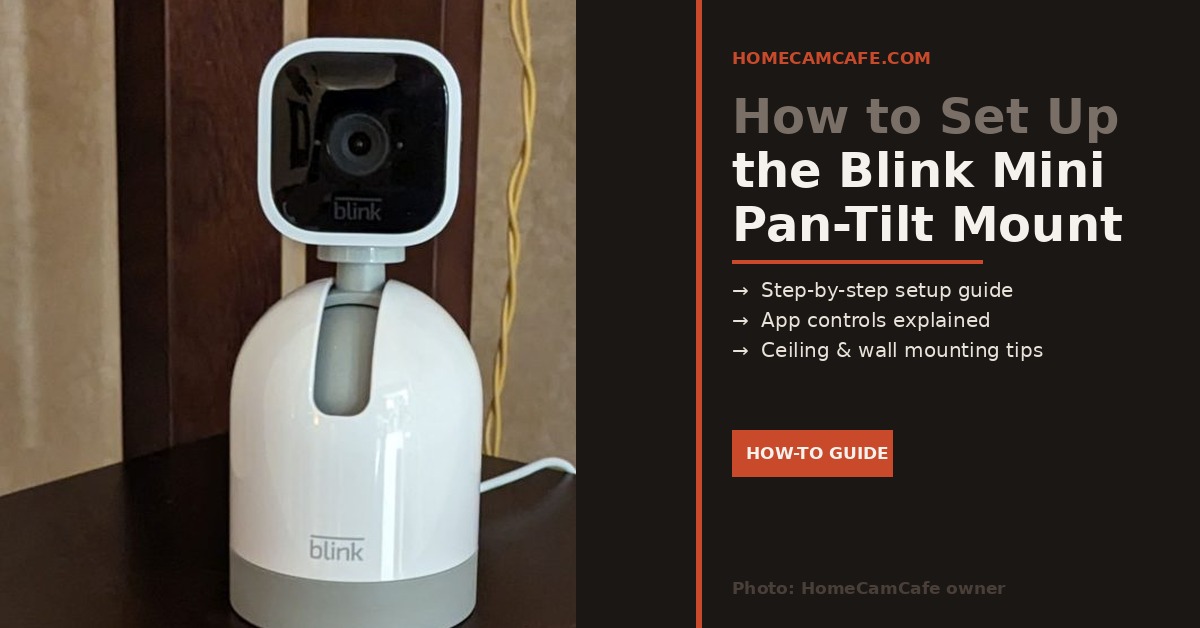
Compatibility note: The Blink Mini Pan-Tilt Mount works exclusively with the first-generation Blink Mini. It is not compatible with the Blink Mini 2, which uses a USB-C power connector rather than micro-USB. If you own a Mini 2, the Pan-Tilt Mount will not physically connect to it.
What’s in the Box
The standalone Pan-Tilt Mount accessory includes the mount itself and a short micro-USB connector cable that runs between the mount and the camera. It does not include a power adapter or a longer USB cable — you’ll use the power cable that came with your Blink Mini to power the whole setup. If you purchased the Pan-Tilt Mount bundled with a Blink Mini camera, the full cable and adapter are included.
The mount also has a built-in ¼-inch threaded screw hole in the base, which allows wall or ceiling mounting using a compatible third-party bracket — though no wall mount is included in the box.
Step 1: Detach the Blink Mini From Its Base
If your Blink Mini is already set up on its original stand, you’ll need to separate the camera from its base first. This trips people up because it’s not obvious — the base simply snaps off. Hold the base firmly in one hand and the camera body in the other, then pull straight apart. It releases cleanly with a firm tug.
Additionally, unplug the USB cable from the camera before proceeding. You won’t be plugging power directly into the camera anymore — the Pan-Tilt Mount will handle that through its own connection.
Step 2: Connect the Camera to the Mount
- Take the short micro-USB connector cable included with the Pan-Tilt Mount and plug it into the back of your Blink Mini camera. Make sure the flat side of the USB connector faces downward and the rounded side faces upward — orientation matters here for a proper connection.
- Align the camera over the top of the Pan-Tilt Mount, making sure the micro-USB ports on both the mount and camera are vertically aligned.
- Press the camera down firmly onto the mount until it snaps securely into place. Hold the mount steady with your other hand while doing this.
- Plug the original micro-USB power cable from your Blink Mini into the power port on the Pan-Tilt Mount base — not directly into the camera. Then plug the other end into a power outlet. The mount will now power the camera through the short internal cable.
Important: Make sure you’re connecting the power cable to the Pan-Tilt Mount’s base port, not directly to the camera. Running power through the mount is how it controls the motor — bypassing it will prevent the pan-tilt functionality from working.
Step 3: Add the Mount in the Blink App
If your Blink Mini was already added to your account before attaching the mount, the app should automatically detect the Pan-Tilt Mount when power is restored and update the camera’s controls accordingly. Close and reopen the app if the update doesn’t appear immediately.
If you’re setting up a new Blink Mini with the mount for the first time, follow these steps in the Blink app:
- Tap the + icon in the top right corner of the Blink app home screen.
- Select Blink Mini from the Add Device screen.
- Scan the QR code on the camera or enter the serial number manually.
- Wait for the camera to show a blinking blue light pattern, which indicates it’s ready to pair. If you don’t see this, press the reset button on the bottom of the camera.
- Tap Join, select your Wi-Fi network, and follow the remaining prompts.
- Tap Done once setup is complete.
After setup, the mount will automatically run a calibration sequence — it will pan and tilt through its full range of motion to orient itself. Give it room to move freely during this process. Furthermore, the app will display the pan-tilt controls the next time you open Live View for that camera.
Step 4: Using the Pan-Tilt Controls in Live View
Once the mount is set up, all controls live inside the Blink app’s Live View screen for that camera. You’ll see directional arrow controls for left, right, up, and down. A single tap moves the camera in 1° increments; tap and hold to pan or tilt continuously until you lift your finger or the mount reaches its limit.
Two additional features are available through the More button in Live View:
- 360 Pan: The camera sweeps the full horizontal range — all the way right, then all the way left — giving you a complete view of the room in one motion.
- Default Position / Home: Set a resting position the camera returns to after a 360 Pan or when you tap the Home button in Live View. The factory default is 180° from the USB port horizontally and 90° from the base vertically, but you can customize this to whatever angle works best for your room.
Ceiling and Wall Mounting
The Pan-Tilt Mount’s base includes a ¼-inch threaded screw hole that’s compatible with standard camera mounting brackets. This means you can attach it to a wall or ceiling using a third-party mount — just follow the bracket manufacturer’s instructions for installation.
If you mount the camera on a ceiling, the image will appear upside down by default. To correct this, go to Device Settings in the Blink app, tap Video and Photo, then enable Flip Video. This also reverses the pan-tilt controls to match the inverted orientation, so left and right will feel natural from the app.
Troubleshooting Tips
Mount isn’t getting a full 360° range of motion
This usually means the camera is attached to the back mounting point rather than the bottom. Make sure you’re connecting through the bottom of the Blink Mini, not the rear stand attachment. Also check that the mount has adequate clearance on all sides — placing it too close to a wall will physically restrict the pan range.
App is prompting a calibration
Calibration runs automatically after power loss or setup. If the app requests a manual calibration, you can trigger it from within the app or simply unplug the mount and plug it back in — it will self-calibrate on restart.
Pan-tilt controls not appearing in Live View
Make sure your Blink app is fully up to date — older versions don’t support Pan-Tilt Mount controls. Close and reopen the app after updating. If the controls still don’t appear, remove the camera from the app and re-add it with the mount already attached.
The Blink Mini Pan-Tilt Mount is available on Amazon as a standalone accessory or bundled with a Blink Mini camera. If you’re also looking at the Blink subscription options that affect what you can do with your footage, see our Blink subscription plan guide. The Blink Mini review is worth a read if you don’t already have one.
Frequently Asked Questions
Does the Blink Mini Pan-Tilt Mount work with the Blink Mini 2?
No. The Pan-Tilt Mount uses a micro-USB connection, while the Blink Mini 2 switched to USB-C. The two are physically incompatible. The mount works exclusively with the first-generation Blink Mini.
Does the Pan-Tilt Mount need its own power source?
No. The mount is powered through the USB cable you already use for your Blink Mini — you plug the power cable into the mount’s base rather than directly into the camera. The mount then passes power to the camera through the short internal connector cable.
Can I control the Pan-Tilt Mount with Alexa?
No. Pan-tilt controls are only available through the Blink app’s Live View. Alexa can trigger Live View for the camera, but cannot issue pan or tilt commands.
Can I swap different Blink Mini cameras onto the same mount?
Yes. If the replacement camera is already in your Blink account, simply unplug the current camera from the mount and snap the new one in. The mount will automatically configure to the new camera and run a calibration sequence.
What’s the Pan-Tilt Mount’s range of motion?
The mount pans 350° horizontally and tilts 125° vertically. Combined with the Blink Mini’s 110° field of view, this gives you complete coverage of virtually any room from a single camera position.
