
If you have been trying to cancel Nest subscription and cannot find it anywhere in your account, you are not imagining things. Google renamed Nest Aware to Google Home Premium in October 2025, and the change has left plenty of longtime Nest camera owners searching their account settings for a plan that technically no longer exists under that name. The good news is that cancellation still works the same way it always did. You just need to know where to look, and that depends on how you originally signed up.
Why “Nest Aware” Isn’t Showing Up in Your Account Anymore
In late 2025, Google folded Nest Aware into a broader rebrand and renamed it Google Home Premium. The two-tier structure stayed the same, but the names changed: what used to be Nest Aware and Nest Aware Plus are now called Standard and Advanced. Existing subscribers were transitioned automatically and kept the same features, so if you subscribed before the rename, your billing has continued without interruption. However, that also means the subscription you are looking for in your account is labeled Google Home Premium, not Nest Aware. If you search your Google Store or Google Home app for “Nest Aware” and come up empty, this rename is almost certainly why.
Some users with a first-generation Nest Aware plan, purchased before the migration to a Google account, may still see the older Nest Aware 1st gen label. That distinction matters for cancellation, so check which one applies to you before following the steps below.
How to Cancel Nest Subscription (Google Home Premium)
Where you cancel depends entirely on where you originally subscribed. Google, the Google Home app, and third-party partners each manage billing separately, and Google support cannot cancel a subscription that was purchased somewhere else. Match your situation to one of the sections below.
If You Subscribed Through the Google Store or Nest Store
This is the most common path for anyone who bought a Nest camera directly from Google. To cancel:
- Go to the Google Store Subscriptions page and sign in with your Google account.
- Find Google Home Premium in your list of active subscriptions.
- Select More, then Cancel Subscription.
- Confirm the cancellation. You will see a summary of any remaining charges before you finalize it.
Your Google Home Premium features remain active until the end of your current billing period, so canceling now does not cut off access immediately.
If You Subscribed Through the Google Home App
If you signed up directly in the app rather than on the website, cancel from the same place:
- Open the Google Home app and tap your profile picture in the top right corner.
- Tap Settings, then Subscriptions.
- Select Google Home Premium and tap Transfer subscription or Cancel, depending on what you need.
- Follow the confirmation prompts to finish canceling.
If You Have a Legacy Nest Aware (1st Gen) Subscription
Older Nest Aware 1st gen subscriptions are handled a bit differently and are being phased out. If your account still shows this label:
- Log into your Google or Nest account and select Cancel Subscription from your plan details.
- Note that simply unpairing a Nest device from Nest Aware 1st gen does not stop the subscription. You have to cancel it explicitly, or the charges will continue.
- If eligible, you will receive a prorated refund for any unused time remaining on the plan.
If You Subscribed Through a Partner, Carrier, or Security Company
Some Nest cameras are bundled through internet providers, security companies, or other partners rather than sold directly by Google. In that case, Google cannot process the cancellation on its end. You will need to contact whichever company billed you originally, since their terms and cancellation process take precedence over Google’s own policy.
What Happens After You Cancel
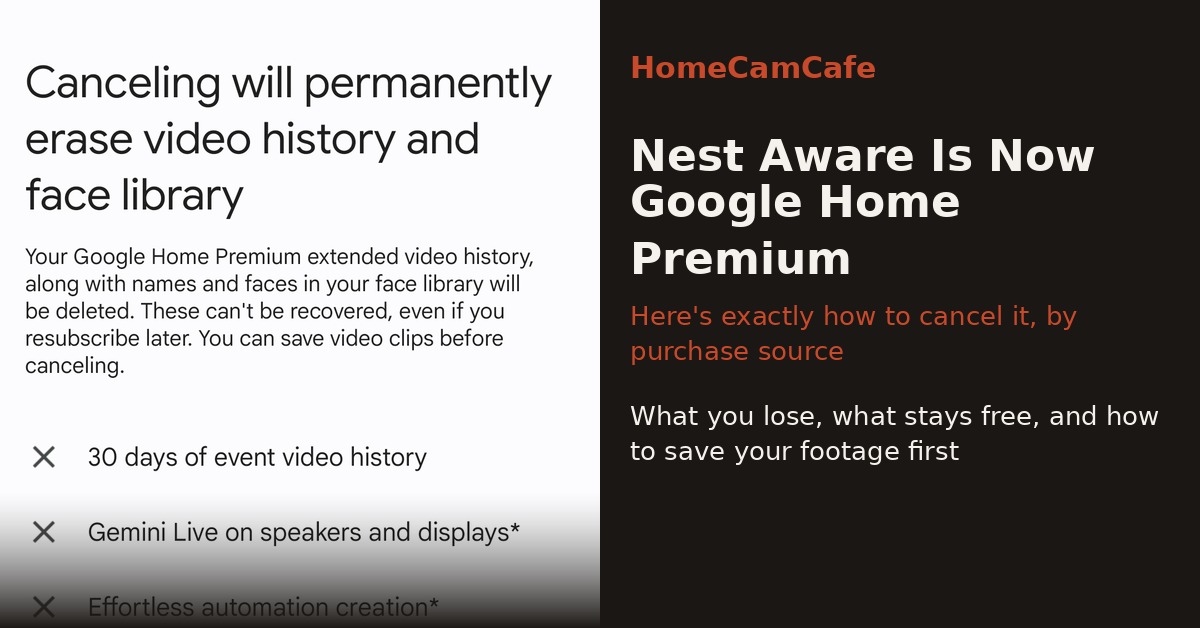
Once you cancel, your Google Home Premium benefits, including extended video history, intelligent alerts, and 24/7 recording on wired cameras, continue until the end of your current billing period. After that point, your recorded video history is deleted, though sound clips may persist for a short time before being removed as well. Your camera itself keeps working. You will still get live view and basic motion alerts, just without the recorded history and advanced detection features that the subscription unlocks.
If you subscribed within the past 14 days, you may be eligible for a refund under Google’s standard cancellation window. After that period, cancellations generally take effect at the end of the current billing cycle without a partial refund, though Google may make exceptions if the service itself was not working correctly.
What Still Works for Free
Newer Nest cameras, including the Nest Cam (battery), the second-generation indoor wired camera, and the Nest Doorbell (battery), keep a limited three-hour rolling event history at no cost even after you cancel. That is enough to catch a recent delivery or check what triggered a motion alert, but it is not a substitute for the 30 or 60 days of history that a paid plan provides. Unlike several competing brands, Nest cameras have no local microSD storage option at all, so once your free event window rolls over, older footage is gone for good regardless of subscription status.
If You’re Canceling Because of the Cost
If the subscription itself, not just a specific billing issue, is the reason you are canceling, it is worth knowing what your options look like going forward. Nest is one of the few major brands that requires a paid plan for any meaningful video history, and there is no way around that on existing Nest hardware. If avoiding a recurring fee altogether matters more than staying in the Google ecosystem, cameras with free local storage are worth a look before you cancel completely.
The Tapo C120 is a solid direct comparison. It records locally to a microSD card at no cost, includes free AI person, pet, and vehicle detection, and works both indoors and outdoors. For outdoor coverage with pan and tilt tracking and a built-in floodlight, the Tapo C615F KIT runs on solar power and never requires a subscription for core features either. If you would rather stay closer to what you are used to with battery-powered wire-free cameras, the Blink Outdoor 4 pairs with a Sync Module for free local storage, though person detection on Blink still sits behind its own subscription.
None of this means Google Home Premium is a bad value for everyone. If you are already invested in the Google ecosystem with Google Home displays and Assistant routines, the integration is genuinely useful in a way competing brands cannot match. It just is not free, and now you know exactly how to walk away from it if it stops making sense.
Should You Cancel Entirely or Just Downgrade?
Before you go through with a full cancellation, it is worth considering whether downgrading is a better fit. If you are on the Advanced tier mainly for 24/7 continuous recording, dropping to Standard still keeps 30 days of event-based video history, familiar face alerts, and activity zones. That alone covers most home security use cases, and it costs half as much. Downgrading is handled the same way as canceling, through the Subscriptions page or the Google Home app, except you select a lower tier instead of ending the plan entirely.
On the other hand, if you only have one Nest camera and rarely check footage after the fact, canceling outright and relying on the free three-hour event history may be enough. It really comes down to how often you actually go back and review clips. If the answer is “almost never,” paying for extended history every month is money spent on a feature you are not using.
Frequently Asked Questions
Can I still access my Nest camera after canceling Google Home Premium?
Yes. Live view, basic motion alerts, and the free three-hour event history on supported models continue to work. You only lose extended video history and AI-powered alerts.
Will I get a refund if I cancel early?
Only within the first 14 days in most cases. After that, your plan typically runs through the end of the current billing period with no partial refund, unless the service was not functioning correctly.
Can I resubscribe later?
Yes, you can sign back up for Google Home Premium at any time through the same Google Store subscriptions page, though you may need to select a plan again from scratch.
Why can’t I find Nest Aware in my account at all?
Because it no longer exists under that name. Look for Google Home Premium instead. It is the same service, Standard and Advanced tiers included, just rebranded.
For a full breakdown of what each Google Home Premium tier costs and includes, see our Google Home Premium plans guide, and for what works on a Nest Cam without paying anything at all, see our guide on whether Nest Cam works without a subscription. For every other brand’s plans compared side by side, visit our security camera subscription plans hub. For full reviews and buying advice across the Nest lineup, see our Google Nest camera reviews.