
Blink cameras do not record motion or send alerts unless the system is Armed. Setting a schedule automates that process — the system arms itself when you leave and disarms when you return, without any manual intervention. It is one of the most useful features in the Blink app and takes less than two minutes to configure. Here is exactly how it works and how to set it up.
Armed vs Disarmed: What It Means
Before setting a schedule it is worth understanding what Armed and Disarmed actually control, because the schedule does nothing other than switch between these two states automatically.
Armed means the system is active. Motion detection is on, the cameras will record motion-triggered clips, and alerts are sent to your phone. This is the state you want when you are away from home or asleep.
Disarmed means the system is inactive. Motion detection is off, no clips are recorded, and no alerts are sent. Live view still works in this mode — you can open the app and check any camera at any time. This is the state most people prefer when they are home and do not need constant monitoring.
Important: Armed and Disarmed apply to the entire system, not individual cameras. When you arm or disarm, all cameras connected to that Sync Module are affected. If you want individual cameras to behave differently, that requires a separate setup using camera-level motion detection toggles.
How to Set a Schedule
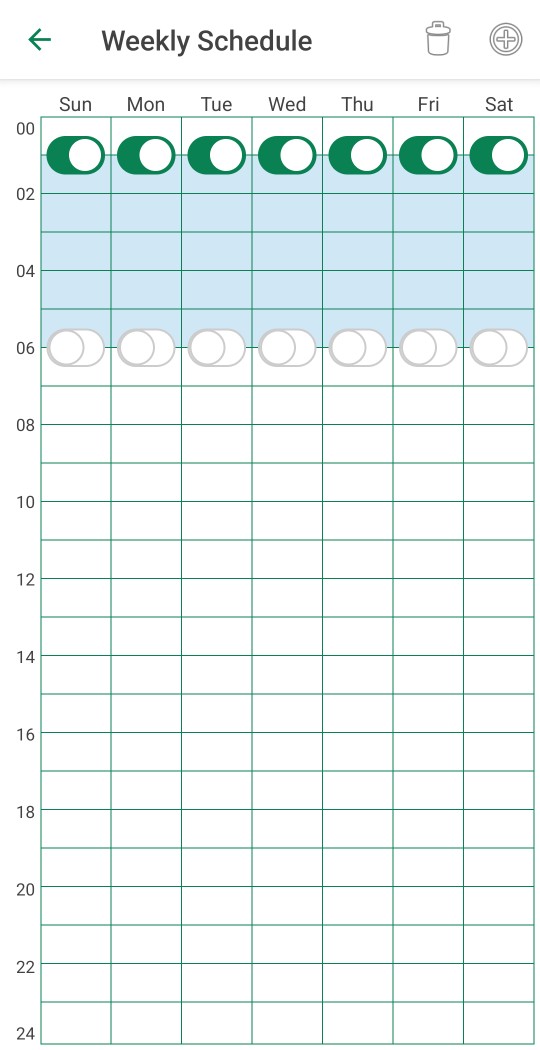
Scheduling is set at the system level in the Blink app — not inside individual camera settings. Follow these steps:
| Step | Action |
|---|---|
| 1 | Open the Blink app and tap the Settings slider icon next to your system name |
| 2 | Tap Scheduling |
| 3 | Tap Add Schedule |
| 4 | Set the time using the time picker and choose AM or PM |
| 5 | Select which days of the week the schedule applies |
| 6 | Choose Armed or Disarmed — this is what the system will switch to at that time |
| 7 | Tap Save |
Repeat the process to add a second schedule entry for the opposite state. For example, if the first entry arms the system at 8:00 AM on weekdays, add a second entry to disarm it at 6:00 PM on weekdays. Each arm and disarm event is a separate schedule entry. To delete a schedule, tap the trash icon on the schedule view.
Example Schedules
| Use Case | Schedule |
|---|---|
| Away at work weekdays | Arm at 8:00 AM Mon-Fri, Disarm at 6:00 PM Mon-Fri |
| Overnight monitoring | Arm at 11:00 PM daily, Disarm at 7:00 AM daily |
| Vacation coverage | Arm manually before leaving, use schedule for overnight arming on return |
Can You Override a Schedule Manually?
Yes. You can arm or disarm the system manually at any time regardless of what the schedule says. For example, if the system is scheduled to arm at 8:00 AM on weekdays but you work from home on a Tuesday, you can disarm it manually at any point. The system will stay in that manually set state until the next scheduled event kicks in. In this case it would remain disarmed until the next scheduled arming at 8:00 AM on Wednesday.
This makes the schedule a useful baseline without locking you into it — manual overrides work exactly as expected without disrupting future scheduled events. For a full breakdown of what features require a subscription versus what works free, see our Blink subscription plans guide.
Note on storage: Scheduling controls when the system is Armed — but Armed alone does not guarantee clips are saved. To save motion-triggered recordings you also need a storage option in place, either a Blink subscription plan for cloud storage or a Sync Module 2 with a USB drive for local storage.
Scheduling vs the Snooze Feature
Blink also has a Snooze feature that temporarily pauses motion alerts for up to 24 hours without disarming the system. When Snooze is active, the cameras still record motion clips if a storage option is in place — they just do not send notifications to your phone. This is different from Disarmed, where no recording happens at all. Snooze is useful for situations where you are home and want quiet but still want the footage captured. Scheduling is the better tool for recurring daily routines where you want the system fully inactive during certain hours.
Bottom Line
Blink’s scheduling feature is straightforward and effective. Set one entry to arm and a second to disarm, pick your days, and the system handles itself. Manual overrides work without breaking future scheduled events, which makes it flexible enough for real-life routines that do not follow a rigid timetable. Just remember that Armed controls motion detection and alerts — a storage option is still needed separately to actually save the clips.
Frequently Asked Questions
Does scheduling work without a Blink subscription?
Yes. Scheduling is a free feature built into the Blink app. A subscription is not required to set up or use a schedule. However, to save motion-triggered video clips — whether the system is armed manually or by schedule — a storage option is required, either a subscription plan or a Sync Module 2 with a local USB drive.
How many schedules can I set?
Blink does not publish a hard limit on the number of schedule entries. In practice, most users set two entries per system — one to arm and one to disarm — with different entries for weekdays and weekends if needed.
Can I set different schedules for different cameras?
Not directly. Blink’s scheduling feature works at the system level so all cameras on a Sync Module follow the same schedule. There are two workarounds. First, you can manually toggle motion detection off on individual cameras within their device settings, which effectively disables specific cameras without disarming the whole system. The downside is that it requires manual intervention each time rather than running automatically. Second, you can place cameras you want on a different schedule under a separate system in the app — each system gets its own independent schedule. However, each system requires its own Sync Module 2, which adds hardware cost. Neither option is as clean as true per-camera scheduling, which Blink does not currently offer.
No major consumer brand offers truly clean per-camera scheduling the way you might expect. Reolink and eufy come closest. Tapo gets there via a workaround. Blink, Ring, Wyze, and Arlo all operate at the system or mode level.
What happens if the internet goes down during a scheduled arm or disarm?
If the Blink Sync Module loses internet connectivity, the scheduled event may not execute. The system requires an active connection to the Blink servers to process schedule changes. Local storage via Sync Module 2 will continue to record if the camera itself is still powered, but the armed/disarmed state change will not occur until connectivity is restored.
This article is part of our Blink Camera Reviews & Guides.
