
Fixed wireless internet — T-Mobile Home Internet (TMHI), Verizon 5G Home, and AT&T Internet Air — has become a popular alternative to cable and fiber, especially in areas where wired broadband options are limited or overpriced. Millions of households have made the switch. However, if you have home security cameras, there are a few things about fixed wireless gateways that can cause problems. Most are easy to fix once you know what’s going on.
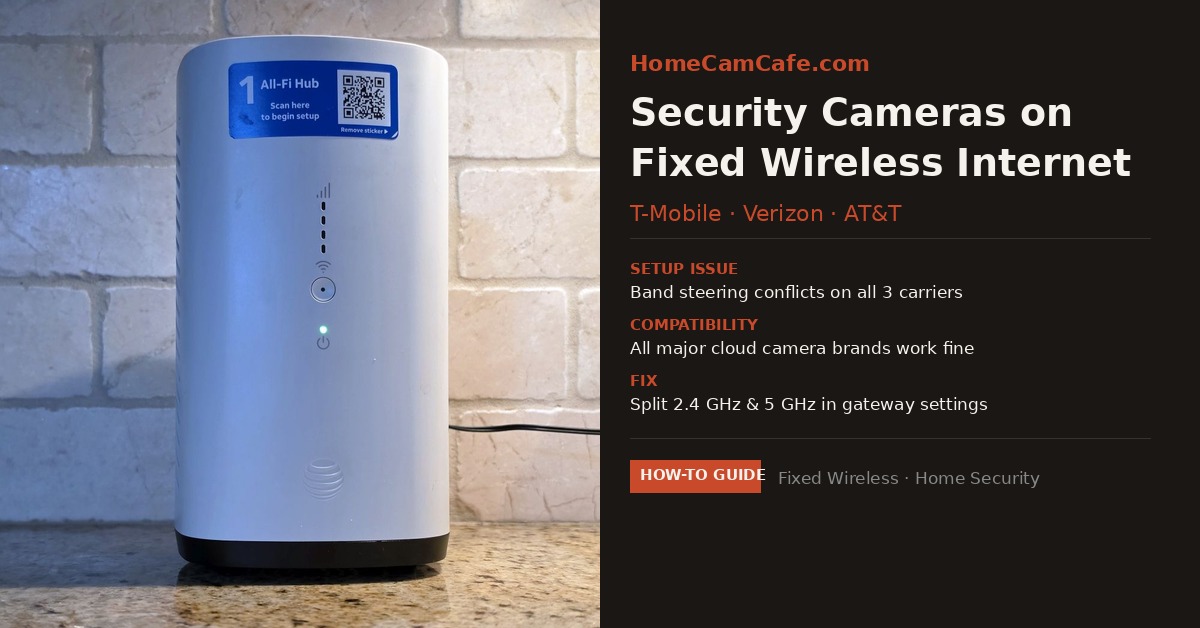
The good news: every major consumer camera brand works fine on fixed wireless internet. Wyze, Blink, Ring, Arlo, Tapo, eufy, Reolink, and Google Nest all use cloud-relay architectures, meaning your camera connects outbound to the manufacturer’s servers and your phone connects to those same servers to view the feed. That approach works on any internet connection, including fixed wireless. In addition, the internet speeds these gateways provide are more than sufficient for even a multi-camera setup.
The problems that do come up are almost always one of two things: a band-steering conflict during camera setup, or a WPA security mismatch. Both are straightforward to resolve.
The Band-Steering Problem
Fixed wireless gateways from all three carriers broadcast a single combined Wi-Fi network by default. Your phone and laptop connect to whichever band — 2.4 GHz or 5 GHz — the gateway decides is best at that moment. That’s called band steering, and it works well for most devices.
The catch: most home security cameras only support the 2.4 GHz band. During initial setup, the camera’s app needs your phone to be on that same 2.4 GHz band to complete pairing. When your phone is on 5 GHz and the camera is waiting on 2.4 GHz, the setup fails. The app usually displays a generic “camera not found” or “connection failed” error, which makes the problem hard to diagnose if you don’t know what to look for.
The fix is to temporarily split the two bands in your gateway’s settings so you can connect your phone to the dedicated 2.4 GHz network for setup. The steps are slightly different for each carrier.
T-Mobile Home Internet
Open the T-Life app on your phone. Tap Connect at the bottom, then Things at the top, and select your gateway. Tap Manage, then look under My Networks. Tap + Add Network and give it a name — something like “HomeNetwork_2G” works fine. Under Advanced Settings, set the Frequency Band to 2.4 GHz and set the WPA Version to WPA/WPA2. Save. You now have a dedicated 2.4 GHz network you can use to set up your camera. Connect your phone to that network, run the camera’s setup, then switch your phone back to the main network afterward.
Verizon 5G Home Internet
Verizon gateways use a feature called SON (Self Organizing Network) to combine the bands. To split them, open a browser and navigate to 192.168.1.1 (the credentials are printed on the bottom of the gateway). Go into Wireless Settings (you may need to dig into Advanced Settings) and disable SON. The gateway will then broadcast two separate networks, one for 2.4 GHz and one for 5 GHz. Connect your phone to the 2.4 GHz network and run your camera setup. Some newer Verizon firmware versions also include an IoT network option that broadcasts on 2.4 GHz only, which is worth checking for in the same settings area.
AT&T Internet Air
AT&T Internet Air uses the same BGW320 gateway as AT&T Fiber, so the steps are the same regardless of which AT&T service you’re on. Open a browser and go to 192.168.1.254. Enter the Device Access Code printed on the bottom of the gateway. Navigate to Home Network, then Wi-Fi. From there you can manage band settings and assign separate names to the 2.4 GHz and 5 GHz networks. Alternatively, the AT&T Smart Home Manager app lets you manage Wi-Fi settings from your phone if you have it installed.
The WPA Security Mismatch
A second issue that trips up camera setups on fixed wireless gateways is the default security setting. Most FWA gateways ship with WPA3 or a combined WPA2/WPA3 mode enabled. Some older cameras — and a handful of newer budget models — only support WPA2 or the older WPA/WPA2 combination. If your camera repeatedly fails to connect even after sorting out the band issue, this is the next thing to check.
When you create a dedicated 2.4 GHz network as described above, set the WPA version to WPA/WPA2 rather than WPA3. That setting is backward-compatible with older cameras while still being reasonably secure for a dedicated IoT network. Your main household network can remain on WPA3.
Which Camera Brands Work on Fixed Wireless
As noted above, all major cloud-based camera brands work fine once you get through initial setup. Here is a quick reference for the most common brands.
| Brand | Works on FWA? | Notes |
|---|---|---|
| Wyze | Yes | 2.4 GHz only; split bands for setup |
| Blink | Yes | 2.4 GHz only; Sync Module connects, not camera directly |
| Ring | Yes | 2.4 GHz only on most models; split bands for setup |
| Arlo | Yes | SmartHub connects via Ethernet; cameras connect to Hub, not router directly |
| Tapo | Yes | 2.4 GHz only on most models; split bands for setup |
| eufy | Yes | 2.4 GHz only; HomeBase connects via Ethernet on some models |
| Google Nest | Yes | Newer models support 5 GHz; fewer setup issues on FWA |
| Reolink | Yes | Most Wi-Fi models are 2.4 GHz only; split bands for setup |
A Note on CGNAT
Fixed wireless internet uses something called Carrier-Grade NAT (CGNAT), which means your gateway shares a public IP address with other subscribers rather than having a dedicated one. This matters if you run a network video recorder (NVR) and need port forwarding to access it remotely. Traditional port forwarding does not work behind CGNAT.
For most people, however, CGNAT is a non-issue. Every major consumer camera brand routes remote access through the manufacturer’s cloud servers, so port forwarding is never required. You open the app on your phone, the app connects to the cloud, and the cloud connects to your camera so CGNAT is never in the way. The only scenario where it becomes a problem is a self-hosted NVR setup requiring direct inbound connections from outside your network.
If Setup Still Fails After Splitting the Bands
A small number of cameras are also sensitive to router placement relative to the gateway. Because FWA gateways combine the cellular radio (facing a tower) with the home Wi-Fi radio in a single unit, the unit is often placed near a window for the best cellular signal — which may not be the ideal central location for Wi-Fi coverage. If you have a camera in a far corner or a detached garage and are seeing connection drops after setup, a Wi-Fi range extender placed between the gateway and the camera is the most reliable fix. Most extenders let you manage the two bands independently, which also makes camera setup easier in the future.
If you decide to add a dedicated 2.4 GHz access point rather than just a range extender, the Netgear Orbi RBK752P is a solid choice for larger homes. Unlike mesh systems that lock bands together, it lets you view and manage the 2.4 GHz and 5 GHz networks separately, which makes adding cameras considerably easier. It covers up to 5,000 sq ft and handles a high device count without issue.
For more detail on the band-separation problem and additional workarounds including the phone hotspot method, see our guide to connecting devices that insist on 2.4 GHz. For general advice on router selection for multi-camera setups, the mesh Wi-Fi and security cameras guide covers what to look for.
