
If your Wyze camera is showing a light you don’t recognize, you’re not alone — Wyze has released over a dozen camera models, and the light patterns aren’t always consistent across them. A solid red light means one thing on a Wyze Cam v4 and something completely different on a Wyze Cam Outdoor. This guide covers every current Wyze camera status light, what each color and pattern means, and what to do when a light signals a problem. As owners of multiple Wyze cameras across several generations, the observations below are drawn from real hardware.
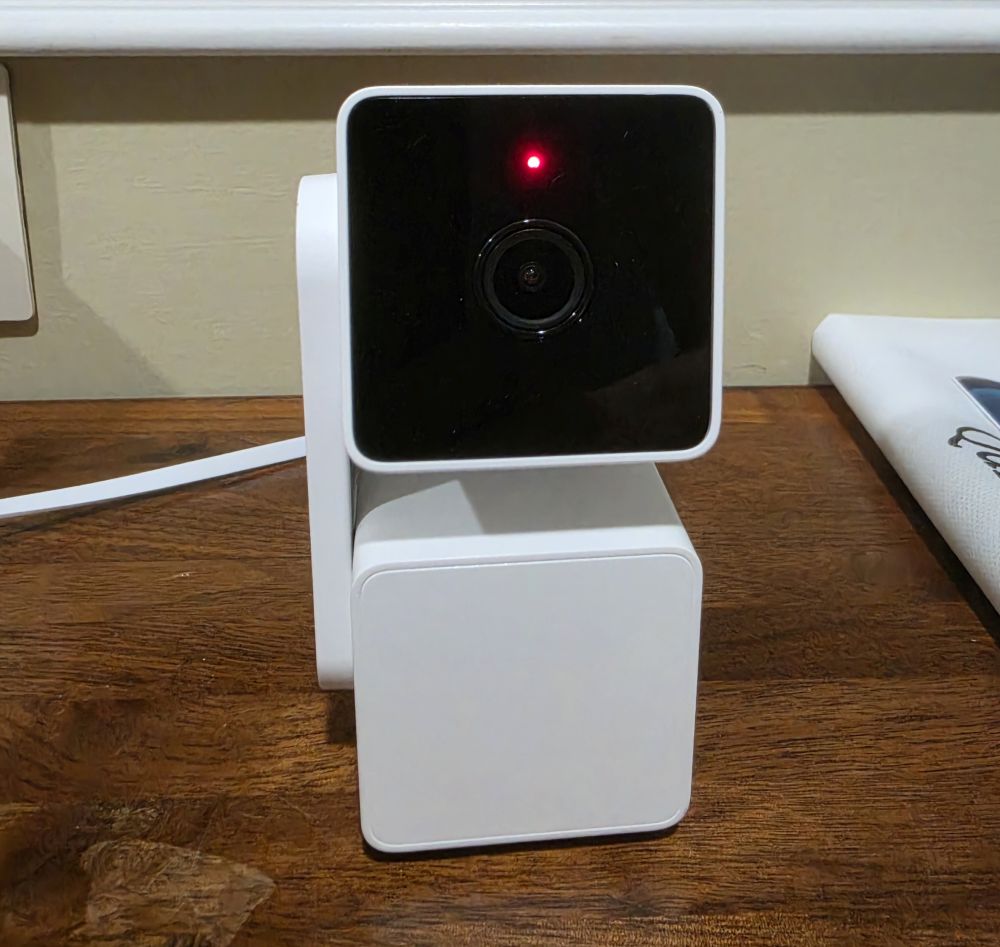
One important note before diving into the model-by-model breakdown: the small red glow you see from the front of any Wyze camera at night is infrared illumination for night vision, not a status light. That’s completely normal. The status light is a separate LED, usually located on the front of the camera body.
The quick answer: what the most common lights mean
Most Wyze cameras share the same core light logic, so if you’re in a hurry, this covers the majority of situations. There are model-specific differences — covered in full below — but for Wyze Cam v3, v4, OG, and Pan v2/v3, the pattern is as follows.
During setup, a solid red light means the camera is powering on. A flashing red light means it’s ready to connect to Wi-Fi. Flashing red and blue together means it’s actively trying to connect. A flashing blue light means it’s connected and finishing setup. A solid blue light means setup is complete and everything is working.
After setup, a solid red light means you’re watching a live stream or the camera is recording an event. A solid blue light means the camera is connected and idle. A quickly flashing red light means the siren is active.
For models with different behavior — particularly the Cam Outdoor, Battery Cam Pro, and Floodlight series — see the sections below.
How to turn off the status light
On every Wyze camera except the Wyze Video Doorbell Pro, the status light can be disabled. In the Wyze app, tap your camera, then tap the settings gear, then Advanced Settings, and toggle off Camera Status Light. This is useful for bedroom cameras where the light causes distraction, or for any installation where you’d rather the camera be less visible.
Wyze Cam v1 and v2
The original Wyze Cam and Cam v2 use a yellow-based status system rather than the red-and-blue system found on later models. The status light is located on the back of the camera body.
| Light | What it means |
|---|---|
| Solid yellow | Camera is powered on |
| Flashing yellow | Ready to connect — camera has been reset or is in setup mode |
| Solid blue | Camera is connected and working properly |
| Flashing blue | Camera is connecting or updating firmware |
Note that the v1 and v2 do not use a red status light for recording or live streaming — that behavior was introduced on the v3. If a v1 or v2 is showing red, that’s the infrared night vision LEDs, not a status indicator.
Wyze Cam v3
The v3 introduced the now-standard red-and-blue status system and moved the indicator to the front of the camera. It also added the solid red “recording/streaming” state that confuses a lot of users.
| Light | Phase | What it means |
|---|---|---|
| Solid red | Setup | Camera is powering on and starting up |
| Flashing red | Setup | Ready to connect to Wi-Fi — or possible error (QR code fail, connection timeout, unsupported encryption) |
| Flashing red + blue | Setup | Connecting to Wi-Fi, scanning QR code, or upgrading via microSD — or network disconnected |
| Flashing blue | Setup | Connected, finishing setup — or firmware update in progress — or disconnected from cloud server |
| Solid blue | Normal | Connected and working properly |
| Solid red | Normal | Live stream is being viewed or event recording is in progress — this is normal |
| Quick flashing red | Normal | Siren is active |
The v3 is the first model where a solid red light after setup is completely normal behavior — it simply means you or someone else has the live stream open, or a motion event is being recorded and uploaded. This is the light that generates the most search traffic and concern, and the answer is almost always: nothing is wrong.
Wyze Cam v4
The Wyze Cam v4 uses the same status light system as the v3. The patterns and meanings are identical, so the table above applies directly. In practice, the v4 behaves no differently at the indicator level, though the hardware underneath is substantially upgraded with 2.5K resolution, Wi-Fi 6, and a better image processor.
Wyze Cam OG
The Wyze Cam OG matches the v3/v4 pattern exactly, with one small difference in labeling: Wyze splits the guide into “during setup” and “after setup” phases more explicitly in their documentation. In practice, the behavior is the same.
| Light | Phase | What it means |
|---|---|---|
| Solid red | Setup | Powering on and starting up |
| Flashing red | Setup | Ready to connect to Wi-Fi |
| Flashing red + blue | Setup | Connection in progress |
| Flashing blue | Setup | Connected, finishing setup |
| Solid blue | Normal | Working properly |
| Solid red | Normal | Live stream active or event recording in progress |
| Flashing red | Normal | Siren is active |
Wyze Cam Pan v1 and v2
The original Cam Pan uses the same yellow-based system as the Cam v1/v2. The Pan v2 switched to the red-and-blue system. Both models have the status light on the front of the camera head.
Pan v1 — solid yellow: powered on; flashing yellow: ready to connect; solid blue: connected and working; flashing blue: connecting or updating.
Pan v2 — solid red: powering on; flashing red: ready to connect; flashing red and blue: connecting; flashing blue: finishing setup; solid blue: connected and working. Note that the Pan v2 documentation does not list a “solid red after setup” state, which distinguishes it slightly from the v3-era wired cameras.
Wyze Cam Pan v3
The Pan v3 aligns fully with the v3/v4/OG system and adds the siren flash pattern. If you own a Pan v3 and see a solid red light, you’re either watching the live stream, an event is recording, or the camera just powered on. Additionally, a quickly flashing red indicates the siren is running.
| Light | What it means |
|---|---|
| Solid red (setup) | Powering on |
| Flashing red | Ready to connect to Wi-Fi |
| Flashing red + blue | Connecting to Wi-Fi |
| Flashing blue | Connected, finishing setup |
| Solid blue | Connected and working properly |
| Solid red (normal) | Live stream active or event recording in progress |
| Quick flashing red | Siren is active |
Wyze Cam Pan v4
The Wyze Cam Pan v4 simplifies the status light documentation compared to earlier Pan models. Wyze consolidates the setup and post-setup states into a single list, which reflects the fact that the v4 no longer distinguishes “powering on” from “recording” with the same solid red — instead, solid red covers initializing, recording, and live streaming as a single combined state.
| Light | What it means |
|---|---|
| Solid red | Powered on and initializing, recording an event, or live stream is active |
| Flashing red | Ready to connect |
| Flashing red + blue | Connection in progress |
| Flashing blue | Connected and finishing setup, or updating firmware |
| Solid blue | Powered and fully connected |
Wyze Cam Outdoor (v1 and v2)
The Wyze Cam Outdoor is the most different of any Wyze camera when it comes to status lights. Because it’s battery-powered and uses a Base Station for connectivity rather than connecting directly to your router, it has two sets of lights to understand: one for the camera itself, and one for the Base Station. The status light is on the back of the camera, not the front.
Base Station lights
| Light | What it means |
|---|---|
| Solid yellow | Powered but not yet connected to network |
| Flashing yellow | Travel mode is enabled |
| Flashing blue | Connecting to network |
| Solid blue | Connected and working properly |
| Flashing yellow + blue | Pairing with the Cam Outdoor |
Camera lights
| Light | What it means |
|---|---|
| Solid yellow | Starting up |
| Flashing yellow | Travel mode enabled |
| Flashing blue | Connecting to Base Station network |
| Solid blue | Connected and working |
| Flashing yellow + blue | Pairing with Base Station |
| Flashing red | Charging via cable |
| Quick flashing red | Camera restart needed — hold SYNC button 10 seconds |
| Solid red | Charging complete |
| No light | Power saving mode, battery below 20%, or camera is charging |
The Cam Outdoor’s “no light” state catches people off guard. If the camera shows no light at all, the most likely cause is that the battery dropped below 20% and the camera entered power saving mode. Plug it in to charge and it should resume normal operation.
Wyze Battery Cam Pro
The Battery Cam Pro uses a more varied color set than any other Wyze camera, adding yellow and green states to the mix. The status light is to the left of the camera lens. The removable battery pack has its own separate indicator on its back panel.
| Light | What it means |
|---|---|
| Solid yellow | Powered on and initializing |
| Flashing yellow + blue | Ready for pairing |
| Solid blue | Paired successfully |
| Solid red | Connected and powered on, event recording/uploading, live stream active, or log submitting |
| Quick flashing red | Battery is at 0% — charge immediately |
| Flashing green | Battery is charging |
| Solid green | Battery is fully charged (100%) |
| No light | Camera is powered off or asleep |
For the removable battery pack itself: one solid green light means charging; two solid green lights means fully charged.
One thing worth knowing from experience with battery-powered Wyze cameras: if the battery is inserted and charging while the camera is in pairing mode or while the live stream is being viewed, the status light will show the charging state (flashing or solid green) rather than the connection state. This can make it look like the camera isn’t responding when it actually is.
Wyze Cam Floodlight Pro
The Wyze Cam Floodlight Pro is hardwired and uses a noticeably different status light system from every other Wyze camera. It is the only Wyze camera that uses purple as a primary connection state rather than red and blue. The status light is located under the camera lens.
| Light | What it means |
|---|---|
| Solid red | Powered on and initializing |
| Flashing purple | Ready to connect to Wi-Fi |
| Flashing blue | Connecting to Wi-Fi |
| Solid blue | Working properly, event recording, or live stream active |
| Solid purple | Camera is off but receiving power |
The Floodlight Pro is the one model where solid blue — not solid red — indicates normal recording and streaming activity. If you’re used to other Wyze cameras, this will feel backwards. Additionally, solid purple on the Pro means the camera is disabled in the app but still powered, which is different from the v2’s use of purple for firmware updates. If the Pro shows a flashing purple light and won’t progress to solid blue during setup, check that you’re connecting to a 2.4 GHz network.
Troubleshooting: when a light signals a real problem
Most Wyze status lights are informational, not error states. However, there are patterns that indicate something needs attention.
Stuck on flashing red (setup phase, won’t progress): The most common cause is a Wi-Fi connectivity issue. Wyze cameras only support 2.4 GHz networks on most models — if your phone is connected to a 5 GHz band during setup, the QR code scan will appear to succeed but the camera will fail to join the network. Switch your phone to 2.4 GHz before attempting setup. Also confirm the password you entered is correct and that WPA3-only encryption isn’t enabled on your router, as Wyze cameras require WPA2 or mixed mode.
Stuck on flashing red and blue (not progressing to solid blue): Usually a network disconnection issue after a successful initial setup. The camera is trying to reconnect. First, verify your Wi-Fi is working normally. If the problem persists, try restarting the camera by unplugging it for 30 seconds. If it still won’t connect, a factory reset followed by re-pairing is the reliable fix: hold the setup button on the bottom of the camera for 10 seconds until you hear “ready to connect.”
Stuck on flashing blue (not reaching solid blue): In most cases this means the camera connected to your Wi-Fi but can’t reach Wyze’s cloud servers. Check the Wyze service status page for any ongoing outages. If the service is up, the issue is often a DNS or firewall setting on your router blocking Wyze’s servers.
Solid red that won’t clear (on a camera with nobody watching): On v3, v4, OG, and Pan v3, solid red after setup means recording or live streaming is active. If you’re confident nobody is viewing the camera and no motion event should be recording, open the Wyze app and check Events. If events are recording unexpectedly, review your sensitivity settings. If the app shows the camera as offline but the light is solid red, power cycle the camera.
Quick flashing red on Battery Cam Pro (dead battery): Plug the camera in immediately. A 0% battery state can cause the camera to behave erratically and may require a manual restart after charging before it reconnects properly.
No light at all (Cam Outdoor or Battery Cam Pro): Not necessarily a problem. Both cameras enter a low-power sleep state between motion events and will show no light during that time. Additionally, if the battery drops below 20% the camera enters power saving mode and the light turns off to conserve energy. Plug in to charge and the light should return.
The one light everyone asks about
To be direct about the most searched question: a solid red light on a Wyze Cam v3 or v4 is almost never a problem. It means you’re watching the live stream, someone else in your household opened the app, or a motion event is being recorded and uploaded to the cloud. Open the Wyze app, check Events, and confirm. In most cases, the explanation is right there — a motion clip from a car passing, a pet moving, or a family member checking in remotely. Furthermore, if the solid red light bothers you or you’re concerned it makes the camera visible in a dark room, you can disable the status light entirely in Advanced Settings without affecting any camera function.
The short version
On every Wyze camera sold since the v3: solid blue means working normally, solid red means recording or streaming (normal), flashing red means waiting to connect, and flashing red-and-blue means actively connecting. The Cam Outdoor, Battery Cam Pro, and older v1/v2 models use yellow and green states instead. Floodlight Pro is the exception — it uses flashing purple to connect and solid blue for normal operation, the reverse of most other models. If the camera is stuck anywhere in the flashing sequence and won’t progress to solid blue, the fix is almost always a Wi-Fi band mismatch, wrong password, or a quick factory reset.
For individual camera reviews and deeper coverage of each model, see the Wyze Cam Floodlight Pro review, the Wyze Cam v4 review, the Wyze Cam Pan v4 review, the Wyze Cam OG review and the full Wyze camera hub for brand-specific guides and comparisons.
