
If a Ring camera or doorbell is flashing a color that does not match anything in the app, this guide breaks down every light pattern Ring uses across its current and legacy camera lineup. Unlike Blink, where no light at all usually means everything is fine, Ring camera light colors and patterns are far more consistent: blue almost always signals normal operation, while red, white, and green are reserved for setup states, errors, and alerts. That consistency makes Ring one of the easier brands to troubleshoot by light color alone, once the handful of model-specific quirks are accounted for. The breakdown below draws on Ring’s own published light pattern documentation alongside hands-on use across the doorbell, Indoor Cam, Outdoor Cam, and Spotlight Cam lines.
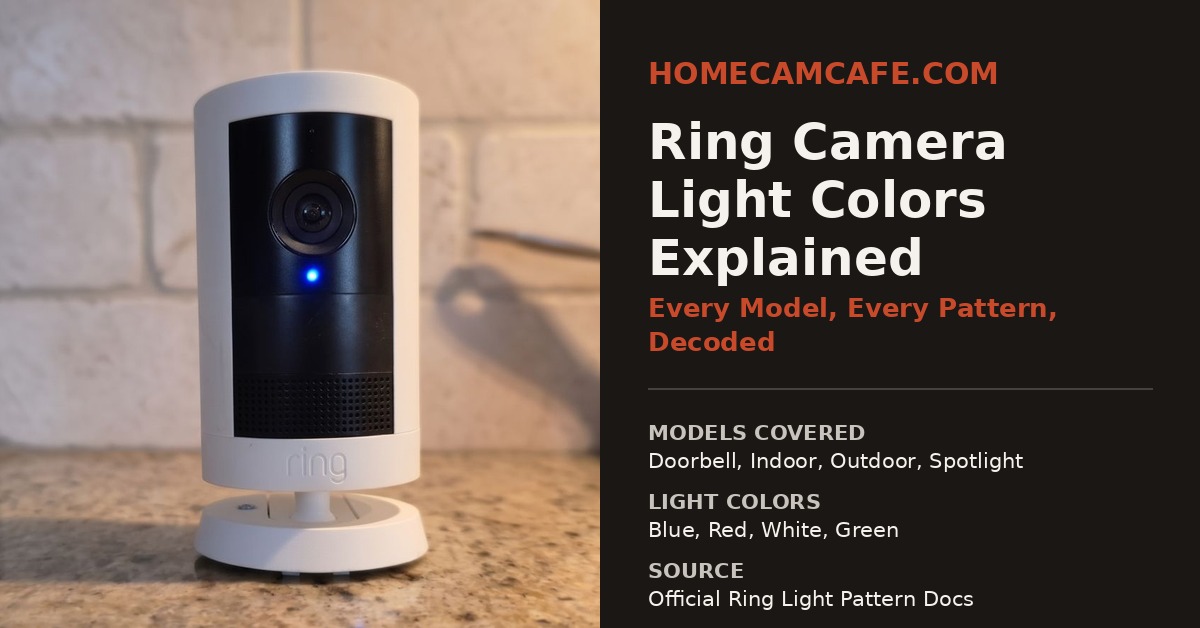
The quick answer: what most common Ring camera light colors and patterns mean
Most Ring devices, including the current Video Doorbell lineup, Indoor Cam, Outdoor Cam, and Stick Up Cam, share the same core blue light logic. A solid blue light generally means the camera or doorbell is recording, on an active call, or has just finished booting up. A slowly flashing blue light means the device is in setup mode and waiting to connect to Wi-Fi. Four blue lights flashing in the corners, or a blue light staying solid for five seconds, both signal that setup finished successfully. A pulsing blue light means two way talk or the speaker is active.
When something goes wrong, the pattern usually involves red, white, or green instead of blue. A red light flashing on and off typically points to an incorrect Wi-Fi password during setup. A flashing green light, most often seen for up to three minutes, usually means the device connected to Wi-Fi but could not reach Ring’s servers. Alternating red and blue lights, flashing quickly, indicate the siren has been triggered. For the model-specific differences, including the Floodlight and Spotlight Cam lines that use entirely different light positions, see the sections below.
Ring Video Doorbell (all current models)
All current Ring doorbells, including the Ring Battery Doorbell Pro (2nd Gen), Battery Doorbell (2nd Gen), Battery Doorbell Plus (2nd Gen), and Wired Doorbell (2nd Gen), show the same light patterns unless otherwise noted. The doorbell uses a circular LED ring rather than a single bulb, which allows for more detailed patterns than a basic camera.
A white light spinning in a circle means the doorbell is in setup mode, a pattern that times out after ten minutes if setup is not completed. Once connected, a blue circle light moving upward shows the doorbell is actively connecting to Wi-Fi, while four blue corner LEDs flashing confirm setup was successful. A blue light spinning clockwise means the doorbell button was just pressed, and a solid blue circle means the doorbell is on an active call with the speaker enabled.
If setup fails, the failure reason is encoded in where the white light flashes. A flashing white light on the right side points to distance or special characters in the Wi-Fi name, flashing white on top points to an incorrect Wi-Fi password, and flashing white on the left side means the doorbell connected to Wi-Fi but could not reach the internet or Ring’s servers. Additionally, doorbells with a built-in battery show a blue circle filling clockwise while charging, with the filled portion indicating the charge percentage. For wired doorbells without battery backup, a red light flashing at the bottom means the device is not receiving enough power, which is worth checking before assuming the doorbell itself is defective.
Ring Indoor Cam and Pan-Tilt Indoor Cam
The Ring Indoor Cam (2nd Gen) and Pan-Tilt Indoor Cam display their light above the camera lens, and the current generation uses blue exclusively for normal operation. A solid blue light during startup means the camera is booting, and that same solid blue light continues during active recording. A slowly flashing blue light means the camera is in setup mode, while a blue light pulsing slowly means two way talk or the speaker is in use. The siren activating shows as a quickly flashing blue light, and a completed factory reset shows as blue flashing quickly for five seconds before turning solid for another five.
Setup failures on the 2nd generation are distinguished by how many times the blue light flashes before pausing. Three flashes followed by a stop points to a failed Wi-Fi connection due to distance or special characters in the network name, while four quick flashes followed by a half second pause covers setup failures for other, less specific reasons. One important exception: the original Indoor Cam (1st Gen) behaves differently, using a red light flashing for an incorrect Wi-Fi password, a green light flashing for a failed connection, and alternating red and blue for the siren or other setup failures. If a 1st generation Indoor Cam is showing red or green instead of blue, that is normal for the older hardware rather than a sign of malfunction.
For the full hands-on breakdown of the pan-tilt model specifically, including setup, video quality, and its subscription requirements, see our Ring Pan-Tilt Camera review.
Ring Outdoor Cam and Stick Up Cam (including legacy Wired and Elite)
Ring’s battery and plug-in outdoor cameras, currently sold as the Ring Outdoor Cam Plus and Outdoor Cam Pro, and previously branded as Stick Up Cam, follow a light pattern nearly identical to the Indoor Cam, with light position varying slightly by generation. On Outdoor Cam Pro and the current Outdoor Cam, the light shows below the lens, while older generations show it above. When the camera is idle, the LED turns off entirely, which is the one notable departure from Ring’s usual normal-operation-equals-blue rule, though it only applies in idle mode rather than during active use.
Setup mode shows as a slowly flashing blue light, startup as a solid blue light until boot completes, and recording or an active call as solid blue. As a result, the behavior during normal use closely mirrors the Indoor Cam. The siren activating, however, is distinct on this product line, showing as alternating red and blue lights flashing quickly rather than blue alone. Setup failures follow a similar branching pattern to other Ring cameras: a red light turning on and off points to an incorrect Wi-Fi password, while a green light flashing for three minutes, on the current Outdoor Cam and Outdoor Cam Pro specifically, points to a failed connection to Ring’s servers. Owners of the older Stick Up Cam Wired or Elite models will instead see a blue light flashing for three minutes in that same failure scenario, since those legacy models do not use green at all. Furthermore, a completed factory reset on this line shows as a red light flashing quickly for five seconds before turning solid, which is worth noting since it is the only scenario where red appears outside of a setup failure or siren event on this product family.
Ring Floodlight Cam and Spotlight Cam
Floodlight and Spotlight Cams break from the rest of the Ring lineup in one important way: white, not blue, is the default color for setup and startup states, and the light position depends heavily on which generation is installed. On the original Floodlight Cam, Floodlight Cam Wired Plus, and Spotlight Cam (1st Gen), the status light comes from the single bulb at the bottom of the camera rather than a dedicated LED. A solid white light means the camera is getting ready to activate, no light at all means it is idle and ready, and a slowly flashing white light means it is in setup mode. Interestingly, setup success on this generation shows as green, not blue, appearing as a green light on for five seconds before repeating, which can catch owners off guard if they are expecting the blue confirmation pattern used elsewhere in the Ring lineup.
Newer hardware, including all generations of Floodlight Cam Wired Pro, the Floodlight Cam (2nd Gen), and the Spotlight Cam (2nd Gen), moved the light to a dedicated LED above the lens and largely realigned with Ring’s blue-for-normal-operation convention, though setup success is still shown in green rather than blue on these models. The newest Ring Spotlight Cam Plus and Spotlight Cam Pro go a step further and align fully with the blue convention used by Ring’s doorbells and other cameras, with setup success shown as a solid blue light for five seconds rather than green. If you recently picked up the Spotlight Cam (2nd Gen) or Floodlight Cam (2nd Gen), both released in June 2026 with Retinal 2K, expect the green setup-success pattern rather than blue.
One more detail specific to battery-powered Spotlight Cam models is worth flagging separately: a small red rectangle light, distinct from the main status LED, indicates battery status rather than camera status. A solid red rectangle means the battery is charged and currently powering the camera, while a flashing red rectangle means the battery is running low, flashing faster as the charge continues to drop. This is easy to mistake for an error state, but it is simply Ring’s way of surfacing battery level without requiring a trip into the app. For cameras paired with a solar panel, see our Ring solar panel guide for how charging behavior changes when solar is involved.
Why no Ring camera saves video without the light alone telling you
It is worth pointing out that none of these light patterns indicate whether footage is actually being saved. A solid blue light confirms the camera is recording in the moment, but whether that recording is stored anywhere depends entirely on having an active Ring Protect plan. Without a subscription, Ring cameras still show the same recording light pattern during live view and motion events, yet no clip is saved afterward. This is a frequent source of confusion for new Ring owners who assume the light is a storage indicator. For a full breakdown of what each Ring Protect tier unlocks and whether it is worth paying for, see our Ring Protect Plan guide.
The bottom line: Ring’s light system is more consistent across its lineup than most competitors, with blue covering the vast majority of normal operation states across doorbells, Indoor Cam, and Outdoor Cam. The main exceptions are the Floodlight and Spotlight Cam lines, which lean on white and green instead of blue for setup states, and the original Indoor Cam (1st Gen), which uses red and green rather than blue for setup failures. In either case, once you know which model you own, the light pattern almost always points directly to what the camera is doing, no app required.
For the full individual reviews see the Ring Outdoor Cam Plus review and the Ring Floodlight Cam Pro review. For brand-specific guides see the Ring camera reviews hub.
