
Arlo camera light meanings can be confusing when your camera suddenly starts blinking orange, blue, red, or purple. A flashing orange light might indicate a low battery, a failed connection, or a pairing problem. Blue usually relates to power or setup, but the exact meaning depends on the camera model and blinking speed.
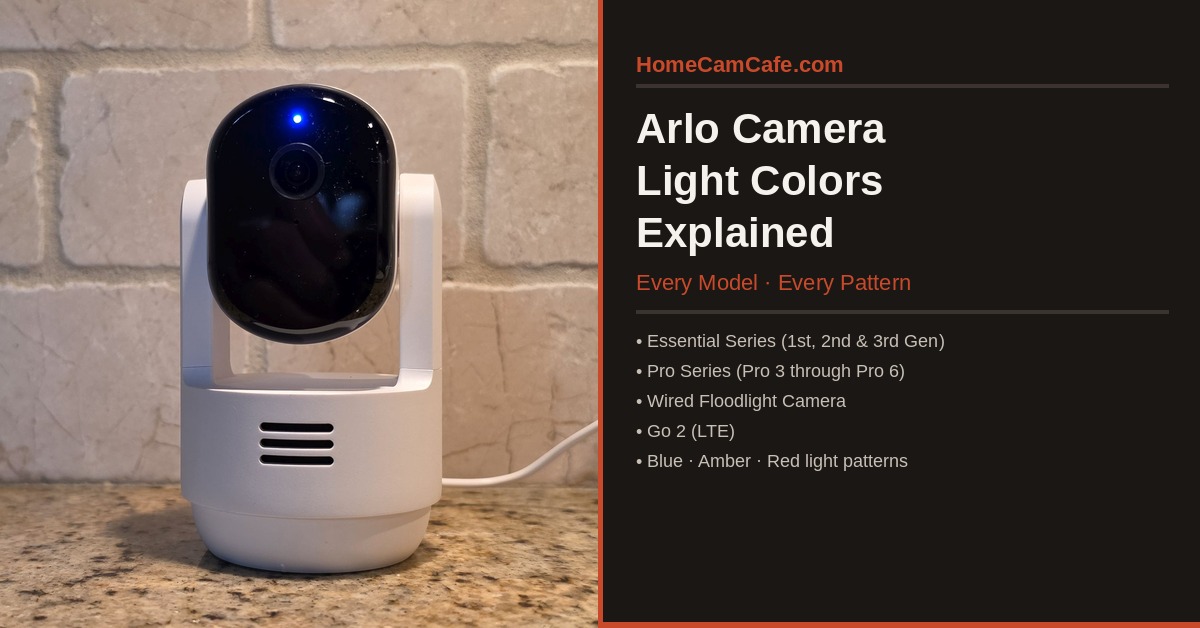
Most Arlo cameras use blue and amber status LEDs. Amber is the color many people describe as orange or yellow. Newer Essential models can also display red, while older Arlo Q and Arlo Go cameras have purple indicators.
This guide covers Arlo camera light colors across the Pro, Ultra, Essential, Wired Floodlight, Go, and older camera families. More importantly, it explains what to do when a light indicates a problem rather than simply listing the different colors.
Quick tip: Start with the LED reference chart below. Find your light pattern, check the camera’s status in the Arlo Secure app, and then follow the appropriate troubleshooting section. Avoid factory resetting your camera until you’ve checked the simpler possibilities.
Arlo Camera Light Meanings: Quick Reference Chart
The following table shows common Arlo camera LED patterns. Most apply to several models, but there are important differences between battery-powered, plug-in, and cellular cameras.
| LED Pattern | Meaning | What to Do |
|---|---|---|
| 🔵 Solid Blue | Connected to power on many models | Usually normal. Check app for connectivity. |
| 🔵 🔵 Slow Blinking Blue | Pairing or attempting to connect | Complete setup in the Arlo Secure app. |
| 🔵 🔵 Fast Blinking Blue | Paired successfully on many models | Confirm camera appears online. |
| 🟠 🟠 Slow Blinking Orange | Low battery, out of range, or pairing error | Check charge and connection. |
| 🟠 🟠 Fast Blinking Orange | Failed pairing or synchronization | Retry pairing after checking signal. |
| 🟠 Solid Orange | Internet error or SIM problem on certain models | Check model-specific instructions. |
| 🔵 🟠 Alternating Blue/Orange | Firmware update in progress | Do not interrupt power. |
| 🔴 Solid Red | HomeKit streaming on supported Essential 3rd Gen models | Can be normal during streaming. |
| 🟣 Solid or Blinking Purple | Network problem on older Arlo Q/Baby models | Check internet or Wi-Fi signal. |
| ⚫ No Light | Normal idle, LED disabled, or power issue | Check actual camera status in app. |
Important: The colored circles represent actual LED colors, not warning severity. Two circles indicate blinking rather than two physical lights. Orange and amber refer to the same indicator color in this guide. Consult your camera’s model-specific instructions when meanings differ.
For the manufacturer’s complete reference, see Arlo’s official LED behavior guide.
🟠 Arlo Camera Blinking Orange: What It Means and How to Fix It
An Arlo camera blinking orange is commonly reporting a battery or connectivity problem. Arlo calls this an amber light in its documentation, but many owners naturally describe it as orange.
The blinking speed matters. Slow blinking orange and fast blinking orange can indicate different problems.
Slow Blinking Orange: Low Battery or Connection Problem
On many Arlo Pro, Ultra, and Essential wire-free cameras, a slowly blinking amber LED can mean:
- The battery is running low.
- The camera is outside reliable wireless range during pairing.
- The camera couldn’t be found during setup.
- Another connection error occurred during pairing.
🟡 Try these fixes in order:
- Check battery percentage. Open the Arlo Secure app and look at the affected camera’s battery status.
- Recharge the camera. If the battery is low, charge it using a compatible Arlo charger and cable.
- Check the connection. Determine whether the camera is paired directly to Wi-Fi or through a compatible SmartHub or Base Station.
- Move closer during setup. If pairing fails, temporarily bring the camera closer to its connection point.
- Check for interference. Thick exterior walls, metal surfaces, and distance can affect wireless connectivity.
- Retry pairing. Use the Arlo Secure app’s normal setup process before considering a factory reset.
🟢 When it’s fixed: The camera should become accessible in the app. The amber indicator should stop once the underlying problem is resolved.
A slow orange blink doesn’t automatically mean the battery is bad. On many models, it can be a pairing or distance issue instead.
Fast Blinking Orange: Pairing Failed
On several Pro, Ultra, and Essential models, fast blinking amber indicates that the camera failed to synchronize with its SmartHub, Base Station, or Wi-Fi network.
If you see this pattern during installation:
- Confirm that you’re adding the correct camera model in the Arlo Secure app.
- Make sure the camera is sufficiently charged.
- Check that the router or hub is online.
- Verify that the wireless network meets the camera’s requirements.
- Move the camera closer to the router or hub.
- Restart setup and repeat the pairing process.
For cameras that connect through an Arlo SmartHub, ensure the camera is compatible with that particular hub. Not every Arlo camera supports every SmartHub or Base Station.
See our Arlo camera guides for additional model information.
Arlo Pro 5 and Pro 6: Four Orange Blinks
Arlo documents a separate amber LED sequence for the Pro 5 and Pro Security Camera (6th Gen).
Four amber blinks followed by a stop indicate that a factory reset has been triggered.
That’s different from a continuing blinking amber pattern caused by a connection failure.
If you initiated a reset, allow the process to finish before attempting setup again. If you weren’t trying to reset the camera, check whether its reset or pairing button was pressed.
🔵 Arlo Camera Blinking Blue: Slow vs. Fast
Blue lights typically relate to power, pairing, and connection activity. The exact interpretation depends on the model and blinking speed.
Slow Blinking Blue: Camera Pairing
On many Arlo cameras, slowly blinking blue means the device is in the process of pairing with Wi-Fi or a supported Arlo SmartHub or Base Station.
This is expected during initial installation or when reconnecting a device.
🟡 If pairing never finishes:
- Check the Arlo Secure app for a setup prompt.
- Confirm that your phone has the permissions required for the camera’s setup method, including Bluetooth where applicable.
- Check your Wi-Fi network or compatible SmartHub connection.
- Move the camera temporarily closer to the connection point.
- Check that the camera has adequate battery charge.
- Retry the setup procedure without immediately resetting the device.
Newer Essential 3rd Gen battery cameras use Bluetooth during initial discovery, followed by a Wi-Fi or supported SmartHub connection. Follow the pairing steps presented for your exact model.
Fast Blinking Blue: Connection Established
On many Arlo cameras, rapidly blinking blue indicates that a connection to Wi-Fi or a SmartHub has been established.
This is usually a positive sign during setup.
However, it doesn’t guarantee that cloud services and remote viewing are working. If the camera still appears offline in the app, check internet connectivity and the camera’s account status.
There are model-specific exceptions. The Arlo Go 2, for example, can also blink blue rapidly when a charging cable is connected.
Solid Blue: Power or Charging Status
On many current Arlo cameras, solid blue indicates that the device is connected to power. It may also indicate that charging is complete on certain models.
🔵 Solid blue does not universally mean the camera is connected to Arlo’s servers.
If the camera displays solid blue but appears offline in the app, check the network separately rather than assuming the LED confirms an internet connection.
On some older models, including Arlo Q, solid blue has a different meaning and can indicate a successful connection to Arlo’s servers.
🔵 🟠 Arlo Camera Blinking Blue and Orange
Alternating blue and amber is one of the most important patterns to recognize.
Across the major Arlo camera families covered here, alternating blue and orange indicates that a firmware update is in progress.
🔴 Do not turn the camera off during an active firmware update.
Avoid disconnecting power, removing batteries, or initiating another reset while the update is underway.
Firmware updates can occur after setup or when Arlo releases improvements and security fixes.
If the pattern appears to continue unusually long and the camera never becomes accessible, check the Arlo Secure app and the manufacturer’s support instructions before attempting recovery.
🟠 Arlo Camera Solid Orange Light
A solid orange or amber light has different meanings depending on the camera.
Arlo Wired Floodlight: Internet Connection Error
On the Arlo Wired Floodlight Camera, solid amber indicates an internet connectivity error.
The camera may have power but be unable to communicate with the internet or Arlo’s services.
Try these steps:
- Confirm that your home internet connection works.
- Check the Arlo Secure app for the camera’s current status.
- Verify your router and wireless network are operating normally.
- Check for firewall or network restrictions that could block the camera.
- Follow Arlo’s connection-recovery instructions if the camera remains offline.
The Wired Floodlight also uses slow blinking amber to indicate a setup error or failure to connect to Wi-Fi.
Arlo Go 2: SIM Card Problem
The Arlo Go 2 uses LTE cellular service as well as supported Wi-Fi connectivity.
If LTE is configured as the default connection, a solid amber LED can indicate that the camera doesn’t detect an activated SIM card.
Check whether the cellular service is active and whether the correct SIM is installed.
If you recently changed carriers or service plans, confirm that the camera’s SIM and service configuration are supported.
Don’t diagnose a Go 2 solid amber light as a conventional Wi-Fi error without checking its cellular setup.
🔴 Arlo Camera Red Light: HomeKit and Other Exceptions
Red is less common on Arlo cameras than blue or amber, but it does appear on supported newer models.
For example, the Essential Indoor Camera (3rd Gen) uses a solid red LED when paired with Apple HomeKit and actively streaming.
This is a documented operating state rather than necessarily a fault.
If you see a red indicator:
- Identify the exact camera model and generation.
- Check whether the camera is actively streaming through Apple Home.
- Verify its current status in the Arlo Secure app.
- Consult the model’s LED reference before attempting a reset.
Don’t assume that every Arlo camera uses red to indicate recording. LED behavior varies, and many earlier Arlo cameras don’t use a red status indicator at all.
Also, a red LED on the camera is different from a red glow associated with infrared night vision hardware.
🟣 Arlo Camera Purple Light: Older Models
Purple status lights appear primarily on older Arlo devices, including Arlo Q, Q Plus, and Arlo Baby.
Although these aren’t the newest cameras, many remain in use.
Solid Purple: Connected to Wi-Fi but Not the Internet
On Arlo Q and Arlo Baby, a solid purple status light indicates that the camera is connected to a wireless network but cannot reach the internet.
Check your router’s internet connection, DNS configuration, and whether the network is blocking the camera.
Blinking Purple: Weak Wireless Connection
On supported older models, blinking purple indicates that the camera is too far from the router or has poor Wi-Fi connectivity.
Try moving the camera closer to the router or improving wireless coverage.
For these older cameras, improving the network is usually more productive than repeatedly resetting the device.
⚫ Arlo Camera Has No Light: Is That Normal?
Many Arlo cameras normally have no visible status LED while idle. This is especially common on battery-powered outdoor cameras.
Some models also allow the status or battery-charged LED to be disabled in Device Settings.
However, no light doesn’t automatically mean the camera is working.
A camera with a depleted battery, disconnected power supply, or hardware issue may also remain dark.
Use the Arlo Secure app to verify:
- Whether the camera is online.
- Whether live view works.
- Whether the battery has sufficient charge.
- Whether the camera has a valid network connection.
- Whether the LED was intentionally disabled.
On the Wired Floodlight, an unlit LED can indicate that the camera isn’t receiving power. If the device is completely unresponsive, investigate its power supply.
Electrical safety: If you suspect a hardwired camera’s electrical connections, turn off the breaker before inspection. Use a qualified electrician when wiring problems are suspected.
Arlo Camera Light Meanings by Model
The main color patterns are covered above, but several Arlo models have additional indicators worth understanding.
Arlo Essential 3rd Gen, Pro 3, Pro 4, and Ultra
These cameras share many of the core blue and amber behaviors:
- 🔵 Solid blue: Connected to power.
- 🔵 Slow blinking blue: Pairing.
- 🔵 Fast blinking blue: Paired successfully.
- 🟠 Slow blinking amber: Low battery, out of range, or pairing error.
- 🟠 Fast blinking amber: Pairing failed.
- 🔵 🟠 Alternating blue/amber: Firmware update.
The camera’s exact generation and connection type still matter. Some newer Essential models can use different pairing methods than older Pro and Ultra cameras.
If you’re using a solar panel, check whether the camera is actually receiving a charge rather than assuming a blue LED guarantees adequate charging. Our Arlo guides include solar panel compatibility and battery-management advice.
Arlo Pro 5 and Pro 6
The Pro 5 and Pro Security Camera (6th Gen) add an amber reset-confirmation sequence.
Four amber blinks followed by a stop indicate that a factory reset was triggered.
On these models, fast blinking blue can indicate connection to either a SmartHub or Wi-Fi, depending on the camera’s current setup.
If a camera was removed from the Arlo Secure app and continues fast blinking blue when powered on, Arlo advises following its factory-reset instructions before adding it again.
Because resetting requires reconfiguration, check the app and connection status first.
Arlo Essential Indoor 2nd and 3rd Gen
These plug-in indoor cameras generally use blue indicators for setup and amber for connection problems.
Solid blue means the camera is powered on. Slow blinking blue indicates pairing, while fast blinking blue indicates a successful connection.
Solid amber can indicate an internet error. Slow blinking amber can mean setup failed or Wi-Fi connection was unsuccessful.
The Essential Indoor 3rd Gen connects directly to Wi-Fi and is not compatible with Arlo SmartHubs or Base Stations.
For models with a Privacy Shield, the shutter position is a separate feature. Don’t assume the LED alone establishes whether the camera is disarmed or whether the lens is covered.
On the Essential Indoor 3rd Gen, solid red can occur during Apple HomeKit streaming.
Arlo Go 2: LTE-Specific LED Patterns
The Go 2 has additional indicators because it supports cellular networking.
| LED Pattern | Meaning |
|---|---|
| 🔵 Solid Blue | Connected to power |
| 🔵 🔵 Slow Blinking Blue | Connecting to Wi-Fi or ready to scan QR code |
| 🔵 🔵 Fast Blinking Blue | Establishing Wi-Fi/LTE connection or charger connected |
| 🟠 Solid Orange | Activated SIM not detected when LTE is default |
| 🟠 One Blink Every 60 Seconds | Low battery |
| 🟠 Two Blinks Every 60 Seconds | Critical battery level |
| 🟠 🟠 Fast Blinking Orange | Failed Wi-Fi or LTE connection |
| 🔵 🟠 Alternating Blue/Orange | Firmware updating |
The Go 2’s once-per-minute amber warning is especially useful because it separates low battery from a connection problem.
For cellular connection problems, check the SIM, service plan, coverage, and battery before attempting a reset.
Older Arlo Pro, Pro 2, and Original Wire-Free
Older Arlo cameras use a similar blue and amber system, but their indicators are more closely tied to synchronization with an Arlo Base Station.
- 🔵 Slow blinking blue: Attempting to sync.
- 🔵 Fast blinking blue: Successfully synced.
- 🟠 Slow blinking amber: Low battery.
- 🟠 Fast blinking amber: Failed to synchronize.
- 🔵 🟠 Alternating blue and amber: Firmware update.
If you use an older system, start with the Base Station and battery status before resetting individual cameras.
How to Turn Off the Arlo Camera Status Light
Many Arlo cameras allow their status light to be disabled through the Arlo Secure app.
The setting is useful if you don’t want an indicator visible in a bedroom, office, or outdoor installation.
On supported models:
- Open the Arlo Secure app.
- Select Devices.
- Choose the camera you want to adjust.
- Open Device Settings.
- Find Status Light or the applicable LED setting.
- Turn the indicator off if the option is supported.
Options vary by model. Some controls apply specifically to the battery-charged indicator rather than every LED behavior.
Disabling the status light doesn’t necessarily disable infrared night vision, spotlights, or every error indicator.
For complete instructions, see our guide to turning off the Arlo camera status light.
Arlo Camera Still Offline? Troubleshooting Checklist
If the LED indicates a connection problem and the camera remains offline, work through these steps before performing a factory reset.
Step 1: Identify the Model
Determine whether the camera is battery-powered, plug-in, hardwired, or cellular. The correct LED meaning depends on the model family.
Step 2: Check the Arlo Secure App
Confirm that the camera is actually offline. If live view works, the indicator may relate to another activity such as charging or pairing.
Step 3: Check Battery or Power
Recharge a battery-powered camera if necessary. For wired and plug-in models, check the power source and adapter.
Step 4: Check Wi-Fi, SmartHub, or LTE
Determine which connection method the camera uses.
If several cameras connected to the same SmartHub are offline, investigate the shared connection first. For direct Wi-Fi cameras, check the router and signal strength. For the Go 2, check cellular coverage and SIM status when using LTE.
Step 5: Look for Recent Changes
Consider router replacements, Wi-Fi password changes, internet outages, altered network settings, and interrupted firmware updates.
Step 6: Restart Using the Supported Procedure
Use the normal restart procedure for the camera rather than immediately erasing its settings.
Never disconnect power during an active firmware update indicated by alternating blue and amber.
Step 7: Factory Reset Only If Necessary
If the camera remains inaccessible, follow Arlo’s factory reset instructions for your exact model.
Remember that a factory reset can require pairing the camera again and reconfiguring its settings.
Does the Arlo LED Tell You Whether Video Is Recording?
Not reliably. Most Arlo status LEDs are designed to indicate power, pairing, firmware updates, battery warnings, and connectivity.
A camera can be actively recording without displaying a visible status LED.
Likewise, a camera displaying a blue light isn’t necessarily saving a video clip to cloud storage.
Whether recordings are retained depends on the camera, subscription, and any supported local storage configuration.
Most newer Arlo cameras require an Arlo Secure subscription for cloud recording history. Some compatible cameras can also use local recording through a supported SmartHub or Base Station, while eligible older models may retain legacy benefits.
See our Arlo Secure subscription guide for current plan information and our Arlo SmartHub local storage guide for supported local recording options.
Frequently Asked Questions About Arlo Camera Lights
Why is my Arlo camera blinking orange?
On many Arlo Pro, Ultra, and Essential cameras, slow blinking orange indicates a low battery, pairing error, or wireless range problem. Fast blinking orange commonly means pairing failed. Check the camera model, battery level, and connection status in the Arlo Secure app.
What does a blinking blue light mean on an Arlo camera?
Slow blinking blue generally indicates that the camera is pairing or connecting. Fast blinking blue often indicates successful pairing. Some models, including the Go 2, use additional blue patterns for charging or network activity.
Why is my Arlo camera flashing blue and orange?
Alternating blue and orange normally means a firmware update is underway. Avoid turning off the camera or interrupting its power until the update finishes.
What does a solid blue light mean?
On many current Arlo cameras, solid blue indicates that the camera is connected to power. It doesn’t necessarily confirm an internet connection. Older models may use solid blue differently.
What does a red light mean on an Arlo camera?
On the Essential Indoor Camera (3rd Gen), solid red can indicate active Apple HomeKit streaming. Other models may have different red-light behavior, so check the exact model before diagnosing a problem.
Why is my Arlo camera blinking orange after charging?
If the camera continues blinking amber after charging, check its reported battery percentage and connection status. On many models, amber can also indicate a pairing or range problem, not just low battery.
Why does my Arlo camera have no light?
Many battery-powered Arlo cameras leave the status LED off while idle. The indicator may also have been disabled. However, a depleted battery or disconnected power supply can produce the same appearance. Verify operation through the Arlo Secure app.
Can I turn off my Arlo camera’s LED?
Many models offer a Status Light or Battery Charged LED setting in Device Settings. The available options and which indicators can be disabled depend on the model.
Final Thoughts
Understanding Arlo camera light meanings starts with identifying the model and the blinking pattern.
On many current Arlo cameras, blue indicates power or pairing activity, while blinking orange points to battery, range, or connection problems. Alternating blue and orange indicates a firmware update and shouldn’t be interrupted.
Older cameras and specialty models add exceptions, including purple network indicators on Arlo Q and timed amber battery warnings on the Go 2.
Our recommendation: Start with the LED chart, check the Arlo Secure app, and follow the troubleshooting steps for your specific model. Don’t factory reset a camera unless basic power and connection troubleshooting has failed.
For more camera reviews, setup articles, and troubleshooting advice, visit our Arlo camera reviews and guides hub.