
Arlo cameras are cloud-first by design, most models provide live view and basic motion alerts but no video history. What many Arlo owners don’t realize is that the Arlo SmartHub and Base Station include a USB port that enables local video storage with no subscription required. Plug in a USB drive, enable local recording in the app, and the SmartHub saves motion-triggered clips to the drive automatically even when the internet goes down. Here is exactly how to set it up.
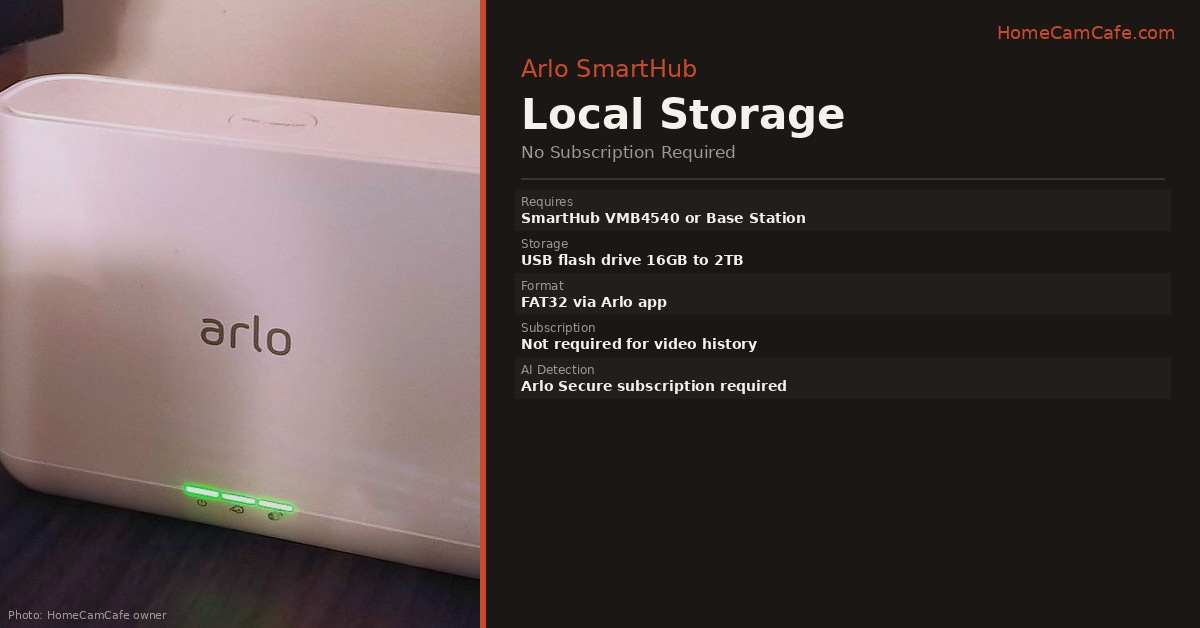
What You Need
- An Arlo SmartHub or Base Station with a USB port — the Arlo SmartHub VMB4540 is the USB model, the VMB5000 uses microSD instead – see the model notes below
- A USB 2.0 or 3.0 flash drive or external hard drive with a Type-A connector, minimum 16GB, maximum 2TB
- An Arlo camera compatible with the SmartHub — Arlo Pro 3, Pro 4, Pro 5S, Pro 6, Ultra, Ultra 2, and Essential series all support SmartHub local recording
Important — Two SmartHub models, different storage types: The VMB4540 SmartHub has a USB port on the back and uses a USB flash drive or hard drive. The VMB5000 SmartHub does not have a USB port as it uses a microSD card slot on the bottom instead. Confirm which model you have before buying a USB drive. The steps below apply to the VMB4540 and older Base Station models with USB ports.
Step-by-Step Setup
Step 1. Insert the USB drive into the USB port on the back of the Arlo SmartHub or Base Station. Use a flash drive from a reputable brand — SanDisk, Samsung, or Kingston. Avoid no-name drives that frequently misrepresent their actual storage capacity.
Step 2. Open the Arlo Secure app and tap Settings.
Step 3. Select your SmartHub or Base Station from the device list.
Step 4. Tap Storage Settings.
Step 5. Tap the Record Locally switch to enable local recording.
Step 6. Tap Local Storage Settings, then tap Format at the bottom of the screen. This formats the drive as FAT32 — the file system Arlo requires. Formatting erases all existing data on the drive, so back up anything important first. Do not use a drive larger than 2TB — FAT32 has a 2TB maximum and the SmartHub will reduce larger drives to 2TB during formatting.
Once formatting is complete the SmartHub begins saving motion-triggered clips to the USB drive automatically. No further configuration is required.
What Happens After Setup
Motion-triggered clips save to the USB drive every time a camera detects motion. If an active Arlo Secure subscription is present, footage saves to both the USB drive and the cloud simultaneously providing local and off-site redundancy at the same time. Without a subscription, footage saves to the USB drive only.
When the drive fills up the SmartHub automatically deletes the oldest recordings to make space for new ones. The Arlo Secure app sends a notification when the drive is running low on space so you have time to download or archive footage before it is overwritten.
During an internet outage, the SmartHub continues recording to the USB drive as long as the hub and cameras have power — even without any cloud connectivity. This is one of the key advantages of local storage over cloud-only configurations. For the full discussion see the cloud outage guide.
Accessing Local Recordings
Local recordings appear in the Arlo app’s Library alongside cloud recordings, organized by camera and date. There is no separate interface for local versus cloud footage. You can view, download, and share local recordings from the app the same way you access cloud clips.
One important limitation: accessing local recordings remotely requires an active internet connection to the SmartHub. If the SmartHub is offline, remote access is not available as you would need to physically remove the USB drive and read the files on a computer. Locally stored files are saved in a standard video format readable on any computer without special software.
Which USB Drive to Buy
For most homes with one to five cameras, a 128GB USB flash drive is the right size as it is compact, no external power required, and stores weeks of motion-triggered footage. At 30 ten-second clips per day, 128GB holds several months before overwriting begins.
For larger installations or high-traffic cameras, a 256GB or larger portable hard drive provides more headroom. Flash drives are simpler and more reliable for most SmartHub installations as hard drives occasionally have power delivery issues when bus-powered from the hub’s USB port.
NAS devices not supported: Network-attached storage devices and drives with multiple partitions are not compatible with the Arlo SmartHub. Use a single-partition USB flash drive or hard drive only.
Does This Replace the Arlo Secure Subscription?
For video history, yes since local USB storage provides motion-triggered recordings without any subscription. For AI detection features like person, vehicle, and package detection, no. Those features require an Arlo Secure subscription regardless of storage method. Local storage handles the video history question but does not unlock the AI-filtered alerts.
For buyers who want capable cameras with completely free local storage and free AI detection, the Tapo C210 and Wyze Cam v4 provide both without any hub or subscription requirement. See the best no-subscription cameras guide for the full comparison.
Bottom Line
Arlo SmartHub local storage works well and requires no subscription for video history. Plug a USB drive into the SmartHub, open the Arlo Secure app, go to Settings, select the SmartHub, tap Storage Settings, enable Record Locally, and format the drive. Use a 128GB flash drive from a reputable brand for most installations. The VMB5000 SmartHub uses a microSD card rather than a USB drive — confirm your model before buying storage. AI detection features still require an Arlo Secure subscription regardless of storage method.
This guide is part of our Arlo Security Camera hub. See also: Local vs Cloud Security Camera Storage and How Cloud Outages Affect Security Cameras.