
If you have been searching for how to share Blink camera access with a spouse, family member, roommate, or house sitter, there is one critical detail worth knowing before you start: Blink does not have a separate “shared user” or “guest role” system the way several competing brands do. Instead, sharing a Blink camera means signing a second phone or tablet into your main Blink account, and as a result, the person you add gets the exact same level of control you have.
That all-or-nothing design is not necessarily a dealbreaker for immediate family members, but it changes how you should decide who gets access, how you handle motion alerts, and how you audit connected phones over time. Below is the step-by-step process for adding a second device, what the other person can and cannot do, how Multi-Client Live View works, and how to revoke access immediately when someone no longer needs it.
Quick Answer: Blink does not support view-only guest invitations. To share access, the second person downloads the Blink Home Monitor app, signs in with your primary Blink email and password, and enters the 6-digit SMS verification PIN sent to your phone. Because every signed-in device receives full administrator permissions, only share your Blink login with people you trust completely, and use Settings > Account and Privacy > Manage Mobile Devices to remove devices when their access is no longer needed.
How to Share Blink Camera Access: Account Sharing Explained
Unlike Ring, TP-Link Tapo, Reolink, or Google Nest, which offer dedicated invite-a-user menus with adjustable permission tiers, Blink takes a simpler but less flexible approach. There is no separate guest login or camera-by-camera invitation link. Instead, you authorize another mobile device to sign in to your existing Blink account using your login credentials and a multi-factor verification code that you approve.
In practical terms, learning how to share Blink camera access is really learning how to share your Blink account across multiple phones or tablets. Blink allows up to 100 verified mobile devices on a single account, and there is no way to hand someone partial access to just a front porch camera while hiding an indoor camera. It is full account access or none at all. Before you hand over your login details and approve the verification code, think of it less like sharing a single video feed and more like handing over a spare house key.
Step-by-Step: How to Add a Second Phone to Your Blink Account
A common point of confusion is looking inside the Blink app on your own phone for an “Add User” or “Invite Family Member” button. Blink does not use an outbound email invite. Instead, you start the login right on the second person’s phone or tablet and approve the security code from yours:
- Download the Blink Home Monitor app on the second device: Have your family member install the official Blink Home Monitor app from the Apple App Store, Google Play Store, or Amazon Appstore on their own smartphone or tablet. Make sure both of you are running the current version of the app.
- Sign in using your primary Blink account credentials: On the second person’s phone, tap Sign In (do not tap Create Account) and enter the exact email address and password associated with your main Blink account.
- Approve the 6-digit multi-factor verification code: As soon as the password is submitted, Blink sends a 6-digit verification PIN via SMS text message (or email) to the primary account owner’s registered phone number. If the text does not arrive right away, wait 90 seconds and tap Resend code.
- Enter the PIN and check “Trust this device”: Give that 6-digit verification code to your family member so they can enter it on their screen. Before tapping Verify, have them check the Trust this device box if you want their phone to stay logged in without needing a new SMS code on future logins.
- Confirm camera visibility: Once verified, all of your Blink systems, Sync Modules, and cameras appear immediately on the second phone. In most cases, the entire setup takes less than three minutes as long as both people are reachable at the same time to pass along the SMS code.
What the Person You Share With Can Do (And Why It Matters)
Important: Once someone signs in as a verified device on your Blink account, they have the exact same permissions you do. This includes watching live view, using two-way talk, viewing and deleting your full cloud or local clip history, disarming the entire system, changing motion detection zones, and even deleting cameras from your account. There is no setting to restrict a shared user to view-only access.
Because there is no built-in permission barrier between the primary owner and a secondary phone, here is a clear breakdown of what every signed-in device can control on your Blink system:
| Blink Feature or Action | Primary Owner Phone | Shared Family / Second Phone | Household Impact |
|---|---|---|---|
| Live View & Two-Way Audio | Full Access | Full Access | Can view any camera on the account and speak through the speaker. |
| View & Delete Recorded Clips | Full Access | Full Access | If a shared user deletes a motion clip, it is deleted for everyone on the account. |
| Arm or Disarm the System | Full Access | Full Access | Tapping Disarmed turns off motion recording across all phones until re-armed. |
| Snooze Motion Notifications | Per-Phone Control | Per-Phone Control | Snoozing alerts only silences notifications on the phone that tapped Snooze. |
| Edit Motion Zones & Sensitivity | Full Access | Full Access | Changes to sensitivity, clip length, or schedules apply globally. |
| Rename or Delete Cameras | Full Access | Full Access | Any signed-in device can add, rename, or remove cameras and Sync Modules. |
One of the most important habits to teach family members when you share a Blink account is the difference between Disarming the system and Snoozing notifications. If someone is working in the yard and gets tired of their phone buzzing, their first instinct is often to tap Disarmed at the bottom of the Blink app. Doing that stops the cameras from recording motion events for the entire household, and it is easy to forget to re-arm the system before going to bed. Instead, show family members how to tap the Snooze (bell) icon next to a camera or system on the Home screen. Motion Snooze silences push notifications on that specific phone for 30 minutes to 4 hours (or up to 24 hours with a Blink subscription plan) while the cameras continue recording clips normally and sending alerts to everyone else on the account.
Multi-Client Live View: Watching the Same Camera Together
One real advantage of Blink’s account-based model is that multiple people can watch a live video stream from the exact same camera at the same time, a feature documented on Blink’s Multi-Client Live View support page. Older Blink firmware used to kick the first viewer out of Live View if a second family member tapped the same camera notification at the same moment.
With Multi-Client Live View enabled on current versions of the Blink app, several household members can tap a package delivery or driveway motion alert simultaneously and watch the live stream together without interrupting each other. Keep in mind that simultaneous live streaming still draws battery power from wire-free cameras, and it comes bundled with the full-account access model described above.
Do Shared Devices Need Their Own Blink Subscription?
No. Because a shared phone or tablet is simply signing into your existing Blink account rather than creating a separate user profile, it automatically shares whatever storage setup you already have active. Whether you subscribe to a single-camera Blink Basic plan, an unlimited-device Blink Plus or Plus AI plan, or record motion clips locally with zero monthly fees, adding a second, third, or fourth phone to your account costs nothing extra.
Every signed-in device sees the exact same clip roll in the Blink app, whether those clips are stored in the cloud for 60 days or saved locally on your home network. If you are comparing what you get for free versus paid tiers, see our full Blink subscription plans and free local storage guide.
How to View and Remove Shared Devices from Your Blink Account
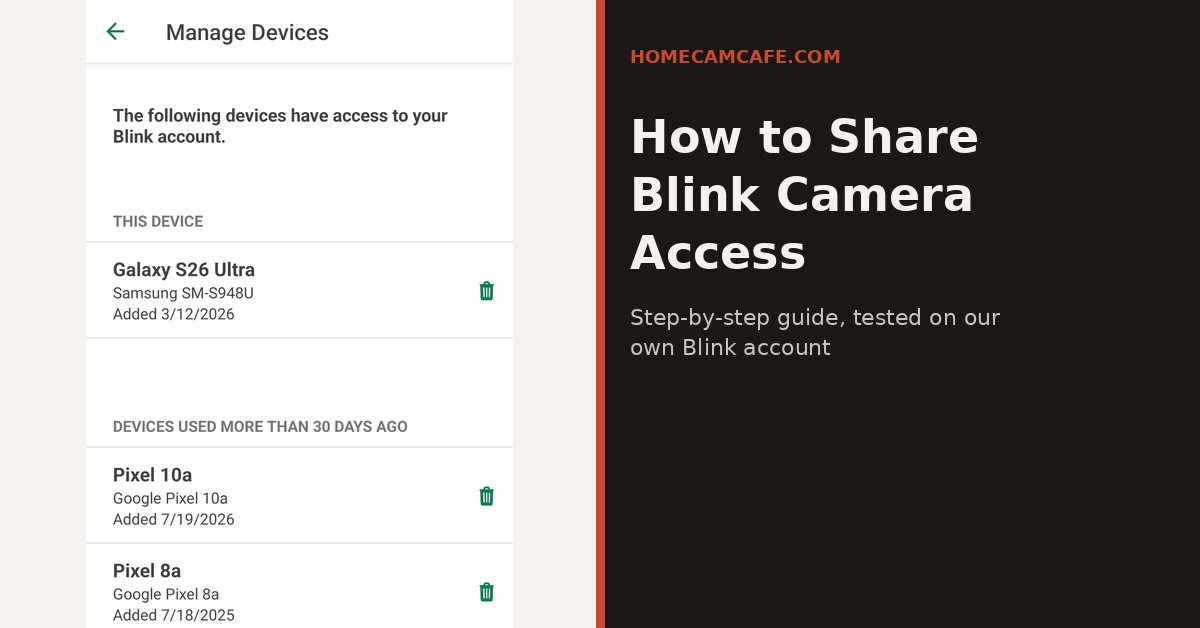
If you need to revoke someone’s access later, whether that is a house sitter whose stay has ended, an ex-roommate, or an old phone you traded in, you can sign their device out remotely from inside the Blink app. As detailed in Blink’s Manage Devices documentation, the primary account holder can inspect every device that has accessed the account over the past 30 days:
- Open the Blink app and tap Settings (the gear icon in the bottom-right corner).
- Tap Account and Privacy.
- Select Manage Mobile Devices.
- Enter the 6-digit SMS verification code sent to your phone number and tap Verify.
- Review the list of verified phones, tablets, and linked services (your current device is always shown at the top of the list).
- Tap the Remove (trash can) icon next to the device you want to kick off the account.
Removing a device from the Manage Mobile Devices list immediately logs that phone out of the Blink app. Even if that person still knows your password or previously checked “Trust this device,” they cannot get back into your account without triggering a brand-new 6-digit SMS verification code to your phone. Furthermore, if you want to wipe access for every shared phone at once, changing your Blink account password under Settings > Account and Privacy immediately logs out all other devices except the phone you use to reset the password.
Is There a Safer, View-Only Way to Share Blink?
Inside the Blink mobile app, no. Blink has not introduced a permissions tier that limits a mobile app user to live viewing only, nor does it let you share one outdoor camera while hiding an indoor camera on the same account. For most households sharing cameras between spouses or immediate family members living under one roof, full account access works fine, but it is a genuine limitation if you frequently invite extended relatives, babysitters, or dog walkers.
However, there are two practical workarounds if you need more separation:
- Use an Amazon Echo Show for in-home guests and sitters: If a babysitter, dog walker, or house sitter only needs to see the front porch or backyard while they are physically inside your house, do not put the Blink app on their phone. Instead, link the Blink SmartHome skill to an Amazon Echo Show on your kitchen counter. Anyone in the house can say “Alexa, show the front door” to view the live feed on the counter screen without having access to your Blink clip history, motion settings, or camera feeds when they leave your home.
- Keep indoor cameras on a separate account or smart plug: If you share your Blink login with adult children or roommates who need to check exterior cameras, avoid putting indoor living-space cameras on that same Blink account, or plug indoor cameras into a smart plug that powers them off when people are home.
If you are still deciding on camera hardware and sharing within a single household is your main goal, cameras like the Blink Outdoor 4 remain a strong value pick thanks to their two-year AA lithium battery life and simple app experience. Read our hands-on Blink Outdoor 4 review for full night-vision and mounting test results.
Blink Sync Module and Multiple Systems on One Account
If your Blink setup uses a Sync Module, the account-sharing rules work the exact same way regardless of whether your cameras connect through a Blink Sync Module 2 (which saves local clips to a USB flash drive), the included Sync Module Core, or the extended-range Sync Module XR and XR+ (which save local clips to a microSD card). Similarly, if you are starting out with a single plug-in indoor/outdoor camera like the Blink Mini 2 or the sharper 2K model covered in our Blink Mini 2K+ review, any phone signed into your account sees that camera even if you do not own a Sync Module at all.
In addition, if you run a larger property setup using the Blink Sync Module XR+ or manage multiple Blink “Systems” under one account (for example, a “Main House” system and a “Detached Garage” or “Vacation Cabin” system), every system tab and every camera on those hubs becomes visible to anyone signed into your account. Blink does not allow you to share one Sync Module system while hiding another system on the same login.
Common Mistakes to Avoid When Sharing Blink Access
- Sharing your login with contractors or short-term helpers: Avoid giving your Blink login and SMS verification code to a contractor or service provider for a temporary job. Because a shared user can delete clips or disarm your system, and because it is easy to forget to revoke access afterward, your entire account stays exposed longer than necessary.
- Assuming deleting the Blink app removes device authorization: Do not assume a shared phone loses its trusted token automatically if someone deletes the Blink app from their phone or stops checking it. Always remove old or temporary devices manually under Settings > Account and Privacy > Manage Mobile Devices.
- Disarming the system instead of snoozing notifications: Make sure everyone signed into your account knows that tapping Disarmed stops motion recording for the whole family, whereas tapping the Snooze bell icon only quiets notifications on their own phone.
- Using the same password across other accounts: Because you have to type or share your Blink password to sign in a second family phone, never reuse your primary email or banking password for your Blink account. Use a unique password dedicated strictly to Blink.
How Blink Compares to Other Brands for Camera Sharing
Before deciding whether Blink’s all-or-nothing sharing model works for your household, it helps to compare how competing camera ecosystems handle multi-user access:
| Camera Brand | Sharing Method | Separate Guest Login? | Share Specific Cameras Only? | View-Only / Restricted Role? |
|---|---|---|---|---|
| Blink | Shared Master Account + SMS PIN | No | No (All cameras on account) | No (Full admin access) |
| TP-Link Tapo | Tapo Device Sharing Invite | Yes (Own TP-Link ID) | Yes (Per-camera selection) | Yes (Cannot delete camera or change admin settings) |
| Ring | Ring Shared Users Invite | Yes (Own Ring account) | Yes (Per-camera selection) | Yes (Cannot delete clips or change device settings) |
| Reolink | UID / QR Device Share | Yes (Admin vs. User accounts) | Yes (Per-camera or NVR) | Yes (Standard User role restricts admin settings) |
| Google Nest | Google Home Member Invite | Yes (Own Google account) | No (Whole Google Home structure) | Yes (Full Access vs. Limited Member settings) |
If granular per-camera sharing is a priority for your home, TP-Link Tapo and Ring handle guest invitations much better than Blink. For example, our guide on how to share a Tapo camera walks through how Tapo lets a family member create their own separate login and view only the specific cameras you select, without giving them permission to wipe your settings or remove hardware.
That said, Blink’s simplicity has its own appeal for single-family households. Because there is no separate guest invitation flow to troubleshoot and no restriction on which features a spouse can adjust, onboarding a second phone takes two minutes and never leaves a partner locked out of sensitivity controls when you are away. That tradeoff works well for buyers who are already invested in affordable Blink hardware like the 1440p head-to-toe Blink Video Doorbell (2nd Gen), which we tested in our Blink Video Doorbell (2nd Gen) review.
View Blink Outdoor 4 on Amazon →
Frequently Asked Questions About How to Share Blink Camera Access
Can I give someone view-only access to my Blink camera?
No. Blink does not offer a permission tier that restricts a mobile app user to live viewing only. Anyone signed into your Blink account has full administrator access, including live view, two-way talk, motion settings, and clip deletion.
Does everyone I share with need their own Blink account?
No. Do not have your family member create a separate Blink account, because a Blink camera or Sync Module can only be registered to one account at a time. Instead, they sign into the Blink app on their phone using your primary account email and password, then enter the 6-digit SMS verification code sent to your phone.
Can two people watch the same Blink camera at the same time?
Yes. Blink supports Multi-Client Live View on current versions of the Blink Home Monitor app, allowing multiple phones signed into the same account to watch a live video stream from the same camera simultaneously without kicking each other off.
Can I share just one Blink camera instead of all of them?
No. Because sharing works at the account level, anyone signed into your Blink account can see every camera and every Sync Module system registered under that login.
Does adding a second phone to Blink cost extra?
No. Shared devices automatically use whatever Blink Basic, Blink Plus, or Sync Module local storage setup is already active on your account at no additional monthly cost.
How do I kick someone off my Blink account?
Open the Blink app and go to Settings > Account and Privacy > Manage Mobile Devices, verify with the 6-digit SMS PIN sent to your phone, and tap the trash can icon next to the device you want to remove. You can also change your Blink password to sign out every other device immediately.
Bottom Line
Sharing a Blink camera across multiple phones is quick to set up and costs nothing extra, but it requires real trust because every signed-in device receives full control over your cameras, recordings, and armed status. For spouses and close family members managing one household together, logging into the same account works smoothly as long as everyone uses Motion Snooze rather than disarming the system. However, if you need to give a sitter, guest, or extended relative limited access without exposing your full account, use an indoor Echo Show display for voice viewing or consider an ecosystem like TP-Link Tapo or Ring that supports restricted per-camera invites.
For hands-on reviews of specific Blink hardware, see our Blink Outdoor 4 review and our Blink Sync Module XR+ review. For more setup tutorials and model comparisons, visit our Blink camera reviews and guides hub and our security camera how-to guides.