
A security camera can capture every second of an incident and still produce footage that is not useful. The problem is not always the camera’s advertised resolution. A poor recording can also come from the wrong app setting, weak lighting, motion blur, aggressive compression, digital zoom or a camera mounted too far from the area that matters.
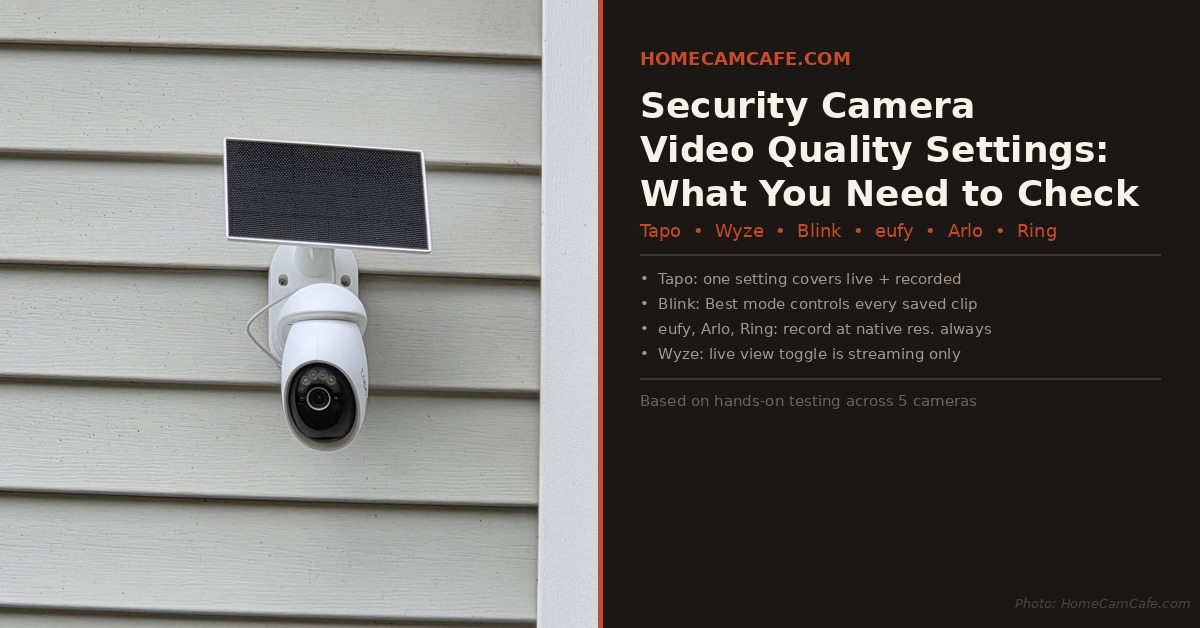
The confusing part is that security camera video quality settings do not work the same way across brands. On one camera, a quality selector changes the saved recording. On another, it changes only the live stream sent to your phone. Some cameras also reduce resolution when battery-saving features, tracking or poor network conditions come into play.
This guide explains the settings that affect useful evidence and shows what to inspect in Tapo, Wyze, Blink, eufy, Arlo and Ring apps.
Recorded Quality and Live-View Quality Are Not the Same
This is the first distinction to understand. The image displayed on your phone may be a lower-bandwidth preview rather than the file being stored by the camera.
Some apps let you reduce live-view quality so the stream opens faster over a cellular connection. The camera may still save a higher-quality event clip locally or in the cloud. Other systems use one quality setting for both streaming and recording. A few brands vary by model, storage method or firmware version.
Do not judge recorded quality only by watching Live View. Trigger a test event, download the resulting clip and inspect the exported file at full size. If you use both cloud and local storage, test a clip from each source. They may not be identical.
Resolution Helps, but It Does Not Guarantee Identification
More pixels can preserve additional detail, especially when you need to crop part of an image. Still, a 4K camera aimed across a wide yard may place fewer useful pixels on a face than a well-positioned 2K camera covering a narrow entrance.
These factors work together:
- Distance: A person occupying a small part of the frame will remain difficult to identify at any advertised resolution.
- Field of view: A very wide lens spreads available pixels across more of the scene.
- Lighting: Dark scenes force the camera to use more noise reduction or a slower shutter.
- Subject movement: A moving face can blur even when a stationary object looks sharp.
- Compression and bitrate: Two cameras recording at 2560 x 1440 can preserve very different levels of detail.
- Lens condition: Dirt, condensation, spiderwebs and reflected infrared light can ruin an otherwise good image.
Use the camera’s highest practical recorded resolution, but treat that as one part of the setup rather than a guarantee.
9 Security Camera Video Quality Settings to Check
1. Recorded Video Quality
Look for a setting named Recording Quality, Video Quality, Best Video or Maximum Resolution. Confirm that it applies to saved footage rather than Live View alone. Battery cameras may trade recording quality for longer battery life, while plug-in and PoE cameras generally have less reason to compromise.
After changing the setting, create a new test recording. Existing clips will not improve retroactively.
2. Streaming Quality
Set Live View to a high level when examining an event or aiming the camera, but understand the tradeoff. A maximum-quality stream consumes more network bandwidth and may load slowly when you are away from home.
If the app offers Auto, it may lower the live stream to keep playback moving. That does not necessarily mean the stored recording was reduced. Download the clip before deciding that the camera failed to record at full quality.
3. HDR or WDR
HDR and WDR help when one part of the scene is bright and another is dark. A common example is a covered front porch with daylight behind the visitor. Without dynamic-range processing, the person’s face may appear as a silhouette.
These modes are not automatically better in every location. They can introduce processing artifacts or make movement look less natural on some cameras. Test the same approach path with the setting on and off, then keep the version that preserves the face more clearly.
4. Frame Rate and Exposure
A high-resolution frame is not useful if a moving person becomes a blur. Higher frame rates can make movement easier to follow, but low-light performance may suffer because the camera has less time to gather light for each frame.
Many consumer camera apps do not expose shutter speed or bitrate controls. If frame rate is available, test it at night rather than assuming the highest number will always produce the best evidence.
5. Night-Vision Mode
Most cameras offer infrared night vision, color night vision or an automatic mode that switches between them. Color night vision needs enough ambient light or a built-in spotlight. In a very dark area, infrared may produce a clearer subject even though the image is monochrome.
Watch for nearby walls, soffits and windows reflecting the camera’s infrared light back into the lens. Re-aiming the camera a few degrees can improve the image more than changing resolution.
My Tapo C660 produces strong color detail when the scene has enough light, although color mode will not win everywhere. See my Tapo C660 review and the current Tapo C660 KIT listing.
6. Auto Zoom and Subject Tracking
Digital tracking can make a live view look impressive while reducing the detail retained in the full recording. Arlo states that Auto Zoom and Tracking can reduce 4K recording to 1080p on supported Ultra cameras. Other brands may crop or digitally enlarge the image in a similar way.
If maximum evidentiary detail matters, compare a downloaded recording with tracking enabled against one with it disabled. A wide, full-resolution recording often gives you more flexibility to inspect the scene later.
7. Clip Length, Retrigger Time and Pre-Recording
Image quality is irrelevant if the clip begins after the person’s face has left the frame. Review the maximum clip length, retrigger interval, end-clip-early option and any pre-recording feature available on the camera.
Battery cameras often use conservative defaults to preserve power. Increasing clip length or reducing the retrigger delay may consume more battery, but it can prevent gaps between events. Plug-in and PoE models are usually better choices for entrances or driveways where continuous coverage matters.
8. Wi-Fi Signal and Upload Bandwidth
Weak Wi-Fi can affect Live View, cloud uploads and, on some systems, recorded resolution. It is not the only possible cause of poor video, but it should be tested at the camera’s mounting location.
Check the signal reading in the camera app, then run a network test near the installation point if practical. Also consider interference, crowded 2.4 GHz channels, mesh-node selection and the home’s available upload speed. Repositioning a mesh node or adding a wired access point is often more dependable than installing a basic wireless extender.
For more networking and installation fixes, see the security camera installation problems guide.
9. Camera Position and Test Distance
Do not mount first and test later. Temporarily place the camera where you expect to install it, then record someone walking the real approach path during daylight and at night.
If the face remains too small, move the camera closer, narrow the coverage area or add a second camera dedicated to identification. One wide overview camera is rarely the best tool for identifying everyone across a large property.
Brand-by-Brand Video Quality Checks
App menus and available settings can change with the model and firmware. Use these as starting points, then verify the downloaded recording produced by your specific camera.
| Brand | Setting to Inspect | Important Qualification |
|---|---|---|
| Tapo | Video and Display > Video Quality | Effect on streams and recordings can vary by model and storage method. Check an exported clip. |
| Wyze | Live View resolution selector | The selector may describe the stream you are viewing. Verify cloud and microSD recordings separately. |
| Blink | Video and Photo Settings > Video Quality | Best, Standard and Saver affect saved quality. Local storage is available with compatible Sync Modules. |
| eufy | Streaming Quality and Recording Quality, when offered | Controls vary considerably by model. Do not assume the live-stream choice controls the saved file. |
| Arlo | Power Management > Best Video | Battery settings, bandwidth and Auto Zoom and Tracking can reduce recorded resolution. |
| Ring | HDR, device health and network connection | Resolution is mainly model-dependent. Ring Edge local recording is limited to compatible 1080p devices. |
Tapo
Open the camera in the Tapo app, tap the settings gear and go to Video and Display. Select the highest practical Video Quality and review related options such as frame rate, HDR or night mode when your model provides them.
Some Tapo streams are tied to the quality selected in the app, but behavior can vary by camera and recording destination. Test microSD, Tapo Care and RTSP or ONVIF recordings separately if you use more than one method.
Wyze
Wyze cameras place a resolution selector in Live View. On the Wyze Cam v4, the maximum option is 2.5K QHD. Set it to the maximum when inspecting detail, but do not assume the badge alone proves the resolution of every stored clip.
Trigger an event and export a cloud recording. If a microSD card is installed, export a local recording from the same test. Compare both at full size. See my Wyze Cam v4 review or the current Wyze Cam v4 listing.
Blink
In the Blink app, tap More on the camera thumbnail, open Device Settings, select Video and Photo Settings, then choose Video Quality. Current models can offer Best, Standard and Saver, but the resolution and bandwidth requirements depend on the camera. Blink’s current 2K models require more upload capacity at Best than its older 1080p cameras.
Blink is not cloud-only. Compatible systems can save clips locally to USB storage through Sync Module 2 or to removable storage supported by newer Sync Modules. The newer Blink Outdoor 2K+ is a useful example because its Best setting records at a higher resolution than older Blink Outdoor models. Whichever storage route you use, trigger and inspect a fresh clip after changing quality.
eufy
Do not treat eufy as a single configuration. Some eufy cameras and doorbells expose separate Streaming Quality and Recording Quality controls, while other models organize the menu differently. Open the individual device settings and look for both terms.
If the camera offers a storage-saving recording mode, understand that it may trade away detail. Select the higher recording-quality option for an identification point and verify the result from HomeBase, microSD or cloud storage as applicable.
Arlo
Open the Arlo Secure app, select the camera, tap its settings and inspect Power Management. Best Video prioritizes image quality, while Optimized and Best Battery Life can make different compromises.
For supported 4K Arlo cameras, disable Auto Zoom and Tracking when maximum recorded resolution matters. Arlo states that this feature can reduce the recording to 1080p, and the system may also reduce resolution when it detects insufficient bandwidth. If you use local storage, see the Arlo SmartHub local storage guide.
Ring
Ring’s recorded resolution is primarily determined by the camera model. The current lineup includes 1080p, 2K and 4K devices, and available quality can still vary with bandwidth and device temperature. Inspect Device Health for a weak connection and test HDR if a doorway has severe backlighting.
Ring normally stores recordings in the cloud with an eligible plan, but it is not accurate to say Ring has no local storage option. Ring Edge can store and process video locally with Ring Alarm Pro and a microSD card on compatible devices. Ring Edge supports 1080p recording and is not compatible with Ring’s 2K or 4K cameras. See the Ring Protect plan guide for the subscription side of the system.
A Five-Minute Quality Audit
Use this checklist on each important camera:
- Confirm the highest practical recording quality, not only Live View quality.
- Review HDR or WDR where bright backgrounds hide faces.
- Check night mode after dark and look for infrared reflections.
- Disable digital tracking temporarily and compare the exported footage.
- Increase clip length or reduce retrigger delays if events are being cut off.
- Check signal strength, upload capacity and the camera’s selected mesh node.
- Clean the lens and inspect it for moisture or spiderwebs.
- Record a person walking the real approach path during both day and night.
- Download the clip and inspect moving faces at full size.
Run the same test again after major app updates, firmware changes or moving network equipment. A setting that worked last year may not remain the best choice after the camera or app changes.
For related setup help, read the common installation problems guide, the Arlo local storage guide and more security camera how-to guides.
Bottom Line
The best security camera video quality settings are the ones that improve the saved evidence from your specific camera. Separate recording quality from Live View quality, test HDR and night mode in the real scene, avoid unnecessary digital tracking and inspect downloaded clips rather than trusting the badge in the app. Resolution matters, but placement, lighting, motion handling and recording behavior determine whether the footage can identify someone when it counts.
