
The Reolink camera status light can be turned off on supported models, but the setting is not available on every Reolink camera. In the app, the usual path is Camera Settings → Light → Status LED. Reolink lists several battery-powered Wi-Fi, E1, and Lumus cameras among the supported models, while its instructions specifically exclude the Argus 4 series. Check your model before assuming a missing toggle is hidden in another menu.
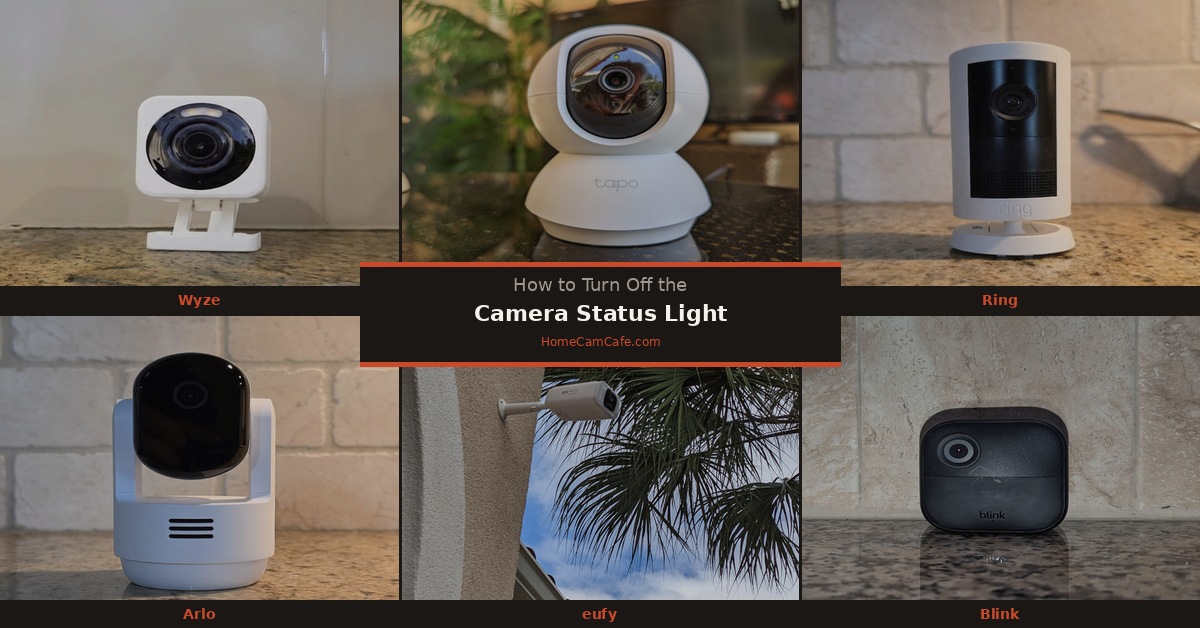
How to Turn Off the Reolink Status LED
If your camera supports the setting, follow these steps in the Reolink app:
- Open the Reolink app and select your camera.
- Tap its Settings gear icon.
- Open Light.
- Tap Status LED or Indicator Light, then switch it off.
The wording and layout can vary by camera and app version. Reolink’s status LED instructions place the control under Settings → Light and list the models to which the instructions apply. Switching off a supported camera’s status indicator does not itself switch off its recording, motion detection, alerts, or storage.
Check the model: Reolink’s status LED guide covers supported battery-powered Wi-Fi cameras except the Argus 4 series, as well as the Go PT S Lite, Lumus, E1, Elite, and TrackFlex series. It does not say that every Argus or RLC camera has this app toggle.
What If You Cannot Find the Setting?
First, check Settings → Light rather than looking under Advanced. The original menu path often repeated in guides, Device Settings → Advanced → Status LED, is not the app path in Reolink’s current instructions. Reolink does describe an Advanced Settings path for some cameras accessed through a web browser, which may explain the confusion.
Next, identify your exact model. The Argus 4 Pro, for example, has a status light, but Reolink excludes the Argus 4 series from its status LED on/off instructions. A light being present on a camera does not establish that the app lets you disable it. If your model is on Reolink’s supported list and the setting still does not appear, check the camera’s own Light page and consult Reolink’s instructions for your app, firmware, or recording setup.
Reolink also documents controls in its desktop client and, for applicable devices, its web interface or an NVR connected to a monitor. The available route depends on the camera: battery-powered models, for instance, do not support the web browser configuration described in that guide. There is no need to change unrelated recording settings just to look for an LED option.
The Status LED, IR Lights, and Spotlight Do Different Jobs
A Reolink camera may have more than one kind of light. The status LED communicates a camera or connection state. Infrared (IR) lights, on models equipped with them, help the camera see in the dark. A spotlight, where fitted, provides visible illumination. The controls for one type of light do not necessarily change the others.
If a camera faces a window and its night image shows reflections, the IR lights are the setting to investigate. On supported cameras, Reolink’s app instructions put Infrared Lights under Device Settings → Light; selecting Stay Off disables them. Check the night image afterward, since turning off IR can reduce what the camera sees in darkness. Reolink’s IR light instructions also list models to which that control does not apply.
The Argus 4 Pro is one of the exceptions: it uses ColorX low-light technology and does not have IR LEDs. That does not mean it can produce a useful picture without any light at all; its spotlight can provide illumination when needed. The Argus 4 Pro’s lack of IR lights and its exclusion from the status LED toggle instructions are two separate model details.
What Do Reolink LED Colors Mean?
There is no dependable five-color chart for every Reolink camera. Reolink publishes different explanations for different families, and the same color can have a different meaning depending on whether it is solid or blinking.
| Camera family | Examples from Reolink’s guidance |
|---|---|
| E1 and Lumus models covered by Reolink’s guide | A blinking status LED can indicate that the network connection failed or has not been configured. A solid LED can appear during startup or after a successful network connection. |
| Battery-powered Wi-Fi models covered by Reolink’s guide | Blue indicates a successful Wi-Fi connection; red indicates a failed connection. Solid or blinking distinguishes the camera’s working and standby modes. |
Those are family-specific examples, not rules for every Reolink device. For an unexpected light, compare your model with Reolink’s E1 and Lumus guide or its battery-powered Wi-Fi guide, as appropriate. Remember that an unlit LED can simply mean the indicator has been disabled; it does not prove that the camera is off.
If Your Camera Has No Status LED Toggle
Try changing the camera’s angle so the indicator is outside your direct line of sight. For a camera near a bed or window, a small change in placement may solve the problem without affecting its controls. A carefully placed LED cover is another physical workaround, but keep it clear of the lens, microphone, spotlight, IR lights, and other sensors. Check the live picture and a test recording afterward. Be mindful that covering an indicator also prevents other people nearby from seeing it.
For a supported model, you can turn the LED back on while troubleshooting a connection issue. If the camera is offline and cannot be reached in the app, however, an app setting may not be available until you restore access. The camera’s model-specific light guide is the better reference for interpreting whatever pattern you can see.
The answer
On supported Reolink cameras, open the camera’s Settings, select Light, and turn off Status LED or Indicator Light. Check your exact model if the option is missing: Reolink’s instructions exclude the Argus 4 series and do not promise the toggle on every camera. IR night vision lights and spotlights have separate controls.
See our Reolink Security Camera Reviews hub or compare brands in How to Turn Off a Security Camera Status Light.
