
Every major security camera has a status light — a small LED on the front that glows or blinks to indicate the camera’s state. It is useful during setup and helpful for diagnosing connection problems. Once the camera is installed and working, most owners prefer it off. A visible LED in a bedroom disrupts sleep, in a nursery wakes babies, and on an outdoor camera reveals the exact mounting position to anyone looking. Every brand covered on this site lets you disable it from the app in under a minute. Here is how to do it on each one.
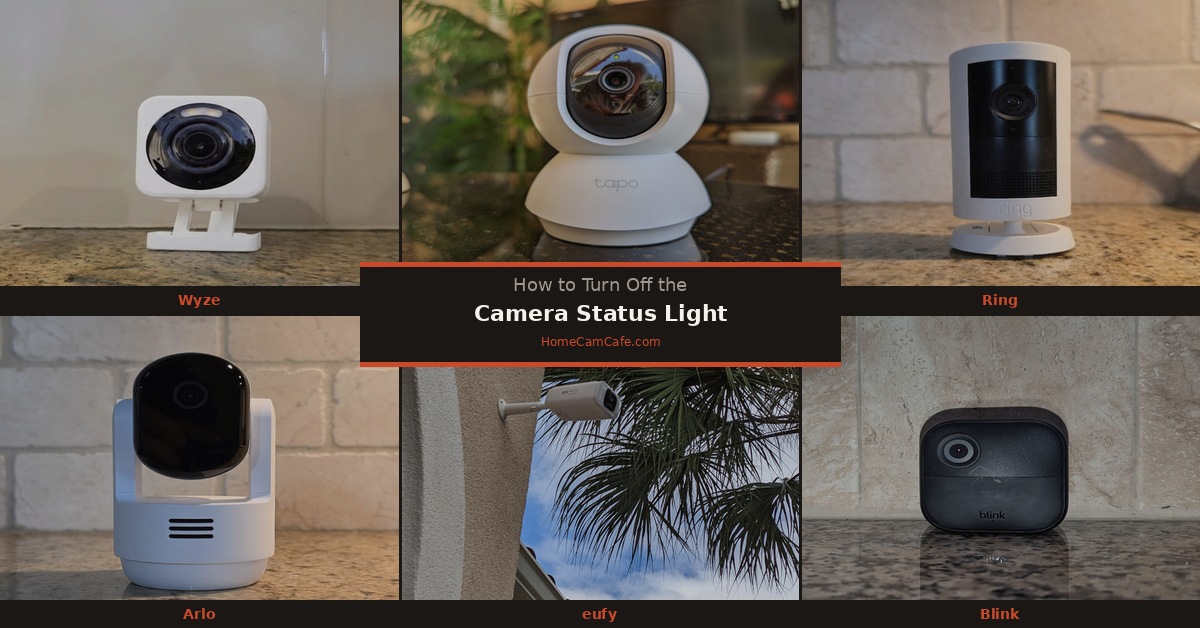
Wyze Cameras
Open the Wyze app and tap the camera. Tap the Settings gear icon, then tap Advanced Settings. Find the Status Light toggle and switch it off. Works on the Wyze Cam v3, v4, OG, Pan v3, and Pan v4.
Full guide: How to Turn Off the Wyze Camera Status Light
TP-Link Tapo Cameras
Open the Tapo app and tap the camera. Tap the Settings gear icon to open Device Settings. Scroll down to find Status LED and toggle it off. Works on the Tapo C210, C216, C425, C660, and all other current Tapo models. Note that the Status LED toggle only controls the indicator light — the IR night vision LEDs are a separate setting under Night Mode.
Full guide: How to Turn Off the TP-Link Tapo Camera Status Light
eufy Cameras
Open the eufy Security app and tap the camera. Tap the Settings gear icon, then tap Device Settings. Look for Indicator Light or Status LED and toggle it off. Works on eufy indoor cameras, SoloCam series, and eufyCam models. Location varies slightly by model — if you do not see it immediately, check Advanced Settings or General Settings.
Full guide: How to Turn Off the eufy Camera Status Light
Arlo Cameras
Open the Arlo Secure app and tap Devices. Tap the Settings gear icon next to your camera, then tap Device Settings, then Status Light, and toggle it off. Works on Arlo Pro 4, Pro 5S, Pro 6, Essential, and Essential Indoor Pan Tilt.
Full guide: How to Turn Off the Arlo Camera Status Light
Ring Cameras
Open the Ring app and go to Devices. Select your camera, tap Device Settings, then Video Settings, and toggle the Status Light off. On some models the toggle is directly under Device Settings rather than Video Settings — check both if you do not see it immediately. Works on Ring Indoor Cam, Stick Up Cam, and Spotlight Cam.
Full guide: How to Turn Off the Ring Camera Status Light
Blink Cameras
Open the Blink app and tap your camera. Tap Settings, scroll down to find the Status LED toggle, and switch it to Off or Recording. On older Blink XT models there is a physical toggle switch inside the battery compartment next to the batteries — a small switch labeled REC LED that requires a screwdriver or paper clip to move.
Full guide: How to Turn Off the Blink Camera Status Light
Reolink Cameras
Open the Reolink app and tap the camera. Tap Settings, then Device Settings, then Advanced. Find Status LED and toggle it off. Works on the Argus 4 Pro, Argus series, E1 series, and all current Reolink models. IR night vision LEDs are controlled separately under Night Vision settings.
Full guide: How to Turn Off the Reolink Camera Status Light
Aosu Cameras
Open the aosu app and tap the camera. Tap the Settings icon in the top right corner of the live view to open Device Settings. Scroll down to find LED Indicator and toggle it off. Works across the aosu camera lineup including the SolarCam D1 Classic. Turning off the LED has no effect on recording, motion detection, or alerts.
Full guide: How to Turn Off the Aosu Camera Status Light
Why You Might Want to Leave It On
Before disabling the status light permanently, consider one practical reason to keep it: the LED is the fastest way to diagnose a camera that has gone offline. A solid red light on a Wyze or Tapo camera immediately tells you the camera has lost internet connectivity — without the light you would need to open the app to discover the same information. For cameras in accessible locations, leaving the light on has value. For cameras in bedrooms, nurseries, or anywhere a visible LED causes a problem, disabling it is the right call.
Bottom Line
Every major brand supports disabling the status light from the app — no hardware modification required. The setting is typically in Device Settings or Advanced Settings depending on the brand. Disabling the light does not affect recording, motion detection, or any other camera function. If a camera ever goes offline, re-enable the light temporarily to use the LED color as a diagnostic tool before troubleshooting further.
This guide is part of our How-To Guides.
