
Ring cameras have a blue LED status light that activates when the camera is live viewing, recording, or detecting motion. For indoor cameras in bedrooms or living rooms, the light can be distracting. For outdoor cameras, some owners prefer to disable it to avoid drawing attention to the camera’s exact position. The Ring app includes a toggle to turn the status light off on most current models. Here is how.
How to Turn Off the Status Light on Ring Cameras
The steps apply to current Ring camera models including the Ring Indoor Cam, Stick Up Cam, and Spotlight Cam:
Step 1. Open the Ring app and tap the three lines in the top left to open the menu.
Step 2. Tap Devices and select the camera you want to adjust.
Step 3. Tap Device Settings.
Step 4. Tap Video Settings.
Step 5. Find the Status Light toggle and switch it off.
The light turns off immediately. Recording, motion detection, and Live View continue to function normally.
Note: The Status Light setting location varies slightly by Ring camera model. On some models it appears directly under Device Settings rather than Video Settings. If you do not see it in Video Settings, check the main Device Settings page.
Ring Floodlight and Spotlight Cam Color Light
The Ring Floodlight Cam and Spotlight Cam have both a status LED and separately controlled floodlights. The status LED toggle in Device Settings controls the small blue indicator only — it does not affect the floodlights. The floodlights are controlled separately under Light Settings and can be set to activate on motion, on a schedule, or manually from the app. These are two independent controls.
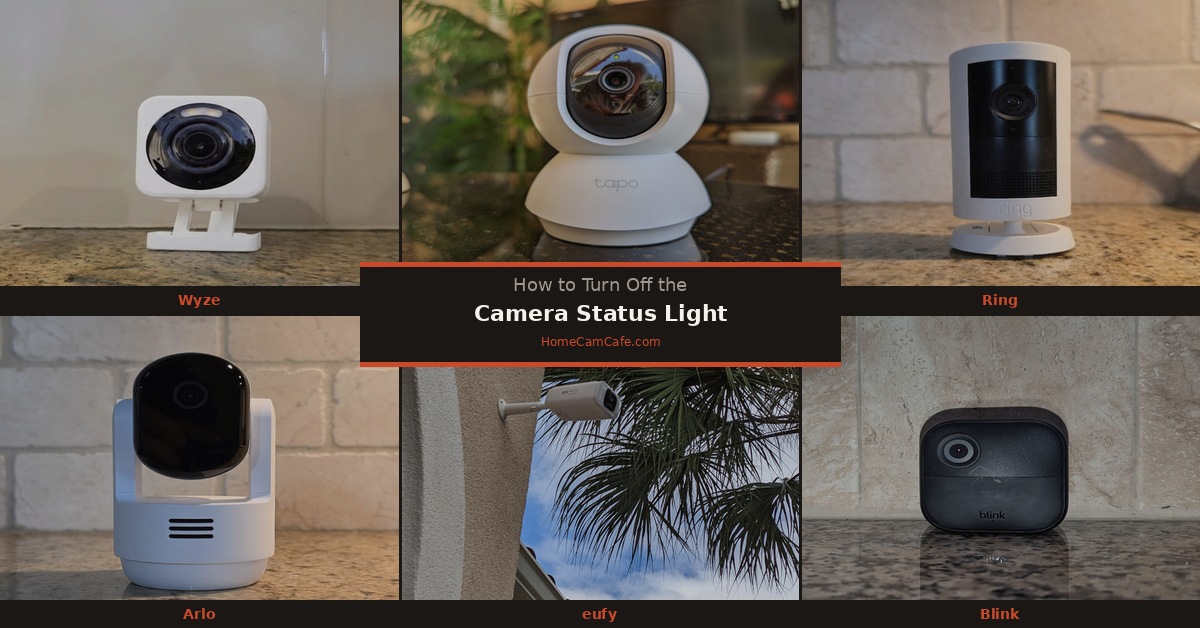
What the LED Colors Mean on Ring Cameras
- Solid blue — camera is in setup mode
- Flashing blue — camera is starting up or connecting
- Spinning blue — camera is performing a factory reset
- Blue light during live view — someone is actively viewing the camera
- White light — camera is recording a motion event
Privacy Consideration
Ring cameras have no local storage — all footage goes to the cloud and requires a Ring Protect subscription for any video history. Unlike Tapo, Wyze, or eufy cameras, there is no microSD fallback if the subscription lapses or the cloud service has an outage. Turning off the status light does not affect this storage behavior — footage still goes to Ring’s servers as long as the subscription is active. For a full breakdown of what Ring Protect includes see the Ring Protect subscription guide.
Bottom Line
Open the Ring app, go to Devices, select your camera, tap Device Settings, then Video Settings, and toggle the Status Light off. Location varies slightly by model — if it is not in Video Settings check the main Device Settings page. All camera functions continue normally with the light disabled.
This guide is part of our Ring Security Camera Reviews hub. See also: How to Turn Off the Status Light on Any Security Camera.
