
Where you place your Blink Sync Module has a direct impact on how well your cameras perform. A poorly positioned module leads to dropped connections, missed alerts, and unreliable live view — problems that have nothing to do with the cameras themselves. This guide covers optimal placement for the Blink Sync Module 2, the newer Sync Module XR, and the basic Sync Module Core, plus a comparison of all three so you know which one fits your setup.
Which Blink Sync Module Do You Have?
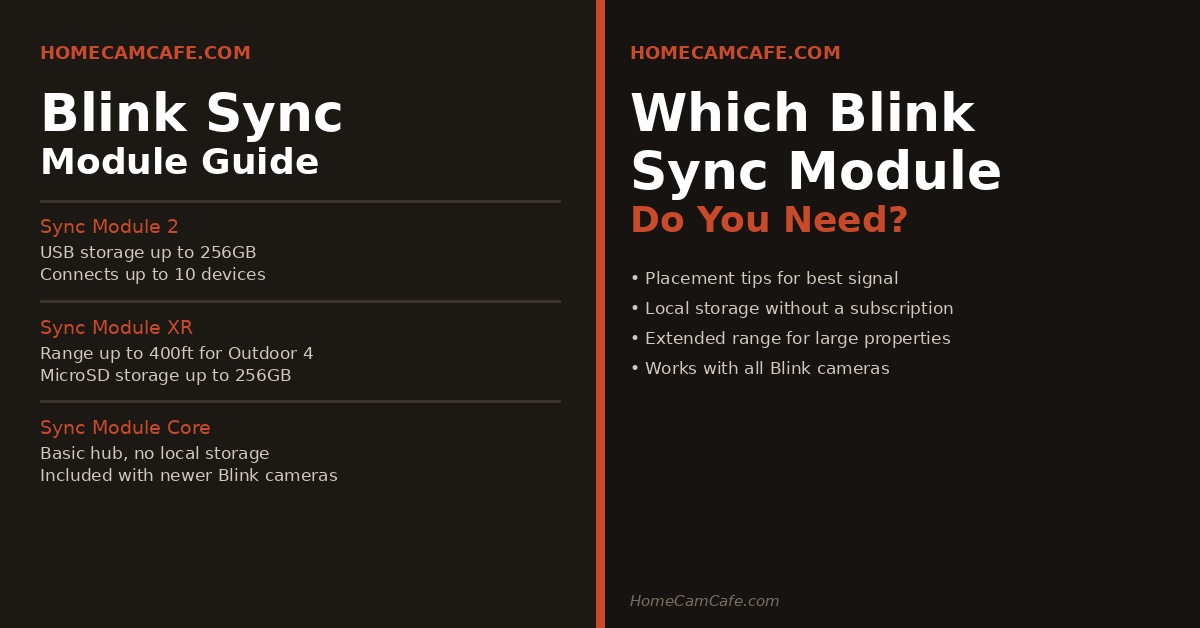
Blink currently offers three sync modules and it helps to know which one you’re working with before thinking about placement. The Sync Module Core is the basic hub included with newer Blink camera bundles. It connects your cameras to Wi-Fi and the Blink app but does not support local storage. The Sync Module 2 adds local storage via a USB flash drive up to 256GB, allowing you to save motion clips without a subscription. The Sync Module XR is the newest and most capable model, adding extended range for Blink Outdoor 4 cameras up to 400 feet away using a proprietary 900MHz radio, plus microSD local storage up to 256GB.
| Feature | Sync Module Core | Sync Module 2 | Sync Module XR |
|---|---|---|---|
| Local Storage | No | USB drive up to 256GB | MicroSD up to 256GB |
| Extended Range | No | No | Up to 400ft (Outdoor 4 only) |
| Devices Supported | Up to 10 | Up to 10 | Up to 10 |
| Power Port | Micro USB | Micro USB | USB-C |
| Best For | Basic hub, cloud only | Local storage, standard range | Long range, local storage |
Important: Not all Blink cameras require a Sync Module. The Blink Mini, Mini 2K+, and Wired Floodlight Camera connect directly to Wi-Fi and don’t need a module to function. However, connecting them to a Sync Module 2 or XR adds local storage capability. For more on how Blink handles storage, see our Blink Wired Floodlight Camera review.
How the Sync Module Works
The Sync Module acts as the central hub between your Blink cameras and your Wi-Fi network. Instead of each camera connecting directly to your router, the cameras communicate with the Sync Module using a low-power radio signal, and the Sync Module handles the Wi-Fi connection to your network. This arrangement significantly extends battery life on battery-powered cameras because the radio used between cameras and the module consumes far less power than a constant Wi-Fi connection would.
There are therefore two signal links to think about when positioning the module. First, the connection between the Sync Module and your Wi-Fi router. Second, the connection between each camera and the Sync Module. Both need to be strong for reliable performance. You can check signal strength for each camera in the Blink app by selecting the camera settings and looking for the signal indicators. Ideally both show at least three bars out of five. Fewer than three bars on either link will result in unreliable connections and missed alerts.
Optimal Placement for Sync Module 2 and Core
The goal is to find a location that sits roughly equidistant between your cameras and your Wi-Fi router. If you have one camera at the front of the house and one at the back, the middle of the home is the ideal starting point. If your router is in one corner of the house, you may need to compromise and position the module slightly closer to the router to maintain a strong Wi-Fi link.
Height matters. Placing the module on an upper floor, or at least on a high shelf, improves signal reach in both directions. Radio signals travel more freely when elevated above furniture, walls, and other obstructions at floor level. An upper floor hallway outlet is often the ideal location in a two-story home. Additionally, avoid placing the module inside cabinets, behind appliances, or in areas with heavy masonry walls between it and the cameras. Each solid wall between the module and a camera or router reduces signal range.
Optimal Placement for Sync Module XR
The Sync Module XR changes the placement calculation significantly for Blink Outdoor 4 owners. In standard mode it behaves like the Sync Module 2, requiring good Wi-Fi signal and proximity to cameras. In XR mode it uses a proprietary 900MHz radio to communicate with up to two Outdoor 4 cameras at distances up to 250 feet, and in XR+ mode up to 400 feet through an exterior wall.
In practice this means you can place Outdoor 4 cameras on a shed, fence, gate, or driveway entrance well beyond your home’s Wi-Fi range and still maintain a reliable connection. The XR module itself still needs to be within Wi-Fi range of your router, so place it inside the home as close to the exterior wall facing the distant camera as possible to maximize the extended range signal. Note that XR mode reduces video resolution to 720p and XR+ mode reduces it further to 360p and disables two-way audio, so use the standard Wi-Fi connection wherever possible and reserve XR modes for cameras that genuinely can’t reach the router.
XR range note: Extended range is only available for Blink Outdoor 4 cameras. Other Blink cameras connected to the XR module use standard Wi-Fi and follow the same placement principles as the Sync Module 2. Up to 10 cameras connect per Outdoor 4 cameras can use extended range per module.
Powering and Mounting the Module
The Sync Module needs to be near a power outlet. If the ideal placement location doesn’t have a convenient outlet nearby, a longer cable helps. For the Sync Module 2, a longer micro USB cable lets you position the module further from the outlet — aim for the shortest cable that reaches rather than letting excess cable drape across furniture.
An outlet wall mount is one of the cleanest solutions when no shelf or table space is available in the right location. These mounts clip directly onto the outlet, use a short stub cable, and hold the module against the wall without any additional hardware. They’re especially useful on upper floors where the module needs to be high but there’s no convenient surface nearby. Use the lower plug of a duplex outlet so the upper one remains accessible for other devices.
The Sync Module XR uses USB-C for power, so existing micro USB cables from the Sync Module 2 are not compatible. Use the included cable and adapter or a standard USB-C power adapter rated at 5V 1A.
Local Storage Without a Subscription
Both the Sync Module 2 and Sync Module XR support free local storage with no monthly subscription required. For the Sync Module 2, insert a USB flash drive up to 256GB into the port on the side. For the Sync Module XR, insert a microSD card up to 256GB. In both cases the module saves motion-triggered clips from compatible cameras directly to the storage device, which you can access via the Blink app or by removing the drive and plugging it into a computer.
For a full breakdown of what the Blink Subscription Plan includes and whether it’s worth paying, see our Blink Subscription Plan guide.
Local storage does not support live view recording — it only saves motion-triggered clips. Older Blink cameras including the XT, XT2, and first-generation Indoor are not compatible with local storage on any sync module. For a broader look at subscription-free camera storage options, see our best no-subscription security cameras roundup.
Troubleshooting Weak Signal
If you’re seeing fewer than three bars on the camera-to-module or module-to-Wi-Fi signal indicators in the Blink app, try these steps in order. First, move the module closer to the router and recheck the Wi-Fi signal. Second, move the module closer to the problem camera and recheck the camera signal. Third, if the Wi-Fi signal remains weak even with the module near the router, consider adding a Wi-Fi extender or upgrading to a mesh network to bring stronger Wi-Fi signal closer to the module’s optimal midpoint location. Finally, if a camera is simply too far from the module regardless of placement, upgrading to the Sync Module XR with a Blink Outdoor 4 camera enables extended range that standard Wi-Fi cannot match.
Quick Reference
Place the Sync Module centrally between your cameras and router, as high as practical. Aim for at least three signal bars on both the Wi-Fi and camera indicators in the Blink app. Use an outlet wall mount when no shelf space is available. For local storage without a subscription, the Sync Module 2 (USB drive) or Sync Module XR (microSD) are the right choices — the Sync Module Core has no local storage support. If cameras are beyond standard Wi-Fi range, the Sync Module XR with Blink Outdoor 4 extends coverage up to 400 feet using a proprietary 900MHz radio.
Frequently Asked Questions
How far can the Blink Sync Module reach?
The Sync Module 2 and Core communicate with cameras up to approximately 100 feet in any direction under typical conditions. Walls and obstructions reduce that range. The Sync Module XR extends range to 250 feet in XR mode and 400 feet in XR+ mode for Blink Outdoor 4 cameras using a 900MHz extended range radio.
Do I need a Sync Module for every Blink camera?
No. One Sync Module supports up to 10 Blink devices. Some cameras like the Blink Mini and Wired Floodlight don’t require a module at all, though connecting them to a Sync Module 2 or XR adds local storage capability.
What is the difference between Sync Module 2 and Sync Module XR?
The Sync Module XR adds extended range for Blink Outdoor 4 cameras up to 400 feet using 900MHz radio, uses a microSD card instead of a USB drive for local storage, and has a USB-C power port instead of micro USB. Both support up to 10 devices and local storage up to 256GB.
Does the Sync Module require a subscription?
No. The Sync Module itself is free to use. Local storage via USB drive or microSD card is also free with no subscription. A Blink Subscription Plan is required for cloud storage, person detection, and extended live view features.
Can I hide the Sync Module?
Yes, with some caution. Placing it inside a tissue box or within a decorative arrangement is possible, but anything between the module and the cameras or router can reduce signal strength. Keep any covering minimal and check signal bars in the app after hiding it to confirm performance hasn’t dropped.
