
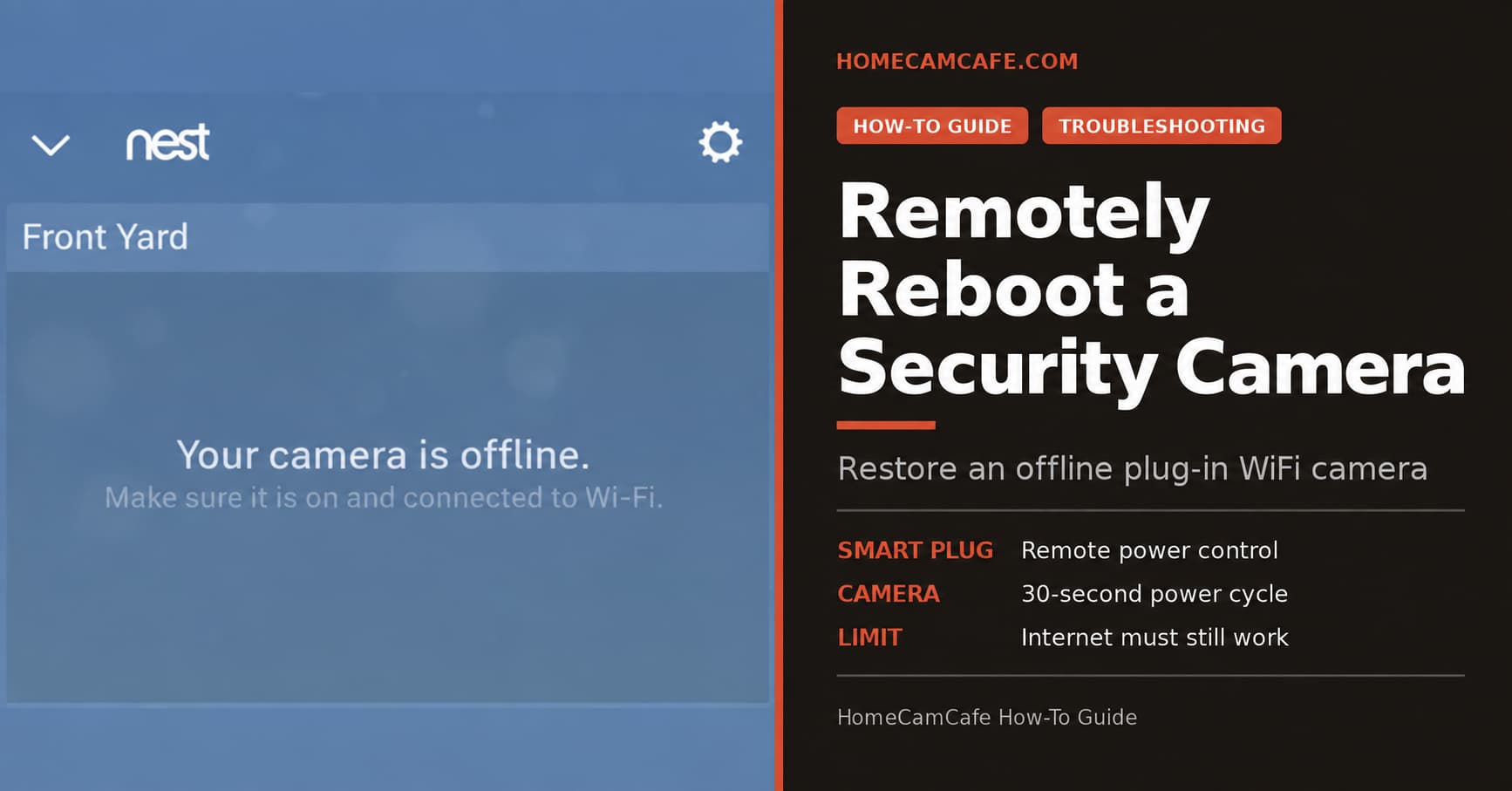
If you need to remotely reboot a security camera, a smart plug can provide the missing power switch. It works well for a plug-in WiFi camera at a vacation home, rental property, or hard-to-reach location, provided the camera’s internet connection is still working. The same method does not apply to every camera, though. PoE cameras, battery cameras, and an offline router each require a different approach.
First, Identify What Went Offline
Before cutting power, check whether the problem affects one camera or the entire property. If one plug-in camera is offline while other connected devices still work, restarting that camera is a reasonable first step. If every camera and smart device disappeared at the same time, the problem is more likely the modem, router, internet service, or electrical power.
| What Is Offline? | Best First Step |
|---|---|
| One plug-in WiFi camera | Use the camera app’s restart option or power-cycle it with a smart plug |
| Every camera and smart device | Check for a power or internet outage before restarting anything |
| One PoE camera | Restart its PoE port, injector, NVR channel, or switch |
| One battery camera | Try an in-app restart; a fully frozen camera may require physical access |
A power cycle can clear a temporary software lockup, but it cannot repair weak WiFi, a failing power adapter, damaged cabling, an ISP outage, or broken hardware. If the same camera repeatedly drops offline, use our guide to why security cameras keep going offline to find the underlying cause.
The Smart Plug Method for Plug-In WiFi Cameras
A smart plug sits between the wall outlet and the camera’s power adapter. The plug remains connected to WiFi and lets you interrupt power from its app. Turning the plug off, waiting briefly, and turning it back on performs the same hard reboot as unplugging the camera by hand.
The Kasa KP125M Smart Plug is a good indoor option. It is compact, supports remote control and scheduling through the Kasa app, works with the major smart-home platforms, and includes energy monitoring. That monitoring can confirm whether the connected load is consuming power, but it cannot prove the camera is operating normally. A frozen camera may continue drawing its usual amount of electricity.
Indoor-use warning: The KP125M is not an outdoor-rated smart plug. Keep it indoors or inside a properly weather-protected enclosure. If the camera’s power connection must remain outdoors, use a smart plug specifically rated for outdoor exposure and follow the outlet manufacturer’s weatherproof-cover requirements.
Set Up the Smart Plug Before You Leave
Do not install an untested plug at a remote property and assume it will recover the camera later. Complete the setup while you are physically present:
- Add the smart plug to its app and install any available firmware update.
- Give the plug a clear name, such as Front Yard Camera Power.
- Connect the camera’s original power adapter to the smart plug.
- Turn the plug off, wait 30 seconds, and turn it back on.
- Confirm that the camera reconnects to WiFi and becomes available in its app.
- Check how the plug behaves after a household power outage. It should return to the On state when electricity is restored.
That last test matters at an unattended property. A plug that remains Off after power is restored can prevent the camera from returning even though the router and internet connection recovered normally.
How to Remotely Reboot the Camera
- Confirm that other devices at the property are still reachable. This tells you the home internet connection is probably working.
- Open the Kasa app and locate the plug connected to the camera.
- Turn the plug Off.
- Wait about 30 seconds so the camera fully loses power.
- Turn the plug On again.
- Allow one to three minutes for the camera to boot, reconnect to WiFi, and check in with its cloud service.
Some cameras reconnect faster than others. Avoid repeatedly switching the power during startup. If the camera is still unavailable after several minutes, check the smart plug’s energy reading, if supported, and confirm that the plug is On. A zero reading could indicate a disconnected cable, failed adapter, or dead camera, while a normal reading suggests the camera has power and the problem is elsewhere.
Do Not Remotely Switch Off Your Active Router
An ordinary smart plug is useful for an individual camera because turning off that camera does not interrupt the WiFi connection used by the plug. The same logic does not apply to the router. If you use a cloud-controlled plug to switch off the router that provides its internet connection, the command to turn the plug back on may never arrive.
A modem or router at an unattended property needs an ISP restart option, a tested local schedule, or a purpose-built internet watchdog that can detect a failure and restore power without relying on the failed connection. Our complete guide explains how to reboot a router or modem remotely without accidentally stranding the network in the Off state.
How to Reboot a PoE Security Camera
A Power over Ethernet camera receives both data and electricity through its Ethernet cable, so an outlet-level smart plug is usually not the right control point. The cleanest solution is a managed PoE switch or NVR that lets you disable and re-enable the individual port. Some surveillance-oriented switches can also detect an unresponsive camera and automatically cycle that port.
If the camera uses a standalone PoE injector, the injector itself can be connected to an indoor smart plug. Turning off that plug cuts power to the camera without shutting down the router. This is one of the distinctions covered in our wired versus wireless security camera guide. Our hands-on Reolink Duo 3 PoE review also shows how a camera, injector, and router connect in a real installation.
What About Battery-Powered Cameras?
A smart plug cannot restart a battery camera because the camera continues running from its internal battery. Some models provide a restart command in the app, but that only helps if the camera remains connected and responsive enough to receive it. A fully frozen battery camera usually requires someone to remove and reinstall the battery, press a physical button, or connect a charging cable.
This limitation applies to battery models such as the Blink Outdoor 4 and Arlo Pro 6. A solar panel can keep a compatible camera charged, but it does not create a separate remote power switch for the battery inside the camera.
Should You Schedule Automatic Camera Reboots?
A healthy camera should not need a nightly restart. Frequent scheduled reboots create gaps in recording and can hide weak WiFi, overheating, firmware bugs, or a failing power supply. Fix the underlying problem when possible.
If a particular camera has a documented stability problem and a schedule is the only practical workaround, create separate Off and On events in the smart-plug app. Leave enough time between them for the camera to lose power completely, and test the schedule while the property’s internet connection is disconnected. Do not assume every plug stores schedules locally or executes them without cloud access.
If the Camera Still Does Not Reconnect
A successful power cycle followed by another offline message points to a different problem. Work through these checks:
- See whether other devices at the property can reach the internet.
- Confirm the smart plug returned to the On state.
- Check for a utility or ISP outage.
- Look for a camera app or cloud-service outage.
- Inspect signal strength and WiFi coverage when someone is next on site.
- Test the camera with another power adapter and outlet if its specifications allow it.
- Check for a firmware update after the camera reconnects.
For a remote property, keep a trusted local contact as the final fallback. No remote accessory can repair damaged wiring, replace a failed adapter, or press a reset button on hardware that no longer communicates.
How Many Smart Plugs Do You Need?
You do not need a smart plug on every camera. Prioritize plug-in cameras that are difficult to reach, located at an unattended property, or known to freeze occasionally. Cameras mounted within easy reach rarely justify another device in the power path.
For most homes, one or two strategically placed plugs are enough. The Kasa KP125M is best reserved for indoor outlets. Use equipment rated for the environment when the power connection is outdoors.
Bottom Line
A smart plug is a practical remote reboot tool for an individual plug-in WiFi camera while the property’s router and internet connection are still working. It is not a universal solution for PoE cameras, battery cameras, or a failed network. Install and test the plug before leaving, confirm its power-restoration behavior, and treat recurring camera freezes as a problem to diagnose rather than normal maintenance.
Frequently Asked Questions About How to Remotely Reboot a Security Camera
Will a smart plug work if the internet is down?
Usually not for a manual remote command. A cloud-controlled smart plug needs a working path to the internet. Locally stored schedules may continue running on some models, but that behavior must be tested before you depend on it.
Can I remotely reboot a Nest, Ring, Tapo, or Wyze camera?
Yes, if the specific camera uses a wall power adapter and the smart plug remains connected to a working WiFi network. Check the camera app first because some models include their own restart command.
How long should a security camera remain unplugged?
Thirty seconds is a reasonable power-off interval for most plug-in cameras. After restoring power, allow one to three minutes for startup and reconnection before trying again.
Can I use this method with a PoE camera?
Not directly at the camera. Restart the individual PoE port through a managed switch or NVR. If you use a standalone PoE injector, you can place the injector on an indoor smart plug without shutting down the rest of the network.
Can a smart plug damage the camera?
An occasional power cycle should not harm a typical plug-in camera, but do not interrupt power during a firmware update. Avoid rapid repeated cycling, and continue using the power adapter supplied or approved by the camera manufacturer.
Related HomeCamCafe guides: Learn how to reboot a router or modem remotely, troubleshoot a security camera that keeps going offline, or compare PoE, plug-in WiFi, and battery cameras.