
If every security camera at your home suddenly appears offline, the problem may be your internet connection rather than the cameras. An ISP outage, power failure, frozen gateway, or router problem can take every WiFi camera offline at once. If you need to reboot a router remotely, the right solution depends on whether the network is still reachable and what equipment you installed before leaving.
Jump to a solution:
First, Confirm What Went Offline
One offline camera usually points to that camera, its power supply, or its WiFi connection. Every camera going offline at the same time points farther upstream. The cause could be a local power outage, an ISP outage, a failed modem or gateway, or a router that stopped passing traffic.
Before trying to restart anything, check your electric utility and ISP outage pages from your phone. If you have another connected device at the property, such as a smart thermostat, door lock, alarm panel, or garage controller, see whether it is reachable. If every cloud-connected device is offline, you are probably dealing with a power or network-wide failure.
Important: A reboot cannot fix a neighborhood outage, damaged cable, failed power supply, or extended loss of electricity. A trusted neighbor with a key remains the best fallback when you cannot determine what happened remotely.
1. Ask Your ISP About a Remote Restart
If there is no reported outage, contact your internet provider. Many providers can check whether a managed gateway or modem is visible from their network and may be able to send it a restart command. This depends on the provider, the equipment, and whether the device is still responding. Customer-owned equipment may offer the provider less control.
Ask the representative to check the line status and whether the gateway or modem can be restarted remotely. If the device is unreachable, a support representative cannot physically interrupt its power. At that point, you need someone on-site or recovery hardware that was installed before the failure.
2. Use an Automatic Internet Watchdog
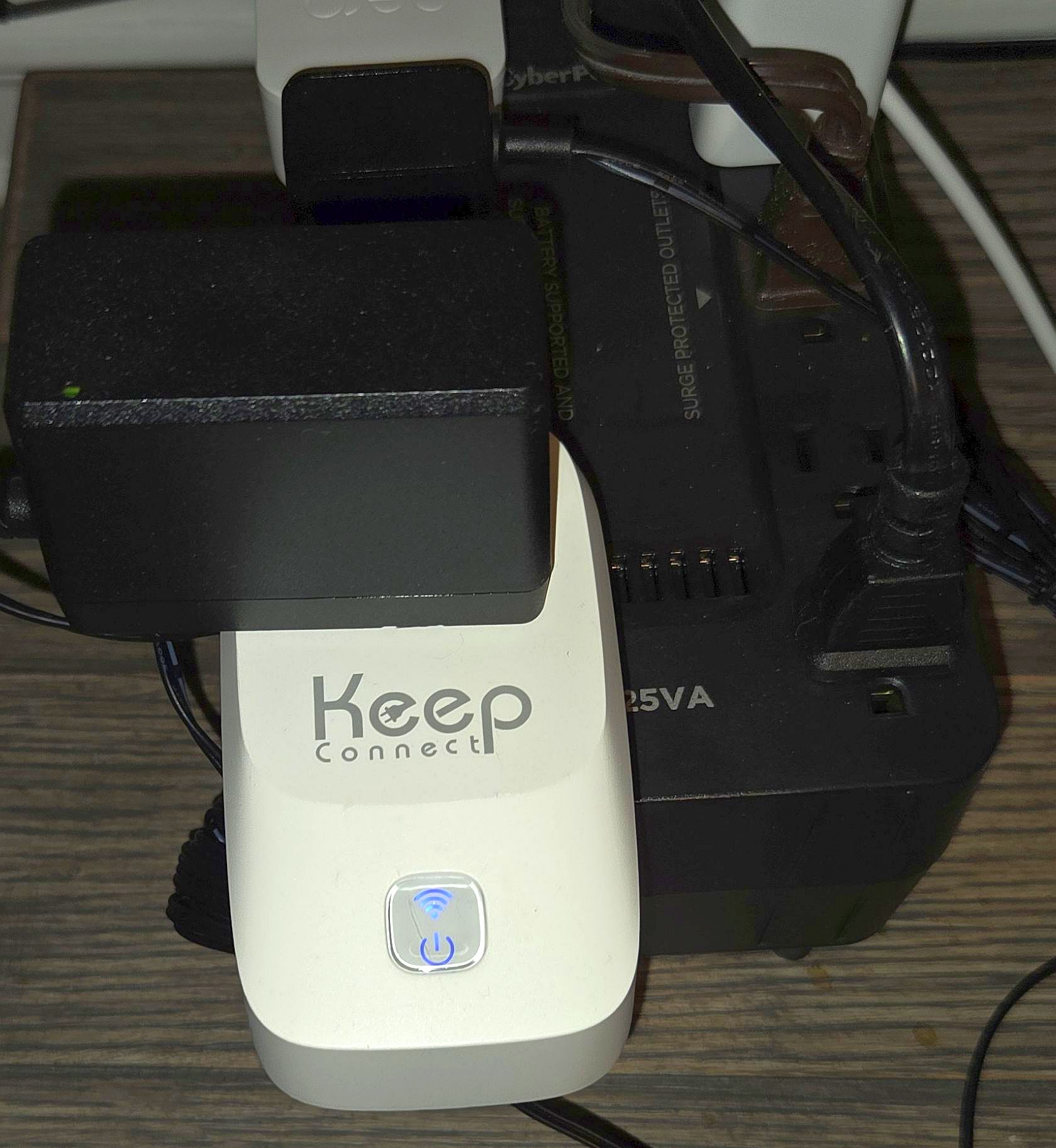
The Keep Connect Router Rebooter is designed specifically for unattended network recovery. It regularly checks more than one internet destination. If the checks fail, the unit cuts power to the connected modem, gateway, or router for a configured period and then restores it. The recovery sequence runs locally, so it does not need a command from your phone after the connection has failed.
Keep Connect can also send text or email notices after a reset and supports scheduled resets. Its timing is adjustable, which matters because a brief ISP interruption should not cause the network to restart repeatedly. The default settings are a better starting point than an aggressive detection interval. Test the device before leaving the property by temporarily disconnecting the incoming internet connection and confirming that it completes a full recovery.
If you have a combined modem and router:
One watchdog can power-cycle the entire gateway. Confirm that the gateway automatically reconnects and restores WiFi after power returns.
Separate modem and router setup
A separate modem and router need a coordinated restart. Keep Connect supports two units in Master/Follower mode, with one unit controlling each device. By default, the units can restart together. If the router should wait while the modem reconnects, configure Power On Delay on the router’s Follower unit. That delay is what creates the proper sequence. Simply pairing two units does not guarantee that the modem will finish reconnecting before the router powers on.
- Connect the modem to the Master unit.
- Connect the router to the Follower unit.
- Enable a Power On Delay for the router.
- Test by disconnecting the ISP feed, not by unplugging the watchdogs.
- Confirm that the modem reconnects first and the router restores WiFi afterward.
| Feature | What It Does |
|---|---|
| Internet checks | Checks multiple destinations at configurable intervals |
| Automatic recovery | Interrupts and restores power without a remote command |
| Notifications | Optional text and email notices after detected events |
| Two-device networks | Master/Follower coordination with an optional router power-on delay |
3. Use a Smart Plug Safely to Reboot a Router Remotely
A Kasa smart plug can remotely restart an individual wired camera while the home network remains online. It can also run locally stored schedules, depending on the plug model and firmware. What it cannot safely do is provide ordinary manual off-and-on control for the router that supplies its internet connection.
If you use the app to turn off that router, the plug loses its route to the cloud immediately. Your later On command cannot reach it. The router may remain off until a stored schedule, an on-site person, or another local controller restores power.
Do not remotely turn off your active router through an ordinary cloud-controlled smart plug. There may be no path available to turn it back on.
A smart plug can still be used for preventive scheduled restarts if it stores separate Off and On schedules locally. For example, an Off event can run first and an On event can follow a few minutes later. Do not assume that every plug behaves this way. Test the exact model by disconnecting the home’s WAN connection and confirming that both scheduled events still execute. Also verify the plug’s power-restoration behavior after an outage.
For cameras, the risk is different. Turning off one camera does not take down the WiFi network used by its plug. As long as the router and internet connection remain operational, the plug can receive the command that turns the camera back on. Our guide to remotely restarting a wired security camera explains that setup.
4. Use a Programmable Outlet Timer
A programmable outlet timer is a basic preventive option. It does not detect an outage and cannot respond immediately when a connection fails. It simply interrupts power according to a preset schedule.
For a combined gateway, one timer can provide a periodic restart. For a separate modem and router, use two timers and stagger their On times. Both devices can turn off together, the modem can power on first, and the router can follow several minutes later. Choose timers that retain their schedules after a power failure, and test the complete sequence while you are still at the property.
Scheduled restarts are not required for every network. Stable equipment should be able to operate continuously. If your gateway or router needs frequent restarts, check for firmware updates, overheating, a failing power adapter, signal problems, or aging hardware instead of treating the schedule as a permanent repair.
Which Remote-Reboot Solution Is Best?
| Solution | Works After Internet Fails? | Best Use |
|---|---|---|
| ISP support | Sometimes | Checking the line and restarting reachable equipment |
| Keep Connect Router Rebooter | Yes, automatically | Vacation homes, rentals, and unattended properties |
| Ordinary smart plug | No remote commands | Individual cameras or tested local schedules |
| Outlet timer | Runs its preset schedule | Simple preventive restarts |
Prepare the Network Before Leaving
- Check that the modem, router, watchdog, and camera power adapters have adequate ventilation.
- Test an internet failure and watch the entire recovery sequence.
- Confirm that every camera reconnects after the router returns.
- Save your ISP’s support number and account details.
- Enable outage alerts from the electric utility when available.
- Give a trusted local person a way to access the equipment if automatic recovery fails.
If cameras go offline individually or repeatedly while the rest of the network stays up, restarting the router is unlikely to solve the underlying problem. Work through our guide to why security cameras keep going offline to check signal strength, power, firmware, congestion, and IP-address problems.
Frequently Asked Questions
Can I restart my router from its mobile app?
Some router and mesh-network apps include a restart command. That can help when the router is still connected to the manufacturer’s cloud service, but it cannot help when the router has frozen completely or the ISP connection is already down. Check your router app before buying additional hardware, but do not treat an app-based restart as a substitute for local automatic recovery.
Will cameras reconnect after the router restarts?
Most WiFi cameras reconnect automatically when the network returns with the same network name and password. The process may take several minutes. Test this before traveling because a camera with unstable firmware, weak signal, or a failed power adapter may remain offline even after the network recovers.
Should I reboot my router every night?
No. A healthy router should not need a nightly restart. Frequent scheduled reboots create avoidable camera downtime and can hide a failing router, overheating, buggy firmware, or an ISP line problem. Use scheduled restarts only when testing shows that they address a recurring issue, and investigate why the equipment needs them.
Use Hardware That Can Recover Without the Internet
For an unattended property, a purpose-built internet watchdog is the most dependable option because it detects a failed connection and restores power locally. Use two coordinated units with a router power-on delay when the modem and router are separate. Smart plugs remain useful for individual wired cameras and thoroughly tested schedules, but do not manually turn off the router that provides the plug’s cloud connection.
Related HomeCamCafe guides: Learn how to remotely reboot a wired security camera, or troubleshoot security cameras that repeatedly lose their connection.