
The Blink status light is a small LED on the front of the camera that lights up whenever it’s recording. It’s on by default, and for most people it should be turned off immediately. A blinking light tells anyone who walks by exactly where your camera is — which defeats much of the purpose of having one. Here’s how to disable it on every current Blink camera model.
Which camera do you have?
- Blink Outdoor 4, Outdoor 3, Indoor, Mini, Mini 2 — turn off in the app
- Blink XT, XT2 — physical switch inside the battery compartment
Blink Outdoor 4, Outdoor 3, Indoor, Mini, Mini 2 — Turn Off in the App
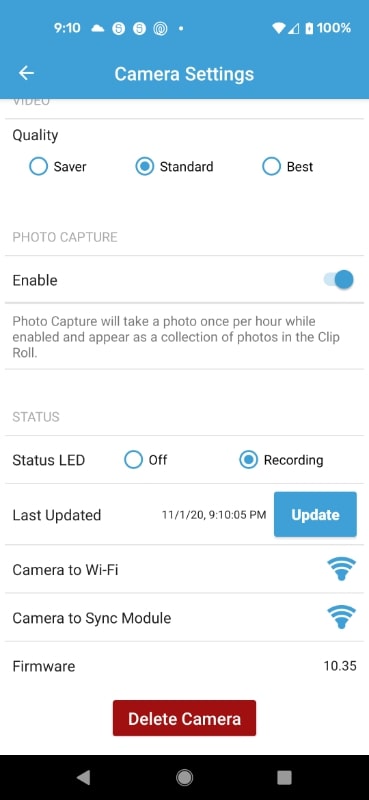
All current Blink cameras — the Outdoor 4, Outdoor 3rd Gen, Indoor, Mini, and Mini 2 — let you disable the status light directly from the Blink app. It takes about 30 seconds.
Steps:
- Open the Blink app
- Tap the Settings icon on the camera you want to change
- Scroll down to Status LED
- Change the setting from Recording to Off
- Tap Save
That’s it. The status light will no longer illuminate when the camera records or detects motion. The camera continues to work exactly as before — recording, sending alerts, and streaming live view — the light is simply disabled.
Note: The Status LED setting has two options — Recording (light is on whenever the camera is recording) and Off (light is always off). There is no option to keep the light on continuously; it only ever lights up during recording events by default.
Blink XT and XT2 — Physical Switch in the Battery Compartment
The older Blink XT and XT2 cameras predate the app-based toggle and handle the status light differently. There is no software option — instead, there’s a tiny physical switch inside the battery compartment labeled REC LED.
It’s easy to miss. Most people set up the camera and close the battery cover without ever noticing it — the switch is small and tucked next to one of the battery slots. It took discovering it mid-battery-change to find it the first time.
Steps:
- Open the battery compartment cover on the back of the camera
- Look for a small switch labeled REC LED next to the battery slots
- Use a small screwdriver, tweezers, or a straightened paper clip to slide the switch to the Off position
- Replace the battery cover
The switch is stiff and the letters are tiny — adult fingers alone will struggle with it. A precision screwdriver from a small electronics toolkit works best. A straightened paper clip works in a pinch.
Why You Should Turn the Status Light Off
The default setting — light on during recording — is the worst of both worlds. It doesn’t deter an intruder who already knows where the camera is, but it does tell every visitor, delivery driver, and passing stranger that the camera just started recording them. Here’s why off is almost always the better choice:
Which Method for Which Camera — Quick Reference
Turn It Off — There’s Almost No Reason to Leave It On
On current Blink cameras it takes 30 seconds in the app. On the older XT and XT2 it requires opening the battery cover and flipping a physical switch. Either way, it’s worth doing. A camera that doesn’t advertise itself is a more effective camera.
This guide is part of our Blink Security Camera Reviews hub. Worthwhile reading: Blink Camera Light Colors Explained. See also: How to Turn Off the Status Light on Any Security Camera.
