
If you own a Blink camera and something looks off with the LED, this guide covers every light pattern across every current and recent Blink model. The most important thing to know upfront is that Blink cameras work differently from most competitors: on the Outdoor, Indoor, XT, and XT2 models, no light at all means the camera is working normally. A light showing is the exception, not the rule. That one fact clears up the majority of questions Blink owners search for. Having owned Blink cameras across every generation from the original XT through the current Outdoor 4, the patterns below come from real hardware. So here is your primer on Blink camera light colors.
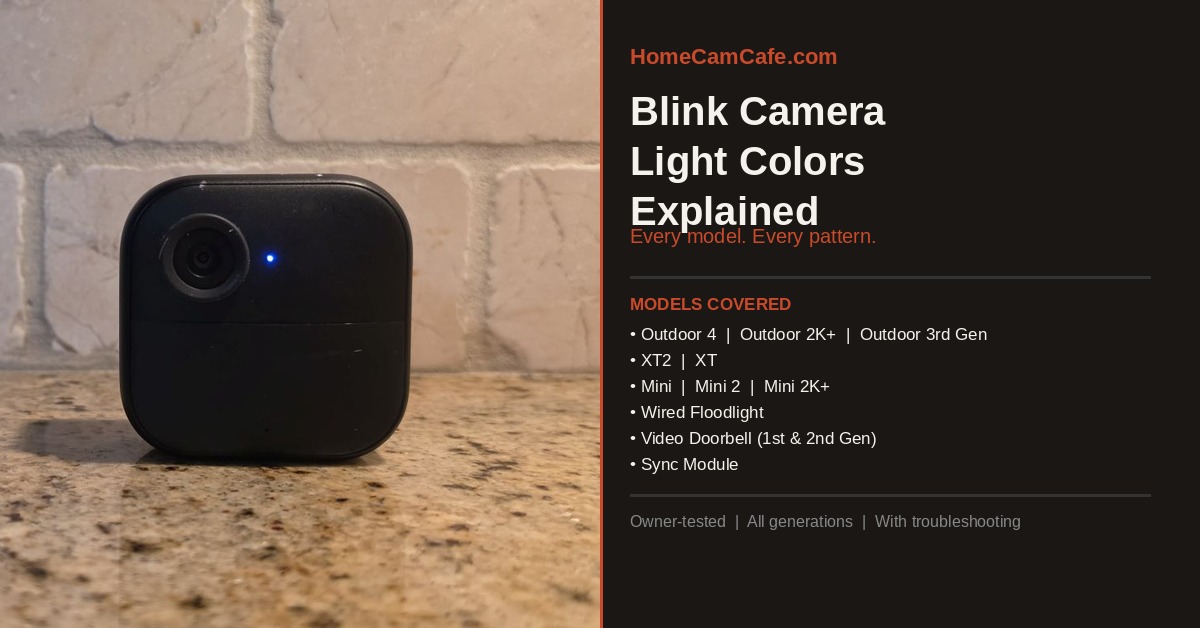
The single most important thing about Blink camera light colors (or lack of)
Most security camera brands use a solid or blinking light to indicate normal operation. Blink does the opposite. On the Outdoor 4, Outdoor 3rd Gen, Indoor 3rd Gen, XT2, and XT, when the camera is connected, armed, and working properly, the LED is completely off. No light means everything is fine. A light appearing means something is happening — setup, recording, an error, or a disconnection. This is a deliberate design choice to keep the cameras discreet, but it consistently surprises owners who are used to other brands.
The Mini, Mini 2, Mini 2K+, and Wired Floodlight work differently because they are plug-in cameras. On those models, you can configure a green status light to show at all times, though by default they also show no light during normal idle operation.
Blink Outdoor 4
The Blink Outdoor 4 uses a simple two-light system: red for setup and disconnection, blue for recording and live view. The status LED is located on the front of the camera beneath the lens.
| Light | What it means |
|---|---|
| Flashing red | Camera is in setup mode, or changing systems or Wi-Fi — ready to connect |
| Solid blue | Camera is recording motion or live view is active |
| No light | Camera is connected, armed, and working normally |
If the red LED is not flashing as expected during setup, remove the batteries for five seconds and reinsert them. The Outdoor 4 requires a Sync Module — if the camera is showing no light but the app shows it offline, check the Sync Module status first before troubleshooting the camera itself.
One thing worth knowing from owning the Outdoor 4: the brief red flash you sometimes see during a motion detection event is normal. The camera’s PIR sensor activates before the recording LED turns blue. It’s not an error.
Blink Outdoor 2K+
The Blink Outdoor 2K+ is Blink’s newest battery camera, adding 2K resolution, color night vision, and improved audio over the Outdoor 4. Its LED behavior is identical to the Outdoor 4 — flashing red for setup, solid blue for recording, and no light for normal operation. The same troubleshooting steps apply to both models.
| Light | What it means |
|---|---|
| Flashing red | Camera is in setup mode or changing Wi-Fi — ready to connect |
| Solid blue | Recording motion or live view is active |
| No light | Connected and working normally |
The Outdoor 2K+ requires a Sync Module and uses the same Sync Module LED patterns as the rest of the Blink battery camera lineup. Note that the Outdoor 2K+ is not compatible with the Sync Module XR’s extended range feature, though it works with all other Sync Module variants.
Blink Outdoor and Indoor (3rd Gen)
The 3rd Gen Outdoor and Indoor cameras share the same LED behavior as the Outdoor 4, with one additional pattern for disconnection that the Outdoor 4 handles differently.
| Light | What it means |
|---|---|
| 5 long red flashes on startup | Camera just had batteries inserted and is looking for a connection — normal startup sequence |
| Short red flash every 3 seconds | Camera is disconnected from the internet and trying to reconnect |
| Brief red flash during motion | Normal — PIR sensor activating before recording begins |
| 5–6 red flashes after blue recording light | Battery is failing — replace with fresh AA lithium batteries |
| Solid blue | Recording motion or live view is active |
| No light | Connected and working normally |
The 5-flash startup sequence catches people off guard the first time. When you insert fresh batteries into a 3rd Gen camera, it flashes red five times rapidly, then settles into a short flash every three seconds while it connects to the Sync Module. Once connected, all lights go out. This is completely normal and takes anywhere from 10 to 60 seconds depending on signal strength.
The 5–6 red flashes after a recording event is one of the most useful diagnostic signals Blink has: it tells you the battery is failing before the camera actually goes offline. Replace the batteries as soon as you see that pattern.
Blink XT2 and XT
The XT and XT2 are older generation cameras but still widely in use. Their LED behavior matches the 3rd Gen pattern, with the same 5-flash startup, the 3-second red flash for disconnection, and no light for normal operation. However, they have one unique feature no other Blink camera has: a physical hardware switch inside the battery compartment that controls the status LED.
To disable the recording LED on an XT or XT2, remove the back cover, locate the REC. LED switch next to the serial number, and slide it to the OFF position using tweezers. This is a permanent hardware toggle — there is no in-app setting for these models. It’s genuinely useful if you want the cameras to be completely invisible during recording.
| Light | What it means |
|---|---|
| 5 long red flashes on startup | Batteries inserted, camera starting up and connecting |
| Short red flash every 3 seconds | Disconnected from internet |
| Brief red flash during motion | Normal PIR activation |
| Solid blue | Recording or live view active (if REC. LED switch is ON) |
| No light | Connected and working normally, or REC. LED switch is OFF |
Blink Mini, Mini 2, and Mini 2K+
The Mini lineup is plug-in only and uses a completely different light system from the battery cameras. The Blink Mini 2K+ is the newest generation, adding 2K resolution and improved audio, but its LED behavior is identical to the Mini and Mini 2 — all three share the same light patterns. Because they’re always powered, Blink added a configurable green status light. The LEDs are on the front of the camera.
| Light | What it means |
|---|---|
| Blinking red | Camera is starting up |
| Solid green + blinking blue | Camera is in pairing mode, ready to set up |
| Blinking green | Camera has gone offline and is trying to reconnect to the previous network |
| Solid red | Camera cannot connect to the network — wrong password or network unavailable |
| Solid blue | Recording motion or live view is active |
| Solid green (always on setting) | Camera is connected and working — only shows if “Always On” is enabled in app settings |
| No light | Setup complete, connected to Wi-Fi and working normally — or camera is unplugged |
The Mini light system applies equally to the Mini, Mini 2, and Mini 2K+. There are no meaningful differences between the three generations in terms of LED behavior. The solid green + blinking blue pairing mode pattern is the same across all three. The Mini 2K+ adds 2K resolution and improved audio but is otherwise identical to the Mini 2 from a status light standpoint.
The solid red on a Mini is a genuine error state — it means the camera cannot reach the network. This is different from the battery cameras where red flashing is a normal part of startup. On a Mini, solid red needs attention: unplug the camera, wait 10 seconds, and plug it back in. If it persists, press the reset button on the bottom of the camera with a thin object until the red and blue lights flash, then release. During a hard reset, a simultaneous blinking red and blue indicates you should release the reset button.
The “Always On” green setting in Device Settings is worth knowing about. By default the Mini shows no light when idle, but if you want a visual confirmation that the camera is connected and powered, enabling Always On adds a constant solid green LED. Additionally, when set to Always On, both green and blue will show simultaneously during recording.
Blink Wired Floodlight Camera
The Blink Wired Floodlight is hardwired and uses the same LED logic as the Mini, but the light locations are different. There are two LEDs on either side of the camera lens rather than a single central indicator. The left LED is green, the right LED is blue.
| Light | What it means |
|---|---|
| Solid green + flashing blue | Camera is in setup mode — ready to scan QR code |
| Solid blue | Recording motion or live view is active |
| Red flash on reset button press | Reset button has been pressed — release to complete short reset |
| No light | Connected and working normally |
When power is first turned on at the breaker, the Wired Floodlight automatically enters setup mode and waits for you to scan the QR code on the Quick Start Guide or on the back of the camera. The solid green and flashing blue pattern is what you’re looking for at that stage. If that pattern doesn’t appear within a minute of restoring power, check that the correct breaker is on and that the wiring is correct — the camera requires a ground wire to operate.
One practical note from installing this camera: if you don’t see the setup lights after wiring, a brief press of the reset button on top of the camera will re-enter setup mode. A longer press initiates a full factory reset.
Blink Video Doorbell (1st Gen and 2nd Gen)
Both Video Doorbell generations share the same LED patterns. The light is on the button ring surrounding the doorbell button rather than a separate LED indicator.
| Light | What it means |
|---|---|
| Flashing red | Doorbell is in pairing mode and ready to set up |
| Solid red | Setup was unsuccessful — try again or replace batteries |
| Solid blue | Doorbell is recording or live view is active |
| Blinking blue (1st Gen) / Blinking white (2nd Gen) | Doorbell button has been pressed |
| No light | Setup complete, connected and working normally |
The one difference between the two generations is the button press indicator: the 1st Gen flashes blue, the 2nd Gen flashes white. Otherwise they’re identical in LED behavior. If the red LED doesn’t flash as expected during setup, remove the batteries for five seconds and reinsert them before attempting setup again.
For wired doorbell installations, there is an additional setting: Always On (wired only), which keeps the button LED solid blue at all times. This is only available when the doorbell is connected to existing chime wiring and receiving hardwired power.
Sync Module lights
The Sync Module has its own LED system separate from any camera. Because the Sync Module is the hub that holds the whole system together, its lights are worth knowing.
| Light | What it means |
|---|---|
| Blinking blue + solid green | Ready for setup — this is what you want to see when adding the Sync Module |
| Solid blue + solid green | Connected and working normally |
| Solid blue + blinking green | Sync Module is offline and trying to reconnect to Wi-Fi |
When cameras show as offline in the app but the Sync Module shows solid blue and solid green, the issue is with the individual camera — check batteries and signal. When the Sync Module itself shows solid blue and blinking green, the entire system is offline. Power cycle the Sync Module by unplugging for 10 seconds. If that doesn’t resolve it, check whether your Wi-Fi password has changed or your router restarted and assigned a new IP.
How to turn off the recording LED
Every current Blink camera allows you to disable the status LED, with the method varying by model:
For the Outdoor 4, Outdoor 3rd Gen, and Indoor 3rd Gen: in the Blink app go to Device Settings, then General Settings, then Status LED. Set to Always Off to disable entirely, or When Recording to show blue only during active recording.
For the Mini, Mini 2, Mini 2K+, and Wired Floodlight: same path — Device Settings, General Settings, Status LED — with an additional Always On option that keeps a solid green light visible at all times.
For the Video Doorbell: Device Settings, General Settings, Button LED. Options are Always On (wired only), Off when Recording, or When Recording.
For the XT and XT2: hardware switch inside the battery compartment. Slide to OFF using tweezers. There is no in-app setting for these models.
The Indoor (1st Gen) — an older model no longer sold — had no option to control the status LED at all.
Troubleshooting the most common light problems
Outdoor 4 or 3rd Gen flashing red and won’t stop: The camera is trying to connect and failing. If it’s a new camera, add it through the Blink app. If it was already set up, verify the Sync Module is online and the system is armed. If the red flash persists, remove batteries for five seconds, reinsert, and allow up to 60 seconds for reconnection.
Mini showing solid red: Network connection failure. Unplug and replug first. If the solid red returns, press the reset button on the bottom of the camera with a thin object until you see a blinking red and blue light, then release immediately. The camera will restart and attempt to reconnect. If it still shows solid red, the Wi-Fi password may be wrong — delete the device and re-add it.
3rd Gen camera flashing red every 3 seconds: Disconnected from the internet. Check your router and Sync Module. If the Sync Module is online (solid blue + solid green), the issue is the camera’s signal — move it closer to the Sync Module or check for interference.
5–6 red flashes after recording on 3rd Gen, XT, or XT2: Battery warning. The camera recorded successfully but the batteries are failing. Replace both AA batteries with fresh lithium non-rechargeable batteries. Alkaline batteries significantly reduce battery life in Blink cameras and are not recommended.
Wired Floodlight not showing setup lights after wiring: First confirm power is on at the breaker. If power is confirmed, press the reset button on top of the camera once briefly. If the solid green and flashing blue pattern still doesn’t appear, press and hold the reset button until a red LED flashes, then release. If none of this works, verify the ground wire is connected — the Wired Floodlight will not operate without a proper ground.
Doorbell showing solid red after setup attempt: Setup failed. The most common cause is a Wi-Fi connection problem during the pairing process. Remove the batteries for five seconds, reinsert, wait for the flashing red, then attempt setup again. Confirm you’re connecting to a 2.4 GHz network.
The short version
On Blink battery cameras — Outdoor 4, Outdoor 3rd Gen, Indoor 3rd Gen, XT2, XT — no light means everything is working. A flashing red on startup or after a disconnection is normal. Solid blue means recording or live view. On the Mini and Wired Floodlight, solid red is a network error that needs fixing. On the Video Doorbell, flashing red means ready to pair, and the button press indicator is blue on the 1st Gen and white on the 2nd Gen.
For individual camera reviews, see the Blink Outdoor 2K+ review, the Blink Outdoor 4 review, the Blink Mini 2K+ review, and the Blink Video Doorbell (Gen 2) review. Also see How to turn the Blink sttus lights off. For the full brand overview and all guides see the Blink camera hub.
