
Eufy camera light meanings depend on which camera or HomeBase you own. A blinking red light can indicate a lost internet connection, an active alarm, low battery, or normal startup activity. A solid red light can mean recording on an Indoor Cam but a network failure on a HomeBase. Understanding those differences can save you from unnecessary resets and wasted troubleshooting.
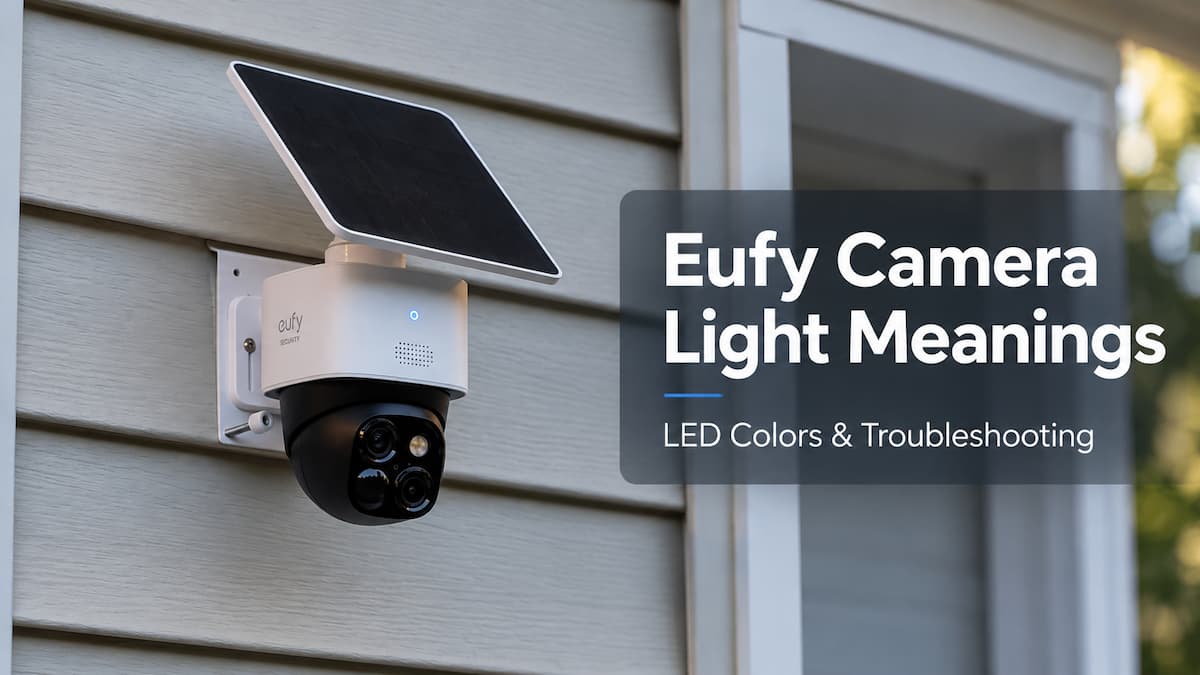
Eufy uses red, blue, purple, white, orange, and green indicators across its security camera systems. The same color can have very different meanings on a battery-powered eufyCam, a plug-in Indoor Cam, a video doorbell, or a HomeBase.
This guide explains the most common Eufy camera light colors and what to do when they indicate a problem. It covers Indoor Cams, eufyCam battery models, SoloCam models, HomeBase 2 and 3, video doorbells, and older cameras that use different indicator patterns.
Quick tip: Start with the LED reference chart below. Match the pattern to your device, then follow the troubleshooting instructions. Always check whether the camera works in the eufy app before resetting it.
Eufy Camera Light Meanings: Quick Reference Chart
These are common Eufy security camera and HomeBase LED patterns. Eufy does not use one identical system across every device, so pay attention to the device column.
| LED Pattern | Device | Meaning / Action |
|---|---|---|
| 🔴 🔴 Slow Blinking Red | Indoor Cam | Disconnected from internet. Check Wi-Fi. |
| 🔴 Solid Red | Indoor Cam | Recording or live streaming. Usually normal. |
| 🔴 Brief Red Flash | Older Indoor Cam | Motion or sound detected. |
| 🔴 🔴 Blinking Red | eufyCam 2 / SoloCam | Alarm triggered on supported models. |
| 🔴 🔴 Flashing Red | eufyCam S330 (3/3C) / S3 Pro | Low battery or SYNC button pressed. |
| 🔵 🔵 Blinking Blue | eufyCam 2 / SoloCam | Ready for setup. |
| 🔵 Solid Blue | Indoor Cam | Normal operation or setup-ready, depending on model. |
| 🔵 Solid Blue | eufyCam 2 / 3 / SoloCam S340 | Charging via USB cable (turns off when full). |
| 🟣 Solid Purple / Violet | Indoor Cam | Initializing. Allow startup to finish. |
| 🔴 Solid Red | HomeBase 2 or 3 | Network disconnected. Check router and Ethernet cable. |
| 🔴 🔴 Blinking Red | HomeBase 2 / 3 | Setup-ready on HomeBase 2; booting or connecting on HomeBase 3. |
| 🔵 Solid Blue | HomeBase 2 or 3 | Connected normally. |
| 🔵 🔵 Blinking Blue | HomeBase 2 or 3 | Network connected but setup incomplete. |
| 🔴 🔵 Alternating Red/Blue | Several Eufy devices | Firmware updating. Do not interrupt power. |
| 🟠 Solid Orange | Supported battery doorbells | Charging via USB. |
| ⚫ No Light | Battery cameras / doorbells | Normal while idle, fully charged, or charging in Solar Panel mode. Check app. |
Important: Colored circles represent the LED color itself, not warning severity. Two circles indicate blinking, not two separate physical LEDs. Some newer models have different indicators.
Eufy’s official Indoor Cam LED reference documents the main red, blue, and purple patterns.
🔴 Eufy Camera Blinking Red: What It Means and How to Fix It
A Eufy camera blinking red is one of the most common reasons owners start troubleshooting. Do not immediately assume the camera has lost its Wi-Fi connection.
On an Indoor Cam, slow red blinking normally means the internet connection has been lost. On certain battery-powered eufyCam 2 and SoloCam models, blinking red means the alarm has been triggered, while on the eufyCam S330 (3/3C) and S3 Pro, flashing red signals a low battery or a SYNC button press.
Slow Blinking Red on an Indoor Cam
On supported Indoor Cam models, including older Indoor Cam 2K cameras, a slowly blinking red status light means the camera is disconnected from the internet.
Newer models such as the Indoor Cam S350 and C220 also document blinking red as a network connection problem.
🟡 Try these fixes in order:
- Check the eufy app. Determine whether the camera is reported offline and whether live view works.
- Check your router. Verify that other devices can access the internet.
- Restart the camera. Disconnect the power adapter briefly, then reconnect it.
- Check Wi-Fi signal strength. Move the camera temporarily closer to the router if possible.
- Review network changes. A new router, password, SSID, or WPA3 security configuration can prevent reconnection.
- Check the supported Wi-Fi bands. Many Indoor Cams use 2.4 GHz, though dual-band models like the S350 support 5 GHz as well.
- Reconnect using the app. Follow the documented instructions if the camera cannot recover its connection.
🟢 When fixed: A supported Indoor Cam should return to its normal connected state, typically solid blue when its LED is enabled.
If your eufy camera or HomeBase keeps dropping off your network even after checking the LED pattern and restarting the router, walk through our full guide on why security cameras keep going offline for 2.4 GHz, WPA3, DHCP reservation, and mesh Wi-Fi fixes.
Blinking Red on eufyCam 2: Alarm Triggered
On the eufyCam 2 and 2 Pro, blinking red indicates that the alarm has been triggered.
That is a completely different condition from the slow blinking red light on an Indoor Cam.
🟡 Check the following:
- Open the eufy app.
- Review recent events and alarm activity.
- Check whether the camera’s anti-theft alarm was activated.
- Determine whether the camera was physically moved or disturbed.
- Confirm that the camera remains connected to its HomeBase.
Eufy notes that the eufyCam 2C and 2C Pro do not support the anti-theft alarm feature.
Do not treat the red alarm indicator as a generic Wi-Fi problem across every battery model.
Brief Red Flash on an Indoor Cam
Some older Eufy Indoor Cams flash red once when motion or sound is detected.
🟢 This can be completely normal.
If motion detection is working and the camera remains online, there is usually no reason to reset it. Check motion and sound detection settings if the flashes occur more frequently than expected.
🔴 Eufy Camera Solid Red: Is It Recording?
On many Eufy Indoor Cams and SoloCams (when the LED is enabled), solid red indicates active video recording or live streaming. That means a red light is not necessarily an error.
For example, the Indoor Cam S350 and C220 document solid red when the camera is recording or its live stream is being viewed.
🟢 If you are watching live video: Solid red is normal.
Solid Red When Nobody Is Watching
If the camera is accessible and working normally, the red light may be associated with event recording rather than somebody viewing the stream.
Try these checks:
- Close live view on your phone and any supported connected displays.
- Check recent recordings in the eufy app.
- Review motion detection and continuous recording settings where available.
- Confirm that no other authorized household member is viewing the camera.
- If the camera is unresponsive, restart it using its supported procedure.
Important: Solid red on a HomeBase means something very different. A HomeBase 2 or 3 displaying solid red has a network connection problem.
🔵 Eufy Camera Blinking Blue or Solid Blue
Blue is Eufy’s most common normal-operation, charging, and setup color, but its exact meaning varies between camera families.
Blinking Blue on eufyCam 2 and SoloCam Series
On the eufyCam 2, 2C, 2 Pro, 2C Pro, and SoloCam series, blinking blue indicates the camera is ready for setup.
This is expected when adding a new camera or completing a supported pairing procedure.
🟡 If setup will not finish:
- Check that the HomeBase is online (for HomeBase-dependent models).
- Confirm the camera has sufficient battery charge.
- Bring the camera closer to the HomeBase or router during pairing.
- Open the eufy app and select the correct model.
- Press the SYNC button according to the camera’s documented pairing procedure.
- Follow the remaining setup prompts.
Do not confuse blinking blue with an active internet problem on every eufy device.
Solid Blue on an Indoor Cam
For many Eufy Indoor Cams, solid blue means the camera is powered on and operating normally. On the S350 and C220, solid blue can indicate normal operation or readiness for setup, depending on the circumstances.
🟢 No action is normally required.
If the app reports the camera offline despite a solid blue LED, check the network connection directly rather than relying exclusively on the indicator.
Blue on a Battery-Powered eufyCam or SoloCam
On the eufyCam 2 series, eufyCam 3/3C (S330/S300), and SoloCam lineup (including the SoloCam S340), solid blue indicates the battery is charging via USB cable. Once the battery reaches full charge, the LED turns off.
This is an important distinction from plug-in Indoor Cams. A battery camera plugged into a USB charging cable can show solid blue without telling you anything about whether its HomeBase or Wi-Fi is online.
🟣 Eufy Camera Purple Light: What It Means
A purple or violet light can appear on supported Eufy Indoor Cams. For several models, including the Indoor Cam S350 and C220, solid violet means the camera is initializing its system immediately after connecting power.
🟢 Usually normal during startup.
If the purple indicator continues and the camera never becomes accessible:
- Wait for the camera to finish startup.
- Check the power adapter and cable.
- Check whether the app reports the device online.
- Try a normal restart if no update is underway.
- Follow the model’s recovery instructions if the startup problem persists.
Do not diagnose a purple light as a network failure without checking the exact model.
🔴 🔵 Eufy Camera Blinking Red and Blue
Alternating red and blue lights commonly indicate a firmware update on supported eufyCams, SoloCams, Indoor Cams, and HomeBase systems.
🔴 Do not disconnect power or remove a battery during an active firmware update.
Firmware updates can run automatically or as part of setup and maintenance. If the update appears stuck:
- Check the device’s status in the eufy app.
- Verify that the HomeBase or camera still has a reliable network connection.
- Allow the active update to finish without interruption.
- If the update fails, follow Eufy’s model-specific firmware recovery instructions.
Alternating red and blue is not the same as blinking red alone. The sequence matters.
🔴 Eufy HomeBase Red Light: How to Fix It
A Eufy HomeBase red light is particularly important because one HomeBase can serve multiple security cameras and doorbells. If several devices go offline at the same time, start with the HomeBase rather than resetting each camera.
HomeBase 3 Solid Red: Network Disconnected
On the Eufy S380 HomeBase, also known as HomeBase 3, solid red means the unit is disconnected from the network.
🟡 Troubleshooting steps:
- Check the eufy app. Confirm that HomeBase 3 is reported offline.
- Check internet access. Verify your router can reach the internet.
- Check the Ethernet cable. Make sure the cable is properly connected to the HomeBase and router.
- Inspect the Ethernet link indicators. Confirm that the router or switch reports an active connection.
- Check router DHCP. Make sure the router is providing the HomeBase with an appropriate IP address.
- Check power. Use the correct power adapter. Eufy specifies 12V/2A for HomeBase 3.
- Restart if needed. If no firmware update is running, restart the HomeBase and check whether the LED turns blue.
During initial startup, HomeBase 3 may briefly show red for about one minute before transitioning to blue. A red LED that clears during normal boot is not the same as a persistent solid red network error.
🟢 When fixed: HomeBase 3 normally displays solid blue after connecting successfully.
For additional diagnostic information, see Eufy’s HomeBase 3 red-light troubleshooting reference.
HomeBase 2 Solid Red
HomeBase 2 also uses solid red to indicate that it failed to connect to the network. Check power, Ethernet connectivity, router settings, and the status in the eufy app.
However, HomeBase 2 uses blinking red to indicate it is ready for setup, while HomeBase 3 uses flashing red during boot or connection attempts. This difference matters when interpreting the same light on different HomeBase generations.
HomeBase 2 and 3 LED Reference
| LED Pattern | HomeBase 2 | HomeBase 3 |
|---|---|---|
| 🔴 Solid Red | Network connection failed | Disconnected from network |
| 🔴 🔴 Blinking Red | Ready for setup | Booting or connecting |
| 🔵 Solid Blue | Setup complete | Network connected |
| 🔵 🔵 Blinking Blue | Network connected; setup incomplete | Network connected; setup incomplete |
| 🔴 🔵 Alternating Red/Blue | Firmware updating | Firmware updating |
HomeBase 3 Stuck Updating
When HomeBase 3 alternates red and blue, Eufy identifies that pattern as an active firmware update. Allow time for the firmware update to complete before determining whether it has failed.
If the update remains unsuccessful, follow the official recovery instructions. Do not repeatedly disconnect power while the alternating pattern is active.
🟠 🔵 Eufy Video Doorbell Light Meanings
Eufy video doorbells use an illuminated ring around the doorbell button rather than the same indicator arrangement as conventional security cameras. The ring can communicate charging, pairing, visitor activity, and live viewing.
Battery Video Doorbell Status Lights
For supported Eufy battery video doorbells, including older HomeBase-connected and Wi-Fi Chime models, the documented patterns include:
| Ring Pattern | Meaning |
|---|---|
| 🔵 🔵 Blinking Blue | Power on or pairing activity |
| 🔵 Solid Blue for 3 Seconds | Setup successful |
| 🔵 Solid Blue | Remote viewing or speaking on supported models |
| 🔵 Breathing Blue | Person or motion detected, or doorbell pressed |
| 🟠 Solid Orange | Charging through USB |
| ⚫ No Light | Normal idle or firmware updating on supported models |
Breathing means the ring gradually brightens and dims. It is not the same as rapid on-and-off blinking.
These patterns apply to documented generations of Eufy battery doorbells. On hardwired-only Eufy video doorbells, a solid red button ring can instead indicate a transformer or power supply issue, and newer doorbell models may use different indicators.
Eufy Doorbell Will Not Pair With HomeBase
If your doorbell does not connect during setup:
- Check whether its HomeBase is online and displays the expected connected LED.
- Charge the doorbell battery if necessary.
- Bring the doorbell near the HomeBase during pairing.
- Follow the SYNC button procedure in the eufy app.
- Confirm that the correct doorbell model is selected.
- Try the documented pairing recovery procedure if setup continues to fail.
For the Video Doorbell Dual connected to HomeBase 2, Eufy recommends keeping the doorbell within approximately one meter of HomeBase during pairing.
A full reset should be a last resort. Resetting certain battery doorbells requires reconnecting them, and important recordings should be saved before removing or resetting the device.
Wi-Fi Doorbell Chime LEDs
Some Eufy doorbell kits include a separate Wi-Fi Chime with its own LED indicators:
- 🔴 Solid red: Powering on during initial startup.
- 🟢 Solid green: Ready for setup.
- 🟢 🟢 Blinking green: Connecting to Wi-Fi.
- 🔵 🔵 Blinking blue: Emitting a pairing sound wave for the doorbell.
- 🔵 Solid blue: Connected and configured.
- 🟢 🔴 Alternating green/red: Firmware updating.
If the doorbell is offline while the Wi-Fi Chime is also showing connection trouble, troubleshoot the Chime first rather than resetting the doorbell immediately.
Eufy Battery Camera Charging Light Meanings
Battery-powered eufyCams do not all use the same charging color. For example, the original eufyCam and eufyCam E use solid red while charging, whereas the eufyCam 2, eufyCam 3/3C (S330/S300), and SoloCam series (including the SoloCam S340) use solid blue.
| Camera | Charging LED | Meaning |
|---|---|---|
| Original eufyCam / eufyCam E | 🔴 Solid Red | Charging via USB |
| eufyCam 2 / 2C / 3 / 3C / SoloCam S340 | 🔵 Solid Blue | Charging via USB cable |
| Battery & Solar eufyCam / SoloCam models | ⚫ No Light | Fully charged, or charging in Solar Panel mode |
To confirm charging, check the battery percentage and charging status in the eufy app. Note one common quirk on solar-powered models: when Power Manager is set to Solar Panel mode (Camera Settings > Power Manager > Power Source > Solar Panel), Eufy keeps the camera’s charging LED turned off while the solar panel charges the battery, even though the LED still lights up when charging via a USB wall cable.
If USB charging fails:
- Check the USB cable and connector.
- Use a compatible 5V/2A power source.
- Ensure charging contacts are clean and dry.
- Check the surrounding temperature (lithium batteries pause charging below freezing).
- Try another suitable charging cable or adapter.
- Contact Eufy support if the battery will not accept a charge.
Eufy Camera Light Meanings by Model Family
Several Eufy camera lines share common patterns, but there are important generational differences.
Eufy Indoor Cam 2K, C210, C220, and S350
Many Eufy plug-in Indoor Cams use:
- 🟣 Solid purple or violet: System initializing.
- 🔵 Solid blue: Normal operation or setup-ready on supported models.
- 🔴 🔴 Blinking red: Internet disconnected.
- 🔴 Solid red: Recording or live stream active.
- 🔴 🔵 Alternating red/blue: Firmware update.
Older models also use a brief red flash for motion or sound detection, and breathing blue as a setup indicator. These differences are why the camera’s model number matters more than its physical appearance.
EufyCam 2, 2C, 2 Pro, and 2C Pro
The eufyCam 2 family connects to HomeBase and has its own battery and alarm behavior:
- 🔵 🔵 Blinking blue: Ready for setup.
- 🔵 Solid blue: Charging.
- 🔴 Solid red: Motion detected or recording when the LED is enabled.
- 🔴 🔴 Blinking red: Alarm on supported models (2 and 2 Pro).
- 🔴 🔵 Alternating red/blue: Firmware update.
- ⚫ No light: Normal standby or fully charged.
Do not interpret a solid red LED on an eufyCam 2 as automatically indicating disconnection.
EufyCam S330 (3/3C), S3 Pro, and SoloCam S340
Newer solar-powered Eufy models keep solid blue for USB charging and alternating red/blue for firmware updates, but add an important red-light difference you should know before troubleshooting:
- 🔵 Solid blue: Charging via USB cable (turns off when fully charged; stays off during normal solar charging when Solar Panel mode is enabled).
- 🔴 🔴 Flashing red on eufyCam S330/S300 (3/3C) and S3 Pro: Low battery power or SYNC button pressed.
- 🔴 Solid red on SoloCam models (when LED enabled): Live viewing or recording an event.
- 🔴 🔵 Alternating red/blue: Firmware updating.
- ⚫ No light: Normal standby, fully charged, or solar charging in Solar Panel mode.
On the eufyCam S3 Pro, pressing the SYNC button briefly also acts as a quick power check: a single blue flash confirms the camera is powered on, while a flashing red light means the battery is too low and needs recharging before updating firmware or reconnecting. Our hero photo above shows the SoloCam S340 with its blue status indicator illuminated.
Original EufyCam and eufyCam E
The original Eufy battery cameras use a white-based system that differs from the eufyCam 2 and 3 families:
- ⚪ ⚪ Blinking white: Ready for setup.
- 🔴 Solid red: Charging.
- ⚪ Brief white blinking: Motion detection or recording.
- 🔴 🔴 Blinking red: Alarm triggered.
- ⚪ 🔴 Alternating white/red: Firmware updating.
The original HomeBase also uses solid white to indicate a successful network connection, rather than the solid blue used by HomeBase 2 and 3. This is an important exception for owners maintaining older systems.
⚫ Eufy Camera Status Light Is Off
A Eufy security camera with no visible status light is not necessarily broken. Many battery cameras turn the LED off during normal idle operation, and certain models allow the indicator to be disabled in app settings.
Possible explanations include:
- Normal standby: The camera is waiting for motion activity.
- Status LED disabled: The indicator has been turned off where supported.
- Fully charged or Solar Panel mode: Battery eufyCams and SoloCams turn off their charging LED once full, and keep the LED off during solar charging when Solar Panel mode is selected.
- Low battery or no power: The camera may be unable to start.
- Connection problem: The camera may have gone offline without displaying a continuous warning light.
🟡 Check the app first. If live view works and the camera records normally, the lack of a status light is expected.
How to Turn Off Eufy Camera Status Lights
Some Eufy cameras allow you to control their status or recording LEDs in the eufy app. The available settings vary by model and firmware.
On supported cameras:
- Open the eufy app.
- Select the camera.
- Open Device Settings.
- Look for Status LED or the model’s LED setting.
- Disable the indicator if supported.
Some battery cameras offer a recording-status indicator control, while Indoor Cams and doorbells can have different available options. Disabling a recording LED does not necessarily disable charging, setup, firmware-update, or alarm indicators. For model-by-model menu locations and Apple HomeKit notes, see our guide on how to turn off the Eufy camera status light.
Eufy Camera Still Offline? Troubleshooting Checklist
If the LED indicates a problem and the device is inaccessible, work through these steps before attempting a factory reset.
Step 1: Identify the Device
Determine whether the problem affects an Indoor Cam, a battery-powered eufyCam, a SoloCam, a doorbell, or HomeBase. The same blinking light can mean different things across these products.
Step 2: Check the Eufy App
See whether live view works. Check the camera’s online status and any available error messages.
Step 3: Check Power or Battery
Verify that plug-in cameras have a working power supply and that battery cameras have sufficient charge.
Step 4: Check HomeBase or Wi-Fi
If multiple cameras are offline, check their shared HomeBase or router first. If only one camera is affected, concentrate on its individual connection, power, or signal strength.
Step 5: Check Recent Changes
A router replacement, new Wi-Fi password, changed network security settings (such as WPA3), power interruption, or firmware update can explain sudden disconnection.
Step 6: Restart the Affected Device
Use the supported restart procedure rather than immediately resetting all settings. Do not remove power during an active firmware update.
Step 7: Reset Only When Necessary
If the device remains offline after normal troubleshooting, follow the reset procedure for its exact model. Be prepared to reconnect the camera or HomeBase afterward, and save important recordings first if your model’s instructions recommend doing so.
Frequently Asked Questions About Eufy Camera Lights
Why is my Eufy camera blinking red?
On many Indoor Cams, slow blinking red indicates an internet connection problem. On eufyCam 2 and SoloCam models, blinking red can mean an alarm was triggered, while on the eufyCam S330 (3/3C) and S3 Pro, flashing red signals a low battery or a SYNC button press. The correct interpretation depends on the camera model.
What does a solid red light mean on a Eufy camera?
On Indoor Cams, solid red commonly means video recording or live streaming. On HomeBase 2 or HomeBase 3, solid red instead indicates a network connection problem.
Why is my Eufy camera blinking blue?
On eufyCam 2 and SoloCam cameras, blinking blue usually means the camera is ready for setup. On HomeBase 2 or 3, blinking blue indicates the network is connected but setup has not been completed.
What does a purple light mean on Eufy Indoor Cam?
On supported Indoor Cam models, including S350 and C220, solid purple or violet indicates that the camera is initializing. It normally appears during startup.
Why does my Eufy HomeBase have a red light?
A solid red LED on HomeBase 2 or 3 indicates a network connection problem. Check the router, Ethernet cable, power supply, and HomeBase status in the eufy app.
What does a blinking red and blue light mean?
On many Eufy cameras and HomeBase systems, alternating red and blue indicates a firmware update. Avoid interrupting power while the update is underway.
Why is my Eufy doorbell light orange?
On supported battery video doorbells, solid orange indicates the doorbell is charging through its USB connection.
Does a red Eufy camera light mean somebody is watching?
Not necessarily. A solid red LED on some Indoor Cams can indicate live viewing or event recording. The light alone does not prove unauthorized access.
Can I turn off the Eufy camera status LED?
Some Eufy camera models allow the status or recording LED to be disabled in device settings. Available options vary by model.
Final Thoughts
Understanding Eufy camera light meanings starts with identifying the device and its exact LED pattern. On many Indoor Cams, blinking red indicates a connection problem, solid red means recording or streaming, and solid blue indicates normal operation. Battery-powered eufyCams, SoloCams, and HomeBase systems use different patterns, including blue USB charging indicators, red alarms or low-battery alerts, and alternating red/blue firmware-update lights.
Our recommendation: Start with the reference chart, check the device’s live status in the eufy app, and follow the model-specific troubleshooting instructions before attempting a reset.
For more Eufy camera reviews, comparisons, and setup advice, visit our Eufy camera reviews and guides hub. You can also read our Reolink vs. Eufy comparison or consult our Reolink camera light meanings guide and Tapo camera light meanings guide.