
Reolink camera light meanings depend on the model you own. A blinking blue light can indicate a healthy WiFi connection on a battery-powered Argus camera but a failed network connection on an E1 or Lumus. A red light might mean the camera is offline, updating firmware, or experiencing a hardware problem. The color alone doesn’t tell the whole story.
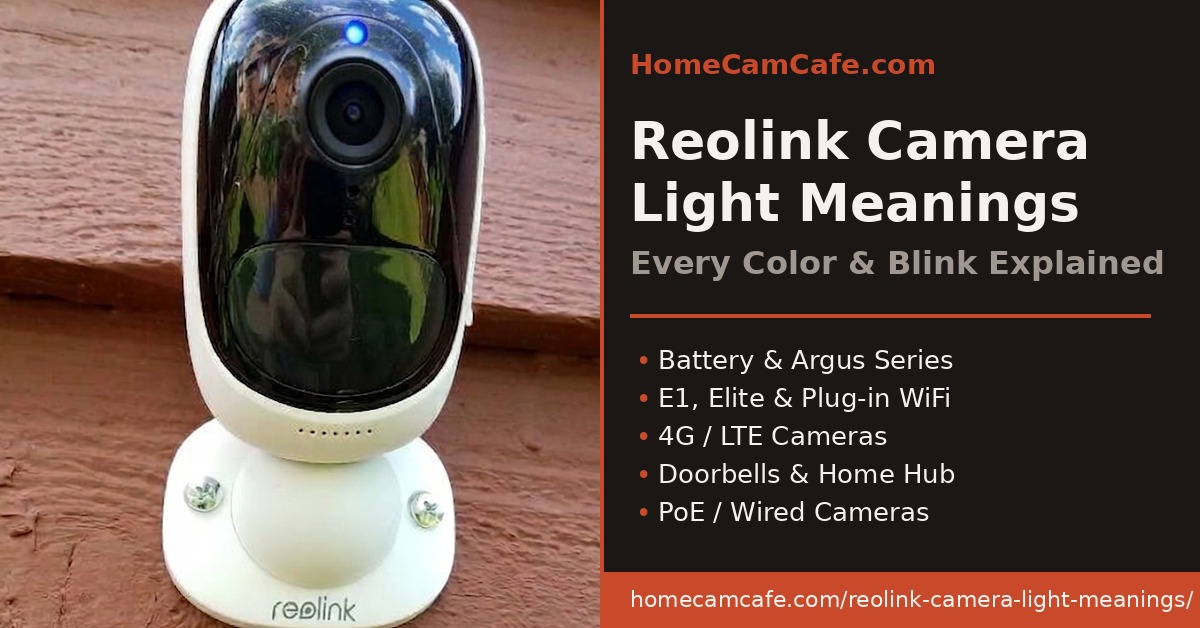
Reolink makes several different camera families, including battery-powered Argus and Altas models, plug-in E1 cameras, PoE cameras, LTE cameras, and video doorbells. Each uses its own status indicators. Some also have a separate charging LED, which should not be confused with the network status light.
This guide explains the common Reolink camera light colors, what different blinking patterns mean, and how to fix the problems they indicate. It also explains the important differences between models, so you won’t mistake normal standby behavior for a connection failure.
Quick tip: Start with the reference chart below. Identify your camera type, find the light pattern, and follow the corresponding fix. Before resetting anything, check whether the camera is accessible in the Reolink app.
Reolink Camera Light Meanings: Quick Reference Chart
These are the most common LED patterns across Reolink cameras. Pay particular attention to the camera type because the same color can have opposite meanings on different models.
| LED Pattern | Camera Type | Meaning / Action |
|---|---|---|
| 🔵 Solid Blue | Argus, Altas, battery WiFi | Active working mode; WiFi connected. Normal. |
| 🔵 🔵 Blinking Blue | Argus, Altas, battery WiFi | Standby; WiFi connected. Normal. |
| 🔴 Solid Red | Argus, Altas, battery WiFi | Active working mode; WiFi disconnected. Check network. |
| 🔴 🔴 Blinking Red | Argus, Altas, battery WiFi | Standby; WiFi disconnected. Check connection. |
| 🔵 🔵 Blinking Blue | E1, Lumus, Elite | Network failed or not configured. Check WiFi. |
| 🔵 Solid Blue | E1, Lumus, Elite | Starting up or network connected. |
| 🔴 🔵 Alternating Red/Blue | Battery cameras | Abnormal operation; possible reboot or hardware issue. |
| 🟠 Solid Orange | Battery charging indicator | Charging through cable. |
| 🟢 Solid Green | Battery charging indicator | Charged, or charging at low current on supported models. |
| ⚪ White Ring | Video doorbells | Startup, disconnected, or configured illumination, depending on animation. |
| 🔵 Blue Ring | Video doorbells | Connected; animation identifies the activity. |
| ⚫ No Light | Various models | LED disabled, normal idle, or power issue. Check app. |
Important: Two colored circles represent a blinking LED, not two physical lights. The circles show the actual colors, not whether something is good or bad. Some specialty models have additional patterns covered below.
The primary sources for these patterns are Reolink’s official battery camera LED guide and E1 and Lumus LED reference.
🔴 Reolink Camera Blinking Red: What It Means and How to Fix It
A Reolink camera blinking red usually indicates a WiFi connection problem on supported battery-powered models. But first, determine which red light you’re looking at: the front network status LED, the charging indicator, or the infrared night vision lights.
Blinking Red on Argus, Altas, Duo Battery, or TrackMix Battery
Reolink documents blinking red as a failed WiFi connection while a supported battery-powered camera is in standby mode.
Standby is the low-power state the camera enters when nobody is viewing live video and no motion event is being processed.
🟡 Try these fixes in order:
- Open the Reolink app. Check whether live view works or the camera is reported offline.
- Check the router. Confirm your WiFi network is operating normally.
- Check signal strength. Outdoor cameras mounted far from an access point may experience intermittent disconnections.
- Check the battery. A camera with insufficient charge may have trouble operating reliably.
- Restart the camera. Use the model’s power switch or documented restart procedure.
- Review recent network changes. A new SSID, WiFi password, router, or security setting can prevent reconnection.
- Reconnect if necessary. Follow Reolink’s supported WiFi connection procedure for your exact model.
🟢 When it’s fixed: With the status LED enabled, the camera should return to its documented blue connected state.
Remember that some Reolink models allow the status LED to be disabled. The app’s connection status is more important than the presence or absence of a light.
Solid Red on a Battery Camera
A solid red status LED on supported Argus, Altas, and related battery-powered WiFi cameras indicates that the camera is in active Working Mode but its WiFi connection has failed.
Working Mode means the camera has awakened because of motion detection or an attempt to access it.
The underlying problem is still connectivity. Use the same connection checks above, particularly wireless signal, router availability, and battery level.
Alternating Red and Blue: Possible Camera Fault
This is an important exception that should not be confused with ordinary WiFi disconnection.
If a Reolink battery-powered camera repeatedly alternates between red and blue, Reolink identifies the pattern as potentially related to abnormal rebooting or a hardware issue.
🔴 Recommended action:
- Observe whether the alternating pattern repeats continuously.
- Try the supported restart procedure for your camera.
- For models with removable batteries, remove and reseat the battery if supported.
- Check whether the camera becomes accessible in the app.
- If the pattern continues, contact Reolink support.
Reolink recommends providing a video showing the alternating LEDs along with the camera model and UID when requesting technical support.
See the official red-and-blue blinking troubleshooting guide.
Don’t automatically factory reset a camera exhibiting this pattern. A reset won’t necessarily fix a hardware fault.
🔵 Reolink Camera Blinking Blue: Normal or a Problem?
A blinking blue light is probably the best example of why Reolink camera light meanings cannot be generalized across every model.
On supported battery cameras, it can be completely normal. On E1 and Lumus cameras, it can indicate a failed network connection.
Blinking Blue on Battery Cameras: Normal Standby
On many Reolink Argus, Altas, Duo Battery, and TrackMix Battery models, blinking blue indicates that WiFi is connected and the camera is in standby.
The camera is conserving battery power while waiting for a motion event or a live-view request.
🟢 Usually no action is needed.
If live view works and the camera records motion normally, a blinking blue status LED is expected behavior when enabled.
Blinking Blue on E1 or Lumus: Connection Problem
On the E1 series and Lumus family, a blinking blue LED indicates that the network is disconnected or not configured.
This is the opposite of the battery camera’s blinking-blue meaning.
🟡 Troubleshooting:
- Check whether the camera appears offline in the Reolink app.
- Confirm that the router and wireless network are working.
- Restart the camera by disconnecting and reconnecting power.
- Check whether its WiFi network or password recently changed.
- Move the camera closer to the access point temporarily to test coverage.
- Follow Reolink’s connection-recovery instructions if it still cannot connect.
On these models, solid blue generally indicates startup or a successful network connection.
For more about this camera family, see our Reolink E1 Pro review.
Solid Blue on a Reolink Camera
On supported battery-powered WiFi cameras, solid blue means the camera is in Working Mode and WiFi is connected.
On the E1, Lumus, and certain Elite cameras, solid blue can mean the camera is starting up or that its network connection has succeeded.
A solid blue status indicator is generally reassuring, but always verify operation in the app if you’re experiencing an actual problem.
🟠 🟢 Reolink Camera Charging Light Meanings
Many Reolink battery-powered cameras have a separate charging indicator near the USB charging port or on the charging cable.
This is different from the network status LED near the lens.
| Charging LED | Meaning | What to Do |
|---|---|---|
| 🟠 Solid Orange | Battery charging | Normal. |
| 🟢 Solid Green | Fully charged or low charging current | Check actual battery percentage if unsure. |
| ⚫ No Light | Not charging | Check cable or power source if charging is expected. |
| 🟠 🟢 Alternating Orange/Green | Possible charging connection or hardware problem | Check charging port and cable. |
Note: These are the common separate charging-indicator patterns. Integrated LED systems, video doorbells, and certain TrackMix LTE models use different indicators.
Orange and Green Flashing Alternately
On applicable battery-powered cameras, alternating orange and green, or red and green, during charging may indicate a charging problem.
Try these steps:
- Disconnect and firmly reconnect the charging cable.
- Inspect the connector for dirt, moisture, or visible damage.
- Try another compatible charging cable.
- Check the power adapter and outlet.
- See whether the battery percentage increases in the Reolink app.
- If the problem persists, contact Reolink support.
A damaged charging port is one possible cause, especially after ruling out a loose connection or bad cable.
TrackMix LTE Plus and related models have special charging LEDs on their bracket or battery pack, so use the model-specific reference rather than assuming the standard orange/green system applies.
For additional details, see Reolink’s battery charging LED guide.
Reolink Solar Floodlight Camera Light Meanings
The Reolink Solar Floodlight Cam has a combined status and charging LED. This means the same indicator communicates several different operating conditions.
| LED Pattern | Meaning |
|---|---|
| 🔵 🔵 Blinking Blue | Charging through a power adapter |
| 🔵 Solid Blue | Fully charged while plugged in, live view, or PIR activity |
| 🔴 Solid Red | WiFi connection failed |
| 🔴 Then 🔵 | Normal startup sequence |
| 🔴 🔴 Blinking Red | Firmware updating |
🔴 Important: Do not interrupt power during an active firmware update.
On this model, the status LED doesn’t directly confirm solar panel charging. Check the charging icon in the Reolink app or desktop client to confirm whether the solar panel is supplying power.
Reolink maintains a Solar Floodlight status LED reference covering these combined functions.
⚪ 🔵 Reolink Video Doorbell Light Meanings
Reolink video doorbells use light animations as well as colors. A solid ring, blinking ring, spinning ring, and breathing ring can indicate different activities.
These indicators deserve separate attention because their behavior differs from conventional security-camera status LEDs.
Reolink Wired Video Doorbell: PoE and WiFi
On wired Reolink doorbells, the illuminated button ring indicates both connection and certain doorbell activities.
| Ring Pattern | Meaning |
|---|---|
| ⚪ Brief Solid White | Starting up |
| ⚪ ⚪ Blinking White | Started but not connected to network |
| ⚪ Spinning White | Button pressed while disconnected |
| ⚪ Breathing White | Motion or person detected while disconnected |
| 🔵 Spinning Blue | Doorbell button pressed |
| 🔵 Breathing Blue | Person or motion detected |
| 🔵 Solid Blue | Two-way audio being used |
| 🔵 🔵 Blinking Blue | Firmware updating |
A ring configured to stay white continuously is not necessarily a connection problem. Some models allow always-on ring illumination, so consider both the LED settings and the actual animation.
Breathing describes an LED that gradually brightens and dims. Spinning means light appears to travel around the button ring.
If a doorbell is showing a connection-warning pattern, check whether the camera is online and whether its Ethernet or WiFi connection is working.
Reolink Battery Video Doorbell
The battery-powered Reolink Video Doorbell has two different indicators: a button-ring status light and a smaller network indicator near the lens.
Its button ring can display additional charging colors:
| Light Pattern | Meaning |
|---|---|
| 🟠 Solid Orange Ring | Charging through USB-C |
| 🟢 Solid Green Ring | Fully charged through USB-C |
| ⚪ Blinking White Ring | Waiting to connect during setup |
| 🔵 Spinning Blue Ring | Doorbell button pressed |
| 🔵 Breathing Blue Ring | Motion or person detected |
| 🔴 Solid Red Indicator Near Lens | Starting up or working while disconnected |
| 🔴 🔴 Fast Blinking Red Indicator | Firmware updating |
| 🔵 Solid Blue Indicator Near Lens | Connected while actively working |
Notice the important distinction: the red or blue light near the lens is not the same as the illuminated button ring.
The battery doorbell also offers configurable ring-light behavior in the Reolink app, including automatic activation for supported events and an always-on nighttime option.
See Reolink’s battery doorbell LED guide for complete model-specific animations and controls.
Reolink PoE Camera Light Meanings
PoE cameras receive power and network connectivity through an Ethernet cable. Models such as the Reolink Duo 3 PoE, TrackMix PoE, and RLC series don’t require batteries or charging indicators.
Unlike the E1 or battery-powered Argus cameras, Reolink PoE models do not all provide the same user-visible front status LED. Some rely on network indicators at the Ethernet connection or other hardware indicators.
For that reason, don’t interpret every solid or blinking light on a PoE camera using the battery-camera reference chart.
PoE Camera Offline or Not Responding
If your PoE camera is offline:
- Check power. Confirm the PoE switch, injector, or NVR port is providing power.
- Check Ethernet. Inspect the cable and connectors for damage or moisture.
- Check the switch or NVR. Look for an active link indicator where supported.
- Check the app. Determine whether the camera can be reached locally.
- Try another cable or port. This helps identify cable and PoE supply problems.
- Review network settings. Check IP addressing, VLANs, and device isolation where applicable.
Many connection problems on PoE cameras originate in the cable, power source, or network rather than the camera itself.
For a detailed look at a current wired camera, see our Reolink Duo 3 PoE review.
Are Those Red Lights Around the Lens an Error?
Not necessarily. Red or faintly glowing LEDs surrounding a camera lens at night are often infrared illuminators.
Infrared lights provide night vision. They are separate from the camera’s system status indicators.
If your Reolink camera displays several dim red lights around the lens at night while recording normally, that usually isn’t a WiFi or network problem.
Some cameras use infrared illumination that is less visible to the human eye. Others use white spotlights for color night vision.
Reolink 4G LTE Camera Light Meanings
Reolink’s cellular cameras, including members of the Go, TrackMix LTE, KEEN Ranger, and cellular Duo families, communicate through a mobile network instead of relying entirely on home WiFi.
Their indicators can reflect cellular network registration, signal availability, startup, and charging.
Because the hardware differs substantially between models, a blue or red LTE status light shouldn’t automatically be interpreted using the Argus WiFi table.
If a cellular camera isn’t connecting:
- Check its battery level and power supply.
- Verify that the SIM card is installed correctly.
- Confirm the data plan is active and supported.
- Check local cellular signal availability.
- Confirm that the camera supports the cellular carrier’s required network bands.
- Check the camera’s status or voice prompts during startup.
- Follow the model-specific connection instructions before resetting.
Certain LTE models also use special charging indicators on their battery pack or mounting bracket. Check Reolink’s instructions for that particular hardware rather than assuming all cellular cameras share one charging LED pattern.
Reolink NVR and Home Hub Status Lights
The lights on a Reolink NVR or Home Hub describe the recording system rather than an individual camera. Keep them separate from camera status indicators.
Reolink NVR Power and HDD Indicators
A Reolink NVR commonly includes indicators for power and hard-drive activity.
The power indicator shows that the recorder is powered, while HDD activity lights may blink during hard-drive access or recording.
🟢 A blinking HDD activity light is not automatically an error.
If recording has stopped, check the NVR’s storage information, hard-drive status, recording schedule, and camera connection status in its software.
Don’t conclude that a dark HDD indicator means the drive is defective. LED arrangements and meanings can vary by NVR model.
Reolink Home Hub Red Light
A red status light on a supported Reolink Home Hub can relate to connectivity or another system condition, including storage issues on some models.
If the hub is not working:
- Check whether the hub is reachable in the Reolink app.
- Confirm the Ethernet and power connections.
- Check the router and internet access.
- Review storage status and any reported errors.
- Restart the hub if no storage operation or update is underway.
Home Hub, Home Hub Pro, and NVR models are different products. Consult the exact device’s indicator reference rather than treating all red hub lights as the same fault.
⚫ Reolink Camera Status Light Is Off
A dark status LED does not necessarily mean your Reolink camera is broken.
Possible explanations include:
- Status LED disabled: Many compatible Reolink models allow it to be switched off.
- Normal power-saving behavior: Certain battery-powered models may not display an indicator continuously.
- No charging cable: The charging LED is normally off when the battery isn’t charging.
- Power problem: A depleted battery, faulty adapter, or failed PoE connection can leave the camera unresponsive.
- Different LED type: The indicator you’re looking for may be near the charging port rather than the lens.
To determine whether the camera is working, check its online status and attempt live view in the Reolink app.
If live view works and the camera records normally, the missing status light is usually not a problem.
How to Turn Off the Reolink Camera Status LED
Many Reolink cameras offer a Status LED control in the app. The option is available on supported battery WiFi, E1, Lumus, Elite, and other models.
To find it:
- Open the Reolink app.
- Select the camera.
- Tap the settings icon.
- Open Light.
- Look for Status LED or the corresponding indicator setting.
- Turn it off if the option is supported.
Important exception: Reolink excludes the Argus 4 Series from its general app-based Status LED control guidance.
Some Reolink models also offer related settings through the desktop client or web interface. Available controls vary by firmware and model.
Disabling a status light doesn’t necessarily turn off infrared night vision lights, security spotlights, or a separate charging indicator.
See Reolink’s official Status LED settings guide.
Reolink Camera Still Offline? Troubleshooting Checklist
If you’ve identified the LED pattern but the camera remains offline, use these steps before performing a factory reset.
Step 1: Identify the Camera Family
Determine whether you own a battery WiFi camera, plug-in E1 or Lumus, PoE camera, LTE camera, or doorbell.
Don’t assume the same blinking color has the same meaning across families.
Step 2: Check the Reolink App
See whether live view works. A camera with a normal connection may still show an unfamiliar LED pattern during startup, charging, or another supported activity.
Step 3: Check Power or Battery
For battery cameras, check charge percentage. For plug-in models, inspect the adapter and cable. For PoE cameras, check the injector, switch, or NVR power source.
Step 4: Check the Network
If several cameras go offline simultaneously, start with shared networking equipment. If only one camera fails, investigate its specific power and connection path.
Reolink offers models with different WiFi capabilities, including some that support 5 GHz. Always check the specifications before changing router bands or security settings.
Step 5: Restart the Camera
Use the documented restart procedure for your model. A normal restart is less disruptive than resetting all camera settings.
Never interrupt an active firmware update.
Step 6: Check for Recent Changes
Consider router replacements, changed wireless passwords, new firewall rules, IP address changes, power outages, or firmware updates.
Step 7: Factory Reset Only When Necessary
If the camera remains inaccessible, follow Reolink’s model-specific reset instructions.
A factory reset may require configuring the camera again. It is not the first step for a weak wireless signal, charging problem, or suspected hardware failure.
Frequently Asked Questions About Reolink Camera Lights
What does a blinking red light mean on a Reolink camera?
On supported battery-powered WiFi cameras, blinking red indicates standby mode with a failed WiFi connection. On the Solar Floodlight Cam, blinking red instead indicates a firmware update. The correct interpretation depends on the camera model.
Why is my Reolink camera blinking blue?
On many Argus, Altas, and related battery-powered WiFi cameras, blinking blue means standby mode with a successful connection. On E1 and Lumus cameras, blinking blue indicates a failed or unconfigured network connection.
What does a solid blue light mean?
On battery-powered WiFi models, solid blue indicates active Working Mode with a successful connection. On E1 and Lumus cameras, solid blue indicates startup or successful network connectivity. The Solar Floodlight uses solid blue for several additional operating states.
Why is my Reolink charging light orange?
A solid orange charging indicator on many battery-powered Reolink cameras means the battery is charging. A solid green indicator usually means the battery is fully charged, although certain models also use green for low-current charging.
What does alternating red and blue mean?
On Reolink battery-powered cameras, alternating red and blue can indicate abnormal operation, including a possible reboot or hardware problem. Reolink recommends troubleshooting and contacting support if the behavior continues.
Why does my Reolink doorbell have a white light?
A white doorbell ring can indicate startup or disconnection, but some models allow continuous white illumination by choice. A spinning white ring can indicate that someone pressed the button while the doorbell was disconnected. Check the pattern and configuration.
Are the red lights around the Reolink lens an error?
Usually not. Several faint red lights around the lens at night are often infrared illuminators used for night vision. They are separate from the camera’s network-status indicator.
Can I disable my Reolink camera status light?
Many models allow the status LED to be disabled in the Reolink app under Camera Settings and Light. This option isn’t available on every model. The Argus 4 Series is excluded from Reolink’s general Status LED control support.
Final Thoughts
Understanding Reolink camera light meanings starts with one important distinction: not every Reolink camera uses the same LED system.
On many battery-powered WiFi cameras, blue indicates a successful connection and red indicates a failed one. On E1 and Lumus cameras, blinking blue means the network is disconnected or not configured. Charging indicators, LTE cameras, PoE systems, and video doorbells have additional behaviors.
Our recommendation: Identify the exact model, use the quick-reference chart, check whether the camera works in the Reolink app, and follow the appropriate troubleshooting steps. Save factory resets for situations where simpler fixes have failed.
For more Reolink setup information, product reviews, and troubleshooting articles, visit our Reolink camera reviews and guides hub.
You can also compare status indicators in our Tapo camera light meanings guide, Blink camera light meanings guide, Arlo camera light guide, and Ring camera light meanings guide.