
Nest camera light meanings can be confusing because green, blue, yellow, white, and red indicators mean different things depending on your camera model. A pulsing green light might indicate someone watching live video, while blinking yellow can signal a failed software update or a power problem. Here’s how to identify each light and fix the problem.
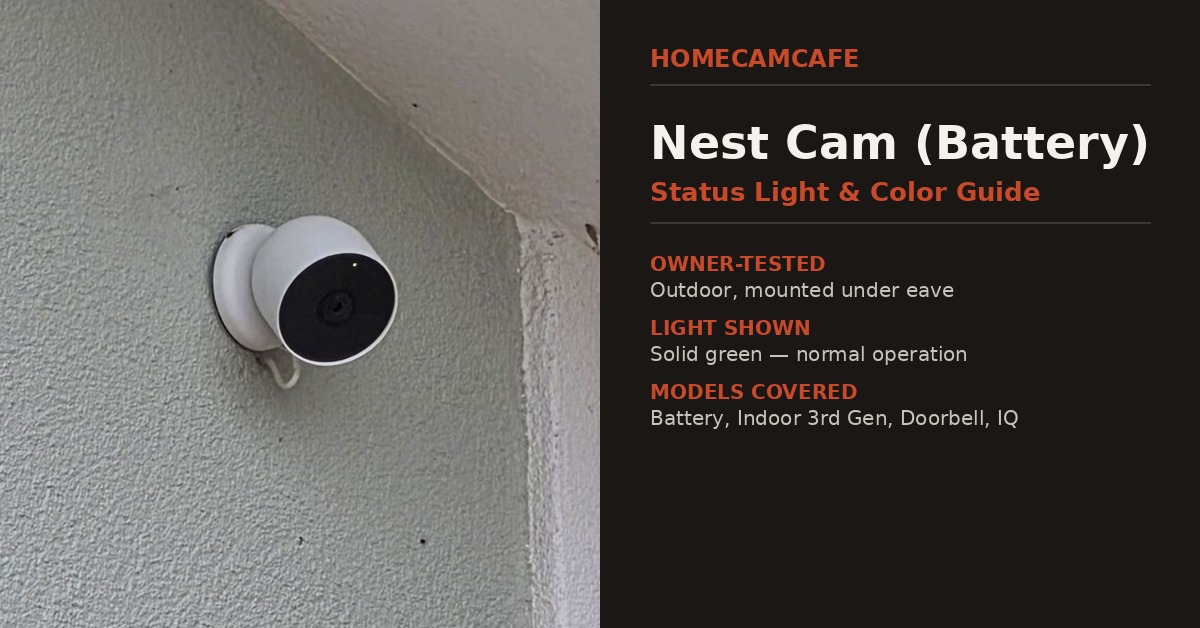
Google Nest cameras don’t all use identical indicators. Battery-powered cameras, wired indoor cameras, Nest Doorbells, and older Nest Cam IQ models have important differences. Doorbells also feature an illuminated button ring that behaves differently from the smaller camera status LED.
This guide covers common Nest Cam lights, explains which patterns are normal, and provides troubleshooting instructions for lights that indicate connection, charging, or power problems.
Quick tip: Find your light pattern in the chart below, check the camera in the Google Home or Nest app, and follow the appropriate troubleshooting section. The exact model matters, particularly when dealing with yellow and white lights.
Nest Camera Light Meanings: Quick Reference Chart
These are the most common Nest camera and doorbell LED patterns. A pulsing light gradually brightens and dims, while a blinking light switches on and off. The meanings vary by model.
| LED Pattern | Meaning | What to Do |
|---|---|---|
| 🟢 Solid Green | Normal operation on supported cameras | Usually no action needed. |
| 🟢 Pulsing Green | Live viewing or interaction | Normal during live viewing. |
| 🔵 Solid Blue | Starting or restarting on certain wired cameras | Allow startup to finish. |
| 🔵 Pulsing Blue | Ready for setup or connecting | Continue setup in the app. |
| ⚪ Pulsing White | Startup, charging, or update depending on model | Check model and activity. |
| ⚪ Solid White | Charging complete on supported battery models | Normal. |
| 🟡 Slowly Blinking Yellow | Failed update, battery, or power problem | Check the model-specific warning. |
| 🟡 Multiple Yellow Blinks | Setup failure or reset sequence | Check app and reset status. |
| 🔴 Solid Red | LED malfunction on certain wired models | Contact Google Nest support. |
| ⚫ No Light | Idle, turned off, offline, or no power | Check actual status in the app. |
Important: The colored circles represent the actual LED colors, not warning severity. A Nest Doorbell’s button ring and its smaller camera status LED are separate indicators. This chart summarizes common patterns; the exact meaning depends on your model.
Google provides an official Nest camera and doorbell light reference with additional model-specific patterns.
🟢 Nest Camera Green Light: Solid vs. Pulsing
Solid Green: Normal Operation
On many Google Nest cameras, solid green means the camera is powered on, connected, and operating normally.
Depending on the model, the camera may be processing video, watching for activity, or recording an event.
🟢 Usually no action is needed.
A solid green light doesn’t mean someone is secretly watching. On supported cameras, it’s simply the normal operating indicator.
Some battery-powered models turn their status LED off during idle periods to conserve power. A dark LED doesn’t necessarily mean the camera is offline.
Pulsing Green: Someone Is Viewing Live Video
On supported Nest cameras, pulsing green indicates active live viewing or another live interaction, such as Talk and Listen.
That might be you opening the Google Home app, another authorized household member, or a supported connected display.
🟡 If you weren’t expecting live viewing:
- Close live view on your own devices.
- Check whether another household member is using the camera.
- Review who has access to your Google Home household.
- If you have other reasons to suspect unauthorized access, review your Google account security settings.
The LED alone doesn’t establish that your account has been compromised.
🔵 Nest Camera Blue Light: Setup and Connection
Blue status lights commonly appear when a Nest camera is starting up, being configured, or attempting to reconnect.
Pulsing Blue: Ready to Connect
On supported Nest cameras and doorbells, pulsing blue indicates the device is ready for setup or attempting to connect to the network.
This is normal when installing a new camera or configuring one again after a reset.
A faster pulse can indicate that the device is actively attempting to establish its connection.
Nest Camera Stuck Pulsing Blue
If the camera never finishes setup, work through these steps:
- Check the app. Look for a setup error in Google Home or the Nest app.
- Check Wi-Fi. Confirm your router and internet connection are working normally.
- Verify the password. Make sure the camera is joining the correct wireless network.
- Check phone permissions. Device discovery may require Bluetooth or local network access.
- Check signal strength. Move the camera temporarily closer to the router during setup.
- Review network security. Verify that the wireless configuration is compatible with the camera.
- Retry setup. Follow Google’s model-specific instructions.
Don’t immediately factory reset the device. Some setup failures can be resolved by correcting the network connection or completing a pending step in the app.
See Google’s Nest camera setup troubleshooting guide for additional instructions.
Solid Blue: Starting or Restarting
On models such as the Nest Cam Indoor (Wired, 3rd Gen), solid blue indicates startup or restarting.
This can occur after connecting power, following an outage, or after an update.
If the camera remains solid blue and never becomes accessible, check the power supply and setup status before attempting a reset.
🟡 Nest Camera Yellow Light: Problems and Fixes
Yellow is one of the most important warning colors on Nest cameras. However, its meaning depends heavily on the camera or doorbell model.
Slow Blinking Yellow: Failed Update or Battery Problem
On the Nest Cam (Battery), slowly blinking yellow can indicate that a software update failed.
On certain Nest Doorbells, yellow indicators may instead point to power or battery problems.
🟡 Try these checks:
- Identify the exact Nest camera or doorbell model.
- Open Google Home and check for software-update or device-error messages.
- For battery models, check the remaining battery charge.
- Verify the camera has a reliable power supply.
- Follow Google’s model-specific recovery procedure if the warning persists.
Don’t interrupt a camera that is actively installing firmware. A failed update is different from an update still in progress.
Wired Nest Doorbell Blinking Yellow: Insufficient Power
On supported wired Nest Doorbells, blinking or slowly pulsing yellow can indicate that the transformer isn’t supplying enough electrical power.
This is important because the doorbell may still produce a chime while the camera and network features stop working reliably.
🔴 What to check:
- Look for insufficient-power warnings in the app.
- Identify your wired doorbell generation.
- Verify that the transformer meets that model’s electrical requirements.
- Check whether the problem began after replacing the transformer or doorbell.
- With power switched off, inspect accessible wiring for obvious damage or loose connections.
- Have a qualified electrician assess the transformer or wiring if the problem continues.
Google specifies a 16–24 VAC, 10–40 VA transformer for the Nest Doorbell (Wired, 3rd Gen). Requirements may differ for earlier generations.
See Google’s wired Nest Doorbell power troubleshooting guide.
Multiple Yellow Flashes During Setup
Some Nest Doorbells use a series of yellow flashes to indicate an unsuccessful setup attempt.
For example, the Nest Doorbell (Battery) can blink yellow ten times and play a warning tone when setup fails.
Yellow blink sequences may also appear during certain reset procedures, so consider whether the reset button was being held when the pattern appeared.
If setup failed, check the app’s error message and correct the connection problem before trying again.
⚪ Nest Camera White Light: Charging and Doorbell Activity
White indicators appear during several normal activities, including charging, startup, and visitor interactions.
Nest Cam Battery Charging Lights
On the Nest Cam (Battery):
- ⚪ Pulsing white: Charging is in progress.
- ⚪ Solid white: Charging is complete.
- 🟡 Solid yellow while connected to power: Possible battery problem.
Check battery status in the Google Home app if you aren’t sure whether charging is progressing.
If charging has stopped unexpectedly, inspect the cable, charging contacts, power adapter, and available power.
For compatible solar panels and installation information, see our Google Nest solar panel guide.
Nest Doorbell White Light Ring
Nest Doorbells have a button ring that communicates visitor activity separately from the camera’s status LED.
Common light-ring behaviors include:
- ⚪ Pulsing white ring: Motion or visitor activity detected.
- ⚪ Spinning white ring: Doorbell pressed and waiting for a response on supported models.
- ⚪ Pulsing white status light: Startup or update activity on certain models.
- ⚪ Blinking white status light: Successful setup on supported models.
These are not necessarily error indicators.
For troubleshooting, first identify whether you’re looking at the illuminated ring around the button or the small camera-status indicator.
🔴 Nest Camera Red Light: What It Means
Red status lights are relatively uncommon on modern Nest cameras.
On certain wired cameras, including the Nest Cam Indoor (Wired, 3rd Gen), a solid red status light indicates an LED malfunction.
Google recommends contacting Nest Support if this occurs.
However, the discontinued Nest Cam IQ uses a blinking red light ring for an entirely different condition: insufficient power.
If an older Nest Cam IQ displays a blinking red ring, check its power adapter and outlet.
Important: Small red glows around a camera lens at night may be infrared night vision illumination rather than an actual red status LED.
Nest Camera Light Meanings by Model
The troubleshooting sections above cover the most common conditions. The following model references explain important differences.
Nest Cam (Battery)
The Nest Cam (Battery) uses a small status indicator near the lens, along with charging indicators when connected to external power.
| LED Pattern | Meaning |
|---|---|
| 🟢 Solid Green | Camera active and operating normally |
| 🟢 Pulsing Green | Live viewing or interaction |
| 🔵 Pulsing Blue | Setup or reconnection |
| ⚪ Pulsing White | Charging |
| ⚪ Solid White | Fully charged |
| 🟡 Slowly Blinking Yellow | Failed software update |
| ⚫ No Light | Idle, off, offline, or depleted battery |
During normal operation, the status LED can be off while the camera is idle. This doesn’t automatically mean the camera is disconnected.
We’ve also found that solid green doesn’t necessarily mean someone is viewing the live feed. Normal recording or event-processing activity can illuminate the indicator.
For additional information, see our Nest solar panel guide.
Nest Cam Indoor (Wired, 3rd Gen)
This camera uses a single status indicator rather than a separate light ring.
- 🟢 Solid green: Operating normally.
- 🟢 Pulsing green: Live viewing.
- 🔵 Solid blue: Starting or restarting.
- 🔴 Solid red: LED malfunction.
- ⚫ No light: Camera turned off or without power.
Because this camera relies on a continuous power connection, an unresponsive device should prompt a check of its outlet, cable, and adapter.
See our Nest Cam Indoor review for more information.
Nest Doorbell (Battery)
The battery-powered doorbell has both a small status LED and an illuminated ring around the doorbell button.
- 🟢 Solid green status light: Camera operating normally.
- 🟢 Pulsing green status light: Live viewing or interaction.
- ⚪ Pulsing white ring: Motion detected.
- ⚪ Spinning white ring: Doorbell pressed, awaiting response.
- 🔵 Pulsing blue status light: Setup or connection activity.
- 🟡 Ten yellow flashes: Setup failure.
- ⚪ Pulsing white while charging: Charging.
- ⚪ Solid white while charging: Charging complete.
The small status LED and the button ring can display different indications. A visitor-related ring animation isn’t necessarily a network problem.
Nest Doorbell (Wired, 2nd and 3rd Gen)
Wired Nest Doorbells use status and button-ring indicators similar to the battery model, but power troubleshooting is different.
Common patterns include:
- 🟢 Solid green: Normal operation.
- 🟢 Pulsing green: Live interaction.
- 🔵 Pulsing blue: Pairing or attempting to connect.
- ⚪ Pulsing white: Startup, update, or supported visitor interaction.
- ⚪ Spinning white ring: Doorbell pressed and awaiting response.
- 🟡 Blinking yellow: Insufficient power on supported models.
Persistent yellow blinking on a wired Nest Doorbell is a reason to investigate the transformer and power supply rather than repeatedly changing Wi-Fi settings.
Nest Cam IQ and Older Nest Cameras
The discontinued Nest Cam IQ uses both a small status LED and a light ring.
- 🟢 Solid green: Operating normally.
- 🟢 Pulsing green: Live viewing.
- 🔵 Pulsing blue ring: Ready for setup.
- 🔴 Blinking red ring: Insufficient power.
- ⚫ No light: Camera off or without power.
If you see the blinking red ring, check the power adapter and outlet. Google recommends using the appropriate power equipment rather than an external battery pack.
The original wired Nest Cam and older Dropcam devices have different setup procedures. Google has ended official support for Dropcam and Dropcam Pro, so not all historical app functions remain available.
Our Nest Cam and Dropcam factory reset guide covers older reset procedures.
How to Adjust Nest Camera Status Light Brightness
Many Google Nest cameras and doorbells allow you to adjust status-light brightness.
Google generally provides brightness controls rather than unrestricted control over every operational indicator.
On supported models:
- Open the Google Home app.
- Select the camera or doorbell.
- Open its device settings.
- Find the status-light brightness control.
- Select Low, Auto, or High if those options are available.
Older Nest cameras managed through the Nest app may offer similar controls under their individual device settings.
Some privacy-related and operational indicators are designed to remain visible rather than being fully disabled.
Nest Camera Light Off or Camera Offline: Troubleshooting
A Nest camera with no visible status light isn’t necessarily broken. Battery-powered models may normally display no light during idle periods.
If the camera isn’t responding, check the following:
- Check the app. Determine whether the camera was turned off manually, by a schedule, or is reported offline.
- Check power. Confirm that a wired camera has a working outlet or doorbell transformer. For battery models, check the battery percentage.
- Check Wi-Fi. Verify the router and internet connection are operating normally.
- Check for shared failures. If multiple cameras go offline, investigate shared equipment before individual devices.
- Review recent changes. Router replacements, password changes, and other network adjustments can prevent reconnection.
- Restart the camera. Use Google’s supported procedure for the model.
- Reset only when necessary. A factory reset may require configuring the camera again.
If live view works and the camera is operating normally, a dark status light may simply be part of the device’s normal behavior.
Frequently Asked Questions About Nest Camera Lights
What does a solid green light mean on a Nest camera?
Solid green generally indicates normal operation. The camera is powered, connected, and processing or streaming video. It doesn’t automatically mean somebody is watching live.
Why is my Nest camera blinking green?
On many models, pulsing green indicates live viewing or an active interaction. It could be your own app session, another household member, or a supported display.
What does a blinking blue Nest camera light mean?
Pulsing blue generally means the camera is ready for setup or attempting to connect. If setup never completes, check the app, network, and wireless connection.
Why is my Nest camera blinking yellow?
A slowly blinking yellow LED can indicate a failed software update on the Nest Cam (Battery). On wired Nest Doorbells, yellow blinking can indicate insufficient transformer power. Check the exact model before troubleshooting.
What does a white light mean on a Nest camera?
White indicators can mean charging, startup, updates, or doorbell visitor activity. The meaning depends on the device and whether the light is the camera status LED or doorbell button ring.
Does a green Nest camera light mean someone is watching?
Not necessarily. Solid green normally indicates the camera is operating. Pulsing green is the more relevant indication of live viewing on supported models.
Why is my Nest Cam light off?
The camera may be idle, turned off in the app, offline, out of power, or low on battery. Check the device’s actual status in the Google Home or Nest app.
Can I turn off the Nest camera status light?
Current Nest cameras generally offer brightness controls rather than a universal option to disable every status indicator. The available settings vary by model.
Final Thoughts
Understanding Nest camera light meanings starts with identifying the model and the exact LED pattern.
Green usually relates to normal operation or live viewing, blue commonly indicates startup or setup activity, and white can indicate charging or doorbell activity. Yellow warnings deserve special attention because they can indicate software-update problems, setup failures, or insufficient power.
Our recommendation: Start with the quick-reference chart, check the camera in the Google Home or Nest app, and follow the troubleshooting section for your model before attempting a reset.
For additional camera reviews, setup guides, and troubleshooting, visit our Google Nest camera reviews and guides hub and our Nest Cam troubleshooting guide.