
Knowing how to share Wyze camera access with a spouse, family member, roommate, or sitter takes less than two minutes inside the Wyze app, but Wyze handles shared permissions in a quirky middle ground that catches many households off guard. Unlike Blink, which forces everyone to sign into a single master account, Wyze lets you send per-camera invitations to another person’s separate Wyze account. However, Wyze blocks shared users from viewing local microSD card playback while still letting them turn your camera off, pan a motorized lens, or trigger the siren.
Understanding that exact balance between what a shared user can control and what stays locked to the primary owner will help you decide whether to send a standard Wyze sharing invite or sign a trusted spouse directly into your main account. Below are the step-by-step instructions to share Wyze camera feeds from either menu in the Wyze app, how the other person accepts the invitation, a full breakdown of shared user permissions, and how to revoke access whenever you want.
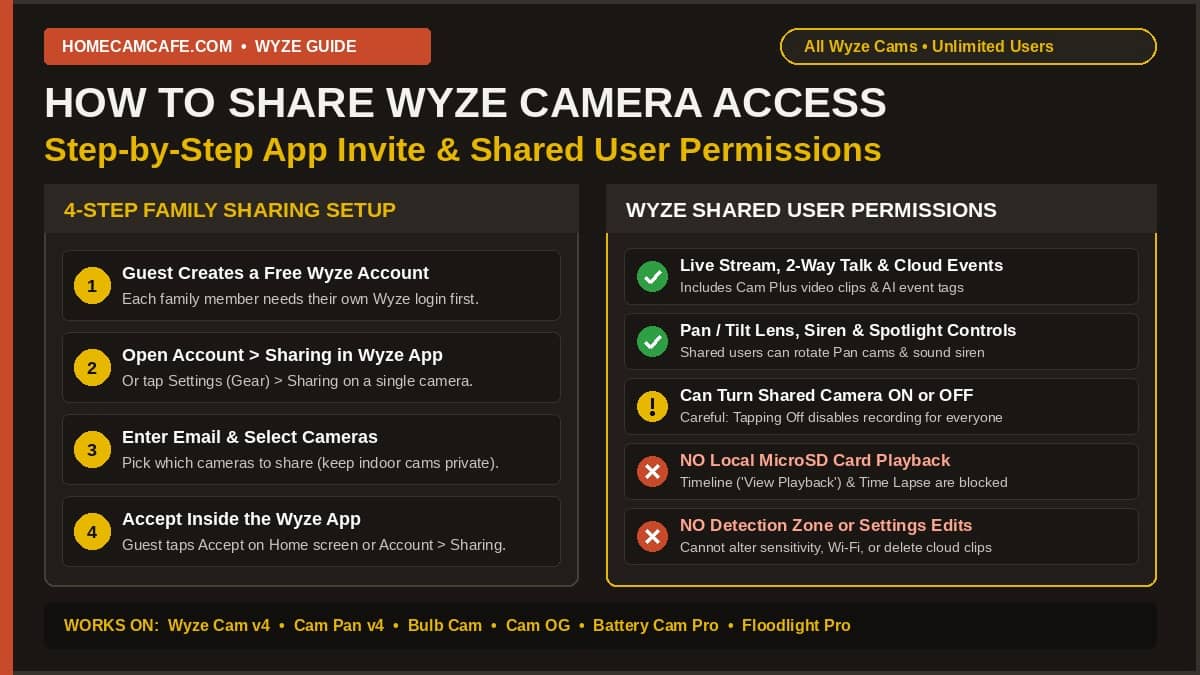
Quick Answer: To share Wyze camera access, have the other person create their own free Wyze account first. In your Wyze app, go to Account > Sharing > Share With New User (or open a camera and tap Settings > Sharing), enter their email address, and select which cameras to share. Shared users can watch live video, use two-way audio, and view cloud Event clips, but they cannot view local microSD card playback or change detection settings.
How to Share Wyze Camera Access: Two Ways to Send an Invite
Before you start the Wyze camera sharing process, ask your family member or guest to download the Wyze app (iOS or Android) and register their own free Wyze account using their personal email address. While Wyze allows you to send an invitation to an unregistered email address, having their account created ahead of time prevents the invitation from getting stuck in a pending state.
Once you know the exact email address tied to their Wyze login, there are two ways to learn how to share Wyze camera access depending on whether you want to share several cameras at once or just one specific camera.
Method 1: Share One or Multiple Cameras via the Account Tab (Fastest)
If you want to share Wyze camera with family members across multiple entryways or rooms in a single pass, use the main Sharing menu inside your Account tab, as outlined in Wyze’s official device sharing documentation:
- Open the Wyze app on your phone and tap Account in the bottom-right corner.
- Tap Sharing under the Account settings list.
- Tap Share With New User (or tap the Share button next to the Devices category).
- Type the exact email address associated with the other person’s Wyze account and tap Next (or Search). If they have not created a Wyze account yet, a pop-up will state “User has not registered with Wyze yet. We will send out an email to invite once you confirm.” Tap OK if you still wish to send it, or Cancel to verify you spelled their email properly.
- Check the boxes next to every Wyze camera (or smart plug, bulb, or sensor) you want that person to access, while leaving private indoor cameras unchecked.
- Tap Share at the bottom of the screen. The invitation will now appear as Pending under your Sharing tab until the recipient accepts it inside their app.
Method 2: Share a Single Camera From Device Settings
If you only want to Wyze share camera access for one specific unit, such as a driveway Wyze Cam v4 or a baby nursery camera, you can invite someone straight from that camera’s live view screen:
- On the Home tab of the Wyze app, tap the camera you want to share to open its Live Stream.
- Tap the Settings (gear icon) in the upper-right corner of the screen.
- Scroll down and tap Sharing.
- Tap the + (plus sign) or Share with a new user at the bottom of the screen.
- Enter the recipient’s Wyze account email address (or pick their email from your Recent Shares list if you already share another Wyze device with them), tap Search, and tap Share.
These exact steps work across every current Wyze camera generation, including the Wyze Cam v4, Wyze Cam v3, Wyze Cam OG, Wyze Cam Pan v4, Wyze Duo Cam Pan, Wyze Bulb Cam, Wyze Battery Cam Pro, and Wyze Cam Floodlight Pro.
How the Invited User Accepts Your Wyze Camera Share
One of the most frequent frustrations with Wyze camera sharing happens right after you tap Share: the person you invited checks their email inbox, clicks a link in the email, and wonders why the camera still does not show up on their phone. Email notifications from Wyze only alert the person that an invite was sent; the invitation must be accepted inside the Wyze mobile app itself.
Walk your family member or guest through these steps on their phone:
- Open the Wyze app and sign in using the exact email address the invitation was sent to.
- In most cases, a pop-up banner appears right on the Home tab announcing that a device has been shared with them. Tap Accept on that prompt.
- If no pop-up banner appears on the Home screen, have them tap Account (bottom-right corner) > Sharing, or tap the Messages (inbox icon) in the upper-right corner of the Home tab.
- Locate the pending camera invitation and tap Accept.
- Return to the Home tab and pull down on the screen to refresh the device list. The shared camera will now appear right in their main device list alongside a label showing who shared it.
Wyze Shared User Permissions: What They Can and Cannot Do
Important MicroSD Limitation: A Wyze shared user can watch the live video feed and view 14-day cloud Event clips, but shared users cannot view local microSD card footage (`View Playback` / SD card timeline) or Time Lapse recordings. In addition, Wyze does not offer a strict “view-only” toggle: a shared user can still turn your camera off, trigger the siren, and rotate a Wyze Cam Pan lens.
Before you add someone to your cameras, review Wyze’s official shared user permission rules so nobody in your home gets surprised by missing microSD buttons or accidental camera shutdowns:
| Wyze Feature or Control | Primary Owner Account | Wyze Shared User (Invited) | Real-World Household Impact |
|---|---|---|---|
| Watch Live Stream & Two-Way Talk | Yes | Yes | Both users can watch live video, listen to audio, and speak through the camera. |
| View 14-Day Cloud Event Videos / Snapshots | Yes | Yes | Shared users can view cloud Events (including Cam Plus video events) in the Events tab. |
| View Local MicroSD Card Playback | Yes | No (Blocked) | Shared users cannot scrub the 24/7 microSD card timeline or access the SD Card button. |
| View or Create Time Lapse Videos | Yes | No (Blocked) | Because Time Lapse writes directly to the microSD card, only the primary owner can use it. |
| Turn Camera On or Off | Yes | Yes | If a shared user taps Off on the camera tile, the camera stops recording for everyone. |
| Pan / Tilt Lens & Toggle Motion Tracking | Yes | Yes | Shared users can manually pan/tilt a Wyze Cam Pan and toggle Motion Tracking on or off. |
| Trigger Siren, Spotlight & Night Vision | Yes | Yes | Shared users can sound the siren, toggle the spotlight, and switch Night Vision modes. |
| Edit Detection Zones & Sensitivity | Yes | No | Shared users cannot alter your motion detection zones, sensitivity sliders, or alarm settings. |
| Rename Camera, Update Firmware, or Re-Share | Yes | No | Shared users cannot rename your device, push firmware updates, or invite third parties. |
Two permission rules deserve special attention in a multi-person household:
- Why shared users cannot see microSD recordings: Unlike cloud events, which stream from Wyze’s servers with account-level token checks, microSD playback streams directly from the card slot inside the camera. Because Wyze has never built granular read-only permissions for onboard card access, the app completely blocks the microSD timeline for shared users. If you run subscription-free cameras with a SanDisk 128GB High Endurance microSDXC card (and no paid Cam Plus plan), a shared user will only see static motion thumbnail snapshots in their Events tab and will not be able to play back the video recorded on the card.
- The “Turn Off” button trap: On the main Home screen of the Wyze app, every camera tile has an On/Off button on the right side. Many shared family members assume tapping Off only hides the camera or mutes notifications on their own phone. In reality, tapping Off powers down the camera’s stream and stops both cloud and microSD recording for the entire home. Make sure everyone you invite knows to leave the camera switched On.
Wyze Camera Sharing vs. Sharing Your Primary Login (For Spouses)
Because Wyze has been promising granular shared-user permissions on its community wishlist for years without unlocking microSD card playback for invited guests, households with Wyze multiple users have two distinct ways to set up their phones:
1. When to Use Built-In Wyze Sharing (Separate Accounts)
Use the official Account > Sharing invitation whenever you are sharing an exterior camera with adult children, roommates, neighbors, babysitters, or relatives who only need to check the live stream, talk through two-way audio, or review Cam Plus cloud events. Using separate accounts keeps your indoor cameras private, prevents guests from messing up your custom motion detection zones, and lets you revoke their access in five seconds without changing your password.
2. When Spouses Should Share the Primary Wyze Login Instead
If you and your spouse or partner co-manage the home equally and rely on 24/7 continuous microSD card recording (see our guide to selecting the right microSD card for a security camera), the built-in sharing feature will frustrate the second person because they cannot scrub the SD card timeline, adjust detection sensitivity, or check battery percentages on wire-free models. In that situation, both partners can sign into the Wyze app on their respective phones using the same primary Wyze email and password (approving the Two-Factor Authentication verification code during sign-in). Signing into the same primary account gives both phones 100% identical access to microSD card playback, detection settings, and subscription management.
Do Shared Users Need Their Own Wyze Cam Plus Subscription?
No. Wyze subscriptions attach to the camera and the primary owner’s account, not to the individual people you invite. If the primary camera owner pays for Wyze Cam Plus or Cam Unlimited, anyone you share that camera with automatically gets to watch the full-length 14-day cloud Event videos and see AI smart detection tags (Person, Pet, Vehicle, and Package) in their Events tab at zero extra cost.
There are two small subscription nuances to keep in mind:
- How many people can you share a Wyze camera with? Wyze places no cap on the number of users you can share a camera with, and no limit on how many cameras you can share, though sharing is assigned per camera.
- Wyze Home Monitoring and Multi-Cam View limits: If you pay for the professional Wyze Home Monitoring security alarm system, standard camera sharing does not share your alarm keypad PIN or armed/disarmed security modes. In addition, Wyze notes that only the primary account holder (or shared users who do not have their own security plan) can use the View Multi-Cam feature on the Monitoring tab.
How to Stop Sharing or Remove Someone From Your Wyze Camera
When a house sitter leaves or you want to remove a user from one or all of your cameras, you can revoke their access immediately from the Wyze app:
- Open the Wyze app and tap Account in the bottom-right corner.
- Tap Sharing.
- Tap the name or email address of the shared user you want to modify or remove.
- Tap the Edit (pencil icon) in the upper-right corner of the screen.
- Uncheck the specific camera(s) you no longer want to share with that person, then tap Update.
If you uncheck every device shared with that email address and tap Update, that user is automatically removed from your shared users list and the cameras vanish from their Wyze app immediately. You can also cancel an unaccepted invitation at any time by opening Account > Sharing, tapping the Pending user, and selecting Cancel Share.
Troubleshooting: Wyze Shared Camera Not Showing Up
If you sent an invitation and your family member still cannot see the camera in their Wyze app, check these four common causes:
- Check for an uppercase or typo mismatch in the email address: Confirm the email address shown under your Account > Sharing list matches the exact email shown under Account > Account on the other person’s phone (for example, make sure they did not sign in with Apple “Hide My Email” or a secondary Gmail address).
- Accept inside the Wyze app, not the email client: Remind the recipient to open the Wyze app and check Account > Sharing or the top-right Messages inbox icon to tap Accept.
- Cancel and resend a stuck Pending invite: If an invitation was sent before the recipient registered their Wyze account, it often hangs in a Pending state. Cancel the pending invite under Account > Sharing and send a fresh invite now that their account is active.
- Update the Wyze app on both phones: Newer hardware like the Wyze Cam v4 and the 4K Wyze Cam Pan v4 require an updated version of the Wyze app on the shared user’s phone to render the live stream UI properly.
View Wyze Cam v4 on Amazon → View Wyze Cam Pan v4 on Amazon → View SanDisk 128GB High Endurance Card →
How Wyze Camera Sharing Compares to Blink, Ring, and Tapo
If multi-user family access is a high priority for your home, here is how Wyze camera sharing stacks up against the other major security camera apps we test:
| Camera Brand | Separate Guest Account? | Share Individual Cameras? | Can Shared User View SD / Local Clips? | Biggest Sharing Quirk |
|---|---|---|---|---|
| Wyze | Yes (Own Wyze login) | Yes (Per-camera selection) | No (Cloud Events only) | Blocks microSD timeline playback, yet lets shared users turn the camera off. |
| Blink | No (Shares main login) | No (All cameras on account) | Yes (Full admin access) | No guest role; second phone gets full administrator control over all cameras. |
| Ring | Yes (Own Ring login) | Yes (Per-camera selection) | Cloud only (Ring Plan required) | Clean Shared User role prevents guests from deleting clips or turning cameras off. |
| TP-Link Tapo | Yes (Own TP-Link ID) | Yes (Per-camera selection) | Yes (View Playback supported) | Allows shared family members to view microSD recordings without full admin rights. |
Compared to Blink (covered in our guide on how to share Blink camera access), Wyze is much better when you want to share a front porch camera without exposing indoor cameras on the same account. However, if you want a guest role that cannot turn your camera off, see our guide on how to share Ring camera access, or if you want shared family members to be able to watch local microSD card recordings from their own separate login, check our tutorial on how to share a Tapo camera.
Frequently Asked Questions About How to Share Wyze Camera Access
How do I share my Wyze camera with another family member?
Have your family member install the Wyze app and create their own free Wyze account first. Then open your Wyze app, tap Account > Sharing > Share With New User, enter their Wyze account email address, check the cameras you want to share, and tap Share. They will accept the invitation inside their Wyze app under the Home screen prompt or under Account > Sharing.
Why can’t a shared user view microSD card playback on a Wyze camera?
Wyze restricts local microSD card timeline playback and Time Lapse downloads strictly to the primary account owner for privacy and hardware authentication reasons. Shared users can only watch live streams and 14-day cloud Event clips. If a spouse needs full microSD card playback, sign their phone into your primary Wyze account instead of using a guest share invite.
Can two phones watch the same Wyze camera at the same time?
Yes. Multiple phones (whether signed into the same primary Wyze account or connected via a shared user invitation) can view the live video stream from a Wyze camera simultaneously.
Can a shared user turn off my Wyze camera or delete Event videos?
A shared user can turn a shared Wyze camera on or off from the Wyze app Home screen, trigger the siren, and rotate a Wyze Cam Pan lens. However, a shared user cannot delete cloud Event clips, rename the camera, change motion detection settings, or delete the camera from your account.
How many people can share a Wyze camera?
According to Wyze, there is no hard limit on the number of users you can share a Wyze camera with, and no limit on the number of Wyze devices you can share from your account.
Bottom Line
Learning how to share Wyze camera access gives you an easy, free way to let family members, roommates, or sitters watch live feeds and receive motion alerts on their own phones without handing over your master password or exposing every camera in your house. Just keep Wyze’s two big sharing rules in mind: invited users cannot scrub local microSD card recordings, and they can still toggle a shared camera off or move a pan-and-tilt lens. Use the built-in Account > Sharing invite for relatives, kids, and guests, and reserve a shared master login for a spouse who needs full microSD timeline playback and settings control.
For hands-on reviews of current Wyze cameras and setup tutorials, visit our Wyze camera reviews and guides hub and our main security camera how-to guides page.