
Understanding Ring camera light meanings is the fastest way to diagnose a camera or video doorbell when it flashes a color that does not match anything in the Ring app. Unlike Blink camera light meanings, where no light at all usually signals normal standby, Ring camera light colors and patterns follow a much more consistent rule: blue almost always signals normal operation, while red, white, and green are reserved for setup states, network errors, and alerts. Once you account for a few generation-specific quirks on the Floodlight Cam, Spotlight Cam, and first-generation Indoor Cam, you can troubleshoot almost any Ring device by its status LED alone. This reference combines Ring’s official light pattern documentation with our hands-on experience across the Ring Video Doorbell, Indoor Cam, Pan-Tilt Cam, Outdoor Cam, and Spotlight Cam lines.
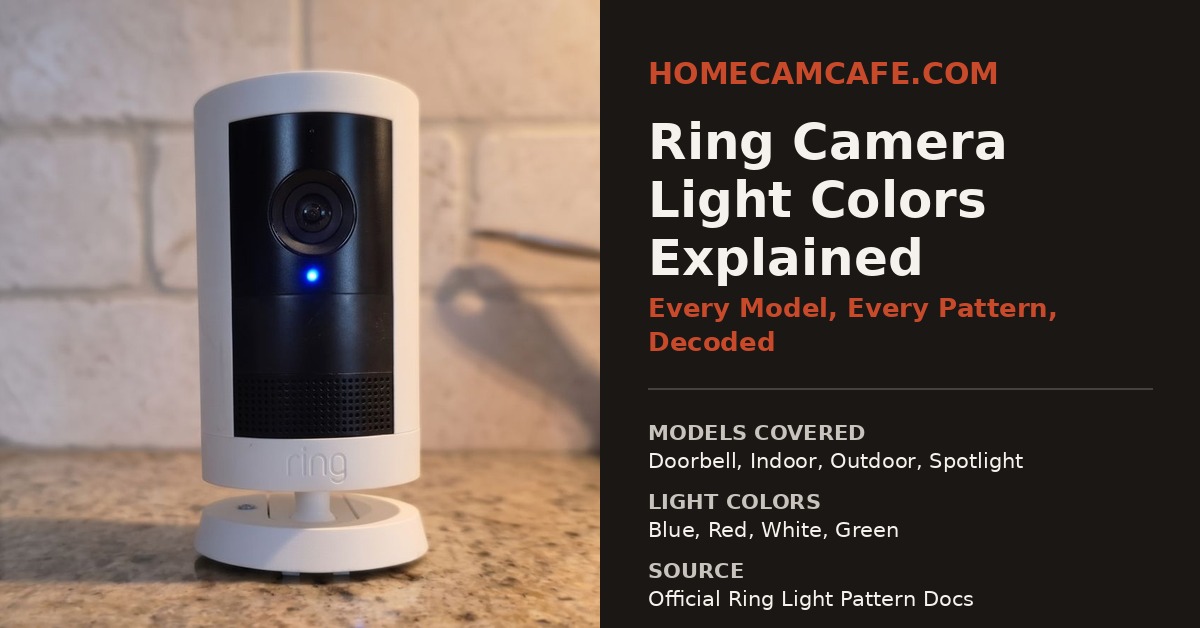
Quick Answer: On most Ring cameras and doorbells, a solid blue light means the device is booting up, actively recording, or streaming Live View. A slowly flashing blue light means the camera is in setup mode, while a pulsing blue light indicates Two-Way Talk is active. When setup fails, flashing red usually indicates an incorrect Wi-Fi password, flashing green (or 3 blue flashes on newer Indoor Cams) points to Wi-Fi range or SSID character issues, and alternating red and blue indicates either an active siren or a failed internet connection to Ring’s servers.
Master Cheat Sheet: Ring Camera Light Meanings at a Glance
Most Ring devices, including the current Video Doorbell lineup, Indoor Cam (2nd Gen), Pan-Tilt Indoor Cam, Outdoor Cam Plus, and Stick Up Cam, share the same core blue-light logic for everyday operation. Before diving into the model-specific exceptions below, use this quick-reference chart to identify the most common patterns across the Ring ecosystem.
| Light Color & Pattern | Devices Affected | What It Means | What You Should Do |
|---|---|---|---|
| Solid Blue | Most Ring Cameras & Doorbells | Camera is booting up, recording motion, or in Live View | Normal operation; wait 60 seconds if booting |
| Slowly Flashing Blue | Indoor Cam, Outdoor Cam, Stick Up Cam, Spotlight Cam Plus/Pro | Setup mode (waiting to pair with Wi-Fi) | Open the Ring app and complete device setup |
| Pulsing Blue (Slow Fade) | Indoor Cam, Outdoor Cam, Stick Up Cam, Spotlight Cam Plus/Pro | Two-Way Talk / speaker is active | Normal while someone is speaking through the app |
| Blue Flashing Twice, Then Solid for 2 Sec | Indoor Cam, Outdoor Cam, Stick Up Cam, Spotlight Cam Plus/Pro | Firmware update in progress | Do not unplug or remove the battery; let it finish |
| Solid Blue for 5 Seconds (or 4 Blue Corners) | Outdoor Cam, Spotlight Cam Plus/Pro, Video Doorbells | Setup completed successfully | Ready to mount and use |
| Flashing Red (On and Off) | Outdoor Cam, Stick Up Cam, Spotlight/Floodlight Cam, Indoor Cam (1st Gen) | Setup failed due to an incorrect Wi-Fi password | Re-enter your Wi-Fi password carefully in the Ring app |
| Flashing Green (Up to 3 Minutes) | Outdoor Cam, Outdoor Cam Pro, Spotlight Cam Plus/Pro, Indoor Cam (1st Gen) | Failed to connect to home Wi-Fi (router distance or special characters in SSID) | Move closer to the router or remove special characters from Wi-Fi name |
| Flashing Green (Floodlight & Legacy Spotlight) | Floodlight Cam series, Spotlight Cam (1st & 2nd Gen) | Solid 5s = Setup succeeded; Flashing = Wi-Fi connected but cannot reach Ring servers | If flashing for 3 minutes, reboot your modem/router and check internet |
| Alternating Red and Blue (Fast) | Outdoor Cam, Stick Up Cam, Spotlight Cam Plus/Pro, Indoor Cam (1st Gen) | Siren is actively sounding (or internet/server failure on Spotlight Plus/Pro) | Toggle the siren off in the Ring app Live View screen |
| Spinning White Circle | All Ring Video Doorbells | Doorbell is in setup mode (times out after 10 minutes) | Scan the QR code in the Ring app to pair |
| Red Rectangle Light (Solid or Flashing) | Battery-Powered Spotlight Cams | Solid = Battery charged and powering camera; Flashing = Low battery | Recharge the Quick-Release Battery Pack if flashing |
Ring Video Doorbell Light Meanings (All Current Models)
All current Ring doorbells, including the Ring Battery Doorbell Pro (2nd Gen), Battery Doorbell (2nd Gen), Battery Doorbell Plus, and Video Doorbell Wired, share the same circular LED button ring around the front push button. Because that ring is split into directional quadrants (top, bottom, left, right, and four corners), a Ring doorbell can communicate much more specific Wi-Fi and power error codes than a standard camera.
Normal Operation & Setup Patterns on Ring Doorbells
- No Light (LED Off): Normal idle mode for battery-powered Ring doorbells running on battery power alone.
- Solid White Circle: Normal idle mode for hardwired Ring doorbells (or battery doorbells that are hardwired to existing 8 to 24 VAC doorbell transformer wires).
- White Light Spinning in a Circle: Setup mode. The doorbell is waiting to pair with the Ring app. This pattern automatically times out after 10 minutes if setup is not completed.
- Blue Circle Moving Upward: The doorbell is actively connecting to your home Wi-Fi network during setup.
- Four Corner Blue LEDs Flashing: Setup succeeded (applies to all doorbells except the legacy PoE Video Doorbell Elite).
- Blue Light Spinning Clockwise: Someone just pressed the doorbell button.
- Solid Blue Circle: The doorbell is on an active Live View call with the speaker enabled.
- White Circle Flashing Repeatedly: Firmware update in progress. Leave the doorbell powered until the light stops flashing.
- Blue Circle Flashing Slowly (or Followed by White Circling Clockwise): Factory reset in progress. Battery doorbells flash a slow blue circle during a reset, while wired doorbells and the Door View Cam flash blue followed by a clockwise white circle.
Directional White & Red Error Codes on Ring Doorbells
When a Ring Video Doorbell fails setup or runs into a power problem, look closely at which side of the circle is flashing:
- Flashing White on the Top: Setup failed due to an incorrect Wi-Fi password. Re-enter your password in the Ring app (passwords are case-sensitive).
- Flashing White on the Right Side: Setup failed because the doorbell could not connect to your home Wi-Fi network. The most common culprits are weak signal range at the front door or special characters in your Wi-Fi network name (SSID).
- Flashing White on the Left Side: The doorbell connected to your Wi-Fi router, but could not reach the internet or Ring’s cloud servers. Reboot your modem and router, and verify that no firewall or parental control pause is blocking the device.
- Flashing Red at the Bottom: Insufficient power on wired-only doorbells without battery backup. Check your doorbell transformer rating and chime wiring before assuming the doorbell hardware is faulty.
Important Note on Doorbell Charging Lights: Doorbells with a built-in non-removable battery (such as the standard Ring Battery Doorbell) show a blue circle filling clockwise on the front button while plugged into a charging cable (upper-right quadrant flashing = 0% to 25%; right half flashing = 25% to 50%; most of circle flashing = 50% to 75%; full solid/flashing blue circle = 100% charged). However, doorbells that use a removable Quick-Release Battery Pack (such as the Battery Doorbell Pro and Battery Doorbell Plus) do not display this front ring pattern. Instead, you check the small red and green LEDs directly on the battery pack while it is plugged in (red + green = charging; solid green only = fully charged).
View Ring Battery Doorbell Pro on Amazon →
Ring Indoor Cam and Pan-Tilt Indoor Cam Light Meanings
The Ring Indoor Cam (2nd Gen), Indoor Cam 2K/4K, and Pan-Tilt Indoor Cam display their status light directly above the camera lens. Unlike older Ring hardware, the current 2nd-generation indoor lineup uses blue exclusively for every single state, including Wi-Fi setup errors and the siren.
- Solid Blue Light: Camera is booting up during startup, or actively recording / streaming Live View.
- Slowly Flashing Blue Light: Camera is in setup mode and ready to pair in the Ring app.
- Blue Light Flashing Twice, Then Staying On for 2 Seconds: Firmware update in progress.
- Slowly Pulsing Blue Light: Two-Way Talk / speaker is active.
- Quickly Flashing Blue Light: The built-in siren is activated.
- Blue Light Flashing Quickly for 5 Seconds, Then Solid for 5 Seconds: Factory reset is complete.
How to Read Blue Setup Error Flashes on 2nd Gen Indoor & Pan-Tilt Cams
Because current-generation Indoor Cams and Pan-Tilt Cams do not flash red or green during setup failures, you have to count how many times the blue LED flashes before pausing:
- 1 Quick Blue Flash Between Two Slow Flashes: Setup failed due to an incorrect Wi-Fi password.
- 3 Blue Flashes Followed by a Pause: Setup failed to connect to your Wi-Fi network, usually due to router distance or special characters in the Wi-Fi name.
- 4 Quick Blue Flashes Followed by a 0.5-Second Pause: Setup failed for other network or server reasons. Power-cycle the camera for 10 seconds and retry setup closer to your router.
1st Generation Indoor Cam Exception: The original Ring Indoor Cam (1st Gen) behaves differently and still uses multi-color error codes: flashing red for an incorrect Wi-Fi password, flashing green for a failed Wi-Fi connection (distance or SSID characters), alternating red and blue for the siren or other setup failures, and fast flashing red for 5 seconds before rebooting on a factory reset. If an older 1st-gen Indoor Cam shows red or green during setup, that is normal for first-generation hardware.
For our full hands-on breakdown of the motorized model, including room coverage, manual panning, and subscription trade-offs, read our Ring Pan-Tilt Camera review.
View Ring Indoor Cam (2nd Gen) on Amazon →
Ring Outdoor Cam and Stick Up Cam (Including Legacy Wired & Elite)
Ring’s weather-resistant indoor/outdoor cylinder cameras, currently sold as the Ring Outdoor Cam Plus, Outdoor Cam, and Outdoor Cam 4K Pro (and previously branded as the Ring Stick Up Cam Battery, Plug-In, Wired, and Elite), share a unified status light system. On the current Outdoor Cam and Outdoor Cam 4K Pro, the status LED sits below the camera lens; on older Stick Up Cam generations, it sits above the lens.
| Light Pattern | Outdoor Cam / Stick Up Cam Status |
|---|---|
| LED Off | Camera is idle and in normal standby mode |
| Solid Blue Light | Starting up (until boot completes) OR actively recording / in Live View |
| Slowly Flashing Blue Light | Camera is in setup mode |
| Blue Flashing Twice, Then On for 2 Seconds | Firmware update in progress |
| Pulsing Blue Light | Two-Way Talk / speaker is enabled |
| Solid Blue for 5 Seconds | Setup completed successfully |
| Alternating Red and Blue (Flashing Quickly) | Siren is activated |
| Red Light Turning On and Off | Setup failed: Incorrect Wi-Fi password entered |
| Green Light Flashing for 3 Minutes | Setup failed on Outdoor Cam / Outdoor Cam Pro: Could not connect to home Wi-Fi (distance or special characters in Wi-Fi name) |
| Blue Light Flashing for 3 Minutes | Setup failed on legacy Stick Up Cam Wired & Elite: Could not connect to home Wi-Fi (distance or special characters in Wi-Fi name) |
| Alternating Red and Blue (Flashing Slowly) | Setup failed: Camera failed to complete Wi-Fi / internet connection |
| Red Light Flashing Quickly for 5s, Then Solid | Factory reset in progress / completed |
Notice the subtle difference between fast and slow alternating red-and-blue lights on this camera family: fast alternating red and blue means the security siren is sounding, whereas slow alternating red and blue during onboarding means the Wi-Fi connection failed. Also keep in mind that legacy Stick Up Cam Wired and Elite models do not have a green LED, so they flash blue for three minutes instead of green when Wi-Fi range or SSID characters block setup.
View Ring Outdoor Cam Plus on Amazon →
Ring Floodlight Cam and Spotlight Cam Light Meanings
Ring’s Floodlight Cam and Spotlight Cam lines break from the rest of the Ring catalog in two major ways: several generations use white and green instead of blue for boot-up and setup states, and the physical location of the status LED changes depending on which model you own.
Group 1: Floodlight Cam (1st Gen), Floodlight Cam Wired Plus & Spotlight Cam (1st Gen)
On these models, the status light shines from the single bottom bulb/dome under the camera housing rather than above the lens:
- Solid White Light: Camera is getting ready to be activated.
- White Light Flashing Quickly: Camera is booting up.
- No Light: Camera is idle and ready.
- White Light Flashing Slowly: Setup mode.
- Green Light On for 5 Seconds, Then Off and Repeating: Setup completed successfully.
- Solid Blue Light: Camera is recording or the speaker is enabled.
- Red Light Flashing Quickly: Setup failed due to an incorrect Wi-Fi password (or siren is active during normal operation).
- Blue Light Flashing Quickly: Failed Wi-Fi connection due to router distance or special characters in the Wi-Fi name.
- Green Light Flashing Quickly for Up to 3 Minutes: Connected to local Wi-Fi, but could not reach Ring’s servers or the internet.
Group 2: Floodlight Cam Wired Pro, Floodlight Cam 2K (2nd Gen) & Spotlight Cam 2K (2nd Gen)
On all generations of the Floodlight Cam Wired Pro, as well as the Ring Floodlight Cam 2K (2nd Gen) and Ring Spotlight Cam 2K (2nd Gen) released in 2026 with Retinal 2K video, the status light sits above the camera lens on the front face:
- Solid White Light: Camera getting ready to be activated.
- White Light Flashing Very Quickly for 1 Second, Then Off and Repeating: Booting up.
- White Light Flashing: Setup mode.
- White Light On for 2 Seconds, Then Off and Repeating: Firmware update in progress.
- Green Light Solid for 5 Seconds: Setup completed successfully.
- Solid Blue Light: Camera is recording and/or speaker is enabled.
- Red Light Flashing (or Flashing Very Quickly for 3 Seconds on Spotlight Cam 2K): Setup failed due to an incorrect Wi-Fi password.
- Blue Light Flashing (or Flashing Very Quickly for 3 Seconds on Spotlight Cam 2K): Failed Wi-Fi connection due to distance from the router or special characters in the Wi-Fi name.
- Green Light Turning On for 1 Second, Then Off: Connected to Wi-Fi, but unable to reach Ring’s servers or the internet.
- Blue Light Flashing Quickly for 5 Seconds, Then Reboots: Factory reset in progress.
- Red Light Turning On/Off Quickly (or Flashing Slowly on Spotlight Cam 2K): Siren is activated.
Group 3: Ring Spotlight Cam Plus and Spotlight Cam Pro
The Ring Spotlight Cam Plus (LED in the upper-left corner above the lens) and Spotlight Cam Pro / 4K Pro (LED centered above the lens) drop the white-and-green setup convention entirely and align with the standard blue-light rules used by Ring’s Outdoor Cam:
- Solid Blue Light: Booting up, actively recording, or solid for 5 seconds when setup succeeds.
- Blue Light Flashing: Setup mode.
- Blue Light Pulsing Slowly: Speaker / Two-Way Talk enabled.
- Blue Light Flashing Twice, Then On for 2 Seconds: Firmware update in progress.
- Red Light Flashing Quickly (Up to 3 Minutes): Setup failed due to an incorrect Wi-Fi password.
- Green Light Flashing: Failed Wi-Fi connection due to router distance or special characters in the Wi-Fi name.
- Alternating Blue and Red Flashing: Setup failed because the camera connected to Wi-Fi but could not reach Ring’s servers (or the siren is activated during normal operation).
- Red Light Flashing Quickly for 5 Seconds, Then Reboots: Factory reset in progress.
The Red Rectangle Battery Light on Battery Spotlight Cams
Battery-powered Spotlight Cam models include a separate small red rectangle light that reports battery status rather than Wi-Fi or recording state. A solid red rectangle means the battery is charged and actively powering the camera. A flashing red rectangle means the battery is running low, and it will flash progressively faster as the charge drops toward empty. If your camera is paired with a solar charger, see our Ring Solar Panel guide for how trickle-charging behavior works across different seasons.
View Ring Spotlight Cam Plus on Amazon →
Does the Blue Light Mean Someone Is Watching (And Can You Turn It Off)?
One of the most common questions from homeowners and guests is whether a solid blue light on a Ring camera means someone is watching the live feed. The short answer is: not necessarily. On Ring cameras, the exact same solid blue LED illuminates during routine motion-triggered activity, automatic Linked Device triggers, startup boot sequences, and live viewing by the account owner or a shared user.
Furthermore, none of these status light patterns tell you whether video clips are being saved to the cloud. A Ring camera will still turn its blue light solid when motion triggers the sensor even if you do not have an active subscription, yet zero video history is stored afterward without a paid plan. For a complete breakdown of what works for free versus what requires a subscription, see our Ring Protect Plan guide.
If the glowing blue LED is distracting in a bedroom, nursery, or hallway, supported Ring models let you disable the status indicator in the app under Device Settings → Video Settings → Status LED. However, on several newer cameras where the blue light doubles as an active recording notice, turning off the Status LED only extinguishes the idle indicator while keeping the recording light active. For model-by-model instructions, see our dedicated guide on how to turn off the Ring camera status light.
Frequently Asked Questions About Ring Camera Light Meanings
Why is my Ring camera flashing blue?
A slowly flashing blue light on a Ring Indoor Cam, Outdoor Cam, Stick Up Cam, or Spotlight Cam Plus/Pro means the camera is in setup mode and waiting to connect to Wi-Fi. If the blue light flashes twice and stays solid for two seconds repeatedly, the camera is installing a firmware update. On a 2nd-generation Indoor Cam or Pan-Tilt Cam, 3 blue flashes followed by a pause or 4 quick blue flashes followed by a half-second pause indicates a failed Wi-Fi connection during setup.
What does a solid blue light on a Ring camera mean?
A solid blue light means the camera is either actively recording a motion event, streaming Live View to the Ring app or an Echo Show, or booting up after being plugged in or having its battery inserted. During initial setup, a solid blue light for five seconds also confirms that setup succeeded.
Why is my Ring camera flashing red?
During setup, a flashing red light on a Ring Outdoor Cam, Stick Up Cam, Spotlight Cam, Floodlight Cam, or 1st-generation Indoor Cam means the Wi-Fi password was entered incorrectly. On a hardwired-only Ring Video Doorbell, a red light flashing at the bottom of the circle means the doorbell is not receiving enough electrical power from the transformer. On a battery Spotlight Cam, a flashing red rectangle light indicates a low battery that needs recharging.
What does a flashing green light on a Ring camera mean?
The meaning of a flashing green light depends on which Ring camera you own. On a Ring Outdoor Cam, Outdoor Cam Pro, Spotlight Cam Plus, Spotlight Cam Pro, or 1st-generation Indoor Cam, a flashing green light means the camera could not connect to your home Wi-Fi network (usually due to router distance or special characters in the Wi-Fi name). On a Ring Floodlight Cam or 1st/2nd-generation Spotlight Cam, a solid green light for five seconds means setup succeeded, while a flashing green light means the camera connected to Wi-Fi but could not reach Ring’s servers.
Why is my Ring camera flashing red and blue?
Quickly alternating red and blue lights on a Ring Outdoor Cam, Stick Up Cam, Spotlight Cam Plus/Pro, or 1st-generation Indoor Cam mean the camera’s security siren has been triggered (or, during setup on a Spotlight Cam Plus/Pro, that the camera connected to Wi-Fi but could not reach Ring’s servers). Slowly alternating red and blue lights on an Outdoor Cam or Stick Up Cam indicate that the camera failed to connect to Wi-Fi during setup.
The Bottom Line
Ring’s status light system is far more consistent across its hardware lineup than most competing brands, with blue covering the vast majority of normal operating states across Video Doorbells, Indoor Cams, and Outdoor Cams. The primary exceptions to keep in mind are the Floodlight Cam and Spotlight Cam (1st and 2nd Gen) lines, which use white for boot/setup and solid green for setup confirmation, and the 2nd-generation Indoor Cam and Pan-Tilt Cam, which encode setup errors using counted blue flashes rather than red or green LEDs. Once you match the blink pattern to your specific model above, the LED tells you exactly what the camera is doing without needing to guess.
For our full hands-on camera reviews, see the Ring Outdoor Cam Plus review, the Ring Pan-Tilt Camera review, and the Ring Floodlight Cam Pro review. To compare every tested model and guide in one place, visit our Ring camera reviews hub or browse our main How-To Guides for Security Cameras page.