
Using a Nest Cam through a window can work surprisingly well when you want to monitor a driveway, front porch, backyard, or other outdoor area without permanently installing a camera outside. The problem is that glass introduces reflections, glare, and serious night vision problems if the camera is left at its default settings.
The good news is that most of these problems can be minimized. Camera placement, indoor lighting, Night Vision settings, and the amount of exterior light all make a major difference.
This guide focuses primarily on the current Google Nest Cam Indoor (wired, 3rd gen). If you’re still deciding whether the camera itself is right for you, see our Google Nest Cam Indoor 3rd Gen review.
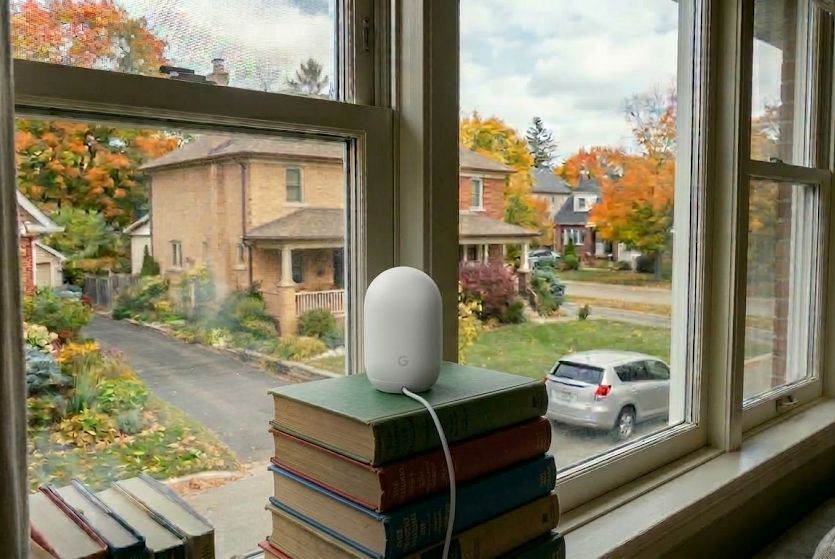
Why a Nest Cam Struggles Through Glass
The biggest problem isn’t the camera. It’s the window.
During daylight hours, glass can reflect the camera, furniture, lamps, televisions, and anything else inside the room. The brighter the room is compared with the outdoor scene, the more noticeable those reflections become.
Nighttime creates an even bigger problem. The Nest Cam Indoor uses infrared LEDs for night vision. Those infrared lights work well when the camera is used normally indoors, but when the camera is pointed through glass, some of that infrared light reflects directly back into the lens.
The result can be a bright white haze or reflection that overwhelms the outdoor image.
Fortunately, most of the problem can be fixed with better placement and a few camera-setting changes.
1. Put the Nest Cam as Close to the Glass as Possible
The single most important physical adjustment is getting the camera lens as close to the window as possible.
Ideally, the front of the camera should be touching the glass or sitting within a few millimeters of it. Leaving several inches between the camera and the window gives reflections from the room much more opportunity to enter the camera’s field of view.
A deep windowsill makes this easy. Position the camera near the glass and angle it toward the driveway, porch, walkway, or yard you want to monitor.
If the sill is too narrow or the camera won’t stay at the right angle, a dedicated adhesive window mount is a much cleaner solution than balancing the camera on books or other objects.
Nest Cam Window Mount
A dedicated adhesive mount can hold the camera directly against the glass and makes it much easier to maintain the correct viewing angle.
Tip: Before buying or installing a mount, hold the camera against the glass and check the live view in the Google Home app. Make sure the location gives you the coverage you want before making the setup permanent.
2. Keep the Room Behind the Camera Dark
Indoor lighting is one of the most common causes of window glare.
A lamp behind the camera may appear as a bright reflection in the video. Ceiling lights, televisions, computer monitors, and light spilling in from an adjoining room can cause the same problem.
At night, the room containing the Nest Cam should be as dark as practical.
If you’re seeing reflections, turn the room lights off and check the live view again. In many installations, the improvement is immediate.
Also check the edges of the video. A light source doesn’t have to be directly behind the camera to cause problems. Light hitting the window from an angle can still reflect into the lens.
3. Turn Nest Cam Night Vision Off
This is the most important camera setting when using a Nest Cam through glass.
The current Nest Cam Indoor uses infrared LEDs for night vision. When those LEDs illuminate a window directly in front of the camera, the glass can reflect the infrared light right back into the lens.
That’s why a camera that looks perfectly acceptable during the day can become nearly useless after dark.
In the Google Home app, open the camera and locate the Night Vision setting. Change it from Auto to Off.
With Night Vision disabled, the camera relies on whatever visible light is available outside.
Important: Turning off Night Vision fixes the infrared reflection problem, but it doesn’t make a completely dark yard visible. A porch light, driveway light, landscape lighting, or nearby streetlight can make a substantial difference.
4. Reduce the Status Light Brightness
The front status LED can also produce a small reflection when the Nest Cam is positioned directly against glass.
Current Nest cameras allow the status-light brightness to be set to High, Auto, or Low. For a window installation, select Low.
The LED reflection is usually far less severe than the infrared Night Vision reflection, but reducing its brightness helps clean up the image further.
Will Nest Cam Motion Detection Work Through a Window?
Yes. A Nest Cam can still detect activity outside when it is pointed through a window.
The camera analyzes movement visible in the video image and can provide alerts for people, animals, and vehicles. Glass therefore isn’t the same problem it can be for cameras that rely primarily on a PIR motion sensor.
Reflections can still create unwanted activity. Someone walking through the room behind the camera, a television changing scenes, or headlights reflecting across the glass can introduce movement into the image.
This is where Activity Zones become useful.
Create a zone that covers the driveway, walkway, porch, or other outdoor area you actually care about while excluding as much unnecessary scenery as possible.
What If It’s Too Dark Outside?
Once the Nest Cam’s built-in Night Vision is turned off, nighttime image quality depends heavily on exterior lighting.
If you already have a porch, garage, or driveway light near the area being monitored, try using that first. Even modest visible lighting can produce a much better image than trying to fire the camera’s built-in infrared LEDs through a window.
If the area needs to remain visually dark, another option is installing an infrared illuminator outside the window.
The important part is placing the illuminator outside. That allows infrared light to illuminate the outdoor scene without first bouncing off the glass immediately in front of the Nest Cam.
Wide-Angle Outdoor IR Illuminator
An exterior IR illuminator can provide nighttime illumination without using the Nest Cam’s own infrared LEDs through the window.
Use a Smart Plug With an Exterior Light or IR Illuminator
If you only need exterior lighting during certain hours, a smart plug makes the setup easier to manage.
You can schedule the light or IR illuminator to turn on after sunset and shut off in the morning, or control it remotely when you’re away from home.
A Kasa smart plug works particularly well for this kind of simple automation.
Kasa Smart Plug
Useful for scheduling an exterior light or IR illuminator so it only runs during nighttime hours.
Best Nest Cam Settings for Use Through a Window
| Setting | Recommended | Why |
|---|---|---|
| Night Vision | Off | Prevents infrared light from reflecting off the window. |
| Status Light | Low | Minimizes LED reflections. |
| Indoor Lights | Off at night | Reduces room reflections in the glass. |
| Camera Position | Flush or nearly flush | Reduces the reflective area visible to the lens. |
| Activity Zones | Outdoor area only | Helps reduce unwanted alerts caused by reflections or irrelevant motion. |
How Good Is Nest Cam Video Through Glass?
The current Nest Cam Indoor has a 2K HDR image and a wide 152-degree diagonal field of view, which gives it plenty of coverage for a driveway, yard, or entrance.
But every layer of glass between the camera and the subject can reduce contrast and image clarity. Dirty glass, screens, tinting, moisture, and reflections can all affect the final image.
Clean both sides of the window before deciding whether the setup is good enough.
Whenever possible, avoid positioning the camera directly behind a window screen. The mesh can soften the picture and may become especially noticeable when sunlight or exterior lighting hits it.
Should You Just Use an Outdoor Camera Instead?
If exterior mounting is practical, an outdoor camera is usually the better technical solution.
A properly mounted outdoor camera doesn’t have a layer of glass between the lens and the scene. It can also use its built-in infrared Night Vision normally.
But exterior installation can mean drilling holes, routing power, climbing a ladder, or getting permission from a landlord.
A Nest Cam positioned inside a window makes sense when:
- You rent and don’t want to drill into the exterior.
- You already own a Nest Cam Indoor.
- You have a clear view from an existing window.
- The outdoor area has reasonable nighttime lighting.
- You want the simplest possible installation.
If you’re willing to install something outdoors instead, see our best outdoor security cameras for current alternatives.
Do You Need Google Home Premium?
No. A paid subscription isn’t required simply because you’re using the Nest Cam through a window.
The current third-generation Nest Cam Indoor provides live viewing, intelligent activity alerts, Activity Zones, two-way audio, and recent event video previews without requiring Google Home Premium.
The paid plans become more useful when you want longer recorded history or continuous recording.
For the complete breakdown of the free tier and paid options, see our Google Home Premium plans and pricing guide.
Bottom Line
A Nest Cam can work very well through a window, but the default settings aren’t ideal for it. Put the camera as close to the glass as possible, keep the room behind it dark, turn Night Vision off, and set the status light to Low. Activity Zones can improve motion alerts, while an exterior light or outside IR illuminator can dramatically improve nighttime results. With those adjustments, the current Nest Cam Indoor’s 2K HDR video can provide a very usable outdoor view without permanently mounting a camera outside.
Frequently Asked Questions
Can a Nest Cam see through a window at night?
Yes, but you should normally turn the Nest Cam’s built-in Night Vision off. Its infrared LEDs can reflect off the glass and obscure the outdoor image. The camera then relies on a porch light, driveway light, streetlight, or separately mounted outdoor infrared illuminator.
Should the Nest Cam touch the window?
Getting the camera lens extremely close to the window generally produces the best results. The smaller the gap between the camera and the glass, the less opportunity there is for reflections from inside the room to enter the camera’s view.
Will a Nest Cam detect people through glass?
Yes. The Nest Cam analyzes activity visible in its video image and can provide intelligent alerts for people, animals, and vehicles. Activity Zones can help concentrate detection on the outdoor area you actually care about.
Does double-pane glass work with a Nest Cam?
Yes, although additional layers of glass can create more opportunities for reflections. Keep the camera close to the window, turn off Night Vision, minimize indoor lighting, and test the image during both daytime and nighttime before settling on the final position.
Do I need Google Home Premium to use a Nest Cam through a window?
No. Live viewing and basic monitoring work without a paid Google Home Premium subscription. A subscription becomes more useful when you want longer event history or continuous recording.
Can I leave Nest Cam Night Vision on Auto?
You can, but Auto is usually a poor choice when the camera is pointed through a window. Once the room becomes dark, the camera may activate its infrared LEDs and create a strong reflection in the glass. Setting Night Vision to Off prevents that problem.
For more setup, troubleshooting, and camera installation help, visit our security camera how-to guides.
