
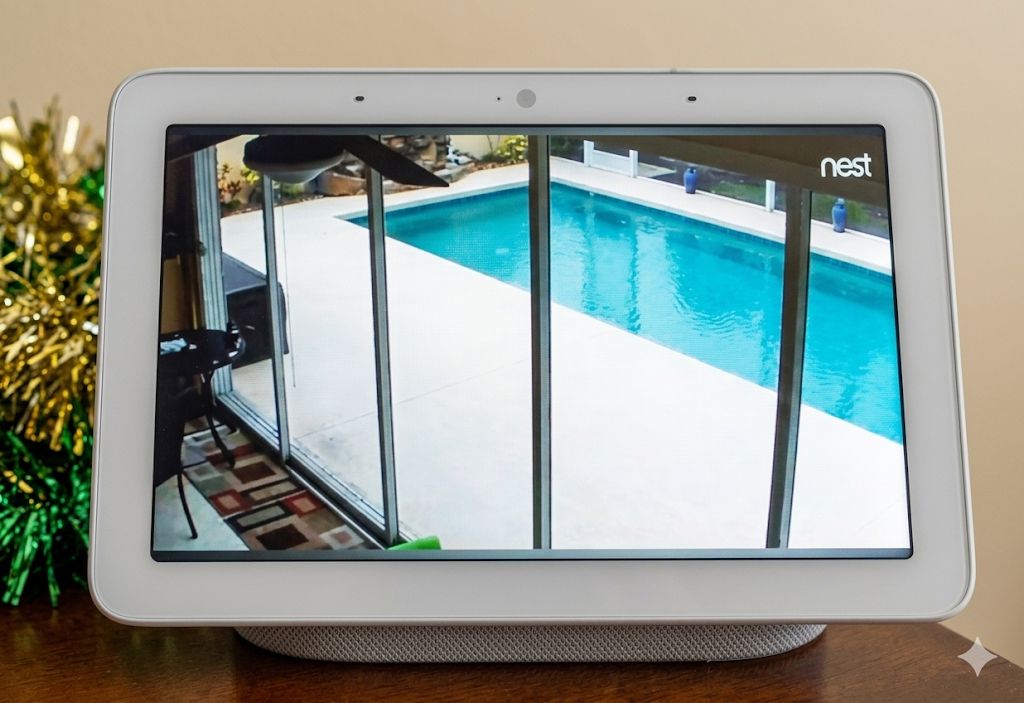
If you have a Google Nest Hub and a compatible security camera, you can pull up a live video feed with a single voice command — no phone required. Say “Hey Google, show the front door” and the stream appears on screen within seconds. It’s one of the more genuinely useful smart home integrations available, and it’s easier to set up than most people expect. This guide covers which cameras work, how to connect them, and what to keep in mind.
Which Cameras Work With Google Nest Hub
Google Nest cameras connect natively — since Google owns Nest, the integration is seamless and requires no extra steps beyond normal setup through the Google Home app. All current Nest Cam models work, including the Nest Cam Indoor (wired) and the Nest Cam with battery.
For third-party cameras, compatibility requires a “Works with Google” integration. The following brands support live streaming to a Google Nest Hub display:
- Wyze — including the Wyze Cam v4 and Wyze Cam Pan v4.
- Arlo — most current models including the Arlo Pro 6; note that some legacy Arlo cameras have lost support
- eufy — supported for voice control and live view via Google Assistant
- Tapo (TP-Link) — including the Tapo C120 and other current models; streams are limited to 10 minutes at a time, though you can immediately reopen the feed
- Reolink — supports up to four simultaneous feeds on the Nest Hub. This includes the Reolink Argus 4 Pro.
- Ring — compatible for live view via Google Assistant
The most reliable way to confirm your specific camera model is supported is to check the Google Nest supported camera list or look for the “Works with Google” logo on the camera’s packaging.
Note on older Arlo cameras: Some legacy Arlo models have reached end of life and lost Google Nest Hub streaming support. If you have an older Arlo camera and streaming has stopped working, check Arlo’s end-of-life announcement for your specific model.
Why Watch Camera Video on a Nest Hub
The obvious advantage is convenience — pulling up a live camera feed without reaching for your phone is genuinely useful, especially when your hands are full or you just want a quick glance at the front door. However, there are a couple of less obvious benefits worth noting.
First, you can watch a live stream for an extended period without draining your phone’s battery — useful if you’re monitoring a driveway, backyard, or entry point for a sustained stretch of time. Second, the Nest Hub’s always-on display means the camera feed is visible at a glance without any interaction. And if you have a large TV with Chromecast built in, you can cast camera video there as well — a much larger view than any phone screen.
How to Connect a Camera to Google Nest Hub
Everything now runs through the Google Home app — the old Nest app is being retired, so if you’re still using it for camera management, migrating to Google Home is the right move. Here’s the process for connecting a third-party camera:
- Set up the camera in its own app first. Before connecting to Google Home, the camera needs to be fully set up through the manufacturer’s app — connected to Wi-Fi, named, and working normally. The camera name you give it here is what you’ll use for voice commands, so keep it simple: “Front Door,” “Backyard,” “Garage.”
- Open the Google Home app on your phone and tap the + icon in the top left corner.
- Select Set up device.
- Choose Works with Google — this is the option for third-party cameras.
- Find and select your camera manufacturer from the list.
- Enter your login credentials for the camera’s account when prompted. Google Assistant will sync all cameras associated with that account automatically.
- Optionally assign each camera to a room or location in your home. This isn’t required but makes voice commands more natural.
For Google Nest cameras, this step is unnecessary — they appear in the Google Home app automatically during initial setup.
Using Voice Commands to View Camera Video
Once connected, viewing camera video is as simple as asking. Use the camera’s name exactly as it appears in the Google Home app:
- “Hey Google, show the front door.” — streams the camera named “Front Door”
- “Hey Google, show me the backyard camera.”
- “Hey Google, stop.” — returns to the Nest Hub home screen
If Google Assistant doesn’t recognize the camera name, double-check that the name in the Google Home app is simple and doesn’t contain special characters. Names with numbers, symbols, or unusual capitalization can cause voice recognition issues. Additionally, make sure the Nest Hub and the camera are on the same Wi-Fi network — this is the most common cause of streaming failures.
Troubleshooting
Camera isn’t showing up in the Works with Google list
Make sure the camera is fully set up in its manufacturer’s app first. Some cameras require a firmware update before the Google integration becomes available. Check the manufacturer’s app for any pending updates.
Google Assistant says it can’t find the camera
Try simplifying the camera name in the Google Home app — remove any numbers or extra words. Also verify the Google account on your Nest Hub matches the account you used to set up the camera in Google Home.
Stream loads slowly or drops out
This is almost always a Wi-Fi issue. Weak signal between the camera and router, or between the Nest Hub and router, will cause buffering. Try moving the router closer, using a Wi-Fi extender, or switching the camera to a 5 GHz band if it supports dual-band connectivity.
Frequently Asked Questions
Can I view any security camera on a Google Nest Hub?
No — the camera must support the “Works with Google” integration. Most major brands including Nest, Wyze, Arlo, Tapo, eufy, Ring, and Reolink are supported. Generic or no-name cameras typically are not. Check the Google Nest help page for the current compatibility list.
Do I need a Google Home Premium subscription to stream cameras?
No. Basic live streaming to a Nest Hub display is free. A Google Home Premium subscription (formerly Nest Aware) is only required for extended cloud video history, Gemini AI features, and certain smart alerts on Nest cameras.
Can I watch camera video on my TV through Google Nest Hub?
Yes — if your TV has Chromecast built in or a Chromecast device connected, you can cast camera video to it by saying “Hey Google, show the front door on the living room TV.” The TV must be set up in the Google Home app for this to work.
Why does my Tapo camera only stream for 10 minutes?
Tapo cameras cap streaming sessions at 10 minutes when viewed through Google Nest Hub as a bandwidth consideration. You can immediately ask Google to show the camera again to restart the stream. This limitation does not apply when viewing through the Tapo app directly.
Looking for a Camera That Works With Google Nest Hub?
If you’re shopping for a camera with solid Google Nest Hub integration, here are three we’ve tested that work well:
- Wyze Cam v4 — budget-friendly, reliable Google Home integration, works indoors and out. Read our review | View on Amazon
- Tapo C120 — 2K, magnetic base, IP66 outdoor rated, free AI detection. Read our review | View on Amazon
- Nest Cam Indoor (Wired) — native Google integration, no setup required, best-in-class for Google Home households. Read our review | View on Amazon
