
Figuring out how to add a camera to a Reolink NVR gets confusing fast once more than one brand is involved. In addition to Reolink’s own PoE and WiFi lineup, plenty of buyers also want to fold in an existing camera from Hikvision, Dahua, Amcrest, Annke, or another ONVIF-compatible brand, since the RLN8-410 supports ONVIF and RTSP as general connection paths rather than a Tapo-specific workaround. As a result, we tested this directly on our own Reolink RLN8-410, adding Reolink cameras two different ways and a Tapo camera through ONVIF as our third-party test case, so this guide covers what worked in practice, what fell short, and what to plan for before starting with any non-Reolink brand.
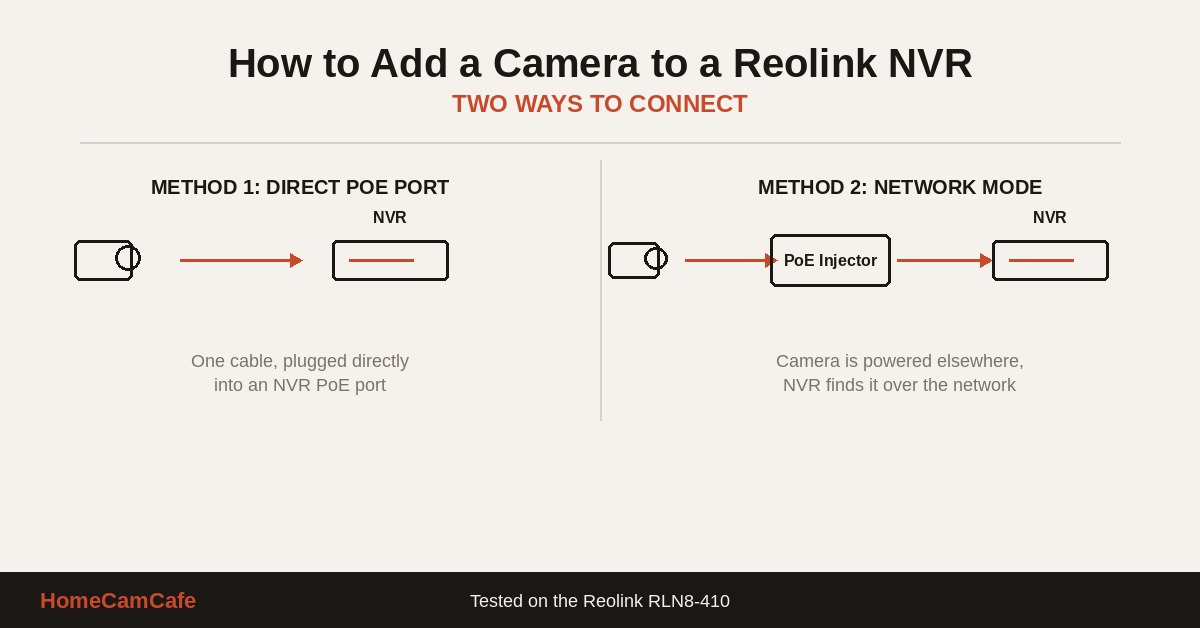
How to Add a Camera to a Reolink NVR: Two Connection Methods
Before getting into brand-specific steps, it helps to understand that a Reolink NVR accepts cameras through two different paths. During testing, both worked, though they behave differently enough that the choice matters for planning a camera’s physical location ahead of time.
Direct PoE Port Connection
The first method is the one most people picture: plugging a camera directly into one of the NVR’s built-in PoE ports with a single Ethernet cable. That cable handles power, data, and video all at once, so there is no separate injector or nearby outlet to plan around. For example, in our testing with the Reolink RLC-1212A, the NVR recognized the camera automatically as soon as the cable was connected and started recording within a couple of minutes, with no manual IP configuration required and no firmware prompt to work through first.
One tradeoff worth knowing upfront: a camera wired into the NVR’s own PoE ports only shows up through the NVR itself, either in the app’s NVR channel view or on a monitor connected directly to the unit. Therefore, it does not get an independent presence on the home network, and it will not appear as a standalone device if you try to add it to the app that way instead.
Network Mode: Cameras Powered and Networked Elsewhere
The second method is less obvious, and it is the one that surprised us most during hands-on testing. A camera does not have to be physically wired into the NVR to work with it. As long as the camera and the NVR sit on the same local network, and the camera already has power and network access from somewhere else, such as a PoE injector plugged into a separate switch elsewhere in the house, the NVR can discover it over the LAN during a network scan instead.
We confirmed this works for Reolink hardware specifically: a Reolink camera powered by a separate injector, reaching the NVR only through the network rather than a direct cable, was picked up without issue during testing. A wireless Reolink camera connected the same way as well. Consequently, this is a meaningful flexibility advantage if a camera location sits nowhere near the NVR, or if running cable back to it simply is not practical. For a broader look at when a wired setup makes sense versus going wireless in the first place, our PoE vs WiFi camera decision guide covers that tradeoff in more detail.
Adding a Reolink Camera to a Reolink NVR
If every camera in the build is a Reolink model, the process is the most straightforward path available. In fact, this is the setup Reolink designs and tests for, and it shows in how little friction there is during installation. Plug a PoE camera directly into an open port, or power it elsewhere and let the NVR find it over the network as described above. Either way, the NVR typically adds the camera to its channel list automatically, with recording starting within a few minutes.
If you are planning a full build rather than adding a single camera, the Reolink RLN8-410 supports up to eight channels, and pairing it with an injector for any camera not near the NVR directly is a common setup. Similarly, a camera like the Reolink RLC-1212A is a solid pick for a driveway or property line channel, since it paired with the NVR faster than any other camera we have tested on this site. Our PoE injector buying guide covers picking the right injector for a single added camera versus a full PoE switch for several.
Adding a Non-Reolink Camera to a Reolink NVR (RTSP and ONVIF)
Third-party compatibility is where expectations need to be reset, and this applies broadly, not just to one brand. RTSP and ONVIF are open standards, so the same basic connection path applies whether the camera is a Tapo, a Hikvision, a Dahua, an Amcrest, an Annke, or any other brand that lists ONVIF support in its specs. We tested this directly by adding a Tapo camera to the RLN8-410 as our real-world test case, and it worked through ONVIF, though functionality was noticeably reduced compared to a native Reolink camera on the same NVR. Motion alerts, smart detection, and some playback features did not carry over the way they do with Reolink hardware.
Since Tapo was the specific model on hand for testing, that is the one result we can speak to firsthand. However, the underlying limitation is tied to the ONVIF and RTSP connection methods themselves rather than anything unique to Tapo, so a similar experience should be expected from Hikvision, Dahua, Amcrest, or any other ONVIF-compatible brand added the same way. Results can still vary somewhat by manufacturer and firmware version, so anyone mixing in a brand other than the one tested here should treat this as a reasonable expectation rather than a guarantee.
Therefore, if the goal is to add an ONVIF camera to a Reolink NVR from another brand, treat ONVIF or RTSP support as a baseline video connection rather than full feature parity. In most cases, you will get a live feed and basic continuous or scheduled recording, but not the on-device person, vehicle, and animal detection that Reolink’s own cameras provide on that same NVR (although it may be accessible through the camera’s native application).
This limitation matters most for anyone running a mixed-brand setup who is used to smart notifications rather than plain motion-triggered recording. For context on how this works in the other direction, our Reolink RLC-510A review notes that Reolink’s own PoE cameras support ONVIF and RTSP as well, though Reolink only guarantees full compatibility on its own NVR line, not on a competing brand’s system.
Adding a WiFi Camera to a Reolink NVR
In much the same way, a wireless camera can join a Reolink NVR the way a network-mode PoE camera does, provided it sits on the same local network as the NVR. In our testing, a wireless Reolink camera was discovered and added over the LAN without any physical connection to the unit at all. This opens up placement options in homes where running cable to every camera location is not realistic, since the camera only needs local power and a nearby network connection rather than a home-run cable all the way back to the NVR.
The same ONVIF and RTSP limitation from the section above applies here if the WiFi camera in question is a non-Reolink model. In that case, expect a basic video feed rather than full smart detection and rich alert functionality, since the reduced feature set is tied to the connection method, not to whether the camera happens to be wired or wireless.
What to Expect Before You Start
A few practical details from testing are worth planning around before adding any camera to a Reolink NVR:
- Full NVR configuration is not possible from the Reolink app alone. The NVR needs a monitor or TV connection, along with the included mouse, to walk through initial setup and any deeper configuration changes such as recording schedules or storage management.
- Documentation included in the box is thin. As a result, plan on some trial and error, or on checking Reolink’s support site directly, rather than relying on the printed quick start guide alone.
- A camera added over the network still needs to sit on the same local network as the NVR. If it is on a separate VLAN or guest network, the NVR will not find it during a scan.
- A high-endurance microSD card is still worth keeping in individual cameras as a backup, even once they are added to the NVR, since local card storage keeps recording if the NVR itself ever goes offline (and in some cases recorded in tandem with the NVR). The SanDisk 128GB High Endurance card is the one we use for this on our own test cameras.
Troubleshooting a Camera That Won’t Add
If a camera does not show up during a network scan, a few things are worth checking before assuming it is incompatible. First, confirm the camera and NVR are truly on the same subnet, since a guest network, a separate VLAN, or a mesh WiFi node with its own isolated network can all silently block discovery even when both devices appear to be online.
Second, for a non-Reolink camera being added through ONVIF, confirm the camera’s ONVIF service is enabled in its own app or settings menu first, since it is commonly turned off by default. If you are entering an RTSP URL manually instead of relying on ONVIF auto-discovery, double-check the exact RTSP URL format required, since this varies by manufacturer and a single incorrect character in the stream path is enough to prevent the connection entirely.
Finally, firmware matters more than it might seem. An out-of-date camera or NVR firmware version can prevent a successful pairing even when every network setting is correct, so updating both to the latest version before troubleshooting further is a reasonable first step rather than a last resort.
Frequently Asked Questions
Can I mix WiFi and PoE cameras on the same Reolink NVR?
Yes. In fact, as long as every camera sits on the same local network as the NVR, both PoE and WiFi Reolink cameras can be added and managed from the same channel list without issue.
Will a non-Reolink camera get smart detection on a Reolink NVR?
Not in our testing. A third-party camera added through ONVIF provided a basic video feed, but motion alerts and on-device smart detection did not carry over the way they do with native Reolink hardware.
Do I need to run cable directly from every camera to the NVR?
No. A camera powered and networked elsewhere on the property, through a separate PoE injector for example, can still be discovered and added to the NVR over the local network without a direct physical connection back to the unit.
Can I add a Reolink camera to a Hikvision or other brand’s NVR?
Reolink’s PoE cameras support ONVIF and RTSP, so a basic connection to select third-party NVR software is often possible. However, full feature compatibility, including smart detection, is only guaranteed on Reolink’s own NVR line, matching the same limitation covered above in reverse.
For the full individual reviews see the Reolink RLN8-410 review and the Reolink RLC-1212A review. For brand-specific guides see the Reolink camera reviews hub.