
Setting up the Blurams app for the first time quickly reveals how Blurams makes its money on ultra-low-cost indoor and outdoor cameras. While the Blurams app includes handy tools like biometric login, 360-degree panoramic room navigation, saved pan-and-tilt presets, customizable activity zones, and local microSD playback, the software aggressively pushes owners toward a recurring Blurams camera subscription known as the BluramsGuard Plan (also labeled the Blurams Protect Plan during initial onboarding). After buying a Blurams Dome Lite 2 (model A31) and testing the Blurams app hands-on, we documented every free feature, captured screenshots of all three paid BluramsGuard tiers, and tested how to run a Blurams camera with a 128GB microSD card so you never have to pay a monthly fee.
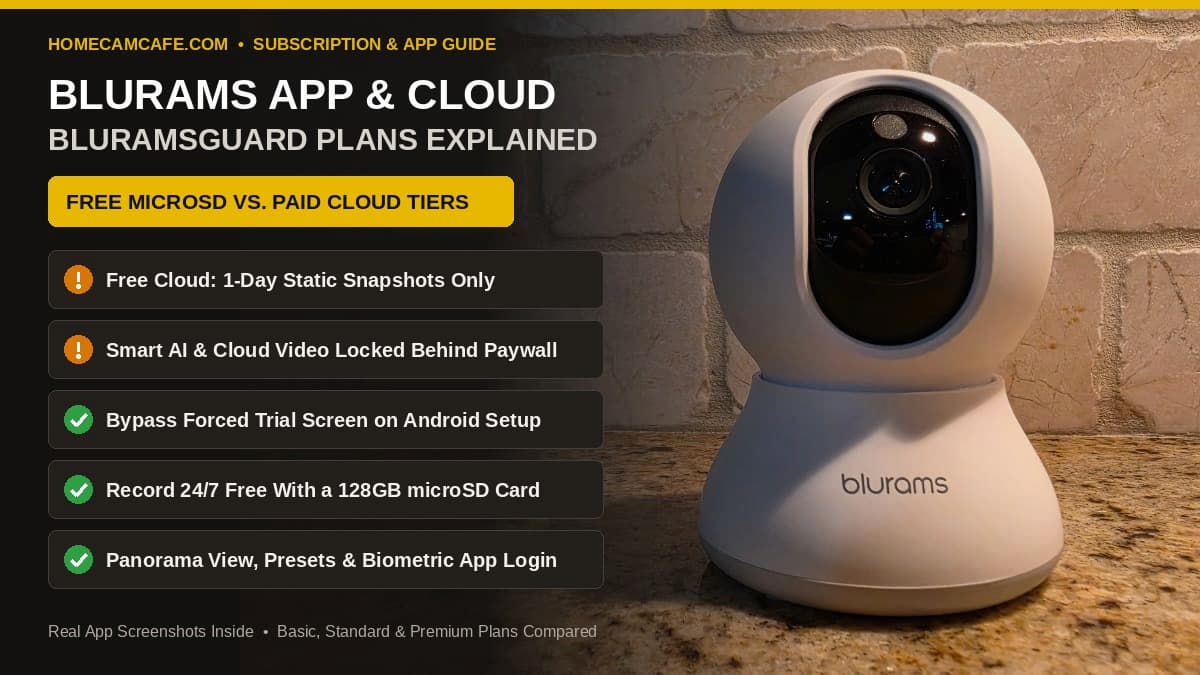
Quick Answer: You do not need a paid Blurams camera subscription if you insert a FAT32 microSD card (up to 128GB) into the camera slot. Without a microSD card or a paid plan, the free tier inside the Blurams app only stores static 1-day Event Snapshots (no cloud video clips) and basic motion or sound notifications. If you want free on-device Person, Pet, and Baby Cry AI detection without subscription roadblocks, skip Blurams cloud plans and look at the TP-Link Tapo C210 or Tapo C120 instead.
Blurams App Free Features vs. Paid BluramsGuard Plans
Older retail descriptions often leave shoppers thinking that the Blurams camera app includes free 24-hour cloud video clips out of the box. When we paired our test camera in the Blurams app and opened the in-app plan comparison screen, the gray FREE column showed a much more restricted baseline. Unless you install your own microSD card, non-subscribers only get 1-day static photo snapshots in the cloud.
| Blurams App Feature | Free (No SD Card) | Free + MicroSD Card (Up to 128GB) | Paid BluramsGuard Plan |
|---|---|---|---|
| 2K Live View & Two-Way Audio | Included | Included | Included |
| Pan/Tilt, Panorama & Presets | Included | Included | Included |
| Automatic Motion Tracking & Zones | Included | Included | Included |
| Event History & Video Recording | 1-day static snapshots only (no video clips) | Full 24/7 continuous or event video on SD card | 15-day or 60-day cloud events (or 7-day / 30-day 24/7 cloud) |
| Person, Pet, Vehicle & Package AI | Not included after trial | Not included after trial (generic motion/sound only) | Included on Basic, Standard & Premium |
| Rich Notifications & AI Descriptions | Not included | Not included | Included (though AI often hallucinates humans) |
| Facial Recognition | Not included | Not included | Standard & Premium tiers only |
| One-Touch 911 Emergency Help | Not included | Not included | Premium tier only |
For a full look at how the physical camera performed in our daytime and nighttime distance benchmarks, read our hands-on Blurams Dome Lite 2 (A31) camera review.
All 3 BluramsGuard Plan Tiers Compared (With In-App Screenshots)
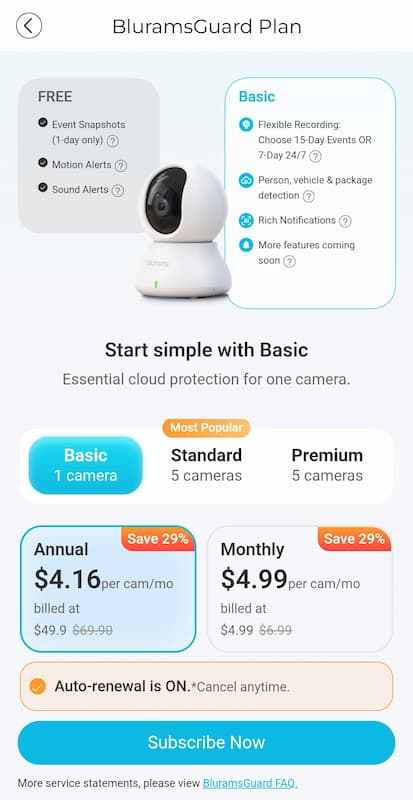
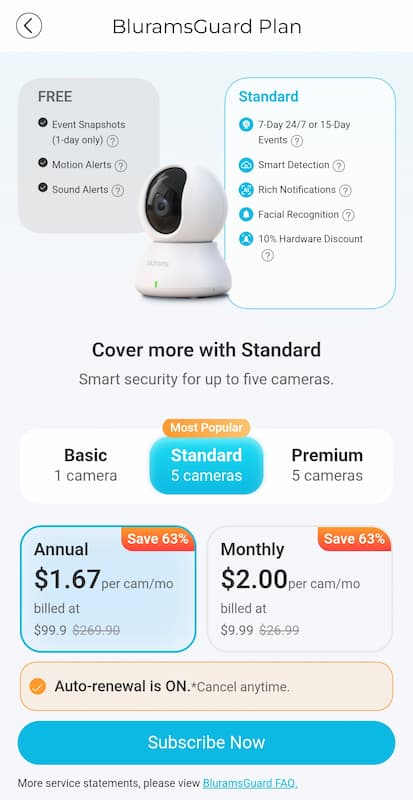
Inside the Blurams app, the paid cloud service is sold under two interchangeable names: during camera setup it is called the Blurams Protect Plan, while the billing page labels it the BluramsGuard Plan. Blurams divides the service into three recurring tiers: Basic (covers 1 camera), Standard (covers up to 5 cameras), and Premium (covers up to 5 cameras). Every tier can be billed monthly or annually.
1. BluramsGuard Basic Plan (Single Camera)
The Basic tier is the entry-level single-camera plan inside the Blurams app. Subscribing unlocks what Blurams calls Flexible Recording, which lets you choose between 15-Day Event Recording (motion-triggered cloud clips kept for 15 days) or 7-Day 24/7 Continuous Cloud Recording. Basic also turns on smart cloud filtering for Person, Vehicle, and Package detection along with Rich Notifications that attach a snapshot preview to your phone alerts.
2. BluramsGuard Standard Plan (Up to 5 Cameras)
Marked with an orange “Most Popular” badge in the Blurams app, the Standard tier covers up to 5 cameras on the same account. It keeps the same recording retention window as Basic (your choice of 15-Day Events OR 7-Day 24/7 continuous cloud recording), expands AI filtering to include Pets alongside People, Vehicles, and Packages, and adds Facial Recognition plus a 10% discount on future hardware orders.
3. BluramsGuard Premium Plan (Up to 5 Cameras + 911 Dispatch)
At the top of the pricing ladder, the Premium tier covers up to 5 cameras and quadruples cloud storage duration to your choice of 60-Day Event Video History OR 30-Day 24/7 Continuous Cloud Recording. It also unlocks One-Touch Emergency Help (which links the Emergency Assistance button in the Blurams app to a 911 response center) and Advanced AI Insights, which writes multi-word narrative descriptions of motion events.
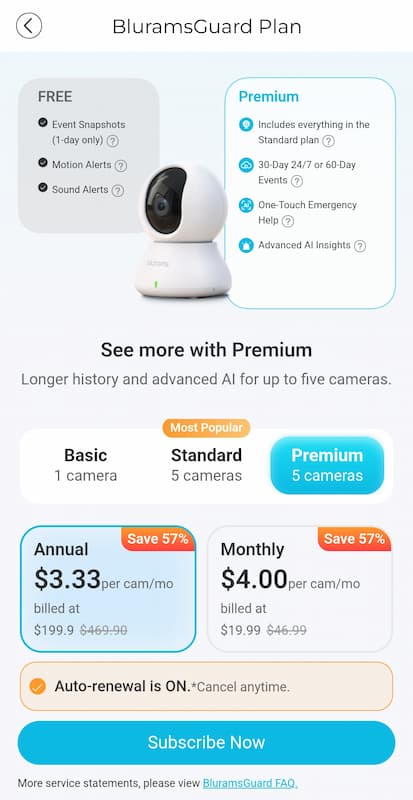
Watch Out for the “Per Cam/Mo” Pricing Display Trick: When you tap the 5-camera Standard or Premium tabs inside the Blurams app, the large bold price displayed in the box divides the total bill by five (“per cam/mo”). However, you are billed the full 5-camera bundle rate underneath (“billed at…”) even if you only own a single camera. In addition, the orange “Auto-renewal is ON” button is pre-selected by default on every checkout screen.
3 Blurams App Setup Quirks Every Owner Needs to Know
When we installed the Blurams app for Android to set up our Dome Lite 2 (A31), we ran into three software quirks and dark patterns that trip up new owners right away:
- The Unskippable “Start Trial” Onboarding Screen: Immediately after your camera connects to 2.4 GHz Wi-Fi, step 2 of 3 in the setup wizard displays a full-screen pitch for the Blurams Protect Plan with a blue Start Trial button at the bottom. There is no “Skip,” “No Thanks,” or “X” button anywhere on the screen. If you are using the Blurams app for Android, press your phone’s system Back button at the bottom of the screen to dismiss the trial page and finish setup.
- The Wi-Fi Password First-Letter Auto-Capitalization Bug: When typing your router password into the Blurams app during pairing, the keyboard automatically capitalizes the very first character by default. If your home Wi-Fi password begins with a lowercase letter, leaving that first letter capitalized will cause the camera to fail its Wi-Fi handshake every time. Manually tap the shift key to make the first character lowercase before continuing.
- Hallucinated “Human” AI Event Descriptions: During the cloud trial window, the Blurams camera app generates detailed AI text descriptions for motion clips. While the sentences look detailed at first glance, in our testing the cloud AI repeatedly described a human in the scene when no human was present, triggered only by swaying branches or shifting outdoor shadows.
How to Use the Blurams App Without a Subscription (MicroSD Setup)
Because ongoing BluramsGuard plans cost multiple times the price of the physical camera every year, the smartest way to run a Blurams camera is with a local microSD card. With a microSD card installed, you get full video recording and timeline playback inside the Blurams app with zero monthly fees.
Step-by-Step MicroSD Installation & Formatting
- Pick a High-Endurance Card (Up to 128GB Max): The Blurams Dome Lite 2 (A31) and most Blurams indoor cameras max out at 128GB (unlike TP-Link Tapo and Wyze cameras, which support up to 512GB). Stick with a continuous-duty card from our best microSD cards for security cameras guide so constant 24/7 loop overwriting does not wear out the flash memory.
- Tilt the Camera Lens Upward to Reveal the Slot: On the Blurams Dome Lite 2 (A31), the microSD card slot is hidden on the underside of the black rotating sphere right below the lens. Gently rotate the lens upward (or use the tilt control in the Blurams app) to expose the slot, then slide the microSD card in until it clicks.
- Format to FAT32 Inside the Blurams App: Open your camera in the Blurams app, tap the gear icon (Settings) in the top-right corner, open the Storage / SD Card menu, and tap Format. You can then choose between continuous 24/7 loop recording or motion-event recording.
View Samsung PRO Endurance 128GB Card on Amazon →View Blurams Dome Lite 2 (A31) on Amazon →
Best Blurams App Controls: 360-Degree Panorama, Presets & PC Viewing
Once you get past the subscription upsells, the Blurams app includes several genuinely helpful day-to-day controls:
- Use the 360-Degree Panorama View Instead of the Manual Joystick: Sliding the manual pan-and-tilt joystick dot in the Blurams app is touchy: you drag the center dot in the direction you want to go, release it, and hope the motor does not overshoot. Instead, open the Panorama tab in the app to let the camera stitch a full 360-degree panoramic strip of your room. From then on, you can slide or tap anywhere along the panorama photo and the lens will rotate straight to that exact spot.
- Save Preset Positions for Instant Framing: You can also bookmark saved preset angles for key spots like a front door, crate, or hallway so you never have to fuss with manual panning.
- Enable Biometric App Login & Activity Zones: Under Account Settings, turn on fingerprint or face unlock so you can open the Blurams app quickly, and configure custom Activity Zones plus Low, Normal, or High motion sensitivity under Detection Settings.
- Using the Blurams App for PC and Mac (Web Portal): While there is no standalone desktop software install required, you can view your cameras on a Windows PC or Mac browser by logging into the official Blurams web client at
client.blurams.comwith your mobile app credentials.
Better No-Subscription Alternatives to Blurams Cloud
If you have not bought a camera yet (or you are still inside your return window) and you want smart AI person, pet, or baby-cry detection without paying for a Blurams camera subscription, switching to a brand that processes AI locally on the camera chip will save you money every single month. Here is how Blurams compares against our top-tested cameras from TP-Link Tapo and Aosu:
| Camera & App | Free Smart AI Detection | Max microSD Card | Optional Hub / Cloud |
|---|---|---|---|
| Blurams Dome Lite 2 (A31) | None after trial (locked behind BluramsGuard) | Up to 128GB | Aggressive cloud push; no local hub |
| TP-Link Tapo C210 | Free Person & Baby Cry AI + motion tracking | Up to 512GB | Works standalone, with Tapo H500 Hub, or Tapo Care |
| TP-Link Tapo C120 | Free Person, Pet, Vehicle & Baby Cry AI | Up to 512GB | IP66 indoor/outdoor; zero subscription push |
To compare how other major camera brands handle cloud fees versus local recording, check out our security camera subscription plans hub, our Tapo Care plans explained guide, and our hands-on TP-Link Tapo H500 Smart HomeBase review.
Frequently Asked Questions About the Blurams App
Is the Blurams app free to use?
Yes, downloading and using the Blurams app for live 2K streaming, two-way audio, pan-and-tilt control, 360-degree panorama views, activity zones, and playing back videos from an installed microSD card is completely free. However, if you do not install a microSD card, the free cloud tier only stores static 1-day event snapshots rather than full video clips.
How do I cancel a Blurams camera subscription or auto-renewal?
If you subscribed directly through the Blurams app via Apple App Store or Google Play billing, open the Subscriptions menu inside your iPhone Settings or Google Play Store account and cancel BluramsGuard there so auto-renewal turns off. If you entered a credit card directly through Blurams checkout, open the BluramsGuard tab inside the Blurams app or log into client.blurams.com to disable auto-renewal prior to your billing date.
Why does the Blurams app say my Wi-Fi password is wrong?
First, confirm you are connecting the camera to a 2.4 GHz Wi-Fi network rather than a 5 GHz band. Second, check the first letter of your Wi-Fi password in the Blurams app text box: by default, the app automatically capitalizes the first character of the password, which causes a connection error if your router password begins with a lowercase letter.
Can I share my camera with family members in the Blurams app?
Yes. Have your family member download the Blurams app and create their own free account. Then open your camera settings in your app, tap Share Device, and invite their registered email address so both phones can view the live feed and receive motion alerts simultaneously.
Bottom Line: Should You Pay for a Blurams Camera Subscription?
Our Recommendation: Skip the paid BluramsGuard plan and use a microSD card instead.
Because Blurams sells its indoor cameras at impulse-buy prices, paying an ongoing monthly or annual fee for BluramsGuard quickly costs several times more than the camera itself, and our testing showed that the cloud AI event descriptions frequently hallucinate humans when nobody is in the frame. Pop a high-endurance 64GB or 128GB microSD card into your Blurams camera to unlock free local video history inside the Blurams app, or step up to our top picks in the Best Security Cameras With No Subscription and Best Cheap Home Security Cameras guides for free on-device AI alerts.