
The Tapo H500 (also searched as the TP-Link Tapo H500 Smart HomeBase, Tapo Hub H500, or CentralHub) is TP-Link’s flagship indoor local storage hub and AI processor for multi-camera households that want to move video recordings inside the home and unlock local facial recognition without paying for a monthly cloud plan. Over the past few days, I set up the Tapo H500 on my home network over Cat6 Ethernet, connected eight of my existing indoor, outdoor solar, dual-lens, and doorbell cameras, tested nighttime facial recognition at 11:00 PM, evaluated its expanded AI detection categories, and installed a 256GB 2.5-inch SATA SSD behind its magnetic side lid to see where this hub shines and where its quirks show up.
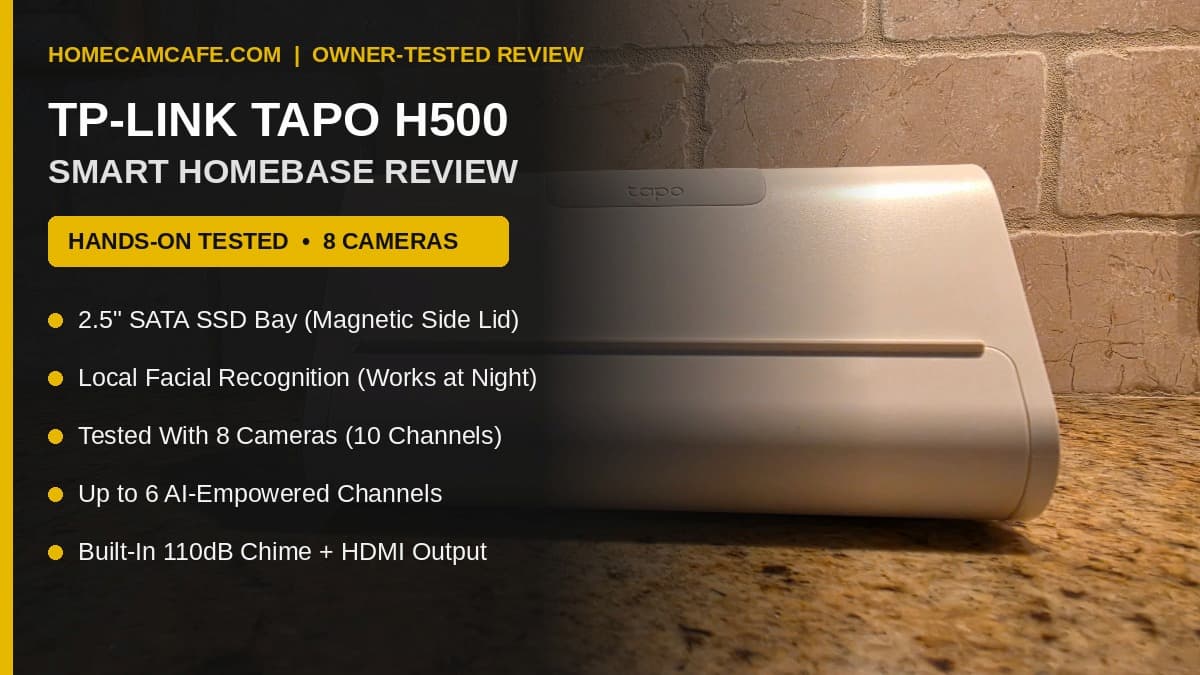
Quick Answer: The Tapo H500 is a smart upgrade if you own four or more Tapo cameras and want theft-resistant indoor recording plus subscription-free facial recognition that works even at night. However, the built-in 16GB storage is far too small for multi-camera use, so plan on buying a 2.5-inch SATA SSD right away, know that dual-lens cameras count as two channels, and expect occasional AI false classifications where a passing car gets tagged as an animal.
View the Tapo H500 on Amazon →
Tapo H500 Hardware Design, Setup, and Adding Existing Cameras
Out of the box, the Tapo H500 has a compact, triangular wedge footprint that sits cleanly on a counter or desk. Across the top ridge, TP-Link places physical buttons for volume adjustment and alarm/chime muting alongside status indicator LEDs. Along the lower front edge, a recessed fold-down groove lets the hub double as an angled desk stand for a tablet if you want to keep a live multi-camera dashboard running in your kitchen or office.
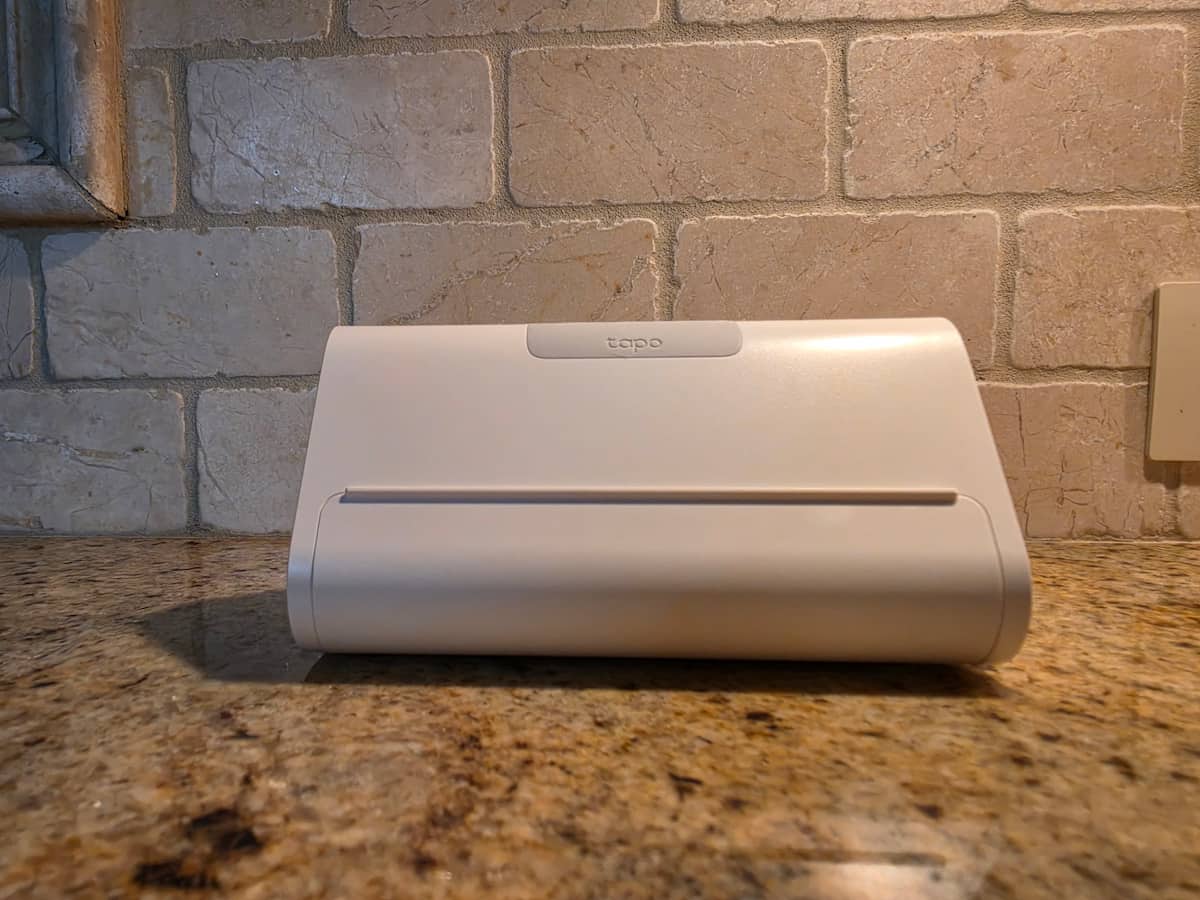
Physical setup on the Tapo H500 takes less than two minutes. I plugged the power adapter into the wall, connected a Cat6 Ethernet cable from the rear LAN port to my network, and opened the Tapo app on my phone. After tapping the plus icon to add a new device, the app recognized the H500 immediately. You can also connect the hub to your router over 5 GHz Wi-Fi, though wiring it via Ethernet gives you the most stable backbone when multiple 2K and 4K cameras send video clips at the same time.
Once the hub is paired, the app asks whether you want to add new cameras or pull in existing cameras already linked to your TP-Link account. I chose my existing cameras, and the migration took three tries to complete cleanly. On my first attempt, the app reported that the network was unstable and added zero cameras. I immediately ran the discovery a second time, and it pulled in the first six cameras. A third pass brought in the remaining two units.
If your existing cameras fail to migrate on the first tap, do not reset your cameras or restart your router. Simply run the in-app batch import a second or third time until every compatible camera moves over.
Tapo H500 Compatible Devices: Why 8 Cameras Count as 10 Channels
When checking the Tapo H500 compatible devices list, TP-Link advertises that the hub supports up to 16 cameras and 64 Sub-GHz smart sensors. What the box does not make obvious is how the hub counts dual-lens cameras. When I added eight physical cameras from my property, the Tapo H500 dashboard immediately displayed Connected Devices (10) and 10 Monitoring.
Here is the exact eight-camera lineup I connected during testing and how the H500 counted each device:
- Tapo C575D (Dual 4K PoE/Wi-Fi Pan/Tilt): Counts as 2 channels (1 for the fixed wide lens, 1 for the pan/tilt telephoto lens).
- Tapo C675D KIT (Dual 4K Solar Pan/Tilt): Counts as 2 channels (1 for the fixed wide lens, 1 for the pan/tilt telephoto lens).
- Tapo C660 KIT / C665 (4K Solar Pan/Tilt): Counts as 1 channel.
- Tapo C425 (2K Wire-Free MagCam): Counts as 1 channel.
- Tapo C216 (2K Compact Indoor/Outdoor Pan/Tilt): Counts as 1 channel.
- Tapo C230 (3K 5MP Indoor Pan/Tilt): Counts as 1 channel.
- Tapo D225 Video Doorbell: Counts as 1 channel.
- Additional Single-Lens Tapo Camera: Counts as 1 channel.
Because each dual-lens camera streams two independent video feeds, the H500 treats every lens as its own device slot. That same channel math applies to the hub’s continuous recording limit: while up to 16 single-lens channels can record motion events to the H500, only four channels can record 24/7 continuous video simultaneously. Since my primary outdoor Tapo cameras are solar-powered models that record motion clips rather than 24/7 streams, the four-channel continuous limit was not an issue for my setup, but wired PoE and plug-in camera owners should plan their channel allocation carefully.
Why the Built-In 16GB Storage Is Skimpy (And How the 512MB Carve-Out Works)
On my first night with the Tapo H500, I ran the hub on its built-in 16GB eMMC internal memory before my SATA drive arrived. In short, 16GB is really skimpy for a multi-camera 4K hub, and the device is not very usable without adding an internal drive if you own more than two or three cameras.
Out of the box, system software and the local AI database eat roughly 3.5GB of the internal memory. Even more interesting is how the H500 allocates space once your cameras go live. In my testing, the moment a connected camera detects motion for the first time, the H500 immediately carves out a dedicated 512MB block of storage for that camera channel. With 10 camera channels connected, my available storage on the H500 dashboard dropped to 11.50 GB available almost immediately.
Tapo H500 Hard Drive and 2.5-Inch SATA SSD Install: The Magnetic Side Lid
To give my eight cameras real breathing room, I bought a 256GB DIGIERA CAS100 2.5-inch SATA III SSD and installed it the next day. While the Tapo H500 hard drive bay accepts either a 2.5-inch mechanical HDD or a 2.5-inch solid-state drive up to 16TB (desktop 3.5-inch hard drives do not fit), an SSD is the smarter choice for most homeowners. Because my main outdoor Tapo cameras are solar-powered and only write motion-triggered clips rather than continuous 24/7 streams, a 256GB or 500GB solid-state drive holds months of 4K event clips while running completely silent and generating zero mechanical heat.
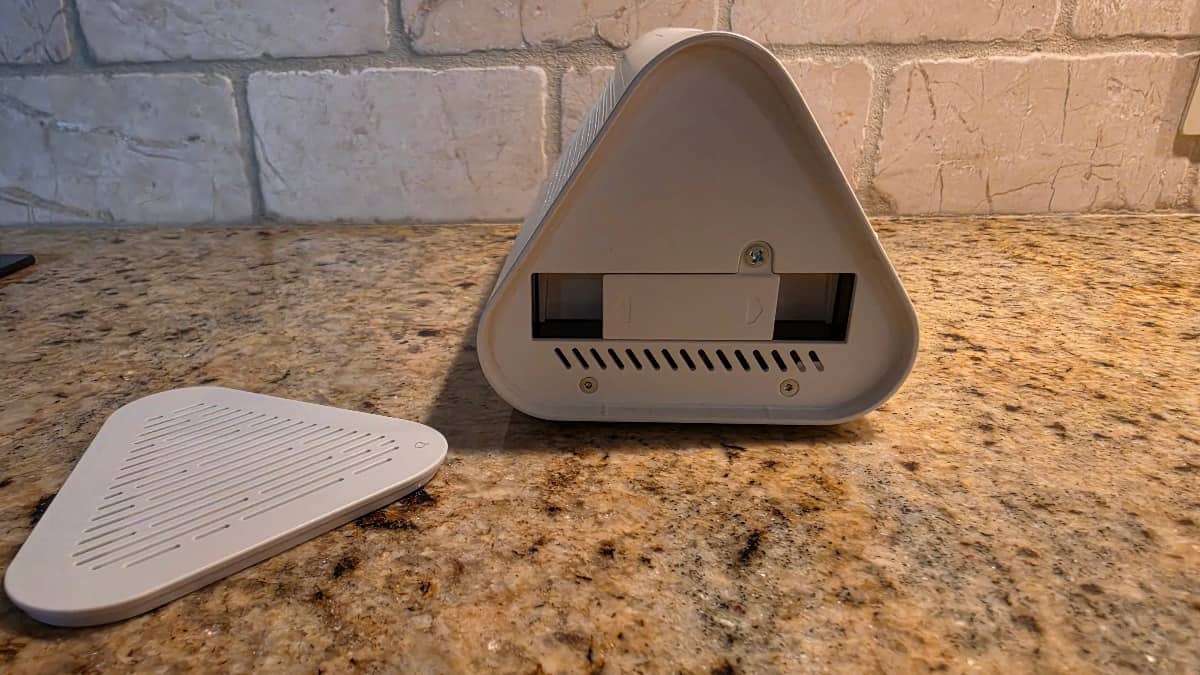
TP-Link did a nice job engineering the physical drive bay access on the H500, particularly the magnetic side lid:
- Pop Off the Magnetic Side Lid: Instead of hiding the drive bay behind fragile plastic tabs that snap off, the Tapo H500 uses a vented triangular magnetic cover on the side of the housing. You simply press the indentation and pop the magnetic side lid off to expose the internal drive bay bracket.
- Power Down Before Inserting the Drive: The H500 does not support hot-swapping drives while powered on. Unplug the power barrel jack first, loosen the single retaining screw above the pull-out drive tray, pinch the pull tab to slide the sled out, secure your 2.5-inch SATA SSD (or HDD up to 16TB) onto the sled, and slide the tray firmly onto the internal SATA connector.
- Snap the Magnetic Lid Back On: Tighten the tray retaining screw, snap the magnetic side cover right back into place (it seats cleanly with a satisfying magnetic pull), and plug the power cord back in.
- Mandatory In-App Formatting: Inserting the physical drive is only half the process. The Tapo H500 will not record a single video clip to a newly installed SSD or hard drive until you format it inside the Tapo app. Once the hub boots back up, open the Tapo H500 dashboard, tap the Storage tile, and follow the prompt to format the drive. Formatting my 256GB SATA SSD took less than a minute and immediately expanded the hub’s recording pool so every camera had plenty of room beyond its initial 512MB allocation block.
Whether you pick up the 256GB DIGIERA SSD I used in my test unit or a 500GB 2.5-inch SATA III SSD from TP-Link’s verified compatibility list, adding an internal drive right away transforms the H500 from a cramped starter hub into a true whole-home recorder.
View 2.5-Inch SATA SSD on Amazon →
AI Empowerment: Facial Recognition, New AI Detection Modes, and Real-World Accuracy
Aside from moving footage indoors, the headline reason to buy the Tapo H500 is AI Empowerment, which upgrades connected cameras with hub-powered local facial recognition and expanded AI detection categories without paying for a monthly Tapo Cloud Advanced AI subscription.
The 6-Channel AI Limit and Dual-Lens Slot Splitting
During setup, I discovered a major rule that every multi-camera buyer needs to know: up to 6 camera channels can be AI-enabled on the Tapo H500 at the same time, and dual-lens cameras count as two slots here too if you enable both lenses. If I had turned on AI Empowerment for both lenses of my C575D and both lenses of my C675D, those two cameras alone would have eaten four of my six AI slots.
Thankfully, the H500 lets you select individual lenses on dual-lens cameras. Because the motorized pan-and-tilt telephoto lens on the C575D and C675D is the lens that zooms in and tracks people walking onto the property, I enabled AI Empowerment only on the pan-and-tilt lens of the C675D and the pan-and-tilt lens of the C575D, leaving their fixed wide-angle lenses on standard camera detection. That left me four remaining AI slots, which I assigned to my Tapo D225 Video Doorbell, Tapo C425, Tapo C216, and Tapo C230, giving six separate physical cameras full H500 AI processing.
11:00 PM Nighttime Facial Recognition Test
Once you select your six AI-enabled channels, the Tapo app lets you build your Familiars face database either by snapping a live selfie or picking an existing photo from your phone. I selected existing photos from my camera roll to add profiles for my wife and me.
To see if local facial recognition works after dark, I walked outside at 11:00 PM in front of both my 2K Tapo C216 and my 4K Tapo C675D. Both cameras accurately recognized my face at 11:00 PM using only that single enrolled phone photo and logged the event under my name in the H500 dashboard’s 7-day summary chart. Having reliable nighttime face matching running locally on the hub is a strong addition.
Expanded AI Detection Categories (And Why Accuracy Still Has Quirks)
Beyond facial recognition, enabling AI Empowerment on a camera unlocks a broader menu of hub-processed AI detection options compared to what older or budget Tapo cameras offer on their own. Depending on the connected camera model, the H500 centralizes and expands smart detection across categories including:
- Facial Recognition (Familiars vs. Unknown Strangers): Tags known household members by name and separates unknown visitors into a dedicated filter inside the H500 Events tab.
- Person, Pet/Animal, and Vehicle Detection: Upgrades older or basic single-detection Tapo cameras with full multi-category object classification and centralized event filtering across all connected cameras.
- Package Detection and Perimeter / Line-Crossing Alerts: Adds delivery parcel recognition and custom boundary rules on supported camera feeds.
- Audio / Sound Event Recognition: Supports smart sound triggers such as baby crying, barking, glass breaking, and meow alerts on compatible indoor and outdoor channels.
However, while having all of those AI detection options unlocked locally with zero monthly fees is great on paper, the H500’s object classification is still not 100% accurate in real-world outdoor use. In my testing, the AI occasionally misclassified moving objects in the yard or street, and at times it even detected a passing car as an animal. While face matching on close-up walks worked well even at 11:00 PM, the general object-recognition algorithms on the H500 still need firmware refinement from TP-Link if you want to avoid occasional false “Animal” or “Pet” notifications when a vehicle drives by.
Wi-Fi Backup, Hub AP Roaming, and Multi-Node Mesh Networks
When I inspected the Device Info page for my Tapo D225 Video Doorbell after linking it to the H500, I noticed its Wi-Fi network had changed from my home SSID to a private network named Tapo_H500_C60D on a dedicated 192.168.2.x IP subnet. Digging into the camera network menu revealed a toggle called Wi-Fi Backup paired with Hub AP (Tapo H500).
When Wi-Fi Backup is enabled, wireless Tapo cameras automatically evaluate and switch to whichever connection they judge optimal between your main home Wi-Fi router and the H500’s built-in wireless hotspot (wired Ethernet cameras like my PoE-connected C575D automatically ignore this and stay on their wired connection). If you only have a single router in your house, letting nearby cameras hop onto the H500’s hotspot can offload traffic and extend range.
However, this can work in reverse if you run a whole-home mesh system. I have a four-access-point mesh network spread across my house, which provides stronger outdoor coverage than a single little H500 hub sitting in one room. If you run a multi-node mesh network and notice an outdoor camera connecting to the H500 hotspot instead of a closer mesh access point, you can open the camera’s Wi-Fi Backup menu and toggle it off so the camera stays locked onto your mesh network while still sending recordings over your local LAN to the Ethernet-wired H500.
Doorbell Chimes, HDMI Output, Rear Ports, and the Matter (Beta) Bridge
Rounding out the daily experience, the Tapo H500 includes a built-in 110 dB speaker that works as both a security siren and an indoor chime when paired with a Tapo video doorbell or motion camera. I tested the ringtone playback with my doorbell and found roughly 20 different chime melodies to choose from in the app, along with a customizable sound duration slider so you can control how long the chime rings inside the house.
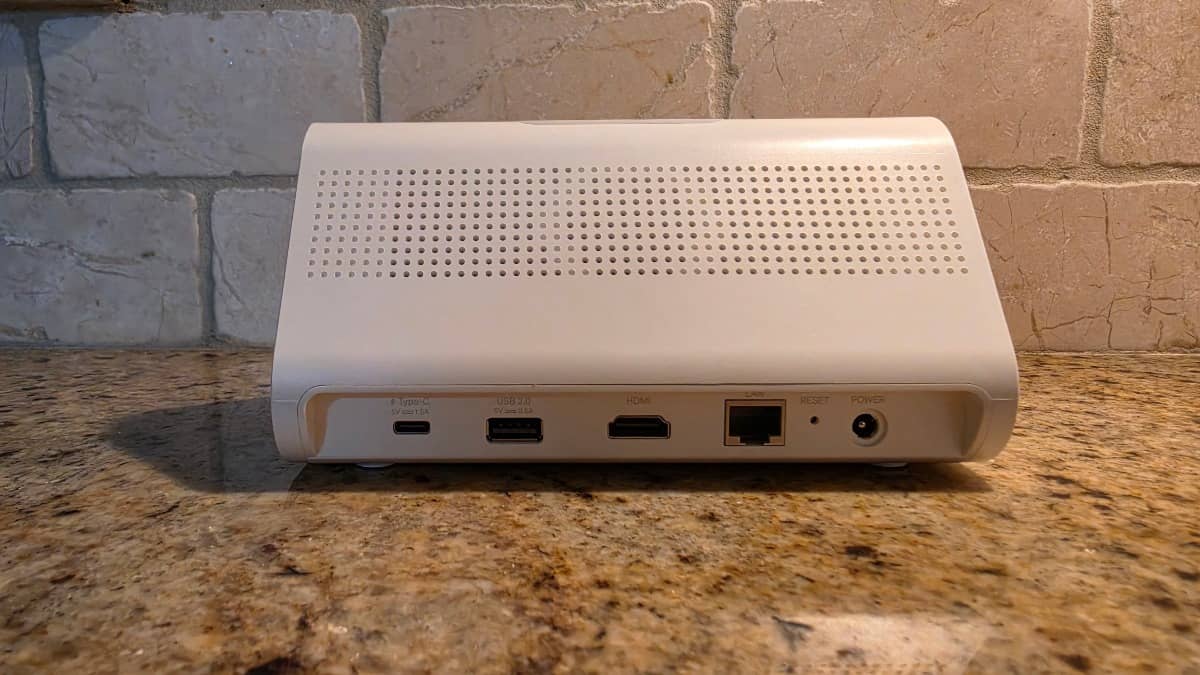
Looking at the recessed rear port bay under the perforated ventilation grille, TP-Link includes five physical connections from left to right:
- USB Type-C Port (5V = 1.5A): Designed to supply power to a tablet resting on the front dock cradle so your live viewing screen never dies.
- USB 2.0 Type-A Port (5V = 0.5A): Used for exporting backed-up video clips to a flash drive or enabling network USB file sharing.
- Full-Size HDMI Port: Connects the H500 directly to a TV or desktop monitor to display up to four simultaneous live camera feeds in a split-screen view.
- Ethernet LAN Port: Connects the hub directly to your router or network switch via Cat6 cable.
- Reset Pinhole and Barrel Power Input: Standard hardware reset button and DC power jack.
Important: Do not plan on using the rear USB 2.0 Type-A port to expand your live camera recording capacity. While you can plug a USB thumb drive or external drive into that port, I confirmed in the H500 settings that USB storage is strictly limited to exporting saved video clips or network USB sharing. Primary camera recording requires either the built-in 16GB memory or an internal 2.5-inch SATA drive behind the magnetic side lid.
Inside the app settings, you will also find a Bind to Matter (Beta) screen that generates a 15-minute pairing QR code and 11-digit setup code. While interesting on paper for Apple Home, Google Home, or Tapo H500 Home Assistant users, Matter still does not support security camera video feeds, so that bridge is only useful if you buy Tapo Sub-GHz door, window, or temperature sensors and want to expose those sensors to another smart home platform.
Tapo H500 vs H200, microSD, and Dedicated PoE NVRs
To see how the Tapo Hub H500 fits into the broader storage landscape covered in our Tapo camera storage guide (microSD vs. H200/H500 Hub vs. Cloud), it helps to compare it not only against a microSD card and the smaller Tapo H200, but also against a dedicated wired NVR like the unit we tested in our Reolink RLN8-410 PoE NVR review.
If your cameras are wireless, solar-powered, or already installed inside the Tapo ecosystem, the H500 is the right central hub. However, if your primary goal is recording 24/7 continuous 4K video across five to eight wired cameras simultaneously without channel caps, a dedicated PoE NVR like the Reolink RLN8-410 (which ships with a 2TB 3.5-inch surveillance hard drive pre-installed and powers every camera over a single Cat6 cable) is built specifically for non-stop 24/7 workloads.
| Feature | Tapo H500 Smart HomeBase | Tapo H200 Smart Hub | Reolink RLN8-410 PoE NVR |
|---|---|---|---|
| Included Storage | 16GB eMMC (~11.5GB usable after setup) | None (microSD sold separately) | 2TB 3.5-inch HDD pre-installed |
| Expandable Storage | 2.5-inch SATA SSD/HDD up to 16TB (magnetic side lid) | microSD card up to 512GB | Up to 12TB total (internal 3.5″ SATA + eSATA) |
| Max Camera Channels | Up to 16 Tapo channels (dual-lens count as 2) | Up to 4 Tapo channels (dual-lens count as 2) | 8 PoE / Wi-Fi channels (12 on RLN12W) |
| 24/7 Continuous Limit | Up to 4 wired channels simultaneously | Up to 4 channels simultaneously | All 8 channels 24/7 simultaneously |
| Local Facial & AI Empowerment | Yes (up to 6 channels; face + expanded object AI) | No | Person, Vehicle, and Pet AI on every channel |
| HDMI Monitor Output | Yes (up to 4-camera split view) | No | Yes (HDMI + VGA full multi-camera grid) |
| Chime & Siren Speaker | 110 dB (~20 chimes + custom duration) | 90 dB (19 ringtones) | Internal NVR buzzer + camera sirens |
| Best Camera Match | Tapo solar, battery, Wi-Fi, and PoE cameras | 1 to 4 Tapo battery/doorbell cameras | Reolink PoE and plug-in Wi-Fi cameras |
Tapo H500 Pros and Cons
What We Like (Pros)
- Easy Magnetic Side Lid for Drive Installs: Popping off the magnetic side panel, sliding a 2.5-inch SATA SSD onto the internal tray, and formatting it in the app takes less than five minutes.
- Local Facial Recognition Works Even at Night: Enrolling familiar faces from existing phone photos took seconds, and the H500 accurately recognized my face at 11:00 PM on both the 2K C216 and 4K C675D with zero monthly fees.
- Per-Lens AI Slot Splitting on Dual-Lens Cameras: Lets you enable AI Empowerment exclusively on the pan-and-tilt lens of dual-lens cameras (like the C575D and C675D) so you do not waste two AI slots on one housing.
- Centralized Theft-Safe Indoor Recording: Keeps motion clips from outdoor solar and battery cameras safely stored inside the house, and works alongside simultaneous Tapo Care cloud recording if desired.
- Loud Built-In Chime With Custom Duration: Includes around 20 selectable chime tones and adjustable ring duration when paired with a Tapo video doorbell.
What Could Be Better (Cons)
- Skimpy 16GB Internal Storage: Because the H500 carves out 512MB per camera channel on first motion (leaving 11.50 GB free on my 10-channel setup), you almost certainly need to buy a 2.5-inch SATA drive if you own more than a few cameras.
- New AI Object Detection Is Still Not 100% Accurate: While the hub unlocks expanded AI detection categories, it still misclassifies moving objects at times, occasionally flagging a passing car as an animal.
- Dual-Lens Cameras Count as 2 Channels: Linking two dual-lens cameras and six single-lens cameras uses 10 of the hub’s 16 camera slots.
- 6-Channel Cap on Local AI / Facial Recognition: Even though the hub connects up to 16 channels, only six channels can have AI Empowerment enabled at once.
- Rear USB Port Cannot Be Used for Live Recording: External USB drives plugged into the back port only work for exporting video clips or network file sharing, not primary camera storage.
Who Should Buy (and Skip) the Tapo H500?
Buy the Tapo H500 if: You run four to 12 Tapo cameras (especially outdoor solar models like the C675D KIT, C660 KIT, or C425 and the D225 doorbell), want all of your motion clips stored safely inside your house on a silent 2.5-inch SATA SSD, and want local facial recognition and indoor doorbell chimes without paying an annual fee for Tapo Cloud Advanced AI.
Skip the Tapo H500 if: You only own one or two indoor cameras like the Tapo C120 (where an inexpensive card chosen with our security camera microSD card guide is far more cost-effective), or if you want 24/7 continuous recording across more than four wired cameras at once, where a dedicated PoE NVR like the Reolink RLN8-410 could be the better tool.
Frequently Asked Questions
Should I buy a 2.5-inch SATA SSD or HDD for the Tapo H500 (and do 3.5-inch drives fit)?
If you have more than two or three cameras, you will want to add a drive right away because the built-in 16GB memory leaves only about 11.5GB free after system overhead and the 512MB per-camera allocation block. The Tapo H500 drive bay only accepts 2.5-inch SATA SSDs or HDDs up to 16TB; desktop 3.5-inch hard drives do not physically fit. For solar and motion-clip cameras, a 256GB to 1TB 2.5-inch SATA SSD is ideal because it runs completely silent and produces zero mechanical heat.
How do you install and format a SATA drive in the Tapo H500?
Power off the H500, pop off the magnetic side lid, unscrew the single screw holding the internal drive sled, attach a 2.5-inch SATA SSD or HDD to the tray, slide it back into the bay, and snap the magnetic cover back on. Once powered back up, open the Tapo app, go to the H500 dashboard, tap the Storage tile, and run the in-app format tool before recording.
Can I plug a USB flash drive or external USB hard drive into the Tapo H500 for camera recording?
No. The USB 2.0 Type-A port on the back of the Tapo H500 only supports exporting video clips or USB network sharing. Live camera recordings can only be saved to the built-in 16GB memory or an internal 2.5-inch SATA SSD/HDD installed in the drive bay.
How accurate are the Tapo H500 facial recognition and AI detection options?
Up to six camera channels can have AI Empowerment enabled at the same time. In our testing, local facial recognition worked reliably even at 11:00 PM at night using a single enrolled phone photo. However, the expanded object-detection AI is still not 100% accurate and occasionally misclassifies a passing car as an animal.
Bottom Line
The Tapo H500 Smart HomeBase delivers on centralized indoor storage and subscription-free local facial recognition that works day and night. Its magnetic side lid makes dropping in a 2.5-inch SATA SSD effortless, and the ability to assign AI slots to just the pan-and-tilt lens on dual-lens cameras is a smart touch. Just plan on adding a 2.5-inch SATA SSD right out of the gate because the 16GB built-in memory fills up fast, and expect occasional AI quirks where a passing car gets flagged as an animal.
Check Tapo H500 Price on Amazon →
For more hands-on camera testing and ecosystem guides, explore our TP-Link Tapo Security Camera Reviews hub, our Best Solar Security Cameras roundup, and our Best Security Cameras Without a Subscription guide.