
In this hands-on Blurams camera review, I bought, unboxed, and tested the popular Blurams Dome Lite 2 (model A31) 2K indoor pan-and-tilt security camera to see how its ultra-low price tag holds up in real-world use. Packed with motorized 355-degree pan and tilt, automatic motion tracking, 360-degree panoramic navigation, customizable activity zones, biometric app login, and local microSD recording up to 128GB, the physical camera delivers an impressive list of features for an entry-level unit.
However, buyers need to know that Blurams uses rock-bottom hardware pricing to push an expensive ongoing BluramsGuard cloud subscription, complete with a mandatory onboarding trial screen that lacks a close button, AI event descriptions that hallucinate humans when nobody is there, and merely average night vision and audio. Balancing its bargain price and capable daytime hardware against its aggressive cloud paywall brings our final rating to 3.5 out of 5.
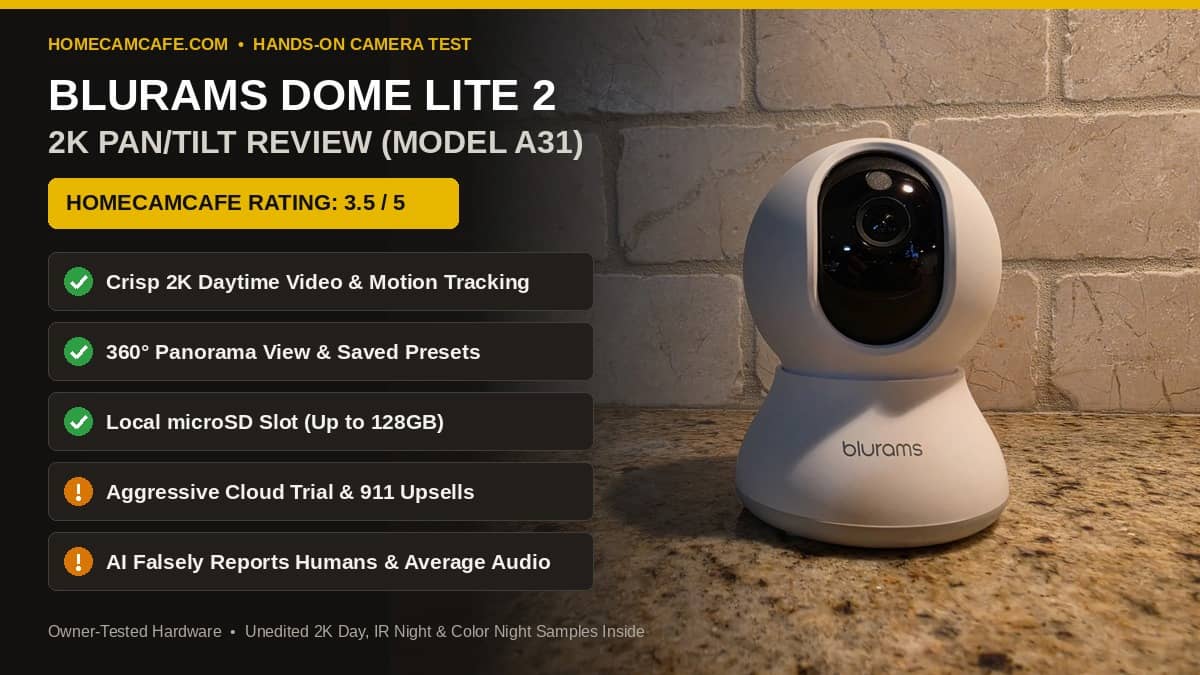
Quick Answer (3.5/5): The Blurams Dome Lite 2 (A31) is a very inexpensive 2K indoor pan-and-tilt camera that delivers crisp daytime video, decent automatic motion tracking, activity zones, and handy 360-degree panorama controls. Just install your own microSD card (up to 128GB) and ignore the pricey BluramsGuard cloud upsells, or consider our tested TP-Link Tapo C210 if you want free local person and baby-cry AI detection without the subscription push.
View Blurams 2K Camera on Amazon →
Blurams Camera Review: Specifications vs. Hands-On Findings
Shoppers searching for a Blurams camera on Amazon usually run into several similar-looking 2K indoor pan-and-tilt listings. Our test unit is the core Blurams Dome Lite 2 (model A31). The table below compares the manufacturer’s published specifications against what we verified during our hands-on evaluation.
| Feature | Blurams Dome Lite 2 (A31) Spec | HomeCamCafe Hands-On Notes |
|---|---|---|
| Editorial Rating | 3.5 / 5.0 (Model A31) | Dirt-cheap hardware with great budget features; docked for aggressive cloud upsells, false human AI alerts, and average audio/night vision |
| Video Resolution | 2K 3MP Ultra HD (2304 x 1296), 4x digital zoom | Clean, sharp 2K daytime image in our outdoor distance test |
| Pan, Tilt & Field of View | 355° horizontal pan, 95° to 105° vertical tilt, 109° FOV | Manual joystick dot is touchy; saved Presets and the 360° Panorama strip work much better |
| Motion Tracking & Zones | Automatic horizontal motion tracking + activity zones | Motion tracking works well for a budget camera; supports Activity Zones and Low / Normal / High sensitivity |
| Night Vision | 850nm infrared LEDs (up to 22 ft rated) + low-light color mode | Night vision is okay overall; IR sees much farther than ambient color night mode |
| AI Event Descriptors | Cloud AI detection (Person, Pet, Vehicle, Package via BluramsGuard) | Writes very detailed motion summaries, but frequently describes a human when no human is there |
| Storage Options | microSD slot up to 128GB (FAT32) + BluramsGuard cloud | Free cloud tier only saves 1-day Event Snapshots; full cloud video and AI require a paid plan |
| Wi-Fi & App Security | 2.4 GHz Wi-Fi (802.11b/g/n), iOS/Android app + web portal | Supports biometric login; watch out for the Wi-Fi password first-letter auto-capitalization bug |
| Audio & Weather Rating | Two-way audio, built-in siren, indoor-only (not weatherproof) | Sound quality is just okay; strictly an indoor camera despite the app showing an outdoor use button |
Unboxing, Sparse Instructions, and a Stupid Wi-Fi Password Bug
Inside the box, the Blurams Dome Lite 2 (A31) comes with the camera body, a USB power cable and wall adapter, a plastic mounting base with screws for ceiling or wall installation, and a printed quick-start booklet. The included paper instructions are very sparse, giving you little more than a prompt to download the Blurams app and create an account.
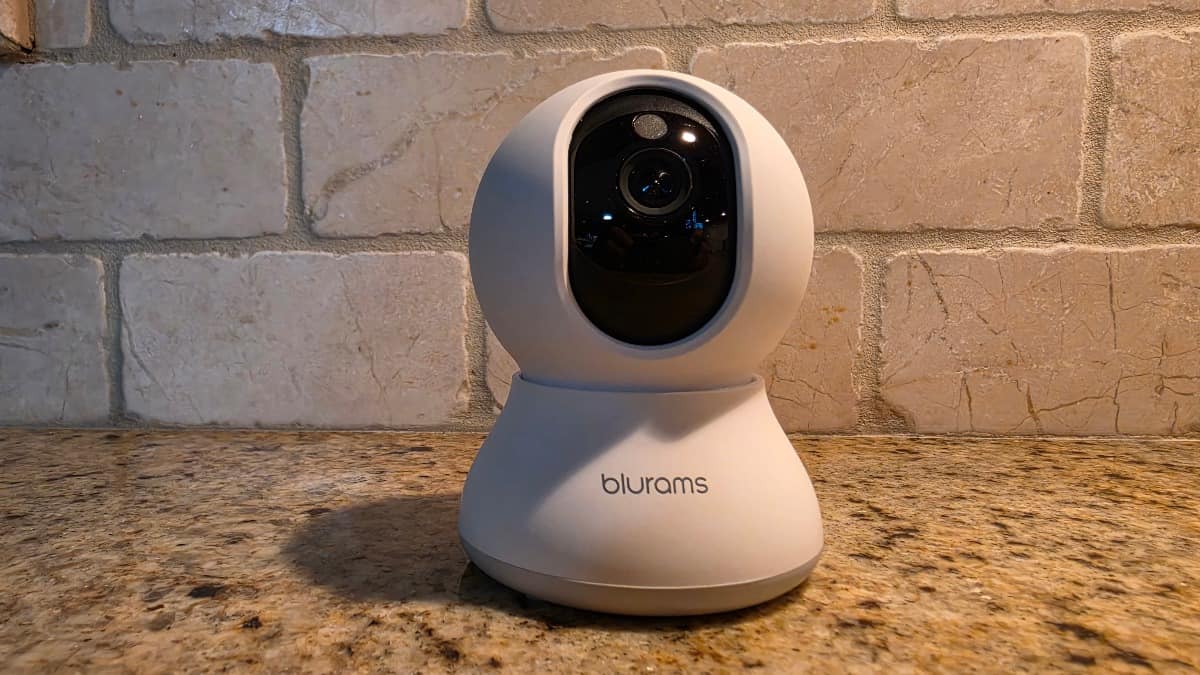
Setting up a new account in the Blurams app is quick, and I was glad to see that the app supports biometric login (fingerprint or facial recognition) so you do not have to type your account password every time you check a camera. To pair the A31, you tap the plus icon in the upper-right corner of the home screen. The app warns that you will need to press the physical reset button on the camera and wait until the status LED blinks red, though I did not have to touch the reset button because our camera blinked red on the very first try right out of the box.
Important Wi-Fi Setup Tip: By default, the Blurams app automatically capitalizes the first letter of your Wi-Fi password when you type it into the setup field. If the first character of your router password is a lowercase letter, leaving that auto-capitalized letter in place will cause the connection to fail. As soon as I forced the first letter back to lowercase, the camera connected right away.
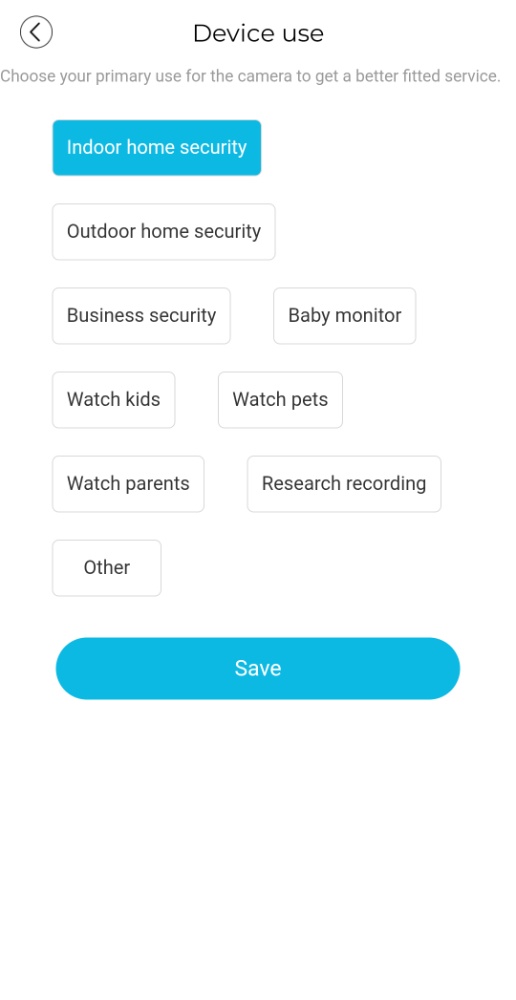
During the final step of onboarding, the app also presents an unusual Device use survey screen asking you to choose your primary purpose for the camera from nine buttons: Indoor home security, Outdoor home security, Business security, Baby monitor, Watch kids, Watch pets, Watch parents, Research recording, or Other. I have tested dozens of security cameras and have never seen an onboarding screen ask if you are doing “Research recording.” Even stranger, the screen offers an “Outdoor home security” button even though the Blurams A31 has zero weatherproofing and is strictly an indoor camera.
The Subscription Catch: BluramsGuard Cloud Push Explained
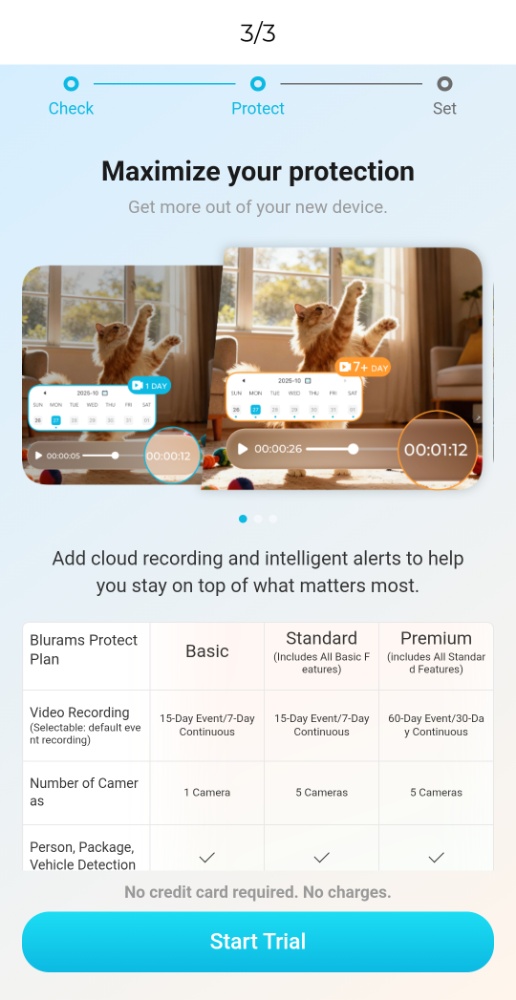
It takes about ten seconds after pairing the camera to understand the Blurams business model. Because Blurams sells the physical A31 hardware for so little money, they rely heavily on converting camera owners into recurring cloud subscribers. Immediately after our camera connected to Wi-Fi, the setup wizard stopped on step 2 of 3 (Check > Protect > Set) and filled the screen with a “Maximize your protection” pitch for the Blurams Protect Plan.
Here is the most annoying part of that onboarding screen: there is no “No Thanks,” “Skip,” or “X” button anywhere on the page. The only visible button at the bottom of the screen is a large blue Start Trial button (“No credit card required. No charges.”). On an Android phone, I was able to bypass the screen by pressing the operating system Back button at the bottom of my phone, but iPhone users without a system back button are railroaded into activating the trial just to finish setup. The comparison table on that screen even has sloppy mid-word text wrapping (“Number of Camer / as” and “Includes All Basic F / eatures”).
What Works for Free vs. What Requires BluramsGuard
While older Amazon product descriptions claim that Blurams cameras include free 24-hour cloud video clips, opening the BluramsGuard Plan comparison inside the app today reveals a much stingier free tier. Under the gray FREE column in the app, non-subscribers only receive:
- Event Snapshots (1-day only): Still image snapshots saved to the cloud for 24 hours rather than full video clips.
- Basic Motion Alerts and Sound Alerts: Generic movement and noise notifications without smart AI filtering.
- Local MicroSD Card Recording (Up to 128GB): If you insert your own microSD card (up to 128GB, formatted to FAT32), you can record continuous 24/7 footage or motion events locally on the camera without paying a monthly fee. For help picking a card that will not wear out under continuous loop recording, see our guide to selecting the right microSD card for a home security camera.
If you do not install a microSD card, or if you want cloud video history, Person, Vehicle, and Package detection, Rich Notifications, Facial Recognition, or Advanced AI Insights, Blurams locks all of those features behind three recurring BluramsGuard Plan tiers (Basic for 1 camera, Standard for up to 5 cameras, and Premium for up to 5 cameras). Watch out for the way Blurams displays the prices on the 5-camera Standard and Premium tabs: the app divides the total bill by five to display a low “per cam/mo” headline number, even if you only own one camera, and pre-checks the orange “Auto-renewal is ON” box at checkout.
The upsells do not stop at cloud storage either. Tapping the Emergency Assistance icon in the app opens a full-screen modal with a photo of a police cruiser lightbar urging you to “Upgrade BluramsGuard for fast 911 response to protect your home day and night” with a blue opt in button tied to the top-tier Premium subscription.
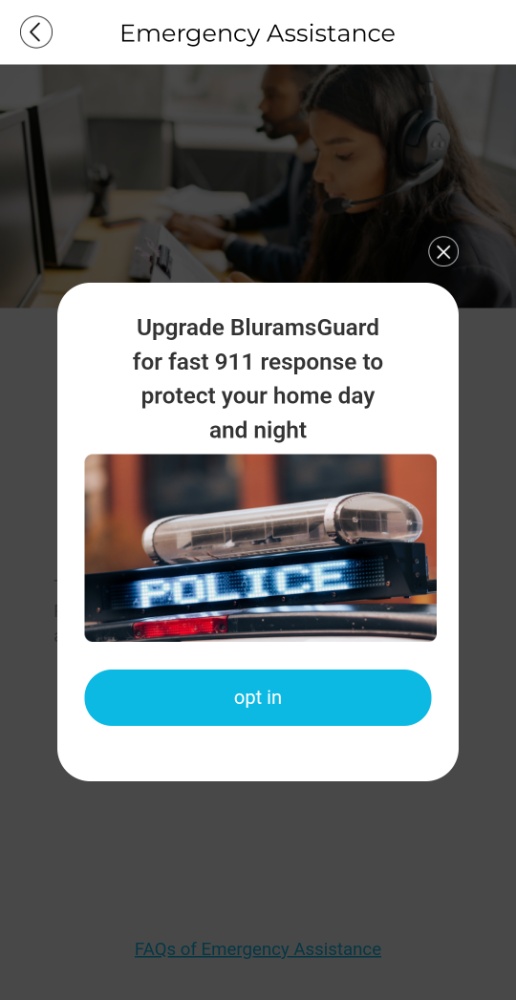
For a full breakdown of all three cloud tiers, in-app screenshots, and how to set up free local microSD recording instead, see our companion Blurams app and BluramsGuard subscription guide.
Pan, Tilt, and Our Panorama Pro Tip
Because the Blurams A31 is a motorized pan-and-tilt camera (355 degrees horizontal and roughly 95 to 105 degrees vertical), you can rotate the lens across an entire room from the app. However, mastering the manual on-screen joystick takes patience. To pan or tilt manually, you have to slide the center joystick dot in the direction you want to go, release your finger, and hope the motor stops where you wanted rather than overshooting past your target.
After fighting the touchy manual joystick during testing, I found two built-in tools in the Blurams app that solve the problem completely:
- Save Preset Positions: Creating saved preset angles for key spots in the room (such as a doorway, pet bed, or couch) lets you tap a thumbnail and have the camera pan directly to that exact framing without touching the joystick.
- Pro Tip: Use the 360-Degree Panorama Feature: My favorite way to aim the A31 is to generate a Panorama in the app. The camera rotates across the room to stitch a full panoramic strip, allowing you to simply slide along the panorama image to jump straight to the exact view you need.
Motion Tracking, Activity Zones, and AI Hallucinations
On the motion detection front, the Blurams Dome Lite 2 packs in a strong set of controls for an entry-level camera. Inside the detection settings, you can define custom activity zones and switch motion sensitivity between Low, Normal, and High. You can also enable automatic motion tracking, which physically pans the camera head to follow a moving person or pet across the room and works surprisingly well for such an inexpensive camera.
Less impressive is the accuracy of the cloud AI event descriptions. When the AI descriptor feature is active, the app writes remarkably detailed text summaries of each motion event rather than just tagging a clip as generic motion. The problem is that the AI frequently describes a human in the scene when there is no human anywhere in the frame. Seeing a detailed sentence claiming a person is moving through your yard or room when the camera was only looking at swaying tree branches or shifting shadows erodes trust in the alerts quickly, especially when Blurams charges a recurring fee for smart AI detection.
2K Video Quality and Night Vision Tested (IR vs. Color)
To reiterate an important hardware fact: the Blurams A31 is an indoor-only camera with no IP weatherproofing rating, so you should never mount it permanently outdoors where rain or humidity can enter the motorized base. However, to benchmark its lens clarity and low-light reach across a longer distance than an indoor wall allows, I temporarily placed the A31 outside overlooking our front lawn and street during the afternoon and after dark.
2K Daytime Image Quality
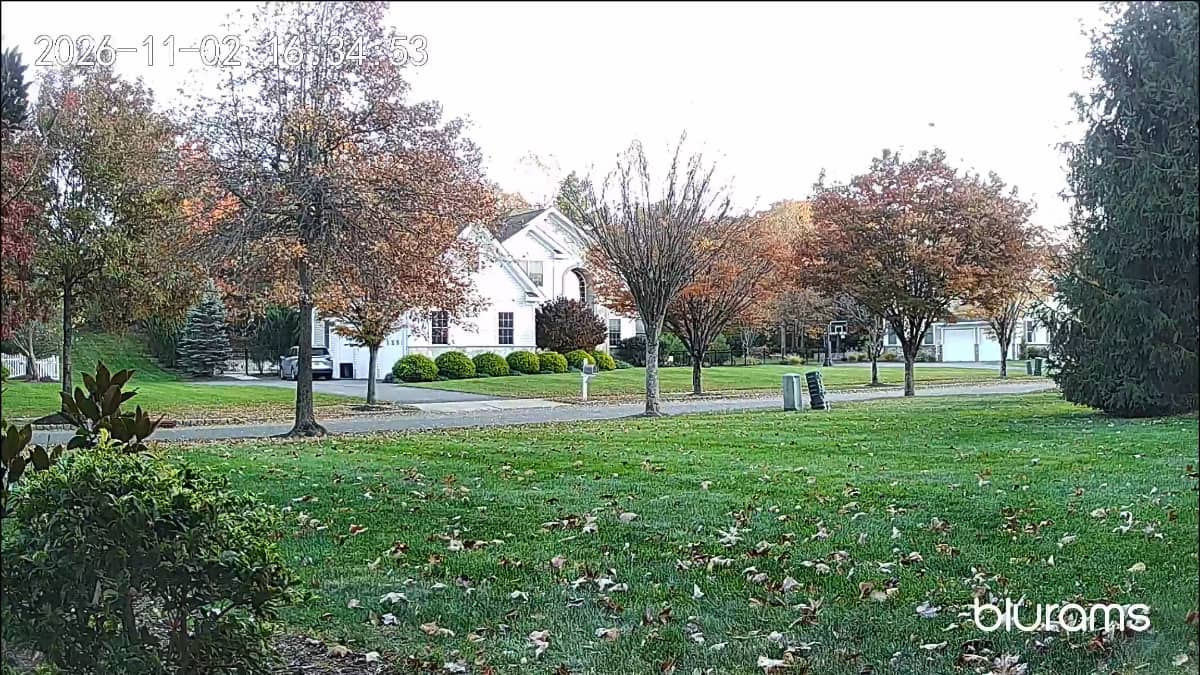
In daytime lighting, the 3MP 2K sensor (2304 x 1296) produces a crisp, pleasant picture that punches above the camera’s ultra-budget price tag. As shown in our unedited daytime sample below, grass textures, fallen autumn leaves on the lawn, tree branches, and the white house across the street are all clear and natural.
Infrared (IR) Black-and-White Night Vision
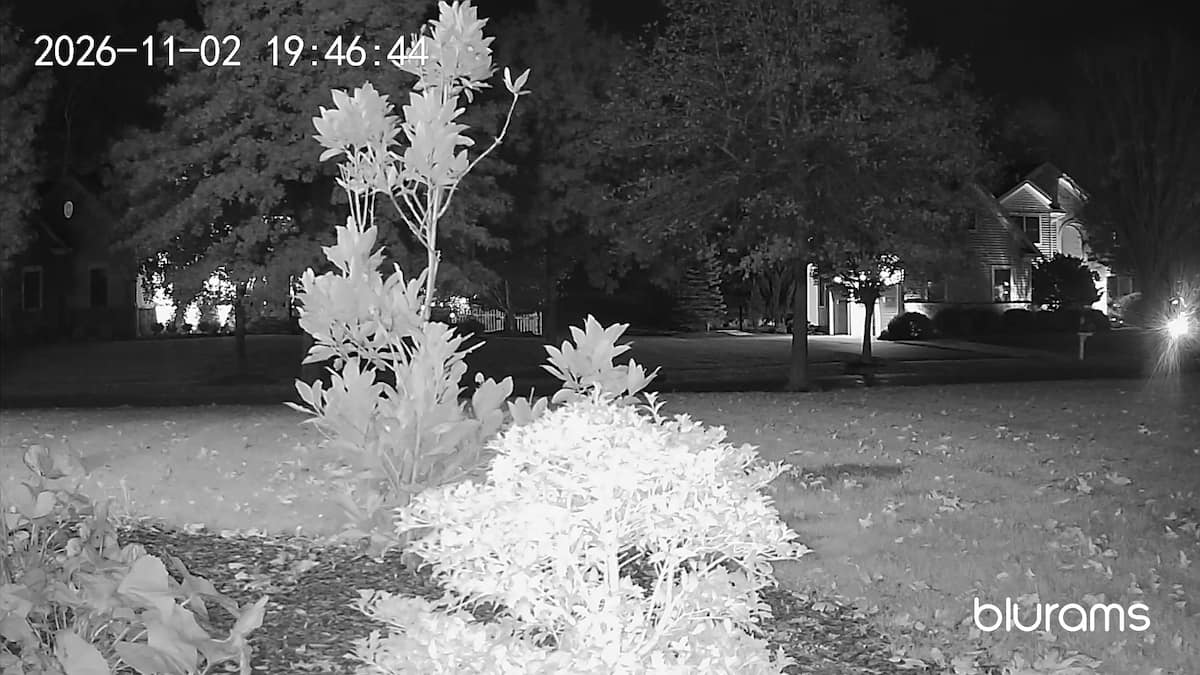
After dark, the A31 uses its onboard 850nm infrared LEDs and IR-cut filter for black-and-white night vision. Overall, the infrared night vision is decent for an indoor camera: in our nighttime test below, the foreground shrub, leaves across the yard, and the outline of the house across the street remain clearly visible.
Low-Light Color Night Vision
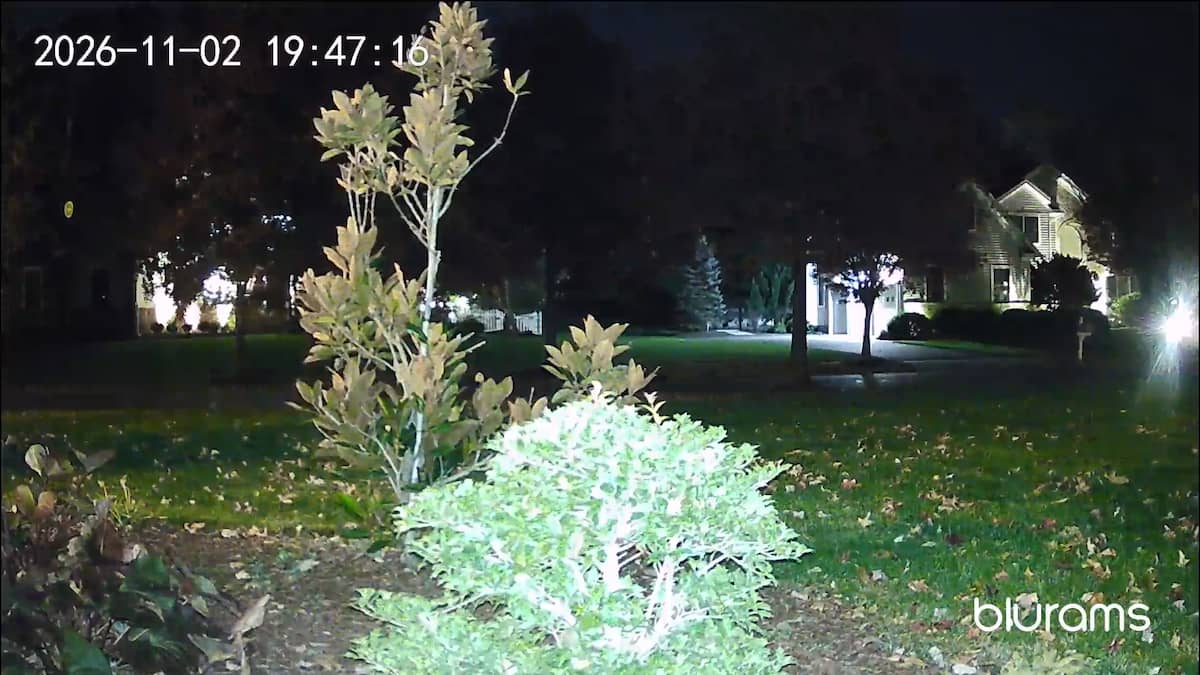
Because the standard A31 does not have a built-in white LED spotlight, switching the camera to color night vision relies entirely on ambient light (such as porch lights, streetlights, or a nightlight indoors). Taken just 75 seconds after our infrared shot, the color night vision sample below renders the green lawn, yellow leaves, and foreground bush in color, but introduces noticeable digital grain and loses detail in the darker upper tree branches compared with infrared mode.
Two-Way Audio and Privacy Mode
The camera includes a built-in microphone and speaker for two-way talk along with a software siren. In our testing, the sound quality is just okay: it is serviceable for checking in on a pet or hearing basic room noise, but voices sound somewhat thin and compressed. When you are home and want the camera turned off, enabling Privacy Mode in the app physically rolls the lens down inside the plastic housing.
Blurams vs. TP-Link Tapo and Other No-Subscription Alternatives
If you want an ultra-cheap 2K indoor pan-and-tilt camera for live viewing and basic microSD recording, the Blurams A31 gets the job done. However, if you hate subscription pop-ups or want free, accurate AI person and pet detection without a monthly fee, comparing the Blurams A31 against our owner-tested TP-Link Tapo security cameras and other top picks from our best security cameras with no subscription guide shows why Tapo and Reolink earn higher scores on HomeCamCafe.
| Camera Model | Resolution & Type | Free On-Device AI Alerts | Max microSD Card | HomeCamCafe Rating |
|---|---|---|---|---|
| Blurams Dome Lite 2 (A31) | 2K (3MP) Indoor Pan/Tilt | None after trial (requires BluramsGuard plan) | Up to 128GB | 3.5 / 5.0 |
| TP-Link Tapo C210 | 2K (3MP) Indoor Pan/Tilt | Free Person & Baby Cry detection + motion tracking | Up to 512GB | 4.0 / 5.0 |
| TP-Link Tapo C120 | 2K QHD (4MP) Fixed Indoor/Outdoor (IP66) | Free Person, Pet, Vehicle & Baby Cry detection | Up to 512GB | 4.0 / 5.0 |
| Aosu IndoorCam P1 Pro | 2K Indoor Pan/Tilt (Dual-Band Wi-Fi) | Free People detection & motion tracking | Up to 128GB | 4.0 / 5.0 |
Even if you eventually decide to pay for optional cloud storage, TP-Link’s cloud ecosystem is much gentler on your wallet and never locks basic person detection behind a paywall. You can see the full breakdown in our Tapo Care plans explained guide and our Tapo camera storage guide (SD card vs. H200/H500 Hub vs. Cloud).
Interestingly, having tested the Aosu IndoorCam P1 alongside the Blurams Dome Lite 2 (A31), the two cameras look almost identical on the counter. Both share the same flared white bell-shaped base, spherical pan-and-tilt head, vertical black lens housing, and 128GB microSD card ceiling, which is common when budget camera brands source hardware from shared factory molds. The big difference is the software experience: while the physical shells look like twins, Aosu includes free human detection and dual-band Wi-Fi without railroading you through an unskippable cloud trial screen during setup.
Pros and Cons
- Pros:
- Rock-bottom upfront price for a motorized 2K pan-and-tilt indoor camera.
- Generous feature set for a budget camera, including automatic motion tracking, customizable activity zones, and Low / Normal / High sensitivity settings.
- 360-degree Panorama strip and saved preset positions make aiming the camera fast and reliable.
- Sharp 2K daytime video quality.
- Blurams app supports biometric login and local microSD card recording up to 128GB without a monthly fee.
- Cons:
- Aggressive BluramsGuard cloud upsells, including an onboarding trial screen with no on-screen “Skip” or “X” button and a 911 Emergency Assistance pop-up.
- Ongoing cloud subscription plans are pricey relative to the cheap camera hardware, and the free cloud tier only stores 1-day static event snapshots.
- AI motion descriptors frequently hallucinate and describe a human in the frame when no human is present.
- Night vision and two-way audio quality are just average.
- Manual pan-and-tilt joystick control is touchy and easy to overshoot if you do not use presets or the Panorama view.
- The app capitalizes the first letter of your Wi-Fi password by default, which causes setup to fail if your password begins with a lowercase letter.
Frequently Asked Questions
Do Blurams cameras work without a subscription?
Yes, provided you insert a microSD card (up to 128GB, FAT32 format) into the slot under the camera lens. With a microSD card installed, you get live viewing, pan-and-tilt control, automatic motion tracking, activity zones, and continuous or event-based local recording with zero monthly fees. Without a microSD card or a paid BluramsGuard plan, the free cloud tier only keeps static event snapshots for 24 hours and locks smart Person, Vehicle, and Package AI filtering behind a subscription.
How do you bypass the Blurams Protect Plan trial screen during setup?
During step 2 of onboarding, the Blurams app displays a full-screen cloud trial offer with a blue “Start Trial” button and no visible “No Thanks” or “X” button. If you are setting up the camera on an Android phone, press your phone’s system Back button to close the trial screen and finish setup without opting in.
Why is my Blurams camera failing to connect to Wi-Fi during setup?
Two common culprits cause Blurams Wi-Fi connection failures. First, the Blurams Dome Lite 2 (A31) only connects to 2.4 GHz Wi-Fi networks, not 5 GHz. Second, the Blurams app automatically capitalizes the first character of the Wi-Fi password box by default. If your Wi-Fi password starts with a lowercase letter, manually change that first character back to lowercase before proceeding.
Is the Blurams Dome Lite 2 (A31) an outdoor camera?
No. Although the Blurams app displays an “Outdoor home security” button on its Device use questionnaire during setup, the Dome Lite 2 (A31) has no weatherproofing rating and is built strictly for dry indoor rooms. If you need an affordable 2K camera that works both indoors and outdoors in the rain, look at the IP66-rated TP-Link Tapo C120 instead.
Final Verdict: Is the Blurams 2K Pan/Tilt Camera Worth Buying?
HomeCamCafe Rating: 3.5 / 5.0
For shoppers hunting for an ultra-cheap indoor pet or room camera, the Blurams Dome Lite 2 (A31) delivers plenty of hardware for very little cash. You get crisp 2K daytime video, working motion tracking, activity zones, biometric app login, and a clever 360-degree Panorama strip that takes the frustration out of aiming the motorized head. At the same time, it is clear that Blurams prices the hardware near cost so they can push buyers toward their BluramsGuard cloud subscription.
Between the unskippable trial screen, the AI falsely reporting humans when nobody is there, and merely average night vision and audio, it finishes behind our favorite budget cameras from TP-Link Tapo and Reolink, but still earns a solid 3.5 out of 5 if you pair it with your own microSD card and skip the cloud plan.
View Blurams 2K Camera on Amazon →
For more hands-on indoor and outdoor camera testing, explore our TP-Link Tapo C210 review, our TP-Link Tapo C120 review, our Reolink security camera reviews hub, and our guide to the best security cameras with no subscription.