
If you are searching for an official Tapo app for PC, here’s the deal: TP-Link does not publish a native Windows desktop program or a live web-browser camera viewer. Worse yet, many outdated tutorials online still point Windows 11 owners to Microsoft’s retired Android subsystem or send you to TP-Link’s Tapo Care billing login page, which cannot stream live video. Fortunately, you can still view Tapo camera on PC, Mac, and Chromebook screens for free using five reliable setups depending on whether you own a wired Tapo camera, a battery-powered model, an Apple Silicon MacBook, or a Chromebook with the Google Play Store.
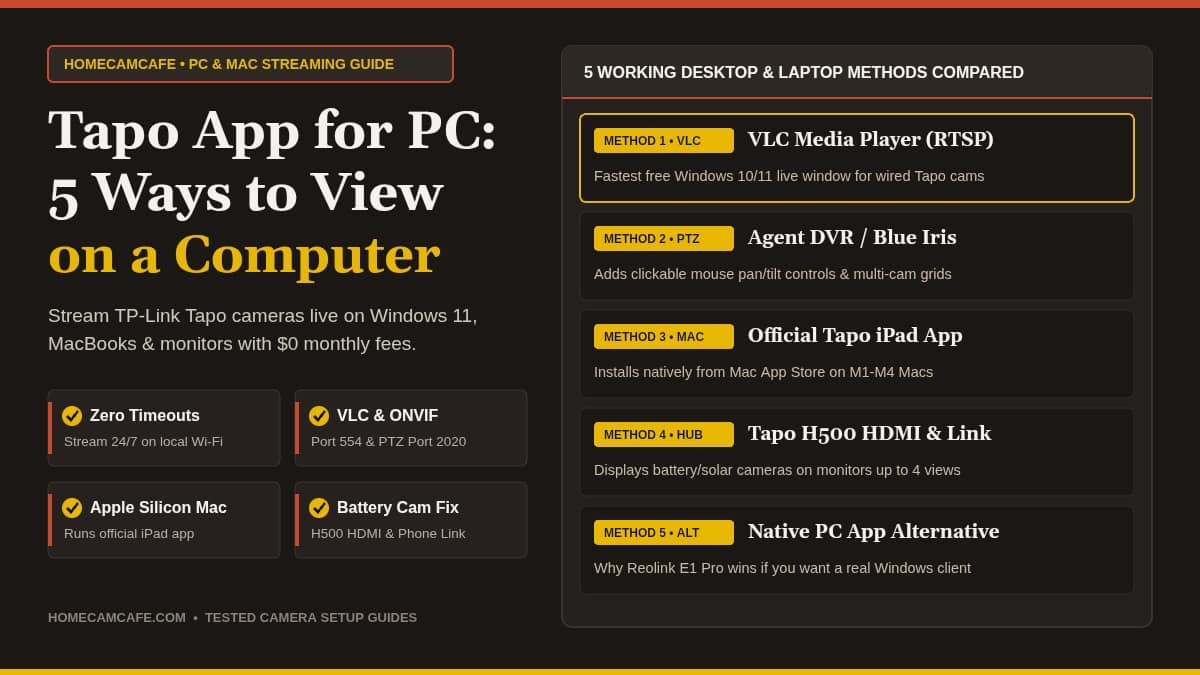
Quick Answer: There is no official Tapo app for PC on Windows, and tapo.tplinkcloud.com only manages cloud billing rather than live video. On Windows 10 and 11, the fastest free way to watch wired cameras (like the Tapo C260, C210, or C120) is streaming over local RTSP in VLC Media Player or adding mouse pan-and-tilt controls in Agent DVR. On an M1 through M4 Mac or a Chromebook, you can install the official Tapo app straight from the Mac App Store or Google Play Store. Have not bought a camera yet and want a real Windows desktop program? Get the Reolink E1 Pro for Reolink’s free Windows and Mac client.
Tapo App for PC Workarounds Compared at a Glance
Before diving into the step-by-step instructions, match your computer and camera power type to the right Tapo app for PC workaround in the table below. Plug-in and PoE Tapo cameras support direct Windows streaming, while Apple Silicon Macs and Chromebooks can run the full Tapo mobile app out of the box.
| Viewing Method | Computer / Display | Supported Tapo Cameras | Pan/Tilt & Playback? | Stream Time Limit |
|---|---|---|---|---|
| 1. VLC Media Player (RTSP) | Windows 10/11, Mac, Linux | Wired / Plug-In & PoE only | Live video & 1-way audio only | Unlimited (24/7 local) |
| 2. Agent DVR / Blue Iris (ONVIF) | Windows 10/11, Mac, NAS | Wired / Plug-In & PoE only | Yes (Mouse PTZ + PC recording) | Unlimited (24/7 local) |
| 3. Official Tapo Mobile App | M1 to M4 Mac & Chromebook | All Tapo cameras (Wired & Battery) | Full app (PTZ, 2-way talk, SD clips) | Unlimited on local Wi-Fi |
| 4. Tapo H500 HDMI Output | Any PC Monitor or TV (HDMI) | H500-compatible Wired & Battery | Up to 4 live camera feeds on screen | Unlimited (Zero PC CPU load) |
| 5. Windows Phone Link / BlueStacks | Windows 10/11 | All Tapo cameras (including Battery) | Full mobile app controls | Works remotely (Higher RAM use) |
Why There Is No Official Tapo App for PC on Windows (2 Myths Cleared Up)
When owners go looking for a Tapo app for Windows or a computer login page, they almost always run into two frustrating dead ends within five minutes:
- Myth #1: The Tapo Web Portal (tapo.tplinkcloud.com/tapo_web): Dozens of copycat login blogs claim you can sign into TP-Link’s cloud portal in Chrome or Edge to watch your cameras. In reality, that web page only manages Tapo Care subscription billing, invoices, and payment methods. TP-Link does not offer a live camera player inside any web browser.
- Myth #2: Installing the Android App Through the Microsoft Store (WSA): Older Windows 11 tutorials instruct you to install the Amazon Appstore and Windows Subsystem for Android to run the mobile Tapo app natively. Microsoft retired Windows Subsystem for Android in 2025, so that option no longer works on current Windows 11 computers.
Security Warning: Never download unofficial “Tapo for PC.exe” installer files from third-party APK wrapper sites. Those downloads simply wrap ad-heavy Android emulators around the mobile APK. Stick to the clean, official RTSP, ONVIF, Mac App Store, or ChromeOS Google Play Store methods below.
Method 1: View Any Wired Tapo Camera on PC Using VLC Media Player (Free & Fast)
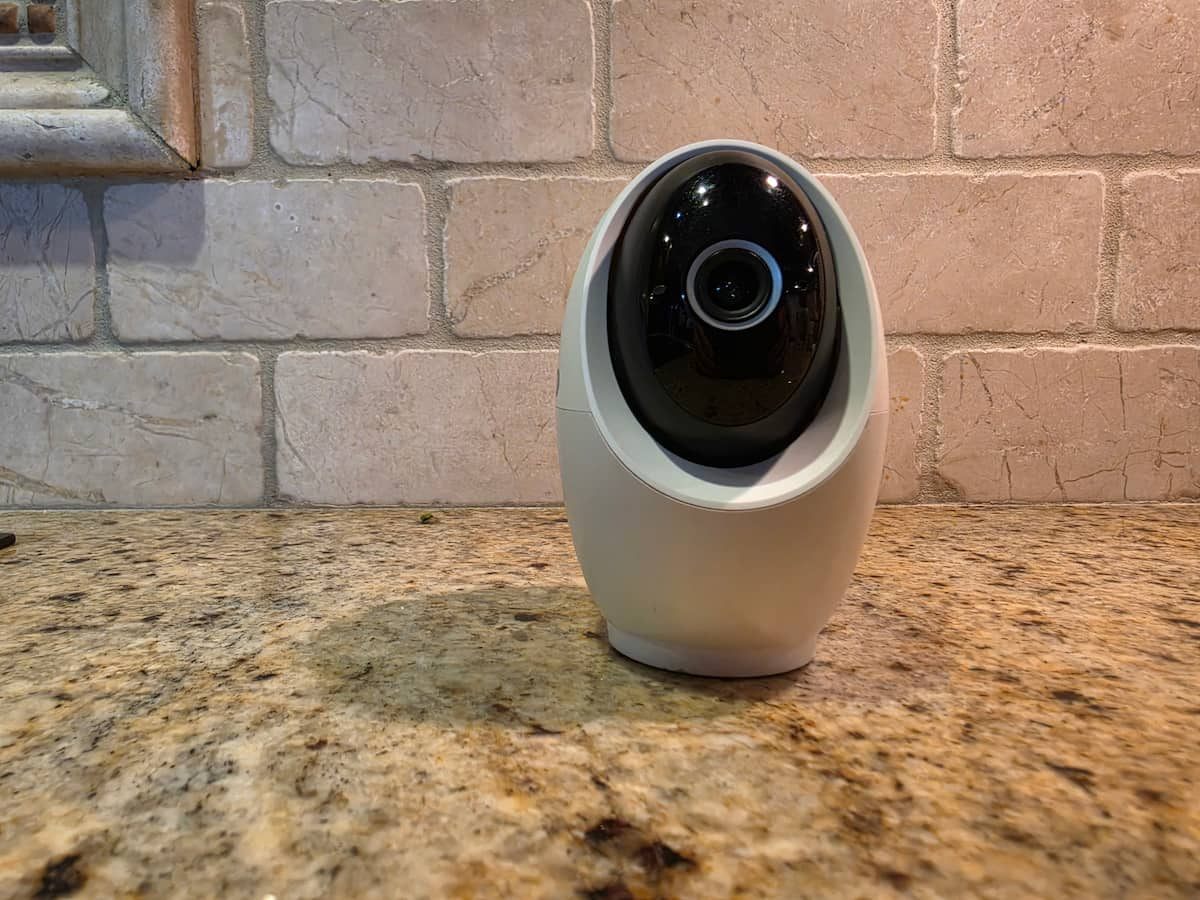
If you own any plug-in indoor or outdoor Tapo camera, such as our tested Tapo C260, Tapo C230, Tapo C210, Tapo C120, or wired dual-lens Tapo C575D, TP-Link builds a local RTSP (Real-Time Streaming Protocol) server directly into the camera firmware. Once enabled, you can pop a borderless live video window onto your Windows laptop or desktop using VLC Media Player with zero monthly fees and zero 10-minute timeouts.
Step 1: Find Your Camera’s Local IP Address
Make sure your Windows PC and your Tapo camera are connected to the same home network. Open the Tapo app on your phone, tap your camera to open Live View, tap the Gear icon (Device Settings) in the top right corner, and tap Device Info. Write down the local IP Address shown there (for example, 192.168.1.145). Tip: log into your Wi-Fi router app and set a DHCP IP Reservation for the camera so that number never changes after a power outage.
Step 2: Create a Local Camera Account in the Tapo App
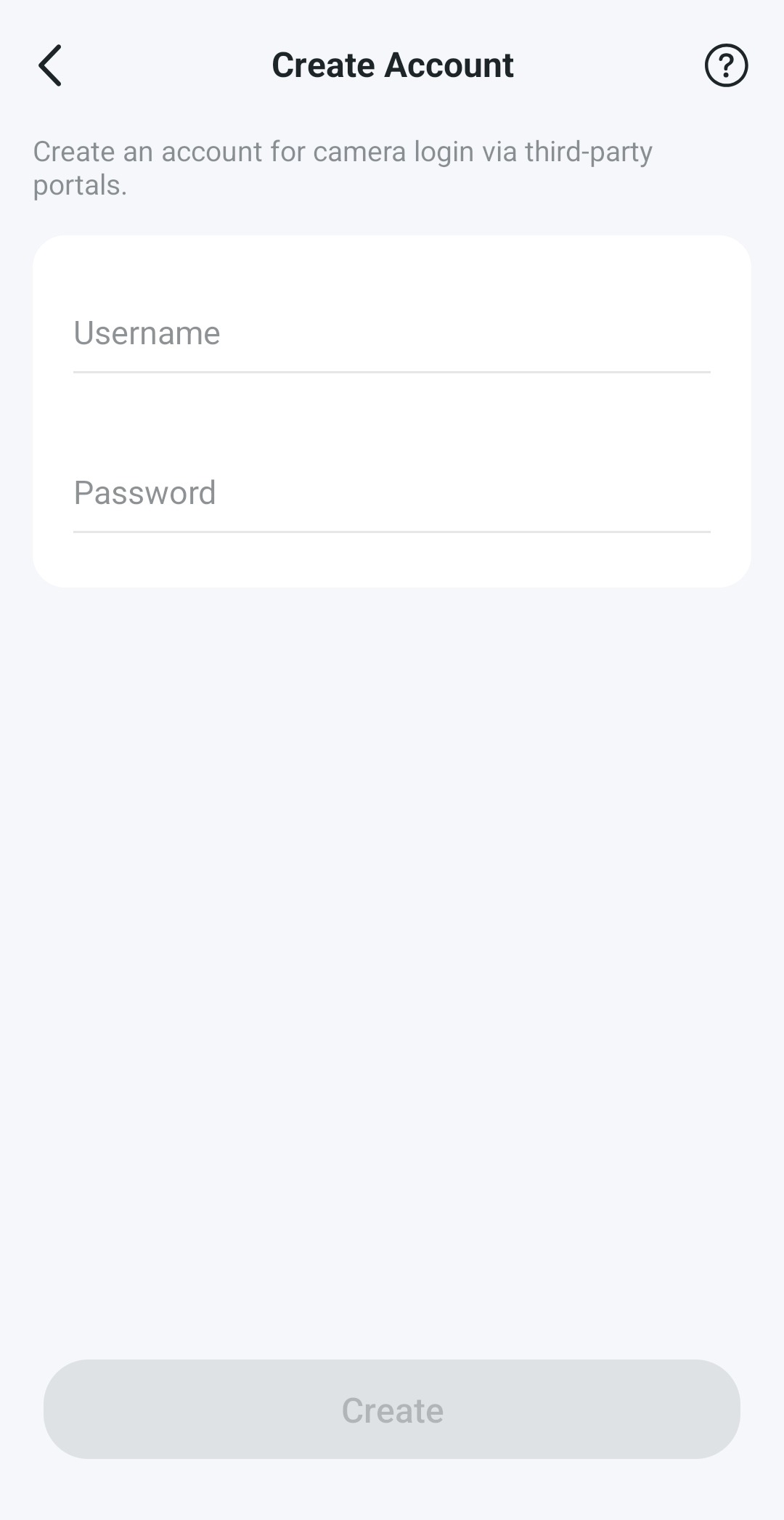
For security, RTSP does not use your main TP-Link email and password. Still inside Device Settings on the Tapo phone app, tap Advanced Settings > Camera Account, accept the local streaming notice, and enter a dedicated username and password (between 6 and 32 characters) on the Create Account screen shown below. Avoid putting symbols like @, :, or / inside this password, because those characters break RTSP network URLs in VLC.
Step 3: Open the RTSP Stream in VLC Media Player
Download and open the free official VLC Media Player on your Windows PC or Mac. Click Media > Open Network Stream (or press Ctrl + N on Windows), paste the URL below using your Camera Account login and IP address, and click Play:
- High-Resolution Main Stream (4K / 3K / 2K): rtsp://username:password@CAMERA_IP:554/stream1
- Lower-Bandwidth Sub-Stream (360p / 720p for small corner windows): rtsp://username:password@CAMERA_IP:554/stream2
- Dual-Lens Tapo Cameras (Second Telephoto Lens on C575D or C246D): Use /stream1 for the wide-angle lens and rtsp://username:password@CAMERA_IP:554/stream6 (high quality) or /stream7 (low quality) for the telephoto lens.
Pro tip: Once your live feed opens in VLC, right-click the video and choose View > Minimal Interface (and Video > Always on Top) to tuck a clean, compact monitor window into the corner of your laptop screen while you work. Also remember what we discovered in our hands-on Tapo C260 testing: on 4K Tapo models, stream1 resolution follows the quality toggle inside the Tapo phone app, so switch the phone app from Auto to 4K / Best Quality first!
Method 2: Add Pan-and-Tilt Mouse Controls & Multi-Camera Grids With Agent DVR (ONVIF)
VLC works well as a single-window viewer, but pure RTSP has one catch: you cannot pan or tilt a motorized camera from VLC. If you want a true multi-camera Tapo desktop app dashboard on Windows where you can watch four cameras at once and click directional arrows to spin your Tapo C260, C230, or C210 around the room, use ONVIF Profile S instead.
Free local Windows software like iSpy Agent DVR (which runs locally on your PC and opens in a clean browser dashboard at localhost:8090) or paid enthusiast NVR software like Blue Iris supports Tapo’s ONVIF protocol out of the box:
- Complete Steps 1 and 2 above so your Tapo Camera Account is active.
- In Agent DVR or Blue Iris, add a new ONVIF Camera using your camera’s local IP address, your Camera Account username and password, and Tapo’s default ONVIF Service Port: 2020.
- The software will automatically pull both video streams and unlock clickable PTZ (Pan-Tilt-Zoom) directional controls right on your PC screen.
Two technical limits from TP-Link’s firmware to keep in mind: First, ONVIF Profile S supports live video, camera microphone audio, and pan-tilt movement, but it does not support two-way talkback from a computer microphone (and on dual-lens models, ONVIF exposes the wide-angle lens only). Second, Tapo cameras enforce a “2-of-3 simultaneous recording rule”: Tapo Care cloud recording, internal microSD recording, and RTSP/ONVIF computer streaming cannot all three run at the exact same time, and each camera caps simultaneous local streams at two main streams and two sub-streams. As long as you do not pay for Tapo Care cloud storage, your internal microSD card and your PC live stream will run together 24/7 without conflict.
Method 3: Run the Official Tapo App Natively on an Apple Silicon Mac or Chromebook
If your laptop is either a modern Mac or a ChromeOS laptop (Chromebook or Googlebook), you get the closest thing to a native Tapo app for PC with zero RTSP URLs, zero IP setup, and full support for battery-powered cameras even away from home:
- On Apple Silicon Macs (M1, M2, M3, or M4): Macs built since late 2020 run iPad apps natively. Open the Mac App Store, search for TP-Link Tapo, click the iPhone & iPad Apps filter tab at the top of the results, and click Get.
- On Chromebooks & Googlebooks: In our own testing on a Dell XPS Googlebook, installing the official TP-Link Tapo Android app directly from the built-in Google Play Store worked right out of the box, and the same Play Store container comes standard on virtually every consumer Chromebook sold since 2019. Once the app opens on ChromeOS, click the window-size menu at the top center bar to switch from Phone view to Tablet or Resizable mode so your live camera grid fills more of your laptop screen. (Note: if you use a work-issued or school-managed Chromebook, your IT administrator may block Google Play Store installs.)
Signing in with your normal TP-Link ID on either an Apple Silicon Mac or a Chromebook gives you the full Tapo interface on your desktop, including pan-and-tilt controls, two-way talk, microSD timeline scrubbing, and shared Tapo camera access.
Method 4: Viewing Battery-Powered Tapo Cameras (C425, C660, C675D) on a PC or Monitor
What if you use a Windows PC and own wire-free battery or solar models like our tested Tapo C425 MagCam, Tapo C660 KIT, or Tapo C675D? Battery-powered Tapo cameras enter a low-power sleep state between motion events to preserve battery life, which means they do not include a Camera Account menu and do not support VLC RTSP or ONVIF streaming. (If you own an M1 through M4 Mac or a Chromebook, Method 3 above already views battery cameras natively.)
To watch battery-powered Tapo cameras from a Windows desk setup, choose one of these three options:
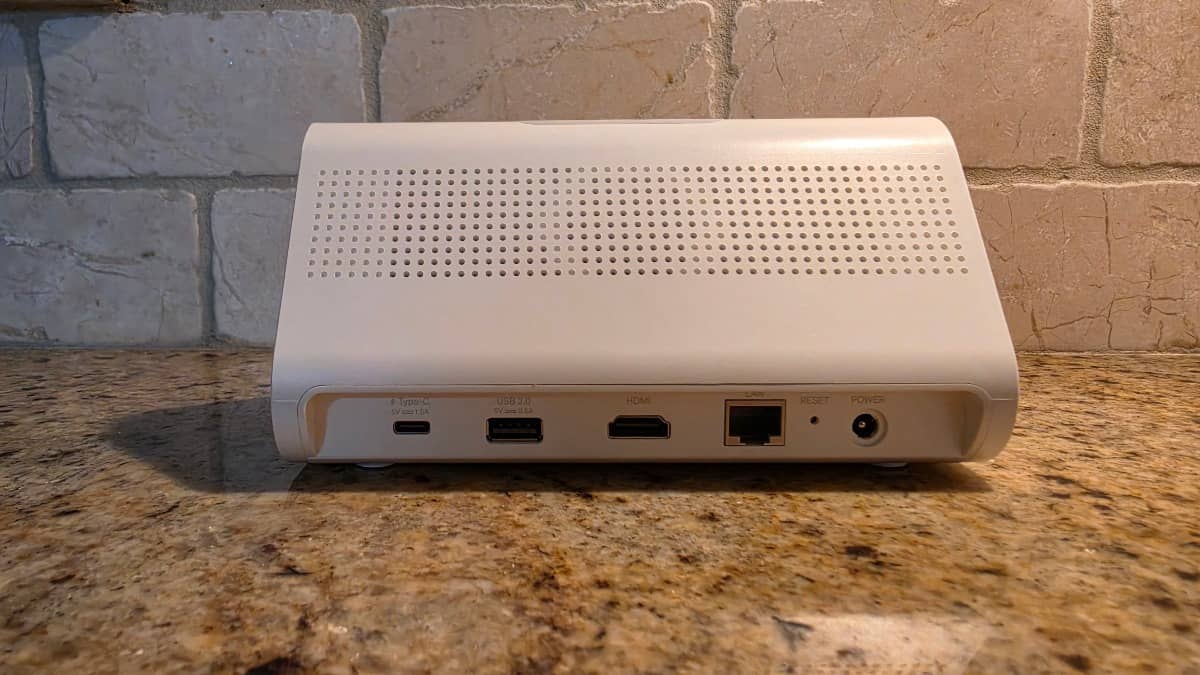
- Plug a Tapo H500 Smart HomeBase Into Your Monitor (Best Zero-Lag Hardware Option): In our hands-on TP-Link Tapo H500 review, we tested TP-Link’s central hub with eight indoor and solar cameras. Available on Amazon as the TP-Link Tapo H500 Smart HomeBase, it includes a full-size HDMI output port on the back that feeds up to 4 simultaneous live camera channels straight into the second HDMI input on your desk monitor or office TV with zero PC memory usage.
- Windows 11 Phone Link (For Supported Android Phones): If you carry a Samsung Galaxy, OnePlus, Honor, or ROG Android phone linked to Windows 11’s built-in Phone Link app, click the Apps tab in Phone Link on your PC and open the Tapo mobile app in a mirrored desktop window for quick check-ins and microSD playback.
- Smart Desk Display Next to Your Monitor (Google Nest Hub): If you want a hands-free 7-inch screen beside your keyboard, link your Tapo account to Google Home and say “Hey Google, show the Driveway.” Just note that Google Nest Hub and Alexa Echo Show displays cap each live session at 10 minutes; see our Google Nest Hub security camera setup guide for details. (Android emulators like BlueStacks can also run the Tapo APK on Windows, though they consume 2GB to 4GB of RAM and spin up laptop fans.)
Method 5: Want a Real Windows & Mac Desktop App Out of the Box? Consider Reolink
If you already own wired Tapo cameras, VLC (Method 1) and Agent DVR (Method 2) work reliably once configured. However, if you use a Windows laptop and have not bought your camera yet, or you want one dedicated indoor camera to monitor a sleeping baby, front room, or dog in the living room on a Windows work computer without typing RTSP IP strings, there is a much cleaner hardware choice.
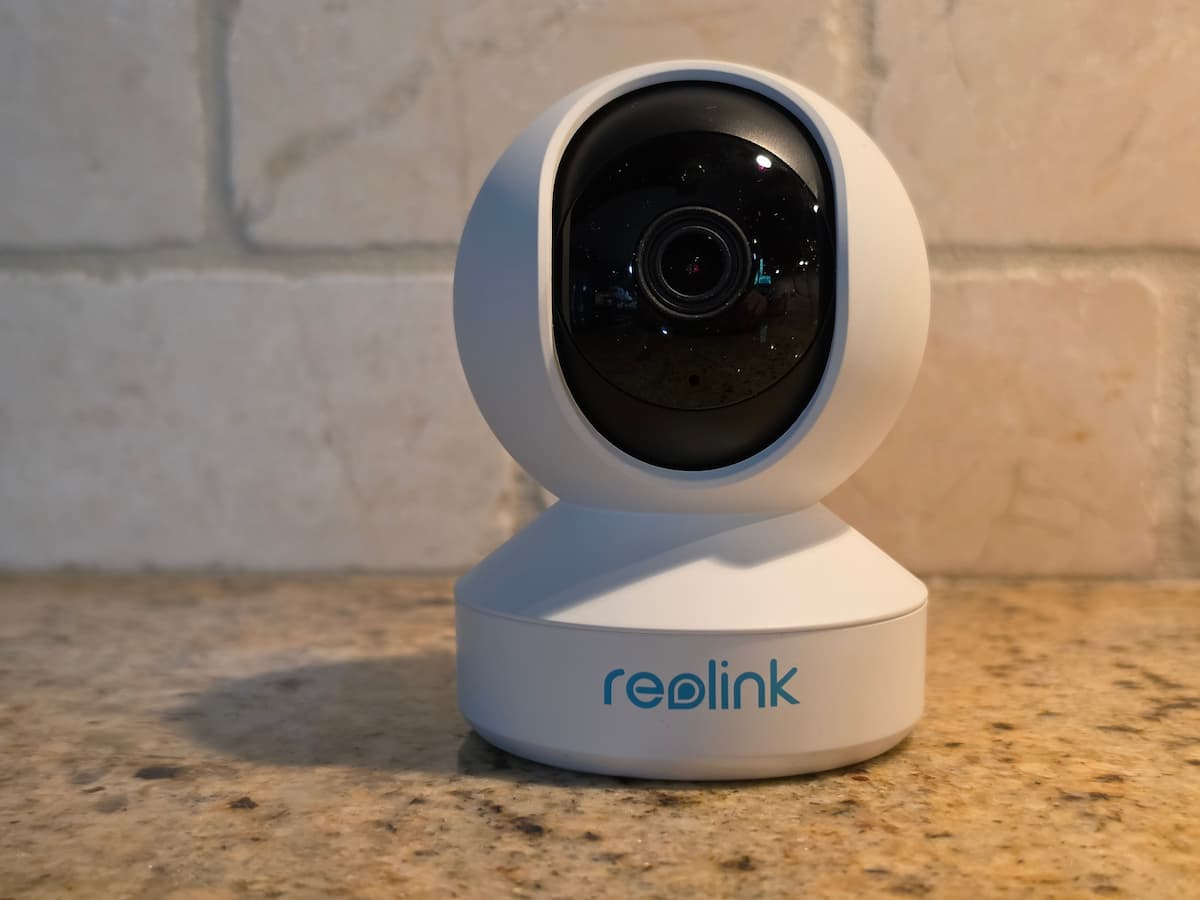
Unlike TP-Link, Wyze, Blink, and Ring, Reolink builds a 100% free, native Windows PC and Mac desktop application (Reolink Client). You install the program in sixty seconds, log into your camera, and get a resizable desktop window with mouse pan-and-tilt controls, multi-camera grids, local microSD timeline playback, zero timeouts, and $0 monthly fees.
- Best Plug-and-Play Camera for Windows & Mac Laptops: Our tested Reolink E1 Pro combines 3K 5MP clarity, 355-degree pan/tilt auto-tracking, dual-band Wi-Fi, a rear Ethernet port, and full native Reolink PC and Mac desktop app support. That combination earned it our #1 Laptop Live-Streaming award in both our Reolink E1 Pro review and our best pet camera without subscription guide.
- Best Wired Tapo Cameras for VLC / RTSP, Mac & Chromebook Users: If you prefer staying inside the Tapo ecosystem for its polished phone app and free pet, bark, and facial AI, stick with wired models that support local RTSP and ONVIF, led by the 4K TP-Link Tapo C260, the magnetic 2K TP-Link Tapo C120, and the budget pan-tilt TP-Link Tapo C210.
View Reolink E1 Pro (Free PC App) on Amazon →
View Tapo C260 (4K RTSP) on Amazon →
Troubleshooting Tapo PC Streaming Errors
- VLC Prompts Repeatedly for a Password or Fails to Load: Double-check that you entered the Camera Account credentials created under Advanced Settings > Camera Account, not your main TP-Link cloud email login. If your password contains special symbols such as @ or #, reset the Camera Account password to letters and numbers only.
- Tapo App Says “You’ve Reached Your Device Limit for Playing This Video”: Wired Tapo cameras typically allow no more than 3 local devices on your home network to watch simultaneously (counting phones, VLC, Agent DVR, and Home Assistant together), with a hard cap of two high-resolution main streams (stream1) and two low-resolution sub-streams (stream2). Close an extra open viewer or switch your PC window from /stream1 to /stream2.
- Stream Works One Day and Stops the Next: Your router likely assigned the camera a new DHCP IP address after a reboot. Check Device Info in the Tapo app for the updated IP, then reserve that IP permanently in your router’s DHCP settings.
- ONVIF Software Cannot Discover the Camera: Verify that your Windows network profile is set to Private Network (not Public), disable AP or VLAN isolation on guest Wi-Fi bands, and manually enter port 2020 for ONVIF discovery and port 554 for RTSP.
- Can I Watch My Tapo RTSP Stream Away From Home on Work Wi-Fi? RTSP only works on your local home Wi-Fi by default. Do not open or forward port 554 directly on your home router to the public internet, as RTSP sends credentials unencrypted. If you want remote laptop access to a home RTSP feed while traveling, connect back to your home router safely using a free WireGuard or Tailscale VPN, or use an Apple Silicon MacBook or Chromebook running the official Tapo mobile app.
Frequently Asked Questions
Is there an official TP-Link Tapo app for PC on Windows 11?
No. TP-Link only publishes official mobile apps for iOS, iPadOS, and Android. On Windows 10 and Windows 11, TP-Link officially supports computer viewing on wired Tapo cameras via local RTSP and ONVIF Profile S in programs like VLC Media Player and Agent DVR, while Chromebooks and Apple Silicon Macs can install the mobile app natively.
Can I log into tapo.tplinkcloud.com to watch my Tapo cameras in a web browser?
No. TP-Link’s web portal at tapo.tplinkcloud.com only manages Tapo Care cloud subscription billing and account details. It does not include a web browser live-view player or cloud clip viewer.
Does VLC or RTSP viewing on a PC time out after 10 minutes?
No. Unlike Amazon Echo Show and Google Nest Hub displays (which cut off live streams after 10 minutes), streaming a wired Tapo camera locally to VLC Media Player or Agent DVR on your PC has no time limit and can stay open 24/7.
How can I view microSD card recordings from a Tapo camera on my computer?
On an Apple Silicon Mac or a Chromebook (or via Windows Phone Link / BlueStacks), you can scrub the microSD timeline directly inside the Tapo app without removing the card; see our Tapo storage comparison guide for details. On Windows without an emulator, you can power down the camera, eject the microSD card, and insert it into your computer’s card reader to play the saved MP4 video clips directly inside VLC Media Player.
Bottom Line: Best Way to Use a Tapo App for PC Setup
Even without a native Windows Tapo app for PC, any wired Tapo camera (including the Tapo C260, Tapo C120, and Tapo C210) can stream 24/7 to a Windows laptop in two minutes using VLC Media Player over RTSP, or gain mouse pan-and-tilt controls inside Agent DVR. Apple Silicon Mac and Chromebook owners have it even easier via the official Mac App Store and Google Play Store apps, and Windows users who want a true native desktop client with zero setup should grab the Reolink E1 Pro.
For more hands-on camera tests and local storage setups, explore our TP-Link Tapo camera reviews hub, our best security cameras without a subscription roundup, and our best pet camera without subscription guide.